CH7: Internet Browser Forensics
Chapter Overview
In Chapter 6, we analyzed the operating system's internal records—Prefetch, Shimcache, and Registry keys—to prove execution and file knowledge. Now, we turn our attention to the application that connects the user to the outside world: the Web Browser.
In digital forensics, the operating system tells us what happened on the computer, but the web browser often tells us why. Whether investigating a financial crime, an intrusion, or harassment, the suspect's browser history provides the narrative. It reveals intent, planning, communication, and the acquisition of tools or illicit material. This chapter explores the architecture of modern browsers, the core artifacts left behind on the disk, and the challenges posed by "Private" or "Incognito" modes. We will also master the use of Hindsight, perform deep manual analysis with DB Browser for SQLite, and recover credentials with LaZagne.
Learning Objectives
By the end of this chapter, you will be able to:
- Differentiate between the two main browser architectures: Chromium (Chrome, Edge) and Gecko (Firefox).
- Analyze core browser artifacts including Navigation History, Downloads, and Cache to reconstruct a user's timeline.
- Evaluate the forensic significance of the "Typed Count" attribute to distinguish between casual browsing and specific intent.
- Utilize Hindsight to parse Chrome/Edge history into a comprehensive timeline.
- Perform manual forensic analysis using DB Browser for SQLite to inspect raw data, filter records, and execute custom SQL queries.
- Apply the NirSoft Suite for rapid, GUI-based evidence triage.
7.1 Introduction: The Window to Motive
Modern web browsers are complex software suites that act almost like operating systems themselves. They manage downloads, store passwords, cache images for performance, and track user behavior to improve suggestions.
For the forensic examiner, extracting this data is often the key to solving a case.
- The Hack: The browser history shows the search "how to crack SQL password" (Intent) followed by a download of "sqlmap.py" (Tool acquisition).
- The Harassment: The browser history shows repeated visits to the victim's social media profile and downloads of their photos.

7.2 Browser Architecture
To analyze a browser, you must understand how it stores data. While there are dozens of browser brands, the vast majority are built on two primary engines.
The SQLite Standard
Regardless of the browser, nearly all modern web data is stored in SQLite databases.
- What is SQL? This is the "language of databases", Structured Query Language.
- What is SQLite? Unlike a heavy database server that runs as a background process, SQLite is a lightweight, file-based database.
- Forensic Implication: Because the data is stored in simple
.dbor.sqlitefiles, you do not need the specific browser installed to view the history. You can simply copy these database files and open them in any generic SQLite viewer.
Tip
Learning the basics of SQL queries can be a great resume booster for you as you apply for entry-level cybersecurity positions. It is a very useful skill which will not only come in handy for digital forensics but also security analysis work. W3 Schools has a great SQL Tutorial that gives you hands-on experience -- https://www.w3schools.com/sql/.

The Chromium Family (Chrome, Edge, Brave, Opera)
Google Chrome, Microsoft Edge, Brave, and Opera all share the Chromium architecture. If you know how to analyze Chrome, you know how to analyze the others.
- History: Stored in a file named
History(no extension). - Cookies: Stored in
CookiesorNetwork\Cookies. - Web Data: Stored in
Web Data(contains autofill and form history). - Path: Typically
\Users\<User>\AppData\Local\Google\Chrome\User Data\Default\.
The Gecko Family (Firefox)
Mozilla Firefox uses the Gecko engine.
- History: Stored in
places.sqlite. - Cookies: Stored in
cookies.sqlite. - Path: Typically
\Users\<User>\AppData\Roaming\Mozilla\Firefox\Profiles\<random>.default\.
7.3 Core Artifacts: History, Downloads, and Cache
When analyzing a browser profile, there are three pillars of evidence: History, Downloads, and Cache.
Navigation History
The History database is the most obvious starting point, but it contains specific attributes that determine intent.
- URL: The specific address visited (e.g.,
google.com/search?q=how+to+hide+money). - Title: The human-readable name of the page.
- Visit Count: How many times the user visited the page. A count of '1' might be a pop-up; a count of '50' indicates a habit.
- Typed Count (The "Intent" Attribute): This is critical. It distinguishes between a user clicking a link (count = 0) and manually typing the URL (count > 0). Typing a URL implies prior knowledge and specific intent to visit that site.

Downloads
The Downloads table (often inside the History database) tracks files acquired from the web. This connects the digital world to the local disk.
- Target Path: Where the file was saved locally (e.g.,
C:\Users\John\Desktop\malware.exe). - Source URL: Where the file came from.
- Bytes Received: The size of the file.
- Scenario: A suspect claims a file was "planted" by a hacker. The browser's Download history shows the file was downloaded from the suspect's own cloud storage account while logged in. This refutes the defense.
Browser Cache
To load websites faster, browsers save copies of images, scripts, and HTML files to the local hard drive.
- Illicit Images: Even if a user does not "save" an image, the browser caches it to display it. You can recover these cached images to prove the user viewed contraband material.
- Webmail: Sometimes, previewing an email attachment caches a copy of the document.
7.4 Analysis Tool: Hindsight (Deep Dive)
The industry standard for open-source Chromium forensics (Chrome/Edge) is a Python-based tool called Hindsight. It parses the complex SQLite databases and "Local State" files to produce a comprehensive timeline.
Tool Overview
Hindsight automates the correlation of URLs, Downloads, and Cache. It handles the specific timestamp decoding (Webkit format) and joins the different SQLite tables automatically.
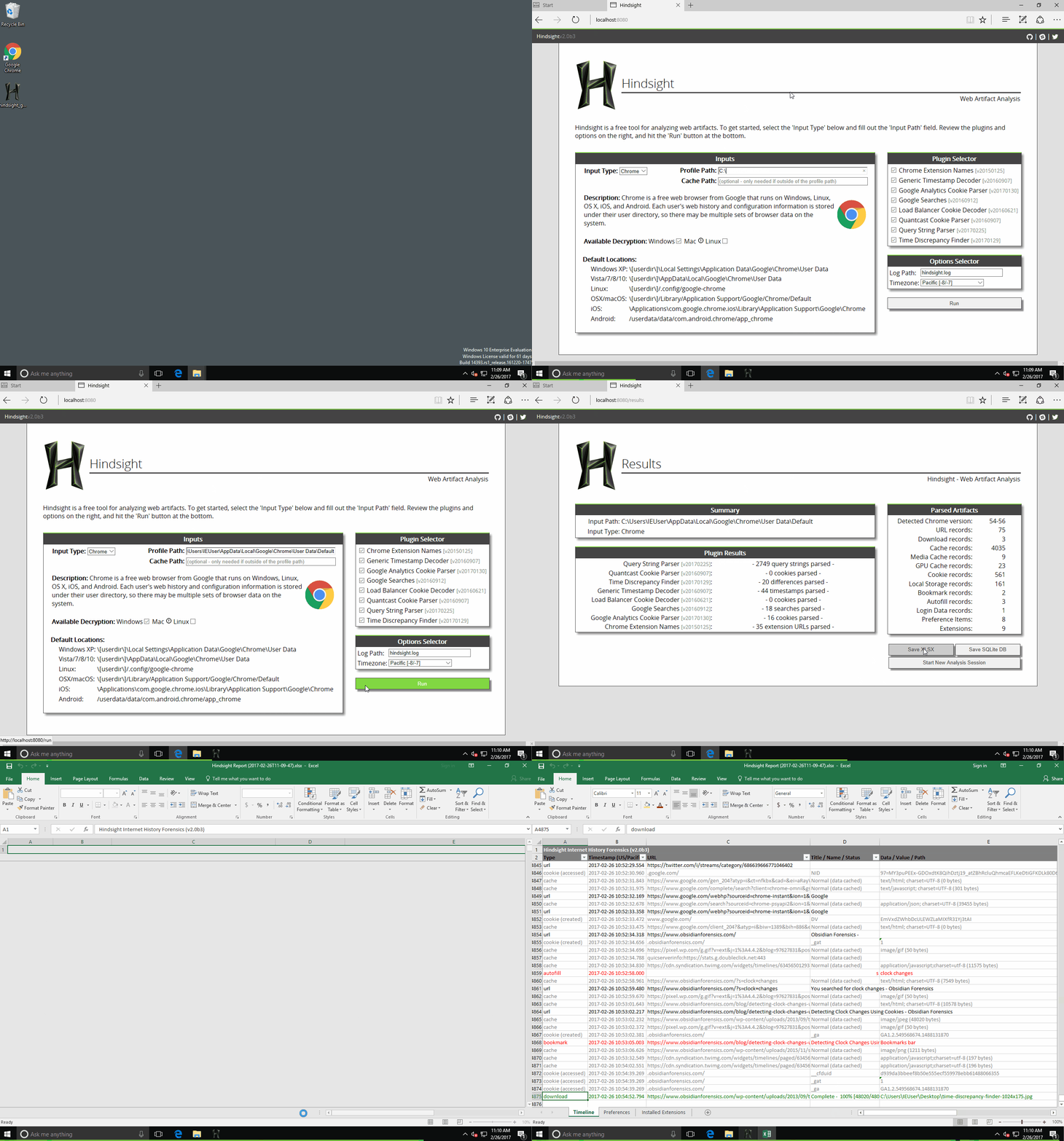
Note
The above image comes from a nice blog post from DFIR.blog. It is recommended to review if you'd like to do a deep dive into Hindsight. https://dfir.blog/hindsight/.
Command Line Usage
Like LECmd and PECmd, Hindsight is best run from the command line to generate reports.
Basic Command:
hindsight.exe -i "C:\Temp\Evidence\Chrome\Default" -o "C:\Temp\Reports"
-i: Specifies the input directory (the folder containing the 'History' and 'Web Data' files).-o: Specifies the output directory for the report.
Analyzing the Output: Hindsight produces an XLSX (Excel) file. Key tabs to review:
- Timeline: A chronological list of every URL visited, download started, and keyword searched.
- Downloads: A filtered list of all downloaded files and their save paths.
- Search Terms: Hindsight automatically parses URLs from Google, Bing, and DuckDuckGo to extract the specific terms the user searched for.
7.5 DB Browser for SQLite
While automated tools like Hindsight are excellent, a forensic analyst must verify their findings. Sometimes tools crash, misunderstand a new browser version, or simply don't show the specific data point you need. For this, we use DB Browser for SQLite.
This tool allows you to interact directly with the raw database file. It is essential for the upcoming lab activity.
The Interface
When you first load a browser database (e.g., History), you will see three primary tabs that matter to us:
- Database Structure: This shows the "Schema"—the blueprint of the database. It lists every table and the data types (Text, Integer) stored within them.
- Forensic Tip: If you see a table named
downloadsand another nameddownloads_url_chains, you know the browser splits download data across two locations.
- Forensic Tip: If you see a table named
- Browse Data: This is the Excel-like view. You can select a table (like
urls) and scroll through the raw rows.- Filter Bar: At the top of each column is a filter box. You can type
googlein the URL filter box to instantly hide all non-Google rows.
- Filter Bar: At the top of each column is a filter box. You can type
- Execute SQL: This is the "Power User" tab where you write custom questions (Queries) to ask the database.

Analyzing Chrome History Manually
To analyze a Chrome History file manually:
- Open the file in DB Browser.
- Select Table: Go to "Browse Data" and select
urls. - Key Columns to Check:
url: The site visited.title: The page name.visit_count: Frequency of visits.typed_count: Crucial. If this number is> 0, the user typed it.last_visit_time: This is stored as a "Webkit Timestamp" (microseconds since Jan 1, 1601). It will look like a huge number (e.g.,13304567890000000). You will need to decode this.
The Power of SQL Queries
SQL (Structured Query Language) allows you to ask complex questions.
Scenario: You want to find every website the user typed manually, and you want to see the most recent ones first.
The Query:
SELECT url, title, visit_count, typed_count
FROM urls
WHERE typed_count > 0
ORDER BY last_visit_time DESC
Scenario: You want to find what the user downloaded. Chrome stores the file path in the downloads table and the URL in the downloads_url_chains table. You can join them:
The Query:
SELECT current_path, tab_url, start_time
FROM downloads
current_path or target_path).

Handling Timestamps
One of the biggest challenges in manual SQLite analysis is readable dates.
- Chrome/Webkit: Microseconds since 1601.
- Firefox: Microseconds (or sometimes seconds) since 1970 (Unix Epoch).
If you see a raw number like 1678900000, you can use an online converter (like EpochConverter or CyberChef) or build the conversion directly into your SQL query if you are advanced. For this course, it is acceptable to copy the raw integer and convert it externally to verify the time.
- EpochConverter: https://www.epochconverter.com/
- CyberChef: https://gchq.github.io/CyberChef/ (Using the "From UNIX Timestamp" recipe)

Activity
Try out this hands-on activity to decode various timestamps using EpochConverter and/or CyberChef.

7.6 The "Quick Win" Suite: NirSoft
While DB Browser offers depth, the NirSoft suite offers speed. These are standalone executables that parse history without requiring SQL knowledge.
BrowsingHistoryView
This tool reads the history data of all distinct web browsers (Chrome, Firefox, Edge, Safari) installed on the system and displays them in one unified table.
- Usage: Simply run
BrowsingHistoryView.exe. It automatically detects history files in the default user profile. - Feature: It allows you to sort by "Visit Time" across all browsers, helping you see if a user jumped from Chrome to Firefox to hide their tracks.
ChromeCacheView
Viewing cached images is difficult because they are stored without file extensions in complex index files.
- Usage:
ChromeCacheView.exereads the cache folder and displays a list of all files. - Forensic Value: You can select a cached image (like a JPG) and press
F9to copy it out as a valid image file, effectively recovering evidence the user merely viewed but did not save.

7.7 Password Forensics: LaZagne
Browsers often offer to save user passwords. These are stored in an encrypted database (e.g., Login Data in Chrome). While the file is encrypted, it is decrypted using the user's Windows login credentials (via the Data Protection API, or DPAPI).
The Tool: LaZagne
LaZagne is an open-source application used to retrieve lots of passwords stored on a local computer. While often used by penetration testers (hackers), it is invaluable for forensics to recover a suspect's credentials to cloud accounts.
Usage and Risk
- Requirement: LaZagne must be run on the live system (Live Forensics) or against an offline image if you have the user's password/hash to decrypt the DPAPI master key.
- Command:
lazagne.exe browsers - Output: The tool dumps a list of URLs, Usernames, and Decrypted Passwords to the console.
Forensic Warning: Identifying a saved password for darkweb-market.com proves the user created an account there.

7.8 The "Incognito" Myth: Private Browsing Forensics
Users often believe that "Incognito" (Chrome) or "Private" (Firefox) modes leave no trace. While the browser application does not write History to the History database, traces often remain in the Operating System.
RAM and Pagefile
In Private mode, data is kept in RAM. When RAM fills up, Windows swaps data to the hard drive in a file called pagefile.sys.
* Technique: An investigator can search the pagefile.sys for keywords (like specific URLs). Even though the browser didn't save it, the OS memory manager might have written it to disk.
DNS Cache
The web browser relies on Windows to find websites. When a user types google.com in Incognito mode, the browser asks the OS to resolve the IP address.
- Persistence: Windows stores this resolution in its local DNS Cache.
- Command:
ipconfig /displaydns - Result: Even if the browser history is empty, the DNS cache may list the illicit domains the user visited recently.

7.10 Chapter Summary & Practical Workflow
Browser forensics requires a layered approach. We use automated tools for speed, GUI tools for triage, and specialized extractors for credentials.
| Question | Artifact | Tool |
|---|---|---|
| What did they search/view? | History / Cache | Hindsight |
| Did they save files? | Downloads Table | Hindsight / DB Browser |
| Did they type the URL manually? | typed_count |
DB Browser (SQL Query) |
| Did they view images? | Cache | ChromeCacheView |
| Did they have accounts? | Saved Passwords | LaZagne |
| Did they use Incognito? | DNS Cache / Pagefile | String Search |