CH12: macOS Forensics
Chapter Overview
Chapter 11 introduced the Linux environment and established a framework for investigating non-Windows systems. You learned to navigate the file system hierarchy, interpret ext4 inodes, parse text-based logs, and identify persistence mechanisms on Linux servers and infrastructure. That chapter emphasized a critical point: investigations that begin on a Windows endpoint frequently lead to Linux infrastructure.
This chapter follows the same logic in a different direction. macOS is the third major operating system an investigator will encounter, and its presence in both corporate and personal computing continues to grow. Creative departments, executive suites, software development teams, and academic environments frequently standardize on Mac hardware.
The mistake many analysts make is treating macOS as "Linux with a nicer interface." While macOS shares a UNIX foundation with Linux (both trace their lineage to BSD), Apple has engineered significant proprietary layers on top of that foundation. The file system, logging architecture, artifact storage locations, and system integrity protections on macOS are substantially different from both Linux and Windows. An investigator who applies Linux forensic techniques directly to a Mac will miss critical artifacts and misinterpret others.
This chapter addresses those differences. You will learn Apple's APFS file system, the hardware and software challenges unique to acquiring a Mac, the system-level artifacts that track file activity and downloads, the user activity databases that record behavioral patterns, and the Unified Logging system that replaced traditional syslog.
Learning Objectives
By the end of this chapter, you will be able to:
- Describe the APFS file system architecture, including containers, volumes, firmlinks, snapshots, and clones, and explain how each concept affects forensic analysis.
- Identify the hardware and software challenges unique to macOS forensic acquisition across Intel, T2, and Apple Silicon generations, and describe available acquisition approaches for each.
- Identify key macOS system artifacts (FSEvents, Spotlight metadata, and Quarantine Events) and explain the investigative questions each artifact answers.
- Explain how KnowledgeC.db and property list (.plist) files record user activity patterns on macOS and describe their forensic significance.
- Compare macOS Unified Logging to the Linux syslog/journald model covered in Chapter 11 and demonstrate how to query Unified Logs for forensic evidence.
- Describe how Time Machine backups function and explain their value for recovering historical file states during an investigation.
12.1 Why macOS Matters to Investigators
Where macOS Appears in Cases
macOS devices appear in investigations more frequently than many analysts expect. Apple's market share in the United States hovers near 30% for desktop and laptop computers, and that percentage skews higher in specific sectors. Creative industries, higher education, software development, and C-suite executives disproportionately use Mac hardware. In corporate environments with mixed fleets, the MacBook on the CFO's desk or the iMac in the marketing department may hold the most relevant evidence.
Beyond market share, the Apple ecosystem creates forensic interconnections that have no equivalent on Windows or Linux. A single Apple ID ties together a Mac, an iPhone, an iPad, an Apple Watch, and iCloud storage. Data created on one device synchronizes to others, which means a Mac may contain artifacts originating from entirely different devices:
- iMessage and SMS conversations synced from an iPhone
- Notes, Reminders, and Photos created or stored on any Apple device
- Safari bookmarks and browsing history shared across devices
- Keychain credentials (saved passwords, Wi-Fi keys, certificates)
- Files in iCloud Drive accessible from any linked device
Investigating a Mac often means investigating the user's entire Apple ecosystem by proxy.
Common case types involving macOS include:
- Intellectual property theft: An employee in a design or engineering department copies proprietary files to an external drive or cloud service before departing. The Mac's Quarantine Events, Spotlight metadata, and FSEvents log provide a detailed record of file movement.
- Insider threat investigations: A developer uses their company-issued MacBook to access unauthorized repositories or exfiltrate source code. KnowledgeC.db records which applications were in use and when.
- Executive communications: Legal hold or eDiscovery requests targeting executive devices. iMessage, Mail, and Notes data stored locally (and synced via iCloud) are primary targets.
- Personal device examinations: Criminal investigations involving a suspect's personal MacBook, where browser history, application usage, file downloads, and location-adjacent data are relevant.
The UNIX Foundation and Where It Diverges
macOS is built on Darwin, an open-source UNIX-based operating system derived from BSD (Berkeley Software Distribution). Many of the command-line tools from Chapter 11 work on macOS: ls, cd, grep, find, ps, cat, and others are available in the Terminal application. The file system hierarchy shares similarities with Linux, with /etc/, /var/, /tmp/, and /Users/ (the macOS equivalent of /home/) in familiar locations.
The divergence begins at the proprietary layers Apple built on top of that foundation. Four changes are particularly significant for investigators:
- File system: Apple replaced the traditional HFS+ file system with APFS, a fundamentally different architecture based on containers, volumes, and copy-on-write mechanics (covered in Section 12.2).
- Hardware-level security: Apple introduced dedicated security chips (T2 and later the Secure Enclave in Apple Silicon) that enforce encryption and restrict acquisition options at the hardware level (covered in Section 12.3).
- Logging: Apple replaced syslog with Unified Logging, a binary system that stores logs in a proprietary
.tracev3format. Text-based tools likegrepandcatcannot read these logs (covered in Section 12.6). - Proprietary artifact stores: Apple created a set of databases and metadata stores (FSEvents, Spotlight, KnowledgeC, Quarantine Events) that have no direct equivalents on Linux or Windows (covered in Sections 12.4 and 12.5).
The practical takeaway: your Linux command-line skills transfer to macOS for basic navigation and file inspection, but the forensic artifacts, the acquisition workflow, and the tools required to parse them are macOS-specific.
12.2 APFS: Apple's File System
Architecture: Containers, Volumes, and Firmlinks
Apple File System (APFS) replaced HFS+ beginning with macOS High Sierra (10.13) in 2017 and is now the default file system on all Apple devices, including iOS and iPadOS. Understanding APFS requires thinking in terms of a three-layer architecture that differs from both ext4 and NTFS.
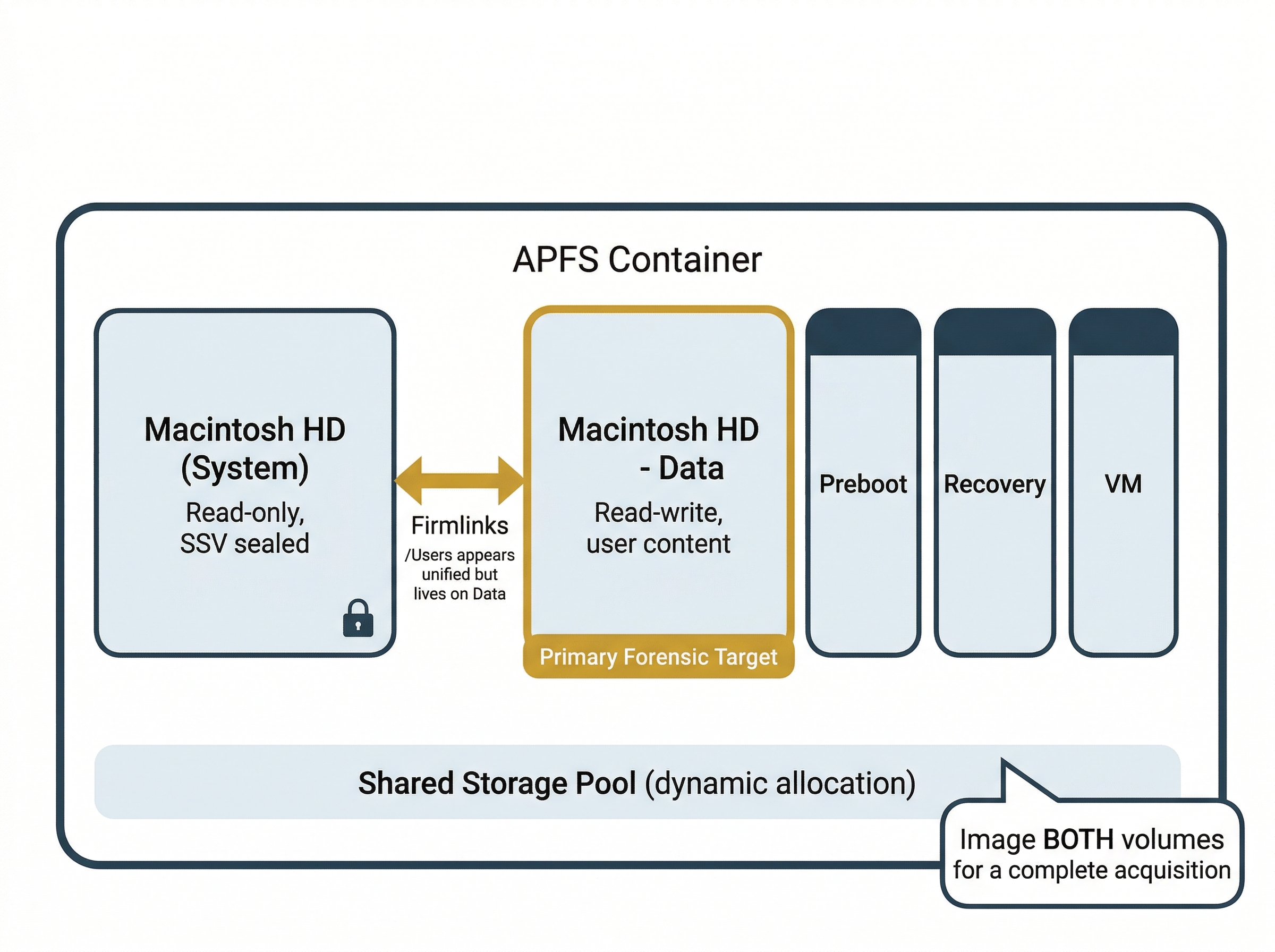
An APFS container occupies a physical partition on a disk. Think of it as a storage pool. Unlike traditional file systems where each partition has its own independent file system, an APFS container holds multiple volumes that share the container's free space dynamically. Volumes grow and shrink as needed within the container's total capacity.
A typical macOS installation creates several volumes within a single container:
- Macintosh HD: The read-only System Volume containing the operating system files.
- Macintosh HD - Data: The writable Data Volume containing user files, applications, and mutable system data.
- Preboot: Contains boot-related files needed before the main volumes are available.
- Recovery: The macOS Recovery environment.
- VM: Virtual memory swap files.
The separation of the system volume (read-only) from the data volume (writable) is an important forensic consideration. Apple introduced this split in macOS Catalina (10.15) as a security measure. OS files cannot be modified at runtime, even by root, unless System Integrity Protection is disabled. Beginning with macOS Big Sur (11.0), Apple further hardened this architecture with a Signed System Volume (SSV), which cryptographically seals the system volume. Any modification to the system volume breaks the seal and is detectable, providing investigators with a built-in integrity verification mechanism.
Firmlinks bridge these two volumes so they appear as a single unified file system to the user. A firmlink is a bidirectional link between a directory on the System Volume and a corresponding directory on the Data Volume. For example, /Users on the System Volume firmlinks to /Users on the Data Volume, so user home directories appear in their expected location even though they physically reside on a separate volume.
For investigators, this two-volume architecture has a direct practical implication: imaging only one volume will produce an incomplete picture. A forensic acquisition must capture both volumes (at minimum) for a complete representation of the file system. Section 12.3 covers the acquisition approaches that account for this requirement.
Snapshots and Clones
APFS provides two copy-on-write mechanisms that affect how investigators interpret file data and disk usage.
Snapshots are point-in-time, read-only images of an entire volume's state. Time Machine (covered in Section 12.6) uses APFS snapshots as its local backup mechanism. Snapshots are space-efficient: they preserve references to the original data blocks rather than duplicating data. Only when a block is modified on the live volume does the system write a new copy; the snapshot retains the original.
Forensic significance of snapshots:
- They may contain files that have since been deleted or modified on the live volume
- Each snapshot is timestamped, providing potential access to historical file states
- Available snapshots can be listed with
tmutil listlocalsnapshots /
Clones are APFS's mechanism for instant file duplication within the same volume. When a file is cloned (for example, through a Finder copy), APFS does not duplicate the data blocks. Both the original and the clone reference the same blocks until one is modified, at which point only the changed blocks are written separately.
This affects forensic analysis of disk usage: two files that appear to be independent copies may share the same underlying storage, and disk usage calculations can be misleading because cloned data does not consume additional space until modified.
Comparison Matrix: APFS vs. ext4 vs. NTFS
| Feature | APFS (macOS) | ext4 (Linux) | NTFS (Windows) |
|---|---|---|---|
| Metadata structure | B-tree catalog, unique object IDs | Inode table | Master File Table (MFT) |
| Space management | Shared container pool across volumes | Fixed partition allocation | Fixed partition allocation |
| Snapshots | Native, used by Time Machine | Not native (LVM snapshots possible) | Volume Shadow Copies (VSS) |
| File cloning | Copy-on-write clones | Not supported | Not supported |
| Encryption | Per-volume or per-file (FileVault) | dm-crypt / LUKS (block-level) | BitLocker (volume-level), EFS (file-level) |
| Nanosecond timestamps | Yes | Yes (since Linux 2.6.23) | Yes (100-nanosecond intervals) |
| Deletion recovery | Object IDs may persist in snapshots | Inode block pointers zeroed on delete | MFT entry marked as free; data recoverable until overwritten |
Warning
APFS encryption via FileVault 2 is enabled by default on modern Macs. A forensic image of an encrypted APFS volume is unusable without the recovery key or the user's password. Before imaging, determine whether FileVault is active (fdesetup status on a live system) and secure the decryption credentials through legal process.
12.3 Acquiring a Mac
The Hardware Challenge
Forensic acquisition of a Mac has changed fundamentally over the past decade. On a Windows PC, an examiner can typically remove the hard drive or SSD, connect it to a write blocker, and create a forensic image. Modern Macs do not allow this. Apple has progressively integrated storage, encryption, and security hardware in ways that make traditional acquisition workflows impossible on current hardware. Understanding these hardware generations is essential before selecting an acquisition approach.
The Scientific Working Group on Digital Evidence (SWGDE) published Best Practices for Apple macOS Forensic Acquisition (SWGDE document 23-F-005) to address these challenges. That document provides a framework for defensible Mac acquisition that accounts for the hardware constraints discussed in this section.
Three Hardware Generations
Apple's Mac hardware falls into three forensically distinct generations, each with different acquisition constraints.
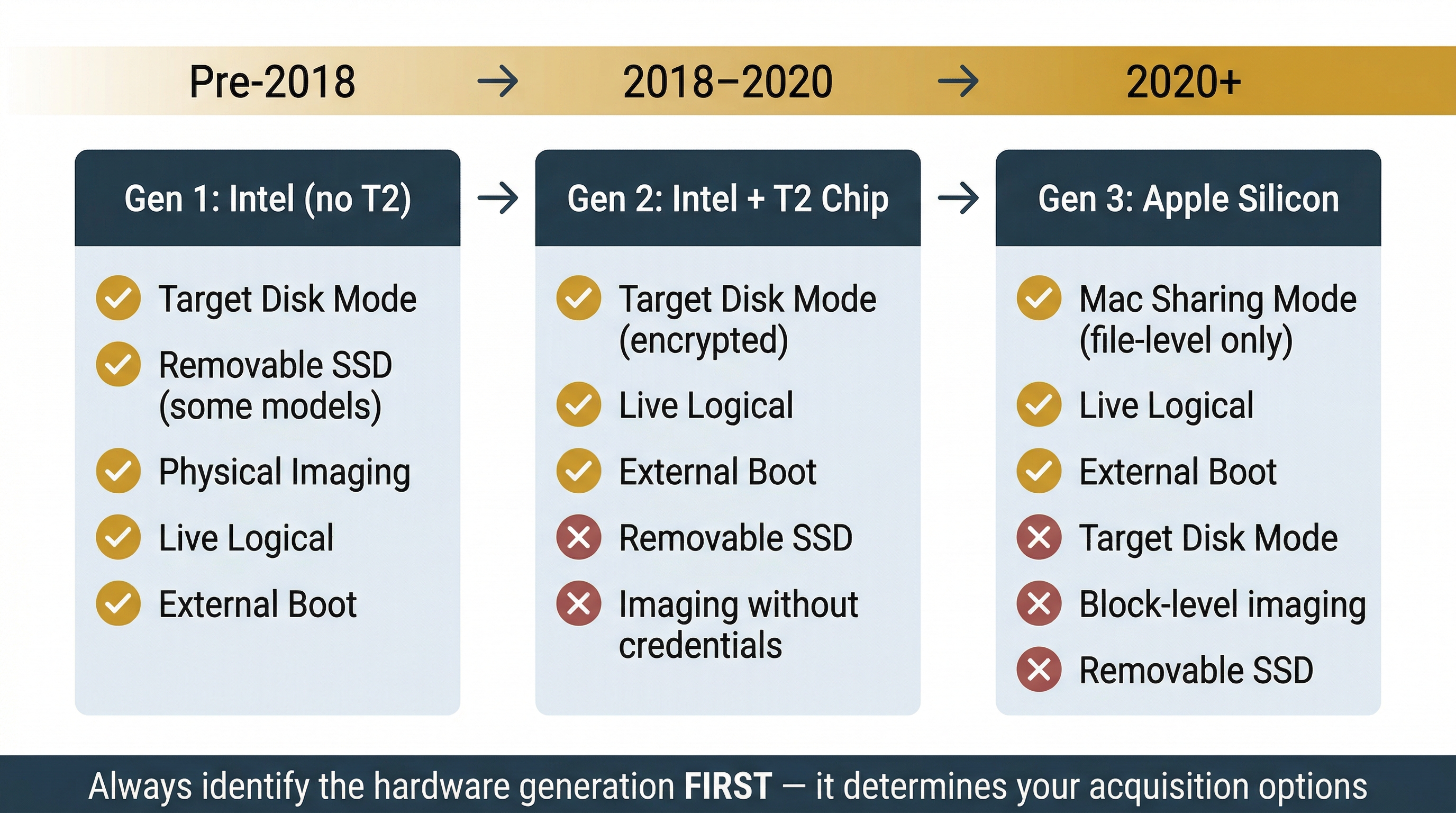
Generation 1: Intel Macs without T2 (pre-2018). These Macs use standard Intel processors and, on some models, removable NVMe or SATA storage. Target Disk Mode is the primary acquisition method: connecting two Macs via Thunderbolt or USB-C and holding the "T" key at boot causes the target Mac to present its internal drive as an external block device to the host. The host can then image the drive using standard forensic tools. If the drive is removable, it can be connected to a hardware write blocker and imaged directly. FileVault encryption may or may not be enabled; if it is, the user password or recovery key is required to decrypt the volume.
Generation 2: Intel Macs with T2 Security Chip (2018-2020). Apple introduced the T2 chip in 2018 across the MacBook Air, MacBook Pro, iMac Pro, and Mac Mini. The T2 contains a Secure Enclave that manages hardware-level encryption. Every byte written to the internal SSD is encrypted by the T2 chip in real time, regardless of whether the user has enabled FileVault. This means that even if you could physically remove the SSD (which Apple soldered to the logic board on most T2 models), the data would be encrypted with a key stored in the T2's Secure Enclave and would be unreadable on any other device.
Target Disk Mode still functions on T2 Macs, but the connected host sees the encrypted volume. To access the data, the examiner must authenticate with the user's password or FileVault recovery key during the Target Disk Mode session. The T2 chip then decrypts the data in real time as it is read.
Generation 3: Apple Silicon (M1/M2/M3/M4, 2020 and later). Apple Silicon Macs replaced Intel processors entirely with Apple's own ARM-based chips, which integrate the Secure Enclave directly into the main processor. Target Disk Mode does not exist on Apple Silicon. Apple replaced it with Mac Sharing Mode (also called Share Disk), accessible from macOS Recovery. Mac Sharing Mode starts an SMB file server on the target Mac, allowing another Mac connected via USB-C or Thunderbolt to browse the target's file system over a network share.
The limitations of Mac Sharing Mode are significant for forensic work. It provides file-level access only, not block-level access. The examiner cannot image the raw disk or capture unallocated space, deleted file remnants, or volume metadata through this method. Transfer speeds are slower than Target Disk Mode due to SMB protocol overhead. Mac Sharing Mode is useful for targeted file collection but is not a substitute for a full forensic acquisition.
Warning
On Apple Silicon Macs, all data on the internal SSD is encrypted by the Secure Enclave at all times. There is no way to perform a physical (bit-for-bit) acquisition of the raw encrypted disk and decrypt it offline. Acquisition of Apple Silicon Macs requires either a live logical approach or booting from an external forensic environment, both of which require the user's password or recovery key.
FileVault and the Secure Enclave
FileVault 2 is macOS's full-disk encryption feature. On T2 and Apple Silicon Macs, hardware encryption is always active at the chip level. Enabling FileVault adds a second layer: it protects the hardware encryption keys with the user's login password, meaning the Mac cannot be unlocked at boot without authentication. On modern Macs with FileVault enabled (which is the default), the disk is effectively double-encrypted.
Before acquiring any Mac, the first step is to determine the encryption status. On a live system, run fdesetup status in Terminal. If FileVault is enabled, you need one of the following before imaging:
- The user's login password
- The FileVault recovery key (a 24-character alphanumeric string generated when FileVault is enabled)
- An institutional recovery key (if the Mac is managed by an MDM solution that escrowed the key)
Securing these credentials through proper legal process (search warrant, consent, or corporate authority) must happen before you attempt acquisition. Without them, the data is inaccessible.
Analyst Perspective
In corporate investigations, check with the organization's IT department for MDM-escrowed FileVault recovery keys before approaching the device. Enterprise MDM platforms like Jamf, Mosyle, and Kandji routinely escrow these keys as part of device enrollment. This is often the fastest path to obtaining decryption credentials through proper authorization.
Acquisition Approaches
Given the hardware constraints above, macOS forensic acquisition typically follows one of four approaches.
Live Logical Acquisition. The examiner runs a forensic collection tool on the live, booted Mac. This approach works across all hardware generations because the operating system handles decryption transparently. The tool captures the file system as macOS presents it: decrypted, with both the System and Data volumes accessible. Live acquisition captures user files, application data, databases, logs, and configuration files. It does not capture unallocated space, raw disk structures, or data below the file system layer. For most investigations, particularly those focused on user activity, this provides sufficient evidence.
Booting from an External Forensic OS. Tools like SUMURI RECON ITR (commercial) create a bootable macOS-based forensic environment on an external drive. The examiner boots the target Mac from this external drive, which includes integrated software write-blocking and disk arbitration management to prevent writes to the target's internal storage. This approach can capture a more complete image of the target volume, including unallocated space within the APFS container. RECON ITR supports both Intel T2 and Apple Silicon Macs and can image local Time Machine snapshots.
Target Disk Mode (Intel Macs only). For pre-Apple Silicon Macs, Target Disk Mode remains a viable option. Connect the target Mac to a forensic workstation via Thunderbolt or USB-C, boot the target while holding "T," and use a forensic imaging tool on the host to capture the block-level image. For T2 Macs, authenticate with the FileVault password or recovery key when prompted. Use a software write blocker or forensic imaging tool with built-in write protection.
Mac Sharing Mode with Targeted Collection (Apple Silicon). When a full logical acquisition is not feasible or the scope of the investigation is narrow, Mac Sharing Mode provides a way to collect specific files and directories from an Apple Silicon Mac. Boot the target into macOS Recovery, enable Share Disk, and connect from another Mac. Copy the targeted files to the forensic workstation. This is best suited for triage or situations where only specific artifacts are needed.
Analyst Perspective
SWGDE's best practices document emphasizes that examiners may need to deviate from standard procedures when dealing with Mac hardware, provided deviations are thoroughly documented. The key principle is the same as any forensic acquisition: preserve as much data as possible, verify integrity through hashing, and document every step. When block-level imaging is not possible, a well-documented logical acquisition is still defensible.
Imaging Considerations
Regardless of the approach chosen, several macOS-specific factors affect the imaging process.
Capture both volumes. As discussed in Section 12.2, a modern macOS installation splits the system across at least two APFS volumes (System and Data). A forensic acquisition must include both. The System Volume provides a baseline for integrity comparison (especially useful with the Signed System Volume), while the Data Volume contains user files and the majority of forensic artifacts.
Preserve APFS snapshots. Local Time Machine snapshots on the boot volume may contain historical file states. If possible, capture these snapshots as part of the acquisition. The tmutil listlocalsnapshots / command identifies available snapshots on a live system.
Hash verification. APFS containers and volumes do not behave like traditional single-partition images. Verify hashes at the volume level and document the container/volume structure using diskutil apfs list. The SWGDE best practices recommend DMG as the preferred forensic image format when processing on a Mac, as it is natively understood by macOS.
Memory considerations. SWGDE notes that conducting memory acquisition on a Mac may trigger a kernel panic, particularly on newer hardware. If memory acquisition is needed, perform it before disk acquisition to avoid losing volatile data, but be aware of the risk. Memory acquisition tools should be pre-tested on similar hardware when possible.
macOS Forensic Acquisition Tool Reference
| Tool | Type | Acquisition Capabilities | Cost |
|---|---|---|---|
| SUMURI RECON ITR | Commercial | Bootable forensic OS, live imaging, software write-blocking, APFS/T2/Apple Silicon support, Time Machine snapshot imaging | Commercial license (includes PALADIN PRO) |
| Cellebrite Digital Collector | Commercial | Live acquisition, targeted collection, T2 decrypted physical imaging, Windows and Mac support | Commercial license |
| LLIMAGER | Commercial | CLI-based live imaging, Intel/T2/Apple Silicon/APFS support, SHA-256/MD5 hashed DMG output, encrypted or decrypted DMGs | Commercial license (14-day trial available) |
| Fuji | Free, open source | Full file system live acquisition using native Apple utilities (ASR, rsync), works on encrypted drives | Free (GitHub) |
| Disk Arbitrator | Free, open source | Software write-blocking via macOS Disk Arbitration framework, prevents automatic mounting as read-write | Free (GitHub) |
| mac_apt | Free, open source | Artifact parsing (not imaging), processes E01/VMDK/AFF4/DD/DMG images, APFS support with password/recovery key, plugin-based artifact extraction | Free (GitHub) |
| APOLLO | Free, open source | KnowledgeC.db and pattern-of-life artifact parsing, timeline output | Free (GitHub) |
| FSEventsParser | Free, open source | Parses FSEvents logs from forensic images or live systems | Free (GitHub) |
| Spotlight_parser | Free, open source | Extracts and searches Spotlight index databases from forensic images | Free (GitHub) |
Warning
The distinction between acquisition tools and analysis tools matters. Fuji, Disk Arbitrator, and RECON ITR are used during the acquisition phase to capture data. mac_apt, APOLLO, FSEventsParser, and Spotlight_parser are used during the examination and analysis phase to parse artifacts from an acquired image. Cellebrite Digital Collector and LLIMAGER handle acquisition. Plan your toolkit to cover both phases.
12.4 Core System Artifacts
FSEvents: The File System Event Journal
macOS maintains a persistent log of file system changes called FSEvents (File System Events). Every file creation, deletion, modification, and rename generates an entry in this log. The data is stored in the hidden /.fseventsd/ directory at the root of each volume, in compressed binary files with hexadecimal filenames.
FSEvents records are not human-readable in their raw form and require parsing with forensic tools such as FSEventsParser or mac_apt. Each record contains three key data points:
- Path affected: The full file system path of the file or directory involved
- Flags field: Indicates the type of change (created, removed, renamed, modified, permissions changed)
- Event ID: A sequentially assigned identifier that provides relative ordering of events
The forensic value of FSEvents is substantial. Even after a file is deleted from disk, the FSEvents log retains a record that the file once existed at a specific path. This makes FSEvents useful for:
- Detecting anti-forensic file deletion: Identifying files that existed but were intentionally removed
- Tracking file movement: Following files as they are copied or moved between directories
- Identifying removed applications: Confirming that software was installed and later uninstalled
Analyst Perspective
FSEvents does not record timestamps directly in each event record. Instead, events are grouped into log files, and the log file's creation timestamp provides an approximate time window. Correlate FSEvents data with file system timestamps and Unified Log entries to build a precise timeline.
Spotlight Metadata
Spotlight is macOS's system-wide search and indexing engine. While users interact with it as a search bar, Spotlight continuously indexes file metadata and content in the background. The index is stored in the .Spotlight-V100 directory at the root of each volume, with the primary database in store.db.
Spotlight indexes far more than file names. Depending on the file type, the index may capture:
- Full text content of documents (Word, Pages, PDF, plain text)
- Email metadata including subjects, sender addresses, and recipients
- Image EXIF data including camera model, date taken, and GPS coordinates
- PDF text and annotations
- Application-specific metadata such as audio duration, video codec, or spreadsheet formulas
The mdls (metadata list) command displays the Spotlight attributes stored for any file: mdls /path/to/file.
The critical property for investigators is persistence after deletion. Metadata remains in the Spotlight index even after the source file is deleted, until the index is explicitly rebuilt. A deleted document's title, author, creation date, and content excerpts may still be retrievable. Tools such as mac_apt and Spotlight_parser can extract and search the index from a forensic image.
Quarantine Events
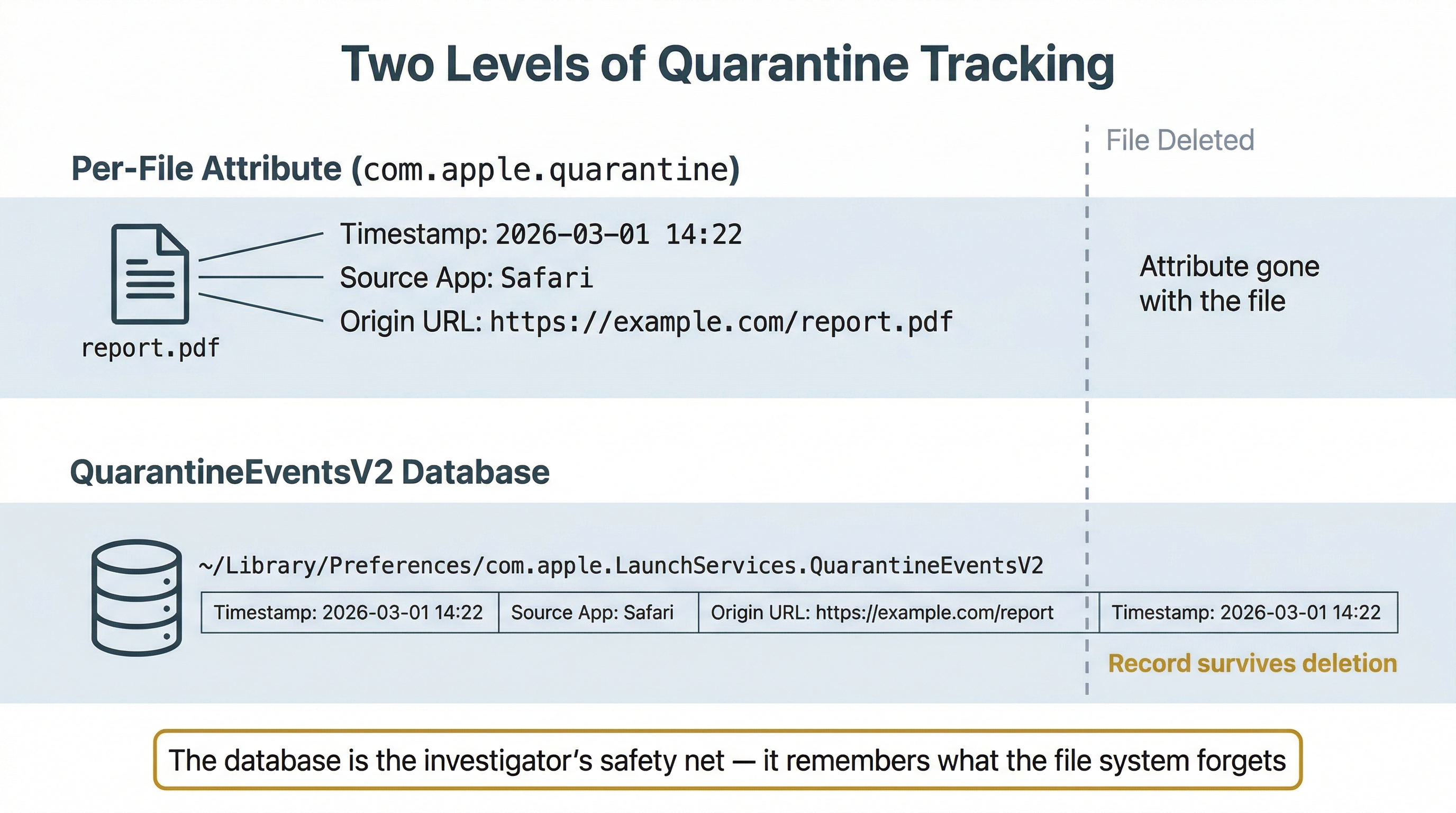
Every file downloaded from the internet on macOS receives a quarantine extended attribute (com.apple.quarantine). This attribute is applied by the application that performed the download and records three pieces of information:
- Timestamp: The date and time the file was downloaded
- Source application: Which program downloaded the file (Safari, Chrome, AirDrop, Mail, etc.)
- Origin URL: The web address the file was downloaded from
You can view the quarantine attribute on a live system using: xattr -p com.apple.quarantine /path/to/file.
Beyond the per-file attribute, macOS maintains a centralized QuarantineEventsV2 SQLite database at ~/Library/Preferences/com.apple.LaunchServices.QuarantineEventsV2. This database contains a historical record of all quarantined files, including entries for files that have since been deleted. If a suspect downloaded a malicious tool, a leaked document, or any file from the internet, the Quarantine Events database records when, how, and from where, even if the file itself is long gone.
When a quarantined file is opened for the first time, macOS also checks it through Gatekeeper, Apple's code-signing enforcement mechanism. Gatekeeper verifies that the application or file is signed by an identified developer and (on recent macOS versions) has been notarized by Apple, meaning Apple's automated security checks have scanned it. If a user bypasses Gatekeeper to run an unsigned or unnotarized application, that override is logged and can be verified with the spctl --assess command. Unsigned applications running on a managed corporate Mac are a significant red flag in insider threat and malware investigations.
12.5 User Activity Artifacts
KnowledgeC.db: Pattern of Life
The KnowledgeC.db database is one of the most forensically rich artifacts on macOS (and iOS). Located at ~/Library/Application Support/Knowledge/knowledgeC.db, this SQLite database records a detailed "pattern of life" for the user, including:
- Application usage (which app was in the foreground, start and end times)
- Device plug-in and unplug events (power adapter, headphones)
- Screen on/off and lock/unlock events
- Media playback activity
- Safari browsing activity (URLs visited, with timestamps)
- Siri interactions
Entries are timestamped and retained for a rolling window (typically 30 days, though longer retention has been observed). Forensic tools like mac_apt and APOLLO (Apple Pattern of Life Lazy Output'er) can parse and present this data in a timeline format.
Analyst Perspective
KnowledgeC.db is particularly useful for establishing whether a suspect was actively using their computer at a specific time. In cases where a subject claims they were not at their desk, KnowledgeC records of screen unlocks, app usage, and media playback can corroborate or refute that claim.
Property Lists (.plist)
Property list files (.plist) are Apple's universal format for storing configuration data and user preferences. Applications store their settings in .plist files, typically in ~/Library/Preferences/ (per-user) or /Library/Preferences/ (system-wide).
Plist files come in two formats:
- XML plists: Human-readable, can be opened in any text editor
- Binary plists: More compact, requires conversion before reading
The plutil command converts between formats: plutil -convert xml1 com.apple.Safari.plist converts a binary plist to readable XML. The defaults read command can also display plist contents: defaults read ~/Library/Preferences/com.apple.Safari.
Forensically relevant plists include:
- com.apple.Safari.plist: Last session tabs, download locations, search history
- com.apple.finder.plist: Recent folders, sidebar configuration, view preferences
- com.apple.recentitems.plist: Recently opened applications, documents, and servers
- com.apple.loginitems.plist: Applications configured to launch at login (persistence mechanism)
The ~/Library Folder
The ~/Library/ directory in each user's home folder is the macOS equivalent of AppData on Windows. Hidden by default in Finder, it contains the majority of user-specific application data, caches, preferences, and state information. Key subdirectories include:
- ~/Library/Application Support/: Application-specific databases and data files (including KnowledgeC.db)
- ~/Library/Caches/: Cached data for applications, including browser caches
- ~/Library/Containers/: Sandboxed application data (each app gets its own isolated directory)
- ~/Library/Mail/: Local copies of email messages
- ~/Library/Messages/: iMessage and SMS history (synced from iPhone via iCloud)
- ~/Library/Preferences/: Plist configuration files for all applications
- ~/Library/Keychains/: The user's Keychain databases, which store saved passwords, Wi-Fi credentials, certificates, and secure notes. The default login Keychain is unlocked automatically when the user logs in with their account password, making the user's login password a critical credential for accessing stored secrets during an investigation.
12.6 System Integrity and Logging
System Integrity Protection (SIP)
System Integrity Protection (SIP) is a security feature introduced in OS X El Capitan (10.11) that restricts the actions the root user can perform on protected parts of the operating system. Even with full administrator privileges, SIP prevents modification of system directories (/System, /usr, /bin, /sbin), loading unsigned kernel extensions, and attaching to system processes with a debugger.
For investigators, SIP has two practical implications. First, during a live examination, certain forensic tools that require low-level system access may not function unless SIP has been disabled (which is detectable). Second, the SIP status of a Mac is itself a forensic artifact. A Mac with SIP disabled may indicate that someone intentionally weakened the system's protections, which could be relevant in both malware investigations and insider threat cases. Check SIP status on a live system with csrutil status.
Unified Logging
Beginning with macOS Sierra (10.12), Apple replaced the traditional syslog-based logging model with Unified Logging. This is a fundamental architectural change from the text-based log files you examined in Chapter 11.
Unified Logs are stored in a binary format (.tracev3 files) in /var/db/diagnostics/ and /var/db/uuidtext/. They cannot be read with cat, grep, or any text-based tool. Instead, Apple provides the log command:
log showdisplays log entries (with extensive filtering options)log show --predicate 'process == "loginwindow"'filters by process namelog show --predicate 'eventMessage contains "failed"'searches message contentlog show --start "2026-03-01" --end "2026-03-15"filters by date rangelog collectgathers logs into an archive file for offline analysis
Unified Logging captures an enormous volume of data: process launches, network connections, authentication events, Bluetooth activity, USB connections, Wi-Fi associations, application errors, and system state changes. The challenge is not a lack of data but filtering the relevant entries from the noise.
| Feature | Unified Logging (macOS) | syslog / journald (Linux) |
|---|---|---|
| Storage format | Binary .tracev3 | Text (syslog) or binary (journald) |
| Query tool | log show, log collect |
grep / journalctl |
| Storage location | /var/db/diagnostics/ | /var/log/ (syslog), /var/log/journal/ (journald) |
| Retention | Tiered (persist, default, or info levels expire at different rates) | Configured via logrotate or journald settings |
| Filtering | Predicate-based queries | grep patterns or journalctl flags |
| Volume | Very high (can generate GBs per day) | Moderate |
Warning
Unified Log retention varies by log level. Entries marked as "info" or "debug" level may persist for only minutes or hours before being purged. Entries at the "default" or "error" level persist longer, but retention is still limited. In a live investigation, collecting Unified Logs early using log collect is critical to preserving volatile log data before it ages out.
Persistence: LaunchAgents and LaunchDaemons
macOS uses a plist-based system for configuring applications and scripts that run automatically. These persistence mechanisms are the macOS equivalent of the cron jobs, systemd services, and authorized_keys files you examined on Linux in Chapter 11.
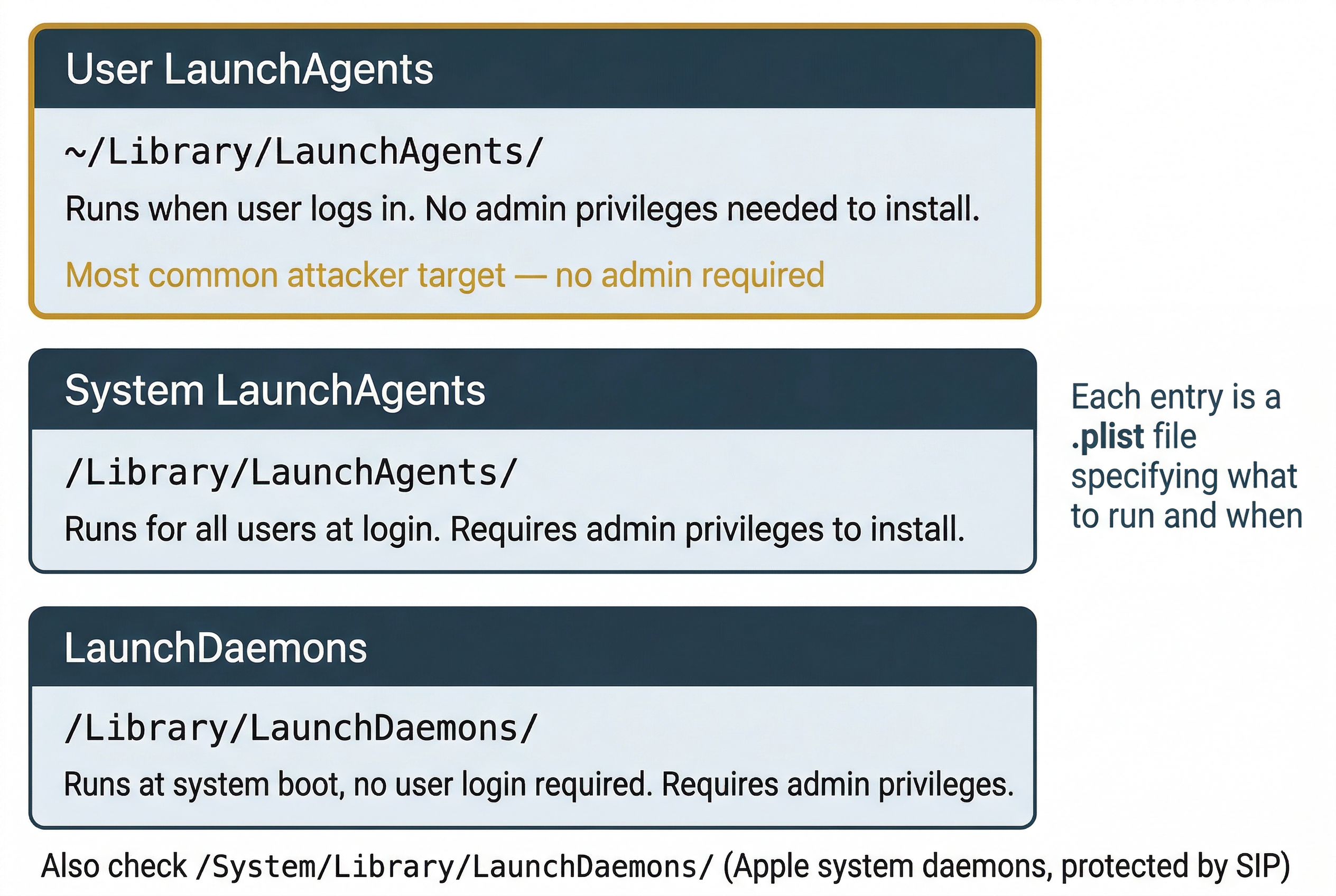
LaunchAgents run in the context of a logged-in user. They are stored as .plist files in two locations:
~/Library/LaunchAgents/for per-user agents (no administrator privileges required to install)/Library/LaunchAgents/for system-wide agents that run for all users
LaunchDaemons run at the system level, regardless of whether any user is logged in. They are stored in /Library/LaunchDaemons/ (third-party) and /System/Library/LaunchDaemons/ (Apple system daemons, protected by SIP).
Each LaunchAgent or LaunchDaemon plist specifies what program to run, when to run it (at load, on a schedule, or in response to a trigger), and with what arguments. Investigators should examine all LaunchAgent and LaunchDaemon plists for unfamiliar entries. Malware, remote access tools, and unauthorized scripts use these directories to maintain persistence across reboots. An attacker who gains user-level access can install a LaunchAgent in ~/Library/LaunchAgents/ without needing administrator credentials.
Time Machine
Time Machine is macOS's built-in backup system. On APFS volumes, Time Machine creates local snapshots on the boot drive (space permitting) and full backups to an external drive or network share. The default backup schedule retains:
- Hourly snapshots for the past 24 hours
- Daily backups for the past month
- Weekly backups until the backup disk is full
For investigators, Time Machine backups provide access to historical file states. A file deleted by a user or suspect may still exist in a Time Machine backup from before the deletion. Modified files can be compared across backup versions to detect tampering. The tmutil command provides access to backup information:
tmutil listbackupslists all available backupstmutil listlocalsnapshots /lists APFS snapshots on the local disktmutil comparecompares current state against a backup
Time Machine backups on an external disk are stored in a sparse bundle disk image (.sparsebundle) containing an HFS+ or APFS file system. Forensic tools can mount and examine these images. The backup directory structure mirrors the source file system organized by timestamp, making it straightforward to navigate to a specific date and examine that point-in-time state.
Putting It Together
Scenario: A pharmaceutical company suspects a departing senior researcher copied proprietary drug trial data before leaving. The researcher used a company-issued MacBook Pro running macOS Sonoma. The IT department has confirmed FileVault is enabled and has provided the escrowed recovery key through authorized channels. A forensic image has been acquired using SUMURI RECON ITR booted from an external drive.
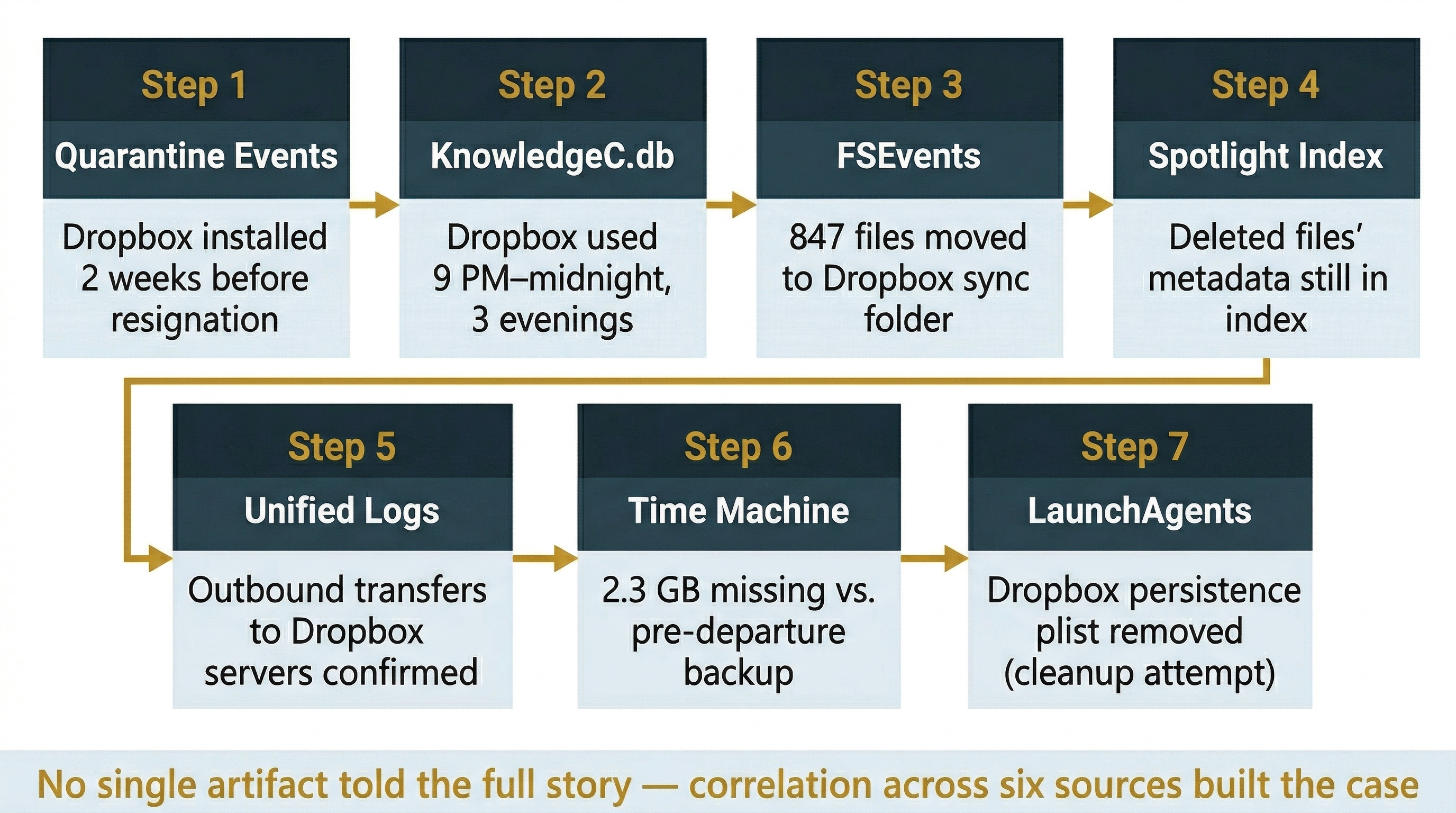
Step 1: Quarantine Events and Download History. Begin with the QuarantineEventsV2 database. Query for cloud storage application downloads. The database shows the researcher downloaded the Dropbox installer from dropbox.com two weeks before their resignation date. Cross-reference with FSEvents to confirm the application was installed in /Applications/.
Step 2: KnowledgeC.db Activity Analysis. Parse KnowledgeC.db using APOLLO. The timeline shows Dropbox was in the foreground for extended periods on three evenings in the week before departure, between 9 PM and midnight, well outside normal working hours.
Step 3: FSEvents File Movement. Analyze FSEvents logs for activity in the /Users/researcher/Dropbox/ sync folder. The logs show 847 file creation events in a subdirectory called "Backup" over those three evenings, with paths indicating files were moved from the company's shared research directories.
Step 4: Spotlight Metadata Recovery. The researcher deleted the Dropbox application and sync folder before returning the laptop, but the Spotlight index retains metadata for the files that were in the sync folder: file names, document authors, and content excerpts matching proprietary research data.
Step 5: Unified Log Correlation. Query the Unified Logs for network activity: log show --predicate 'process == "Dropbox"'. The logs confirm outbound data transfer events to Dropbox servers during the same time windows identified in KnowledgeC.db.
Step 6: Time Machine Comparison. The company's external Time Machine drive contains a backup from the day before departure. Comparing this backup to the current disk state reveals 2.3 GB of data present in research directories at backup time but absent from the current image, confirming deletion.
Step 7: Persistence and Cleanup Check. Examine ~/Library/LaunchAgents/ for any Dropbox-related persistence plists. The absence of the Dropbox LaunchAgent, combined with FSEvents records showing its removal, further confirms the researcher's deliberate cleanup effort.
This analysis, using only the macOS-specific artifacts covered in this chapter, builds a comprehensive narrative: the researcher installed an unauthorized cloud storage application, systematically copied proprietary files outside working hours, and attempted to conceal the activity by removing the application, sync folder, and persistence configuration before returning the device.
Chapter Summary
This chapter extended the OS-pivot that began in Chapter 11 by moving from Linux to macOS, the third major platform an investigator must be prepared to examine.
Key concepts covered include:
- macOS appears frequently in investigations across corporate, personal, and ecosystem-connected contexts. The Apple ecosystem's tight integration means a Mac may contain evidence originating from iPhones, iPads, and iCloud.
- APFS uses a container-and-volume architecture that differs fundamentally from ext4 and NTFS. Volumes share a container's free space dynamically, the system and data volumes are separated by firmlinks, and snapshots/clones use copy-on-write mechanics that affect how disk usage and file duplication are interpreted. The Signed System Volume (SSV) on macOS Big Sur and later provides cryptographic integrity verification of OS files.
- Mac acquisition varies by hardware generation. Intel Macs support Target Disk Mode, T2 Macs add hardware encryption via the Secure Enclave, and Apple Silicon Macs eliminate Target Disk Mode entirely in favor of the limited Mac Sharing Mode. Live logical acquisition and bootable forensic environments (RECON ITR, Cellebrite Digital Collector) are the primary approaches for current hardware. Open-source tools like Fuji and Disk Arbitrator provide free acquisition and write-blocking capabilities.
- FileVault encryption is enabled by default on modern Macs. Without the recovery key or user password, an encrypted APFS image cannot be analyzed. On T2 and Apple Silicon Macs, hardware-level encryption is always active regardless of FileVault status.
- FSEvents provides a persistent log of file system changes stored in
/.fseventsd/. Records survive file deletion, making FSEvents valuable for detecting removed files and tracking file movement history. - Spotlight metadata indexes file content and attributes and persists in the index after source files are deleted. The Spotlight database can reveal the existence and content of files that no longer exist on disk.
- Quarantine Events track every file downloaded from the internet, recording the source URL, download timestamp, and downloading application. Gatekeeper enforces code-signing and notarization checks on quarantined files, and bypasses are logged. The QuarantineEventsV2 database retains entries even after downloaded files are deleted.
- KnowledgeC.db records a behavioral "pattern of life" including application usage, screen activity, and media playback. This database can establish or refute whether a user was actively using their computer at a specific time.
- Property lists (.plist files) store application configuration and user preferences. Recent items, login items, and application-specific settings are forensically relevant and readable via
plutilordefaults read. - System Integrity Protection (SIP) restricts root-level access to protected system directories. SIP status is a forensic artifact: a disabled SIP may indicate intentional security weakening.
- Unified Logging replaced syslog on macOS with a high-volume binary logging system queried through the
logcommand. Log retention is tiered and time-limited, making early collection critical. - LaunchAgents and LaunchDaemons are macOS persistence mechanisms that run applications or scripts automatically. Investigators should examine these plist-based configurations for unauthorized entries, particularly in the user-writable
~/Library/LaunchAgents/directory. - Time Machine backups provide access to historical file states through APFS snapshots and external backup archives. Deleted or modified files may be recoverable from backup versions.
Chapter 13 continues the platform-expansion theme by moving to mobile forensics, where many of the macOS concepts you learned here (APFS, property lists, KnowledgeC, Unified Logging) reappear on iOS in a mobile context.
Quick-Reference Tables
Table A: macOS Forensic Artifact Locations
| Artifact | Location | What It Reveals |
|---|---|---|
| FSEvents log | /.fseventsd/ | File creation, deletion, modification, and rename history |
| Spotlight index | /.Spotlight-V100/Store-V2/ | Indexed metadata and content of files (persists after deletion) |
| Quarantine attribute | Per-file: xattr -p com.apple.quarantine |
Download source URL, timestamp, downloading application |
| Quarantine database | ~/Library/Preferences/com.apple.LaunchServices.QuarantineEventsV2 | Historical record of all internet-downloaded files |
| KnowledgeC.db | ~/Library/Application Support/Knowledge/knowledgeC.db | App usage, screen events, media playback, browsing activity |
| User preferences | ~/Library/Preferences/*.plist | Application settings, recent items, login items |
| Application data | ~/Library/Application Support/ | App-specific databases, caches, state |
| iMessage history | ~/Library/Messages/ | iMessage and SMS conversations (synced from iOS) |
| Mail data | ~/Library/Mail/ | Local email storage |
| Unified Logs | /var/db/diagnostics/ and /var/db/uuidtext/ | System events, process launches, network activity, authentication |
| Time Machine (local) | APFS snapshots on boot volume | Point-in-time volume states |
| Time Machine (external) | /Backups.backupdb/ on backup disk | Full historical file system backups organized by timestamp |
| LaunchAgents (user) | ~/Library/LaunchAgents/ | Per-user persistence mechanisms (no admin required to install) |
| LaunchAgents (system) | /Library/LaunchAgents/ | System-wide persistence mechanisms for all users |
| LaunchDaemons | /Library/LaunchDaemons/ | System-level persistence (runs without user login) |
| Keychain | ~/Library/Keychains/ | Stored passwords, certificates, Wi-Fi keys, encryption keys |
Table B: macOS Forensic Command Reference
| Command | Syntax Example | Purpose | Forensic Use |
|---|---|---|---|
| plutil | plutil -convert xml1 file.plist |
Convert and validate plist files | Read binary plist configuration data |
| defaults | defaults read com.apple.Safari |
Read plist preference values | Examine application settings and recent items |
| mdls | mdls /path/to/file |
Display Spotlight metadata attributes | View indexed metadata including dates, authors, GPS |
| xattr | xattr -l /path/to/file |
List extended attributes | Check quarantine data and other metadata |
| log show | log show --predicate 'process == "ssh"' |
Query Unified Logs | Search system logs for forensic events |
| log collect | log collect --output ~/Desktop/logs.logarchive |
Archive Unified Logs | Preserve volatile log data for offline analysis |
| tmutil | tmutil listlocalsnapshots / |
Manage Time Machine backups | List available snapshots and backup versions |
| fdesetup | fdesetup status |
Check FileVault encryption status | Determine if disk encryption is active |
| diskutil | diskutil apfs list |
Display APFS container and volume info | Map container/volume layout for imaging |
| csrutil | csrutil status |
Check SIP (System Integrity Protection) | Determine if system protections are active |
| spctl | spctl --assess /path/to/app |
Evaluate Gatekeeper policy | Check if application is signed and notarized |
| codesign | codesign -dv /path/to/app |
Display code signature details | Verify application signing identity and status |
| mdfind | mdfind "kMDItemFSName == 'secret.pdf'" |
Spotlight command-line search | Search indexed metadata from terminal |
| dscl | dscl . -list /Users |
Query directory services | List user accounts on the system |
| launchctl | launchctl list |
List loaded LaunchAgents and LaunchDaemons | Identify active persistence mechanisms |
Table C: APFS Volume Roles on a Typical Mac
| Volume | Role | Read/Write | Forensic Relevance |
|---|---|---|---|
| Macintosh HD | System volume (OS files) | Read-only (SSV sealed on Big Sur+) | Baseline for integrity comparison; modified only if SIP is disabled |
| Macintosh HD - Data | User data, apps, mutable system data | Read-write | Primary target for user artifact examination |
| Preboot | Boot configuration and firmware data | Limited | Boot policy, firmware version identification |
| Recovery | macOS Recovery environment | Read-only | Recovery tools, reinstallation history |
| VM | Virtual memory (swap) | Read-write | May contain memory pages with sensitive data |
Table D: Mac Hardware Generations and Acquisition Options
| Generation | Hardware | Years | Target Disk Mode | Mac Sharing Mode | Physical Imaging | Live Logical | External Boot (RECON ITR) |
|---|---|---|---|---|---|---|---|
| Intel (no T2) | Intel CPU, standard SSD | Pre-2018 | Yes | No | Yes (removable drive or TDM) | Yes | Yes |
| Intel + T2 | Intel CPU, T2 Security Chip | 2018-2020 | Yes (encrypted, requires credentials) | No | Limited (T2 decryption required) | Yes | Yes |
| Apple Silicon | M1/M2/M3/M4 SoC, integrated Secure Enclave | 2020+ | No | Yes (file-level only, slow) | No | Yes | Yes |