CH9: Android Forensics — File System and Evidence
Chapter Overview
In the preceding chapters, we built a strong foundation: how to acquire data from mobile devices (Chapter 6), how to interpret timestamps and carve files from raw extractions (Chapter 7), and how to interrogate the SQLite databases where most mobile evidence actually lives (Chapter 8). Those skills are platform-agnostic. This chapter applies them directly to the Android operating system—the most widely deployed mobile platform on the planet.
Android's open-source lineage gives forensic examiners advantages that do not exist on iOS. The file system is navigable, the databases follow predictable naming conventions, and the developer tooling (ADB) is freely available. However, that same openness creates fragmentation: thousands of device manufacturers ship customized versions of Android, each with subtle differences in where data is stored, how encryption is implemented, and which forensic techniques succeed or fail.
This chapter walks through Android's architecture from the kernel up, maps the partition layout where evidence resides, catalogs the key databases and files an examiner must target, and then puts those skills into practice with ADB (Android Debug Bridge)—the command-line tool that allows direct interaction with an Android device's file system. By the end of this chapter, you will be able to navigate an Android extraction with confidence, whether you are browsing a parsed report from a commercial tool or using a command line to pull artifacts manually.
Learning Objectives
By the end of this chapter, you will be able to:
- Describe the Android software stack and explain how its open-source, Linux-based architecture creates both opportunities and challenges for forensic examiners.
- Navigate the Android file system partition layout and identify where user data, application data, and system artifacts reside.
- Locate key forensic evidence within Android's data partition, including SMS/MMS databases, call logs, contacts, browser history, and location data.
- Utilize ADB (Android Debug Bridge) commands to interact with an Android device, explore its file system, and extract targeted evidence files.
- Apply open-source parsing tools (ALEAPP) to process Android file system extractions and validate commercial tool output.
9.1 Introduction to Android from a Forensic Perspective
Android traces its origin to a small startup called Android Inc., which Google acquired in 2005. The first commercial Android device—the HTC Dream (T-Mobile G1)—shipped in 2008. Since then, Android has grown to command roughly 72% of the global smartphone market. For a forensic examiner, this market dominance has a practical consequence: the majority of mobile devices you encounter in casework will run some variant of Android.
The foundation of Android is the Android Open Source Project (AOSP). Google publishes Android's source code under open licenses, which means any manufacturer can take the base operating system, modify it, and ship it on their own hardware. Samsung adds its One UI skin. Xiaomi adds MIUI. Google ships its own "stock" version on Pixel devices. Carriers like Verizon and AT&T may add further modifications and pre-installed applications (often called "bloatware") before the device reaches a customer.
This openness is a double-edged sword for forensic work. On one hand, the file system structure is well-documented, developer tools are freely available, and the forensic research community has deep visibility into how the OS operates. On the other hand, the sheer number of variations means that a database path that exists on a Samsung device running Android 14 might be named differently or stored in a different location on a Motorola device running the same Android version.
Warning
Fragmentation is the single biggest variable in Android forensics. A forensic technique validated on a Samsung Galaxy S24 may not behave identically on a Google Pixel 9 or a OnePlus 12, even if all three run Android 14. Always verify your tool's support matrix against the specific device model and build number before beginning an extraction.
The Forensic Advantage of Open Source
Because Android is open-source, forensic researchers can study exactly how the operating system stores data, manages encryption, and handles deletions. This visibility has enabled the development of powerful open-source parsing tools like ALEAPP (Android Logs Events And Protobuf Parser), which we will cover later in this chapter. It has also allowed commercial forensic vendors like Cellebrite and Magnet Forensics to develop highly targeted extraction agents that exploit known behaviors in Android's architecture.
Compare this to iOS, where Apple's closed-source ecosystem means forensic researchers must often reverse-engineer behavior without access to the underlying source code. We will explore those differences in Chapter 11.
9.2 The Android Software Stack
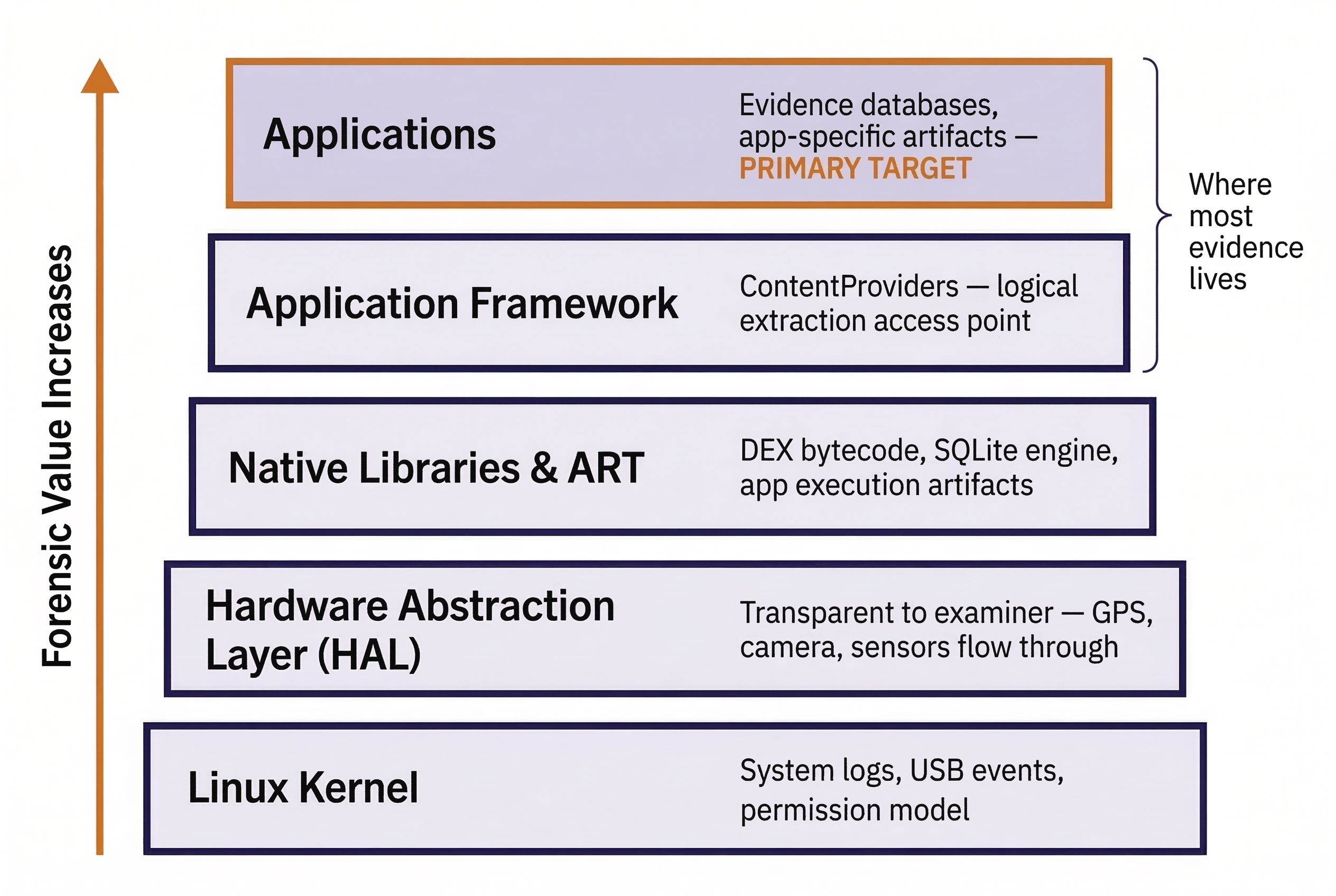
To understand where evidence lives on an Android device—and why certain data is or is not accessible during an extraction—you need to understand how the operating system is layered. Android is built as a stack of components, each layer depending on the one below it.
The Linux Kernel
At the very bottom of the stack sits a modified Linux kernel. This is the same fundamental technology that powers Linux servers and desktops, adapted for mobile hardware. The kernel manages hardware drivers (touchscreen, camera, cellular modem), memory allocation, process scheduling, and the core security model.
Forensic Relevance: The kernel generates log data (dmesg, logcat) that records system-level events—USB connections, storage mounts, crash reports, and network state changes. These logs can establish when a device was connected to a forensic workstation or when an app crashed, providing valuable timeline data. Additionally, Android inherits Linux's user/group permission model, which is the foundation of application sandboxing (covered in detail in Chapter 10).
Hardware Abstraction Layer (HAL)
The HAL sits between the kernel and the higher-level framework. It provides standardized interfaces so that Android's application framework can communicate with hardware components (camera, Bluetooth, GPS) without needing to know the specifics of each manufacturer's chip. For forensic purposes, the HAL is largely transparent—you will rarely interact with it directly. However, it is worth knowing that GPS location services, camera operations, and sensor data all flow through this layer.
Native Libraries and Android Runtime (ART)
Android includes a set of native C/C++ libraries (SQLite, OpenSSL, media codecs) that provide core functionality. Above these sits the Android Runtime (ART), which executes application code.
Historically, Android used the Dalvik Virtual Machine to run apps. Dalvik compiled app code on-the-fly each time it ran (Just-In-Time, or JIT compilation). Starting with Android 5.0 (Lollipop), Google replaced Dalvik with ART, which compiles app code at install time (Ahead-Of-Time, or AOT compilation). Modern versions of ART use a hybrid approach combining both AOT and JIT.
Forensic Relevance: The compiled format matters when analyzing Android applications. Apps are distributed as DEX (Dalvik Executable) files inside APK packages. When you decompile an APK for analysis (covered in Chapter 10), you are working with this DEX bytecode. ART also generates OAT (Of Ahead-of-Time) files and runtime profiles on the device that can reveal which apps have been executed and how frequently.
The Application Framework
This layer provides the high-level APIs that app developers use to build their applications. The most forensically significant component here is the ContentProvider mechanism. ContentProviders are Android's standardized way for applications to share structured data with other applications. For example, the Contacts app stores its data in a SQLite database, but other apps (like a messaging app that wants to display a contact's name) access that data through a ContentProvider.
Forensic Relevance: Forensic tools that perform logical acquisitions often query ContentProviders to extract data. This is essentially the same mechanism that any Android app uses to request data from another app—the forensic tool is simply acting as a "requesting app." The limitation is that ContentProviders only expose data the app chooses to share, which is why logical extractions recover less data than file system or physical extractions.
The Application Layer
At the top of the stack are the applications themselves. Android distinguishes between two categories:
- System Apps: Pre-installed by the manufacturer or carrier. These live in the
/system/app/or/system/priv-app/directories and have elevated privileges. Examples include the default dialer, messaging app, and the Settings app. - User Apps: Installed by the device owner from Google Play or sideloaded. These live in
/data/app/and operate within sandbox restrictions.
Both categories store their runtime data (databases, preferences, cache files) in the /data/data/ directory under their respective package names.
Android Software Stack — Forensic Relevance Summary
| Layer | Key Components | Forensic Significance |
|---|---|---|
| Application | System apps, user apps | Evidence databases, app-specific artifacts |
| Application Framework | ContentProviders, Activity Manager | Logical extraction access point; data-sharing mechanism |
| ART / Native Libraries | DEX execution, SQLite, OpenSSL | App code analysis (APK decompilation); database format |
| HAL | Camera, GPS, Bluetooth interfaces | Transparent to examiner; data flows through to kernel |
| Linux Kernel | Drivers, process management, security | System logs (logcat), USB events, permission model |
9.3 The Android File System and Partition Layout
When you receive a file system or physical extraction of an Android device, the output is a structured collection of directories and files that maps to the device's internal partition scheme. Knowing this layout allows you to navigate raw extractions confidently, even when a commercial tool mislabels or skips an artifact.
Android Partitions
Android devices divide their internal storage into several partitions, each serving a distinct purpose. The exact naming and number of partitions vary by manufacturer and Android version, but the core set is consistent.
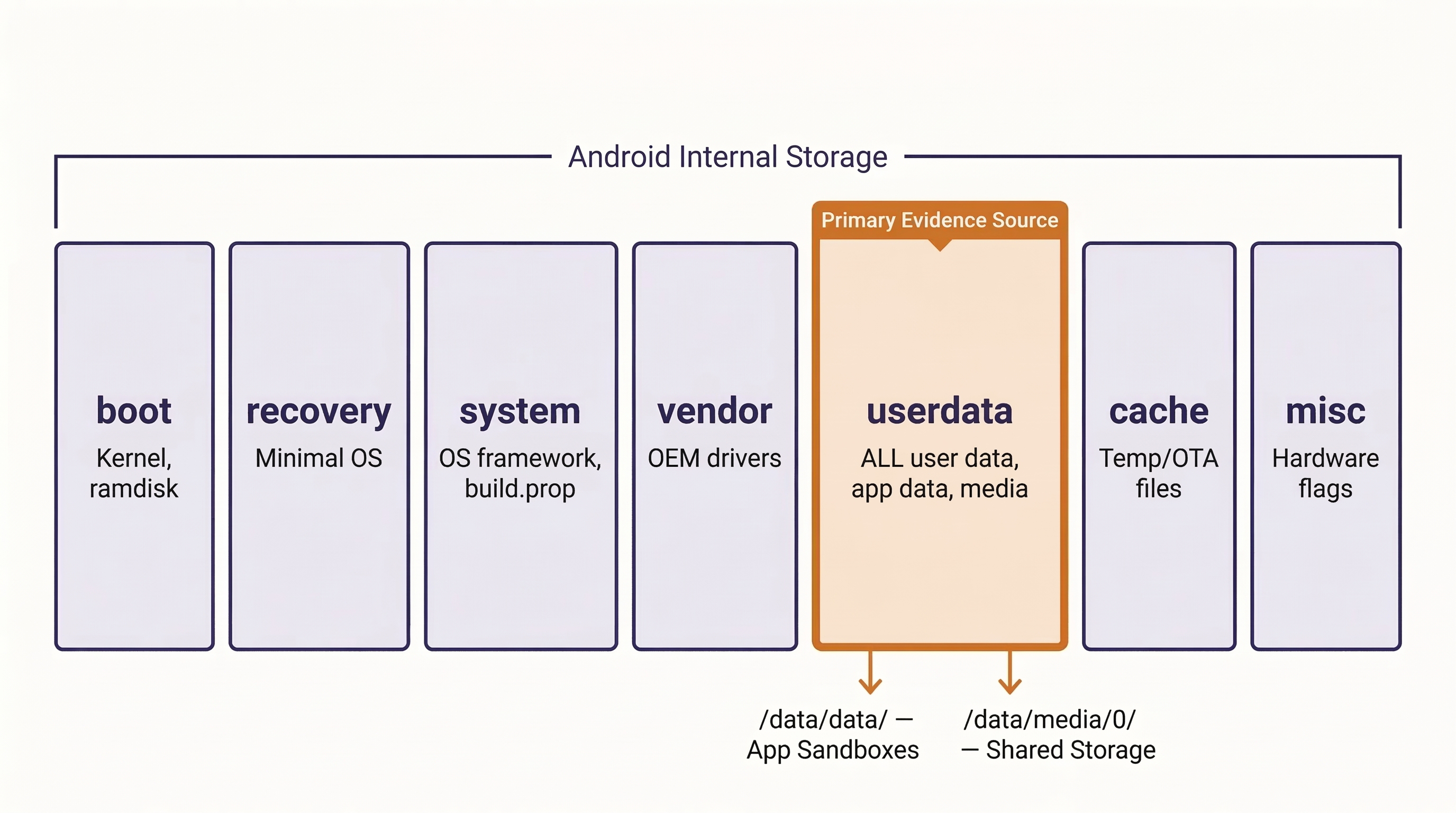
- boot — Contains the Linux kernel and the initial RAM disk (ramdisk) needed to start the OS. Forensic tools that exploit the boot process (discussed in Chapter 5) interact with this partition.
- recovery — A minimal, standalone operating system used for factory resets and system updates. Some forensic exploits load custom recovery images to gain elevated access.
- system — The Android operating system itself: framework files, system apps, and configuration. This partition is typically mounted as read-only on modern devices.
- vendor — Manufacturer-specific drivers and customizations (Samsung, Motorola, etc.). Separated from
/systemstarting with Android 8.0 (Project Treble) to allow OS updates independent of vendor code. - userdata — The single most important partition for forensic examiners. This is where all user-generated data resides: app databases, photos, downloads, accounts, and preferences. When forensic tools target a "file system extraction," they are primarily imaging this partition.
- cache — Temporary files used during OS updates and app operations. Occasionally contains residual data, but is generally of limited forensic value on modern devices.
- misc — Stores miscellaneous system settings, including hardware configuration flags.
The /data Partition: Where the Evidence Lives
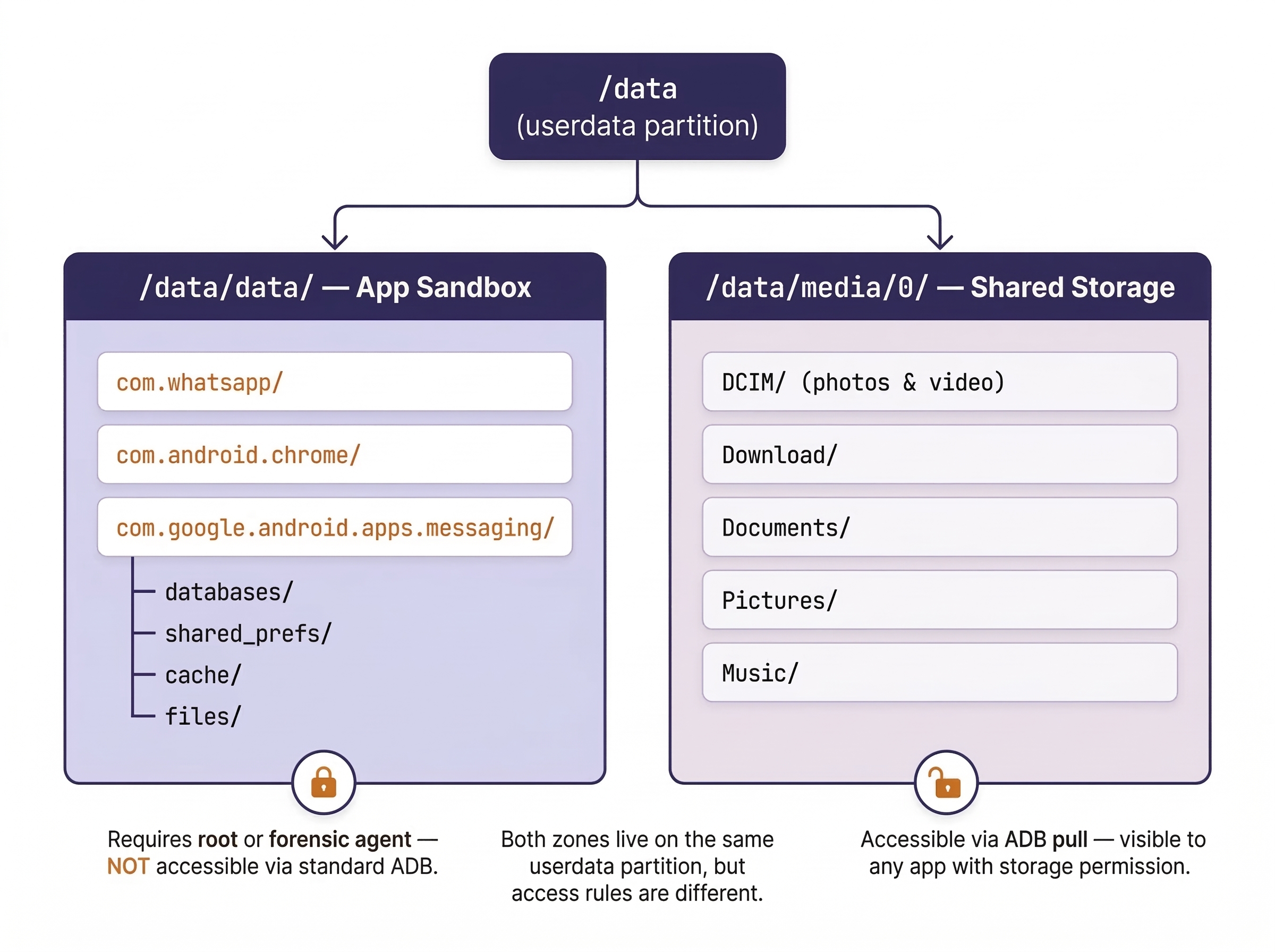
The userdata partition mounts at /data and contains the vast majority of forensically relevant artifacts. Within /data, two directories demand the most attention.
/data/data/ — The App Sandbox
Every installed app receives its own private directory under /data/data/, named using the app's package name (a reverse-domain naming convention). For example:
/data/data/com.whatsapp/— WhatsApp/data/data/com.google.android.apps.messaging/— Google Messages/data/data/com.android.chrome/— Chrome browser/data/data/org.thoughtcrime.securesms/— Signal
Inside each app's directory, you will find a predictable subdirectory structure:
databases/— SQLite databases containing the app's core data (messages, settings, account info). This is the primary target from Chapter 8.shared_prefs/— XML files containing the app's preference settings (user configurations, login tokens, feature flags).cache/— Temporary files the app has cached (thumbnails, web content, partial downloads).files/— Miscellaneous files the app stores locally (downloaded media, encryption keys, configuration files).
Analyst Perspective
When you receive a file system extraction from Cellebrite or AXIOM, the folder structure you navigate maps directly to these partitions and directories. Knowing the layout means you can browse raw extractions without relying solely on the tool's parsed view. This is a critical skill when validating tool output—if a tool reports "no SMS found," you can manually navigate to the SMS database path and check for yourself. In private-sector incident response, this skill is equally valuable: when an employer hands you a file system image of a corporate-managed device, you can identify exactly which apps were storing data and prioritize your analysis without waiting for a tool to finish parsing.
/data/media/0/ — Shared Internal Storage
This is the directory that the user sees as "Internal Storage" when they connect the phone to a computer or browse files with a file manager app. It contains:
DCIM/— Photos and videos captured by the camera.Download/— Files downloaded from the browser or apps.Documents/— User-created or received documents.Pictures/,Music/,Movies/— Media organized by type.
Unlike the /data/data/ sandbox, this area is accessible to any app that has been granted storage permissions, making it a shared space where evidence from multiple apps may intermingle.
External Storage (SD Card)
Some Android devices support removable microSD cards, which typically mount at /storage/sdcard1/ or /mnt/media_rw/. SD cards are commonly formatted as FAT32 or exFAT. Because these file systems lack the permission controls of Android's internal ext4 file system, data stored on an SD card is generally not sandboxed. Any app with storage permission can read and write to it.
Forensic Significance: SD cards are often unencrypted even when the device's internal storage is encrypted under File-Based Encryption (FBE). This makes them a valuable evidence source. Users sometimes move photos, app data, or WhatsApp backups to the SD card, where they persist even if the internal storage is wiped. Remember from Chapter 6 that external media should be explicitly listed in your search warrant.
The /system Partition
While the /data partition holds user evidence, the /system partition holds the operating system and is typically read-only. One file here is particularly useful for forensic triage:
build.prop(located at/system/build.propor accessible viagetpropcommands) — This file contains the device's make, model, Android version, build number, security patch level, and carrier information. If you receive an unidentified device or a damaged phone,build.propcan tell you exactly what you are working with.
Android Partition Map — Quick Reference
| Partition | Mount Point | Typical Contents | Forensic Significance |
|---|---|---|---|
| boot | N/A (loaded into RAM) | Kernel, ramdisk | Boot exploit target |
| recovery | /recovery |
Minimal OS for updates/reset | Custom recovery loading |
| system | /system |
OS framework, system apps, build.prop |
Device identification |
| vendor | /vendor |
OEM-specific drivers | Manufacturer identification |
| userdata | /data |
All user data, app data, media | Primary evidence source |
| cache | /cache |
OTA update files, temp data | Limited; occasionally residual data |
| misc | /misc |
Hardware flags, settings | Rarely examined |
9.4 Key Android Evidence Locations
With the partition layout established, we can now catalog the specific files and databases an examiner should target during an Android investigation. This section builds directly on the SQLite skills from Chapter 8—each artifact listed below is a SQLite database or XML file that can be opened and queried manually.
SMS and MMS Messages
The native SMS/MMS database on most Android devices is stored at:
/data/data/com.android.providers.telephony/databases/mmssms.db
Key tables within this database include:
sms— One row per text message. Critical columns:address(phone number),body(message text),date(timestamp in Unix epoch milliseconds),type(1 = received, 2 = sent), andread(0 = unread, 1 = read).pduandpart— Used for MMS messages. Thepdutable contains message metadata, while theparttable stores the actual media content (images, video) as file references or binary blobs.
Warning
The path and table structure for SMS varies by manufacturer and Android version. Samsung devices, for instance, sometimes use a modified database with additional proprietary tables. Google Messages stores data in a different location than the legacy AOSP messaging app. Always verify the actual path in your extraction rather than assuming a universal location.
Call Logs
Call history is typically stored at:
/data/data/com.android.providers.contacts/databases/calllog.db
The primary table is calls, with columns for number, date (Unix epoch), duration (seconds), type (1 = incoming, 2 = outgoing, 3 = missed, 5 = rejected), and geocoded_location (a text description of the caller's general area, when available).
Contacts
The contacts database resides at:
/data/data/com.android.providers.contacts/databases/contacts2.db
This is a complex, normalized database. The key tables are raw_contacts (one row per contact per account), data (stores individual data fields like phone numbers, email addresses, and names as rows, not columns), and accounts (identifies which Google account or third-party service each contact is synced with).
Browser History (Chrome)
Google Chrome stores browsing data at:
/data/data/com.android.chrome/app_chrome/Default/History
Key tables include urls (every URL visited, with visit count and last visit time), visits (individual visit events with timestamps), and keyword_search_terms (search queries entered into the address bar, linked to the corresponding URL entry).
Wi-Fi Connection History
Wi-Fi network data has moved locations across Android versions. On modern devices, look for:
/data/misc/apexdata/com.android.wifi/WifiConfigStore.xml
This XML file contains a list of saved Wi-Fi networks, including the SSID (network name), BSSID (access point MAC address), security type, and in some cases, the timestamp of when the network was first connected. For forensic purposes, Wi-Fi history can place a device at a specific location (a suspect's home network, a hotel, a victim's workplace) without relying on GPS data.
Accounts and Authentication
Registered accounts are stored at:
/data/system_de/0/accounts_ce.db
This database lists every account registered on the device—Google accounts, Samsung accounts, social media logins, email accounts, and more. Each entry includes the account type, account name (often an email address), and related authentication tokens.
Installed Packages
A comprehensive registry of every application installed on the device is maintained at:
/data/system/packages.xml
This XML file contains the package name, version code, install timestamp, granted permissions, signing certificate hash, and installation source (Google Play, sideloaded, or pre-installed) for every app. This is an invaluable triage resource: before spending hours parsing individual app databases, review packages.xml to understand the full application landscape on the device.
Android Key Evidence Quick-Reference
| Artifact | Database / File | Typical Path | Key Tables / Fields | Forensic Value |
|---|---|---|---|---|
| SMS/MMS | mmssms.db |
/data/data/com.android.providers.telephony/databases/ |
sms (address, body, date, type) |
Message content, timestamps, direction |
| Call Logs | calllog.db |
/data/data/com.android.providers.contacts/databases/ |
calls (number, date, duration, type) |
Communication patterns, frequency |
| Contacts | contacts2.db |
/data/data/com.android.providers.contacts/databases/ |
raw_contacts, data, accounts |
Associates, identity attribution |
| Chrome History | History |
/data/data/com.android.chrome/app_chrome/Default/ |
urls, visits, keyword_search_terms |
Web activity, search intent |
| Wi-Fi History | WifiConfigStore.xml |
/data/misc/apexdata/com.android.wifi/ |
SSIDs, BSSIDs, security type | Location corroboration |
| Accounts | accounts_ce.db |
/data/system_de/0/ |
Account type, name, tokens | Identity, linked services |
| Installed Apps | packages.xml |
/data/system/ |
Package name, version, permissions, source | App landscape, triage prioritization |
9.5 ADB (Android Debug Bridge) for Forensic Examiners
With the file system layout and evidence locations mapped, we now introduce the tool that allows you to interact with those locations directly. ADB (Android Debug Bridge) is a command-line tool included in the Android SDK (Software Development Kit) that enables a workstation to communicate with an Android device over a USB cable or Wi-Fi connection. While ADB was designed for app developers, it has become an essential tool in the forensic examiner's workflow—both as a standalone utility and as the underlying transport mechanism that commercial forensic tools use to push extraction agents to a device.
Prerequisites for ADB Access
ADB does not work by default. Three conditions must be met:
- USB Debugging must be enabled in the device's Developer Options. On most Android devices, Developer Options are hidden until the user taps "Build Number" seven times in the Settings > About Phone menu.
- The device must be unlocked (or at minimum, in an After First Unlock state where the USB interface is active).
- The device must "trust" the connected computer. The first time an ADB connection is established, Android displays a prompt asking the user to authorize the computer's RSA key fingerprint. If this prompt is not accepted, ADB commands will not execute.
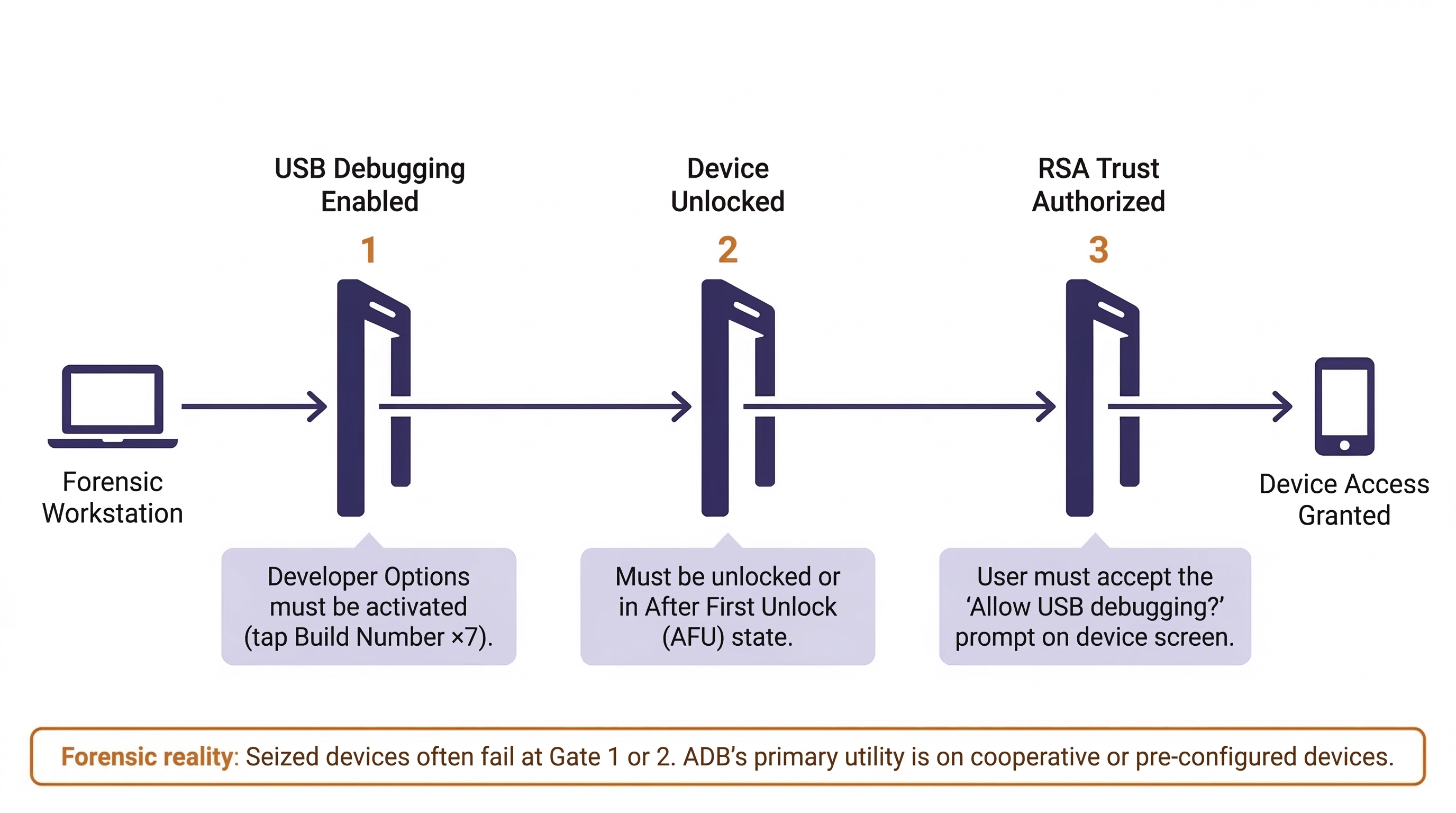
Forensic Reality: In many law enforcement scenarios, these prerequisites are significant barriers. A seized device with USB Debugging disabled and locked behind a PIN cannot be accessed via ADB without first bypassing the lock screen (using commercial tools like GrayKey or Cellebrite Premium). ADB's primary forensic utility is on cooperative devices—unlocked phones provided by consent, corporate devices with MDM profiles that pre-enable debugging, or devices where the examiner has already bypassed the lock screen through other means.
Core ADB Commands for Forensic Work
Once a connection is established, the following commands form the foundation of ADB-based forensic interaction. Think of these as your forensic toolkit for direct device interaction.
Establishing and Verifying the Connection
adb devices — Lists all connected devices and their connection state. Always run this first to confirm the connection is active. The output will show the device serial number and one of three states: device (connected and authorized), unauthorized (connected but the trust prompt has not been accepted on the phone), or offline (connection lost).
$ adb devices
List of devices attached
RFXXXXXXXXX    device
If multiple devices are connected simultaneously (common in a lab environment), use adb -s <serial_number> to target a specific device for all subsequent commands.
Exploring the File System
adb shell — Opens an interactive command-line shell on the device. From here, you can navigate the file system using standard Linux commands: ls (list directory contents), cd (change directory), cat (display file contents), find (search for files), and grep (search within file contents).
$ adb shell
device:/ $ ls /data/data/ | head -10
com.android.bluetooth
com.android.calendar
com.android.chrome
com.android.contacts
com.android.deskclock
com.android.dialer
com.android.documentsui
com.android.email
com.android.gallery3d
com.android.inputmethod.latin
The ls command on /data/data/ reveals the package names of every installed app's sandbox directory. This is your map to the evidence. If you are investigating a drug trafficking case, scanning this list for messaging apps (com.whatsapp, org.thoughtcrime.securesms, org.telegram.messenger) immediately tells you which communication platforms the suspect was using.
adb shell getprop — Retrieves system properties from the device. This is equivalent to reading build.prop and provides critical device identification data without needing to navigate to the file itself.
$ adb shell getprop ro.product.model
SM-S921U
$ adb shell getprop ro.build.version.release
14
$ adb shell getprop ro.build.display.id
UP1A.231005.007.S921USQS3AXL1
These three commands immediately tell you the device model (Samsung Galaxy S24), the Android version (14), and the exact build number—essential information for determining which database paths to expect and confirming tool compatibility.
Listing and Identifying Apps
adb shell pm list packages — Lists every installed package on the device. This is the command-line equivalent of reviewing packages.xml, and it supports several useful flags:
-f— Shows the file path to each app's APK.-i— Shows the installer of record. If the installer iscom.android.vending, the app was installed through Google Play. Anullor missing installer typically indicates sideloading.-3— Lists only third-party (user-installed) apps, filtering out the dozens of system apps that clutter the output.
$ adb shell pm list packages -3 -i
package:com.whatsapp  installer=com.android.vending
package:org.thoughtcrime.securesms  installer=com.android.vending
package:com.receipts.generator  installer=null
In this example, the third app (com.receipts.generator) was sideloaded—it did not come from Google Play. This is an immediate red flag that warrants further investigation.
Extracting Evidence
adb pull <remote_path> <local_path> — Copies a file or directory from the device to the forensic workstation. This is the primary data extraction command.
$ adb pull /sdcard/DCIM/ ./evidence/photos/
/sdcard/DCIM/Camera/IMG_20240115_143022.jpg: 1 file pulled, 0 skipped.
For a more comprehensive extraction of accessible shared storage:
$ adb pull /sdcard/ ./evidence/shared_storage/
This will recursively copy the entire shared internal storage (photos, downloads, documents, app exports) to the forensic workstation. While this does not capture sandboxed app data, it captures everything the user could access through a file manager—often including WhatsApp media backups, downloaded files, screenshots, and voice recordings.
System Diagnostics
adb shell dumpsys — Dumps diagnostic information from system services. Useful sub-commands include:
dumpsys battery— Battery state, charging status, and temperature history.dumpsys wifi— Current Wi-Fi connection state and recent scan results.dumpsys activity recents— Recently used apps in order, providing a timeline of user activity.dumpsys package <package_name>— Detailed information about a specific app, including install date, version, requested permissions, and granted permissions.
adb shell logcat — Streams the device's real-time system log. While primarily useful for developers, logcat can capture system events occurring during an extraction, providing a contemporaneous record of what happened on the device while connected to your workstation. This can be valuable for documenting your forensic process.
adb backup — A legacy command that creates an Android backup file (.ab). On older devices (Android 8 and below), this could extract a significant amount of app data. On modern devices, most apps opt out by setting android:allowBackup="false" in their manifest. This command's utility has diminished substantially but may still produce results on older hardware.
ADB Command Quick-Reference
| Command | Purpose | Forensic Use |
|---|---|---|
adb devices |
List connected devices | Verify connection before extraction |
adb -s <serial> |
Target specific device | Multi-device lab environments |
adb shell |
Interactive device shell | Navigate file system, run Linux commands |
adb shell getprop |
Read system properties | Device identification (model, OS version, build) |
adb shell pm list packages |
List installed apps | App triage, identify sideloaded apps |
adb pull |
Copy files to workstation | Extract accessible files and directories |
adb shell dumpsys |
System service diagnostics | Battery state, Wi-Fi, recent app activity |
adb shell logcat |
Real-time system log | Document extraction process |
adb backup |
Legacy app backup | Limited on modern devices; useful for older hardware |
Understanding ADB's Limitations
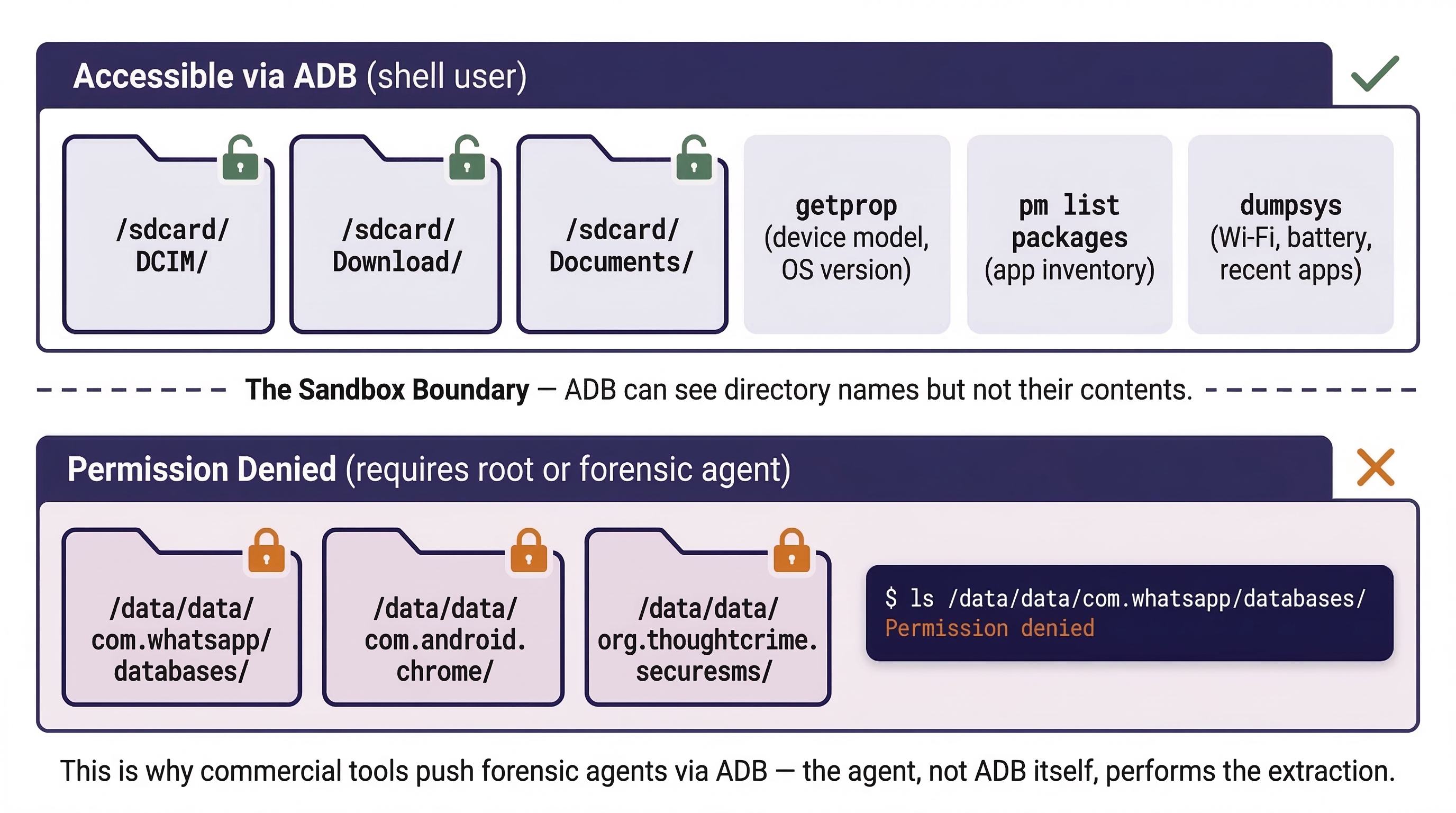
A critical limitation that students must internalize: ADB shell access runs as the shell user, not as root. The shell user does not have permission to read the /data/data/ directories where app sandbox data resides. You can list the directory names (ls /data/data/) but you cannot enter them or read their contents.
$ adb shell ls /data/data/com.whatsapp/databases/
ls: /data/data/com.whatsapp/databases/: Permission denied
This is why commercial forensic tools do not rely on ADB alone. Tools like Cellebrite and Magnet AXIOM use ADB as a transport mechanism—a communication channel to push a temporary forensic agent (a small APK with elevated privileges) onto the device. The agent, not ADB itself, performs the actual data extraction from sandboxed areas. The security mechanisms that enforce this restriction—application sandboxing, SELinux, and encryption—are covered in detail in Chapter 10.
Warning
ADB is a powerful forensic tool, but it is not a bypass tool. Without root access, ADB gives you visibility into the structure of the device (what apps are installed, what the device model is, what is in shared storage) but not full access to the content of sandboxed app data. Treat ADB as a triage and targeted extraction tool, not a replacement for a full file system extraction performed by a commercial forensic suite.
Putting It Together: The Missing Persons Investigation
A detective submits an unlocked Samsung Galaxy A54 belonging to a missing 19-year-old college student. The phone was found in the student's dorm room, still powered on, with USB Debugging enabled (the student was a computer science major). The detective needs preliminary leads immediately while the lab queues a full forensic extraction.
- Connect and Verify: The examiner connects the device via USB and runs
adb devices. The device appears asdevice(authorized). - Device Identification: Running
adb shell getprop ro.product.modelconfirms the Samsung Galaxy A54.adb shell getprop ro.build.version.releaseshows Android 14. The examiner documents this for the case file. - App Landscape: The examiner runs
adb shell pm list packages -3 -iand scans the output for communication and travel-related apps. The list reveals WhatsApp, Instagram, Snapchat, Lyft, and Tinder are installed—all via Google Play. - Shared Storage Extraction: Using
adb pull /sdcard/DCIM/ ./evidence/photos/, the examiner extracts all camera photos. A review of the most recent images shows photos taken at an unfamiliar location three days before the student was reported missing. - Wi-Fi Triage: Using
adb shell dumpsys wifi, the examiner checks the current and recently connected Wi-Fi networks. A saved SSID matching a hotel chain 90 miles away appears in the output. - Recent Activity: Running
adb shell dumpsys activity recentsreveals the last apps used before the phone was left in the dorm: Lyft, then Google Maps, then the Messages app. - Handoff: The examiner documents all ADB findings, notes the Lyft and mapping activity as priority leads for the detective, and queues the device for a full file system extraction (using the lab's Cellebrite system) to access sandboxed app databases—including Lyft trip history, Tinder conversations, and WhatsApp messages.
This scenario demonstrates ADB's value as a triage tool. The examiner generated actionable leads within minutes while the full extraction—which may take hours—runs in parallel.
9.6 Android Forensic Parsing Tools
While manual navigation of the Android file system and ADB-based triage are essential skills, production casework demands efficiency. Parsing tools automate the extraction and presentation of hundreds of artifact types from Android file system images, generating structured reports that can be reviewed, searched, and presented in court.
ALEAPP (Android Logs Events And Protobuf Parser)
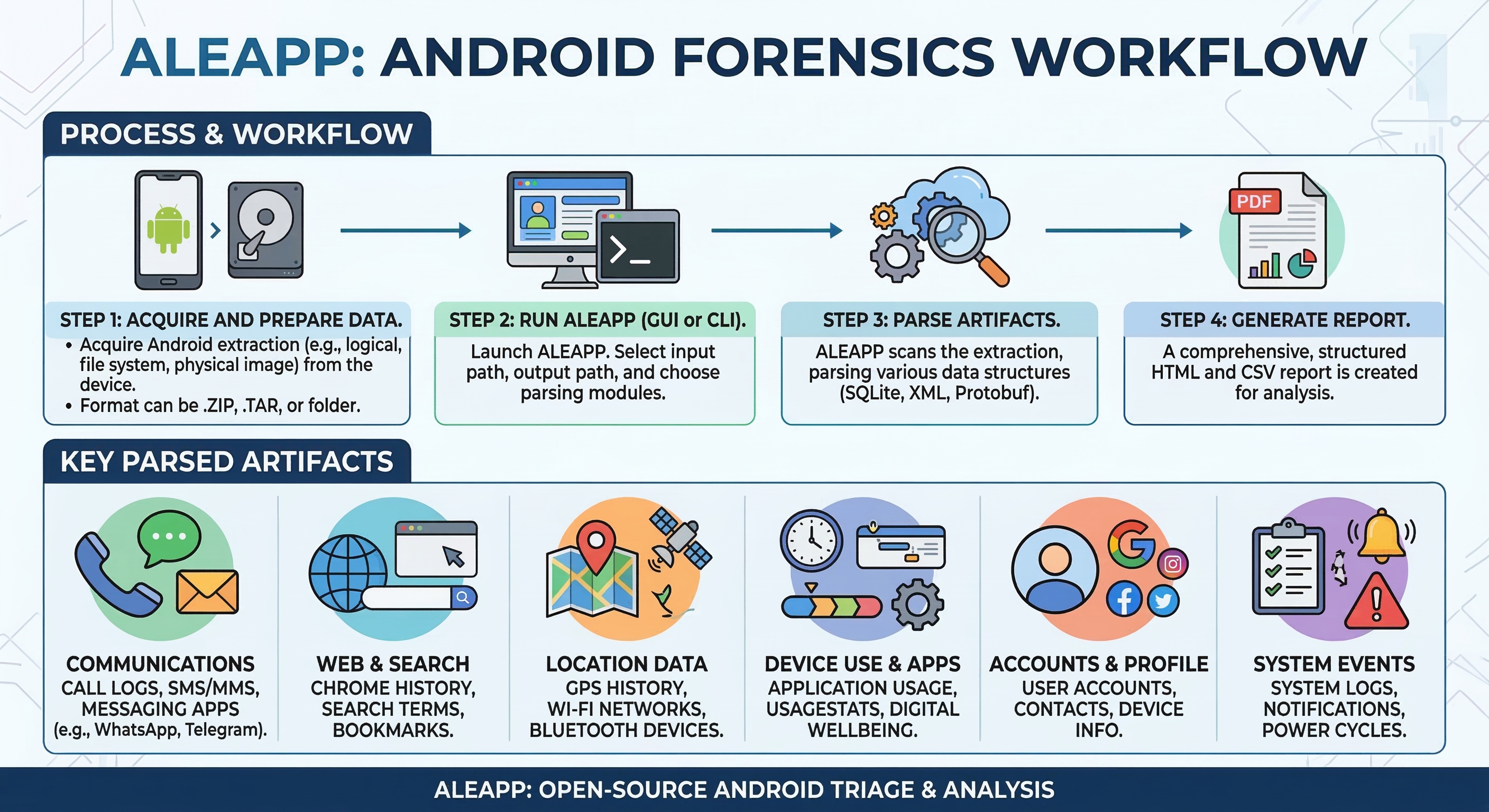
ALEAPP is a free, open-source, Python-based forensic parser designed specifically for Android extractions. Developed and maintained by the digital forensics community (primarily Alexis Brignoni and contributors), ALEAPP processes a file system extraction and produces an HTML report organized by artifact category: accounts, call logs, Chrome history, contacts, device information, installed apps, location data, SMS/MMS, Wi-Fi connections, and dozens more.
ALEAPP accepts multiple input formats: TAR archives, ZIP files, and directory structures produced by Cellebrite, AXIOM, and other tools. Running it is straightforward—point it at the extraction directory, specify an output location, and select which artifact parsers to execute.
Analyst Perspective
ALEAPP is free, community-maintained, and frequently updated—often faster than commercial tool vendors push parser updates. Many law enforcement labs run ALEAPP as a secondary validation tool alongside their primary commercial suite. A common workflow is: run Cellebrite Physical Analyzer for the primary report, then run ALEAPP against the same extraction to catch artifacts that the commercial tool missed, mislabeled, or failed to parse. If both tools agree on an artifact, confidence is high. If they disagree, manual verification in DB Browser for SQLite (Chapter 8) resolves the discrepancy.
Commercial Tool Context
Cellebrite Physical Analyzer and Magnet AXIOM both provide comprehensive parsed views of Android extractions. These tools present evidence in categorized, searchable formats with timeline views, conversation threading, and map-based location visualization. They are powerful and efficient for production casework.
However, relying exclusively on a commercial tool's parsed output is a practice this textbook has cautioned against since Chapter 1. Parsed views are only as accurate as the tool's parser. If a tool encounters a database schema it does not recognize (perhaps from a newer app version or a regional variant), it may skip the artifact entirely without alerting the examiner. Knowing how to navigate the raw file system and query databases manually (Chapter 8) ensures you are never entirely dependent on what a tool chooses to show you.
The Validation Workflow
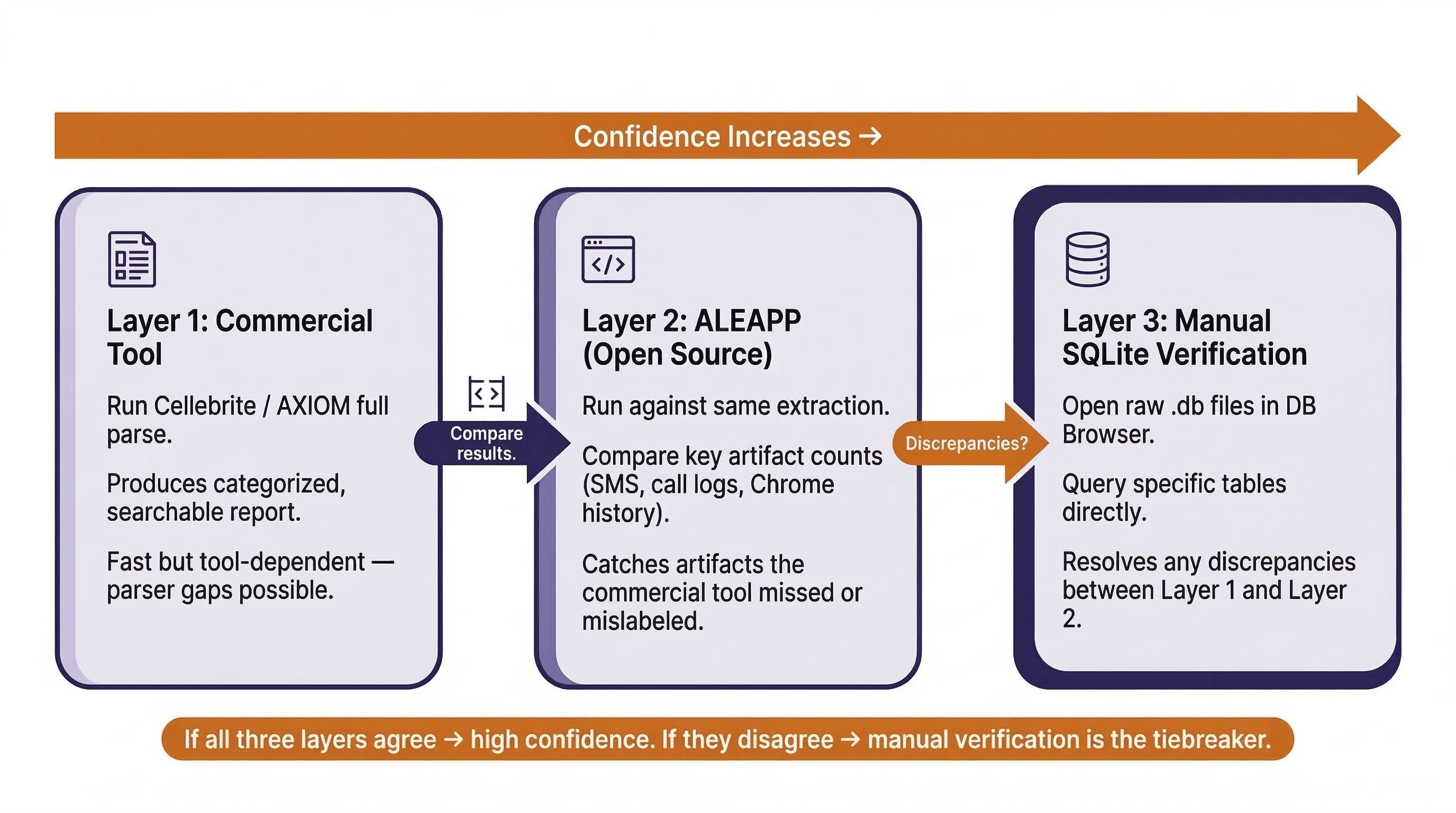
The ideal Android analysis workflow combines all three approaches:
- Commercial Tool First: Run a full parse with your lab's primary tool (Cellebrite, AXIOM, etc.) for the structured, categorized report.
- ALEAPP Second: Run ALEAPP against the same extraction as a validation layer. Compare key artifacts (SMS counts, call log entries, Chrome history records) between both tools.
- Manual Verification Third: For any discrepancies or high-priority artifacts, open the raw SQLite database in DB Browser and query it directly using the skills from Chapter 8.
This three-layer approach—automated commercial parse, open-source validation, manual verification—represents the standard of thoroughness expected in professional forensic work.
Chapter 9 Summary
- Market Dominance and Fragmentation: Android's roughly 72% global market share means the majority of devices in forensic casework will be Android. However, the open-source model creates massive fragmentation—thousands of OEM variants that affect evidence paths, database schemas, and tool compatibility.
- The Software Stack: Android is built on a Linux kernel with layers of abstraction (HAL, ART, Application Framework) leading up to user-facing applications. Each layer generates artifacts, but the Application Layer and its underlying SQLite databases hold the most evidentiary value.
- Partition Layout: The
userdatapartition (mounted at/data) is the primary target. The/data/data/directory contains sandboxed app data organized by package name, while/data/media/0/holds shared user files. External SD cards may contain unencrypted evidence even when internal storage is protected by encryption. - Key Evidence Databases: SMS (
mmssms.db), call logs (calllog.db), contacts (contacts2.db), Chrome history, Wi-Fi connections (WifiConfigStore.xml), accounts (accounts_ce.db), and the installed package registry (packages.xml) form the core evidence set for any Android investigation. - ADB as a Forensic Tool: The Android Debug Bridge allows direct interaction with an Android device over USB. Core commands (
adb shell,adb pull,adb shell pm list packages,adb shell getprop,adb shell dumpsys) enable device identification, app triage, and targeted file extraction. ADB's primary limitation is that it runs as theshelluser and cannot access sandboxed app data without root privileges. - Parsing and Validation: ALEAPP provides free, open-source parsing of Android extractions. The professional standard combines commercial tool output, ALEAPP validation, and manual SQLite verification for a three-layer approach to evidence analysis.
Next Steps: Now that you can navigate the Android file system and interact with a device via ADB, Chapter 10 shifts focus to the applications themselves. We will deconstruct Android Application Packages (APKs), analyze their manifests and permissions, examine signing certificates for tampering detection, and explore the security mechanisms (sandboxing, SELinux, encryption) that define the boundaries of forensic access. The APK analysis skills introduced in Chapter 10 will be applied in a full malware investigation workflow in Chapter 13 (Android Malware Analysis).