CH11: iOS Forensics - Architecture, Evidence, and Acquisition
Chapter Overview
The previous two chapters dissected Android from the kernel up: its file system layout, evidence databases, ADB commands, application packages, and security model. This chapter turns to the other half of the mobile forensics landscape. Apple's iOS powers every iPhone, and its presence in casework is substantial. Depending on the region and demographic, an examiner may encounter iOS devices as frequently as Android devices, and sometimes more so.
Where Android's story is one of openness and fragmentation, iOS is defined by control and uniformity. Apple designs the hardware, writes the operating system, operates the app distribution channel, and enforces strict rules on what developers and users can do. For forensic examiners, this uniformity is both an advantage and a constraint. The advantage: every iPhone running the same iOS version stores data in the same locations, uses the same database schemas, and enforces the same security model. The constraint: Apple's layered security architecture, hardware-rooted encryption, and deliberate restrictions on developer access make iOS devices among the most challenging targets in digital forensics.
This chapter maps the iOS architecture, catalogs the file system and evidence locations an examiner must target, walks through the acquisition methods available at each access level, and introduces the open-source parsing tools that transform raw extractions into actionable evidence.
Learning Objectives
By the end of this chapter, you will be able to:
- Describe the iOS software architecture and explain how Apple's closed-source, hardware-integrated design impacts forensic acquisition strategies.
- Navigate the APFS file system layout on an iOS device and identify where user data, application data, and system artifacts reside.
- Locate key forensic evidence within iOS, including messages, call history, location data, Safari history, and application-specific databases and property lists.
- Differentiate between iOS acquisition methods (iTunes/Finder backup, logical, file system, advanced) and evaluate the evidence yield and limitations of each.
- Utilize iLEAPP and other parsing tools to process iOS extractions and validate commercial tool output.
11.1 Introduction to iOS from a Forensic Perspective
Apple released the original iPhone in 2007, and the device fundamentally changed both the smartphone market and the digital forensics discipline. Unlike Android, iOS is not open-source. Apple does not publish the operating system's source code, does not allow other manufacturers to run iOS on their hardware, and tightly controls which applications can be installed through the App Store review process.
This closed ecosystem creates a forensic environment that differs from Android in several important ways. First, there is no fragmentation problem. When Apple releases iOS 17, every supported iPhone receives the same update, and the file system paths, database schemas, and security behaviors are identical across all of those devices. An examiner who validates a technique on one iPhone running iOS 17.4 can be confident it will behave the same way on every other iPhone running that version.
Second, Apple's security investments are aggressive. Features like the Secure Enclave (a dedicated hardware security processor), Data Protection (file-level encryption tied to the device passcode), and Signed System Volume (cryptographic verification of the operating system itself) create layered barriers that restrict what data is accessible and under what conditions. These mechanisms have been discussed throughout earlier chapters as they relate to mobile acquisition. This chapter focuses on how they specifically shape the iOS forensic workflow.
Warning
iOS forensics changes with every major release. Apple regularly moves database locations, changes encryption behaviors, and deprecates acquisition pathways. Always verify your tool's support matrix against the specific iOS version and device model before beginning an extraction.
11.2 The iOS Software Stack
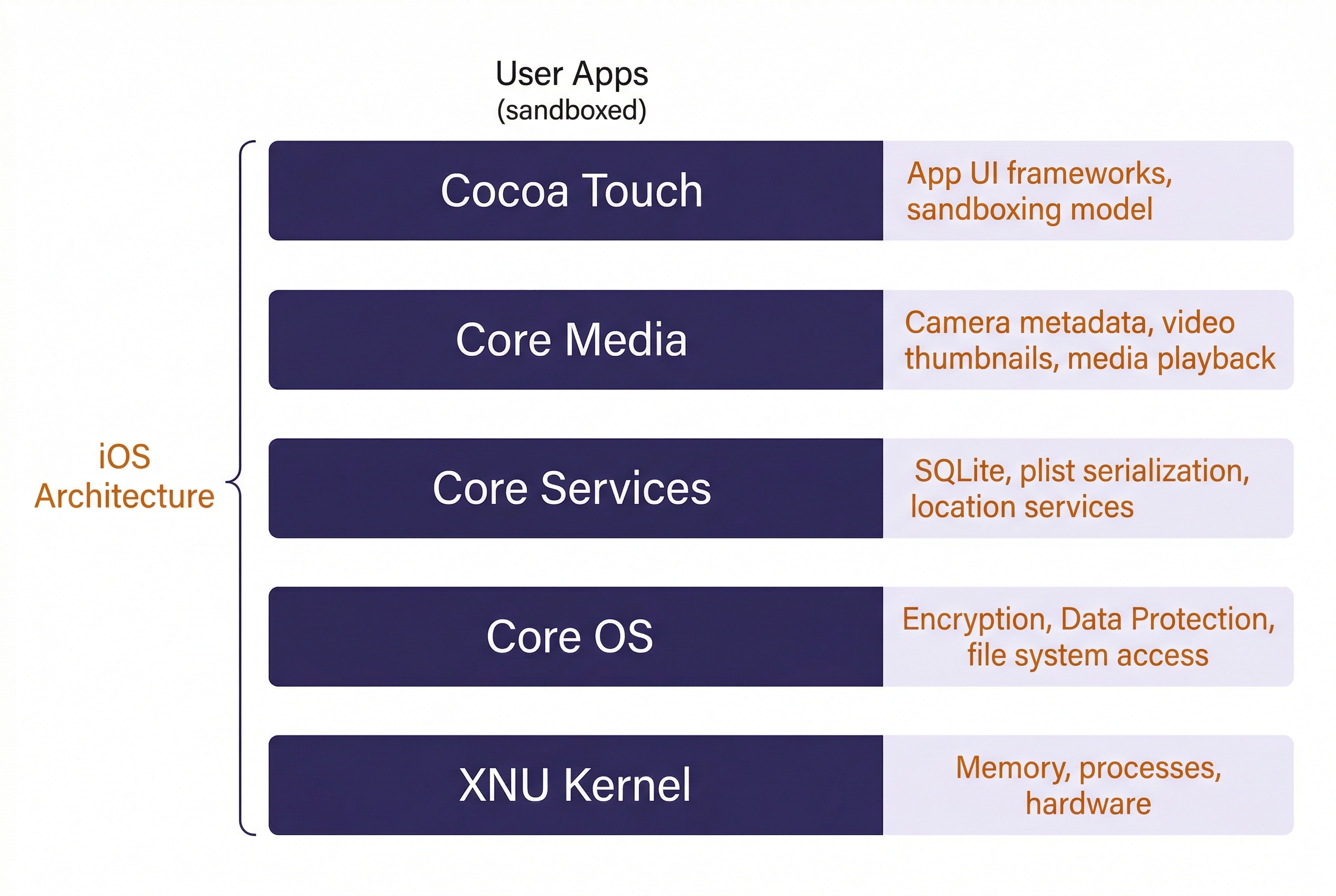
iOS is built on a layered architecture. Understanding these layers helps explain why certain data is accessible at different extraction levels.
At the base sits the XNU kernel, a hybrid kernel combining elements from the Mach microkernel (used in Carnegie Mellon research) and FreeBSD. XNU manages memory, processes, and hardware interaction. Above the kernel, Apple organizes the operating system into four framework layers:
- Core OS provides low-level services: file system access, networking, security primitives, and Bluetooth. The encryption and Data Protection mechanisms that govern forensic access operate at this layer.
- Core Services handles data management, networking APIs, and location services. SQLite (the database engine storing most user evidence) and property list (plist) serialization both live here.
- Core Media manages audio, video, image processing, and graphics rendering. Camera metadata, video thumbnails, and media playback history flow through this layer.
- Cocoa Touch is the application-facing layer that provides the UI frameworks developers use to build apps. The sandboxing model that isolates each app's data is enforced here.
Analyst Perspective
You will rarely need to think about these layers during day-to-day casework. Where they matter is when you are reading forensic research or vendor documentation that references framework-level changes. For example, when Apple moved location data handling in iOS 15 to a new daemon process at the Core Services layer, it changed which database files contained location evidence and where they were stored. Knowing where in the stack a change occurred helps you understand why evidence moved.
11.3 APFS and the iOS File System
Every modern iOS device uses the Apple File System (APFS), introduced in iOS 10.3 as the replacement for HFS+. APFS was designed from the ground up for flash storage (SSDs and NAND chips), and several of its features have direct forensic implications.
APFS Features That Matter Forensically
Clones allow APFS to create copies of files without duplicating the underlying data blocks. The clone shares the same storage until one copy is modified, at which point only the changed blocks are written separately. For forensic examiners, this means that two files may appear as separate entries in the file system but occupy the same physical storage. Carving tools that operate at the block level need to account for this.
Snapshots are read-only, point-in-time captures of the entire file system state. iOS creates snapshots during system updates, and some backup processes leverage them as well. A snapshot preserves the state of every file at the moment it was taken, including files that have since been modified or deleted. When accessible, snapshots are a powerful source of historical evidence. Some advanced forensic tools can enumerate and extract data from APFS snapshots, effectively recovering a previous version of the device's file system.
Native Encryption is built into APFS at the file system level. Each file can be encrypted with its own key, and those keys are wrapped by class keys tied to the device's Data Protection configuration. This is the mechanism that makes BFU and AFU states forensically distinct, a concept covered in detail in Chapter 6.
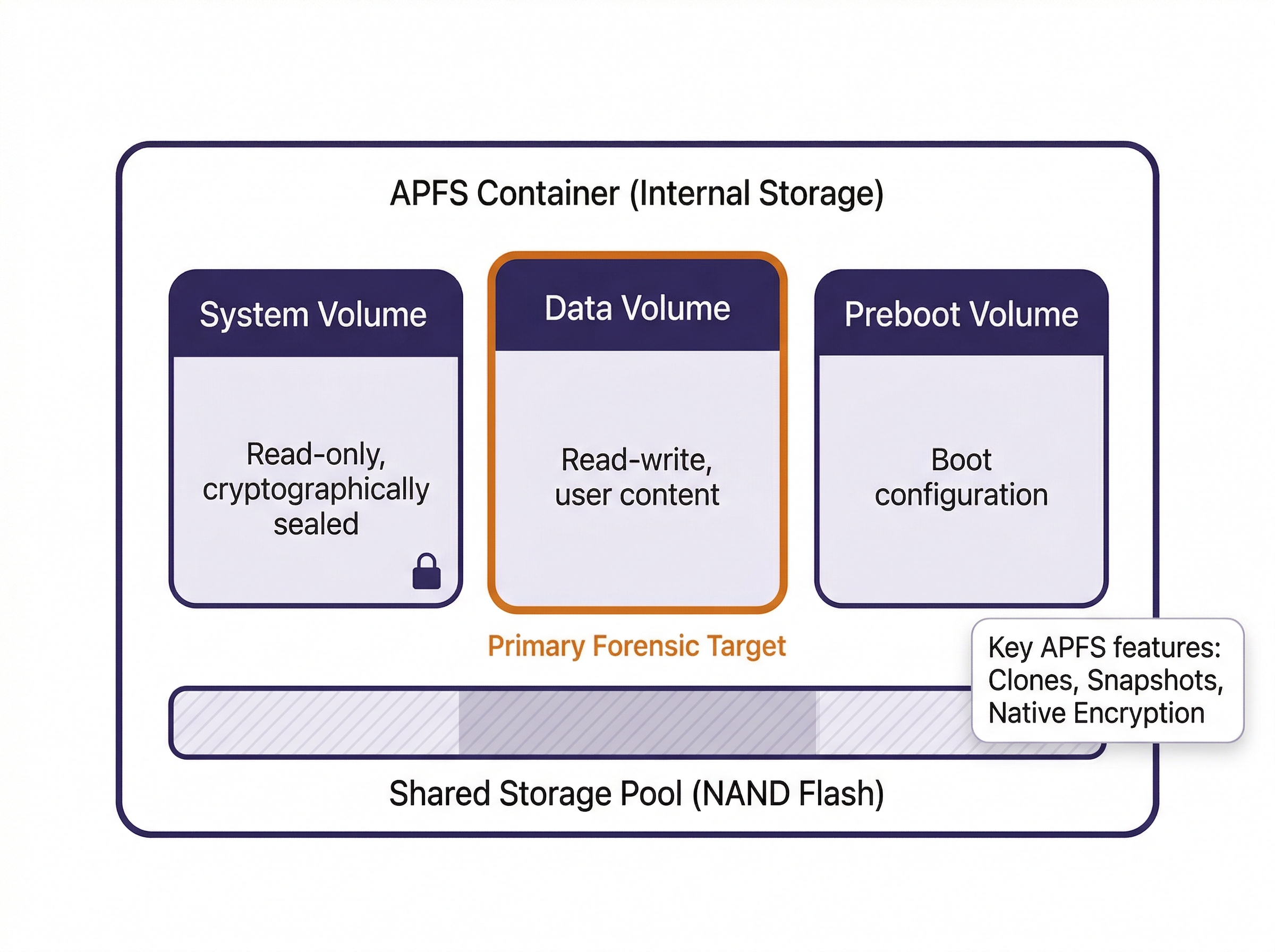
Space Sharing allows multiple APFS volumes to share the same physical storage pool. On a modern iPhone, the internal storage contains a single APFS container with multiple volumes: the System volume (read-only, cryptographically sealed), the Data volume (read-write, where user content lives), and the Preboot volume (boot configuration). The examiner's primary target is the Data volume.
The iOS Directory Structure
Within the Data volume, the directory hierarchy follows a consistent layout across all iOS versions. The critical paths for forensic examination are:
| Path | Contents | Forensic Value |
|---|---|---|
/private/var/mobile/ |
User data root | Primary target for all user evidence |
/private/var/mobile/Library/SMS/ |
iMessage and SMS databases | Messages, attachments, chat metadata |
/private/var/mobile/Library/CallHistoryDB/ |
Call history | Incoming, outgoing, missed calls, FaceTime |
/private/var/mobile/Library/Safari/ |
Safari browsing data | History, bookmarks, open tabs |
/private/var/mobile/Media/ |
Photos, videos, recordings | Camera roll, downloads, screen recordings |
/private/var/mobile/Containers/Data/Application/ |
Third-party app sandboxes | App-specific databases, caches, preferences |
/private/var/mobile/Containers/Shared/ |
Shared app group data | Data shared between apps by the same developer |
/private/var/mobile/Library/LocationServices/ |
Location databases | GPS history, significant locations, Wi-Fi positioning |
/private/var/wireless/Library/Preferences/ |
Wi-Fi connection history | SSIDs, connection timestamps, MAC addresses |
/private/var/root/Library/Lockdown/ |
Pairing and lockdown records | Host pairing certificates, device trust history |
/private/var/mobile/Library/Health/ |
HealthKit data | Step counts, heart rate, sleep data, workout logs |
/private/var/mobile/Library/Preferences/ |
System and app preferences | Plist files with configuration, usage, and state data |
Warning
Apple periodically reorganizes these paths between major iOS versions. The paths listed here are stable as of iOS 17/18, but always confirm against your forensic tool's path documentation for the specific iOS version under examination.
11.4 Key iOS Evidence Locations
This section catalogs the primary evidence sources on an iOS device. Each entry identifies the database or file, its location, and the type of evidence it contains. Pair this section with the directory table in Section 11.3 as a combined reference.
Messages (iMessage and SMS/MMS)
The message database is stored at /private/var/mobile/Library/SMS/sms.db. This SQLite database contains all SMS, MMS, and iMessage conversations. Key tables include message (message text, timestamps, delivery status, read receipts), handle (phone numbers and email addresses for each contact), and chat (conversation groupings). Attachments are stored as separate files in the Attachments/ subdirectory, with the message_attachment_join table linking them to their parent messages.
iMessage records include metadata that SMS does not: read receipts, typing indicators (in some extraction types), and the specific Apple ID email or phone number used to send the message.
Call History
Call records live in /private/var/mobile/Library/CallHistoryDB/CallHistory.storedata. This SQLite database logs incoming, outgoing, missed, and blocked calls, along with FaceTime audio and video calls. Each record includes the phone number or contact identifier, call duration, timestamp, and the service provider (cellular vs. FaceTime). On devices with Dual SIM or eSIM, the database also records which line was used.
Location Data
iOS collects location data through multiple mechanisms, and the evidence is distributed across several databases:
cache_encryptedB.dbin/private/var/mobile/Library/Caches/com.apple.routined/contains processed location data from the Routine Engine, which tracks frequently visited locations.Local.sqlitein/private/var/mobile/Library/Caches/com.apple.routined/records location transition data and visit durations.consolidated.db(legacy, pre-iOS 15) was the central location cache. On newer iOS versions, this data has been redistributed across the routined databases.- Significant Locations are stored in an encrypted plist within
/private/var/mobile/Library/Preferences/. These are locations iOS determines the user visits regularly. Access requires the device passcode because the data is protected with a key derived from the passcode.
Analyst Perspective
Location evidence from iOS devices frequently appears in stalking, missing persons, and homicide investigations. The Significant Locations data is particularly valuable because it records not just GPS coordinates but also arrival and departure times, visit frequency, and location labels. However, this data is encrypted at rest and only accessible from a full file system extraction of an unlocked device. A logical backup will not contain it.
Safari Browsing Data
Safari history is stored in /private/var/mobile/Library/Safari/History.db. The history_items table records URLs and titles, while history_visits records individual visit timestamps. Safari's Reading List, Open Tabs (synced across iCloud-connected devices), and Bookmarks are stored in separate plist and database files within the same directory.
Photos and Media
The Photos database at /private/var/mobile/Media/PhotoData/Photos.sqlite is one of the richest evidence sources on an iOS device. Beyond cataloging every photo and video, this database stores EXIF metadata (GPS coordinates, camera settings, timestamps), facial recognition groupings (the "People" album), scene classification labels (Apple's on-device ML identifies "beach," "restaurant," "document," etc.), and edit history. The actual media files reside in /private/var/mobile/Media/DCIM/.
Application Data
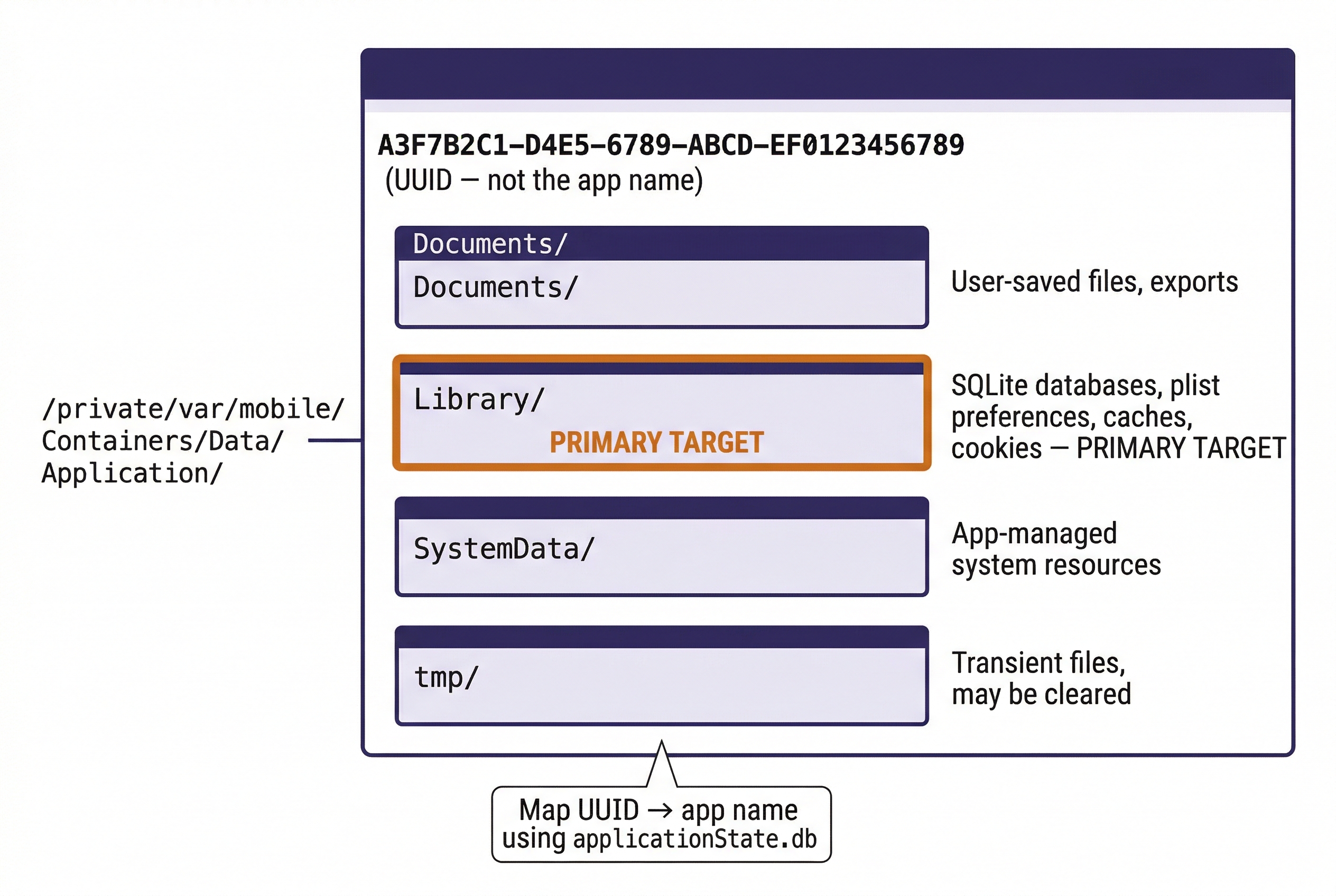
Each third-party app is sandboxed in its own directory under /private/var/mobile/Containers/Data/Application/. The directory name is a UUID, not the app name. To map a UUID to a specific application, examiners use the applicationState.db database or the .com.apple.mobile_container_manager.metadata.plist file inside each container.
Within each app sandbox, the structure follows Apple's conventions: Documents/ for user-visible files, Library/ for app-managed data (including SQLite databases and plists), and tmp/ for transient files. The specific evidence available depends entirely on how the app developer chose to store data. Communication apps (WhatsApp, Signal, Telegram) typically maintain SQLite databases with message history, while social media apps often cache profile data, images, and browsing history.
Property Lists (Plists)
iOS uses property list (plist) files extensively for configuration and state storage. Plists appear throughout the file system and store everything from Wi-Fi network history to app preferences to device configuration. Understanding how to read and convert plists is a core iOS forensics skill.
What Are XML and JSON?
Before examining plist formats, two underlying data formats need brief definitions, as both appear throughout iOS forensics.
XML (Extensible Markup Language) is a text-based format that uses nested tags (similar to HTML) to structure data. Tags are enclosed in angle brackets, and every opening tag has a corresponding closing tag. XML is human-readable but verbose. iOS uses XML as one of the formats for plist files, and many forensic reports and configuration files across platforms use XML.
JSON (JavaScript Object Notation) is a lighter-weight text format that uses curly braces for objects, square brackets for arrays, and key-value pairs separated by colons. JSON is more compact than XML and has become the dominant format for web APIs and modern application data storage. Some newer iOS plists and application data files use JSON.
Both formats are plain text, which means they can be opened in any text editor. The distinction matters forensically because the tools you use to parse each format differ, and recognizing the format on sight helps you choose the right approach.
Plist Formats
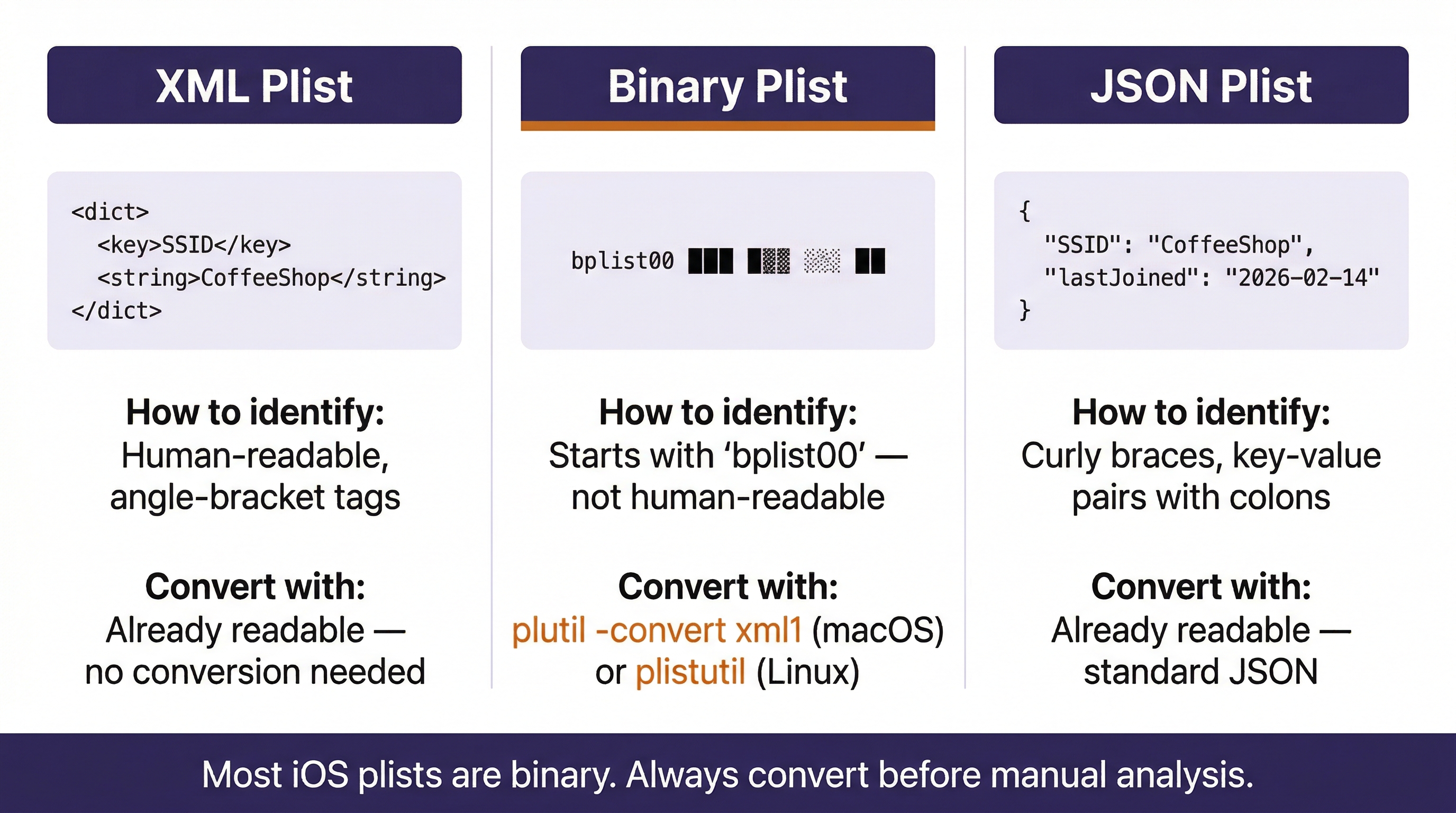
Apple stores plists in three formats:
XML plists are human-readable and open in any text editor. They use Apple-specific XML tags like <dict>, <key>, <string>, <date>, and <integer> to structure data. Here is a simplified example of what a Wi-Fi network entry looks like in XML plist format:
<?xml version="1.0" encoding="UTF-8"?>
<!DOCTYPE plist PUBLIC "-//Apple//DTD PLIST 1.0//EN"
  "http://www.apple.com/DTDs/PropertyList-1.0.dtd">
<plist version="1.0">
<dict>
    <key>SSID_STR</key>
    <string>CoffeeShop_Guest</string>
    <key>lastJoined</key>
    <date>2026-02-14T08:32:17Z</date>
    <key>lastAutoJoined</key>
    <date>2026-02-14T08:32:17Z</date>
    <key>networkWasCaptive</key>
    <true/>
    <key>SecurityMode</key>
    <string>WPA2 Personal</string>
</dict>
</plist>
In this example, you can see the structure: <key> tags name the field, and the tag immediately following provides the value. The <date> values use ISO 8601 format (UTC). The <true/> tag is a boolean. An examiner reading this entry can determine that the device connected to a network called "CoffeeShop_Guest" on February 14, 2026, at 8:32 AM UTC, the network used WPA2 Personal security, and it was flagged as a captive portal (a network requiring a login page).
Binary plists store the same data in a compact binary format that is not human-readable. When you open a binary plist in a text editor, you will see the header bplist00 followed by unreadable binary data. The majority of plists on a modern iOS device are stored in binary format because it is more efficient for the device to read.
JSON plists use standard JSON formatting. These are less common than XML and binary but appear in some newer iOS configurations.
Converting Binary Plists to Readable Text
The macOS command-line utility plutil converts between plist formats. This is the tool you will reach for when you encounter a binary plist that needs to be read:
plutil -convert xml1 com.apple.wifi.known-networks.plist
This converts the file in place from binary to XML format. To preserve the original binary file and write the XML version to a separate file:
plutil -convert xml1 -o wifi_readable.plist com.apple.wifi.known-networks.plist
You can also convert to JSON if you prefer that format:
plutil -convert json -o wifi_readable.json com.apple.wifi.known-networks.plist
On Linux forensic workstations where plutil is not available, the plistutil package (part of libplist) provides the same functionality:
plistutil -i com.apple.wifi.known-networks.plist -o wifi_readable.plist
Analyst Perspective
When processing an iOS extraction on your forensic workstation, one of the first steps should be batch-converting all binary plists to XML so they are searchable with standard text tools like grep. A simple script that walks the extraction directory and runs plutil -convert xml1 (or plistutil) on every .plist file saves significant time during manual analysis. iLEAPP handles this conversion automatically for the artifacts it parses, but manual examination of plists outside iLEAPP's artifact list is common in casework.
Key Forensic Plists
With the format understood, here are the plists that an examiner should prioritize:
com.apple.wifi.known-networks.plistrecords every Wi-Fi network the device has connected to, along with connection timestamps, security types, and captive portal status.com.apple.springboard.pliststores home screen layout and wallpaper configuration.com.apple.Preferences.plisttracks device settings, including language, region, and accessibility configurations.com.apple.MobileBackup.plistrecords backup history, including the last backup date and whether encryption was enabled.com.apple.locationd.pliststores location services permissions for each app, showing which apps have requested and received GPS access.
11.5 iOS Acquisition Methods
The method used to acquire data from an iOS device determines the volume and type of evidence recovered. Unlike Android, where ADB provides a direct command-line interface to the file system, iOS acquisition requires working within (or around) Apple's security architecture.
iTunes/Finder Backup
The most universally available method. When an iPhone is backed up to a computer using iTunes (Windows) or Finder (macOS), the backup process creates a structured copy of the device's user data. Forensic tools can parse these backups directly.
Encrypted vs. Unencrypted Backups: An unencrypted backup omits sensitive data, including saved Wi-Fi passwords, Health data, Keychain entries, and call history. An encrypted backup (protected by a user-set password) includes all of this data. If the examiner has the backup password or can set one (on a device that does not already have a backup password configured), encrypted backups are always preferred because they contain more evidence.
| Backup Type | Keychain | Health | Call History | Wi-Fi Passwords | Location Data |
|---|---|---|---|---|---|
| Unencrypted | No | No | Limited | No | Limited |
| Encrypted | Yes | Yes | Full | Yes | Partial |
Tools: Forensic tools that parse iTunes backups include Cellebrite UFED, Magnet AXIOM, Belkasoft Evidence Center, and the open-source ibackupbot and libimobiledevice toolkits.
Logical Extraction with libimobiledevice
A logical extraction uses the same backup protocol as iTunes but is initiated by a forensic tool or command-line utility. The tool communicates with the device over USB using Apple's usbmuxd protocol (or wirelessly via Wi-Fi sync). The evidence yield is comparable to an encrypted iTunes backup when the examiner can enable encryption.
libimobiledevice is the primary open-source toolkit for iOS logical acquisition. Introduced in Chapter 6, it is a cross-platform protocol library that allows Linux, Windows, and macOS systems to communicate natively with iOS devices without requiring iTunes. For forensic examiners, libimobiledevice provides direct command-line control over device identification, triage, and backup acquisition.
The general workflow follows three stages: identify the device, gather triage information, and initiate the backup. Here is a quick refresher of the core commands (the full Examiner's Cheat Sheet is in Chapter 6, Section 6.5):
Stage 1: Identify and Verify the Device
idevice_id -l
This command lists the UDID (Unique Device Identifier) of every iOS device connected via USB. The UDID is a 40-character hexadecimal string (or 24-character hyphenated string on newer devices) that uniquely identifies the device. Record this value immediately; it belongs in your chain of custody documentation and is required for warrant returns.
ideviceinfo
This dumps detailed device metadata: device model, serial number, IMEI, iOS version, Wi-Fi MAC address, Bluetooth MAC, and more. Running ideviceinfo -k ProductVersion returns only the iOS version, which is useful when you need to quickly determine acquisition options.
Stage 2: Triage
ideviceinstaller -l
Lists every application installed on the device with its bundle ID and version. This is a rapid way to determine whether specific apps of investigative interest (Signal, Telegram, Wickr, ProtonMail) are present before committing to a full acquisition.
idevicesyslog
Streams the device's system log to the terminal in real time. This is primarily a troubleshooting tool. If the device is rejecting your USB connection or a backup is failing, the syslog will show the error. It can also capture application activity occurring on the device in real time.
Stage 3: Acquire
idevicebackup2 backup --full /path/to/output/
This initiates a full iTunes-style backup to the specified directory. The backup contains the same data that iTunes/Finder would produce. If the device has a backup password set, the backup will be encrypted with that password. If no backup password exists and the examiner has legal authority, a password can be set on the device to force an encrypted backup (which captures Keychain, Health, and call history data that unencrypted backups omit).
idevicebackup2 encryption on <password>
Sets or changes the backup encryption password. Use this before running the backup command if you need an encrypted acquisition and no password is currently set.
Warning
Setting a backup encryption password modifies the device state. Document this action thoroughly in your forensic notes, including the password you set. Some jurisdictions may require specific legal authority before modifying any device settings, even to enable encryption for a more complete extraction. Consult your agency's legal counsel if there is any question.
File System Extraction
A file system extraction recovers the full contents of the Data volume, including files not included in backups: location databases, application caches, deleted SQLite records (via WAL files and free pages), APFS snapshots, and system logs. This level of access requires either exploiting a vulnerability in the device's boot chain or using a forensic tool with the capability to leverage such exploits.
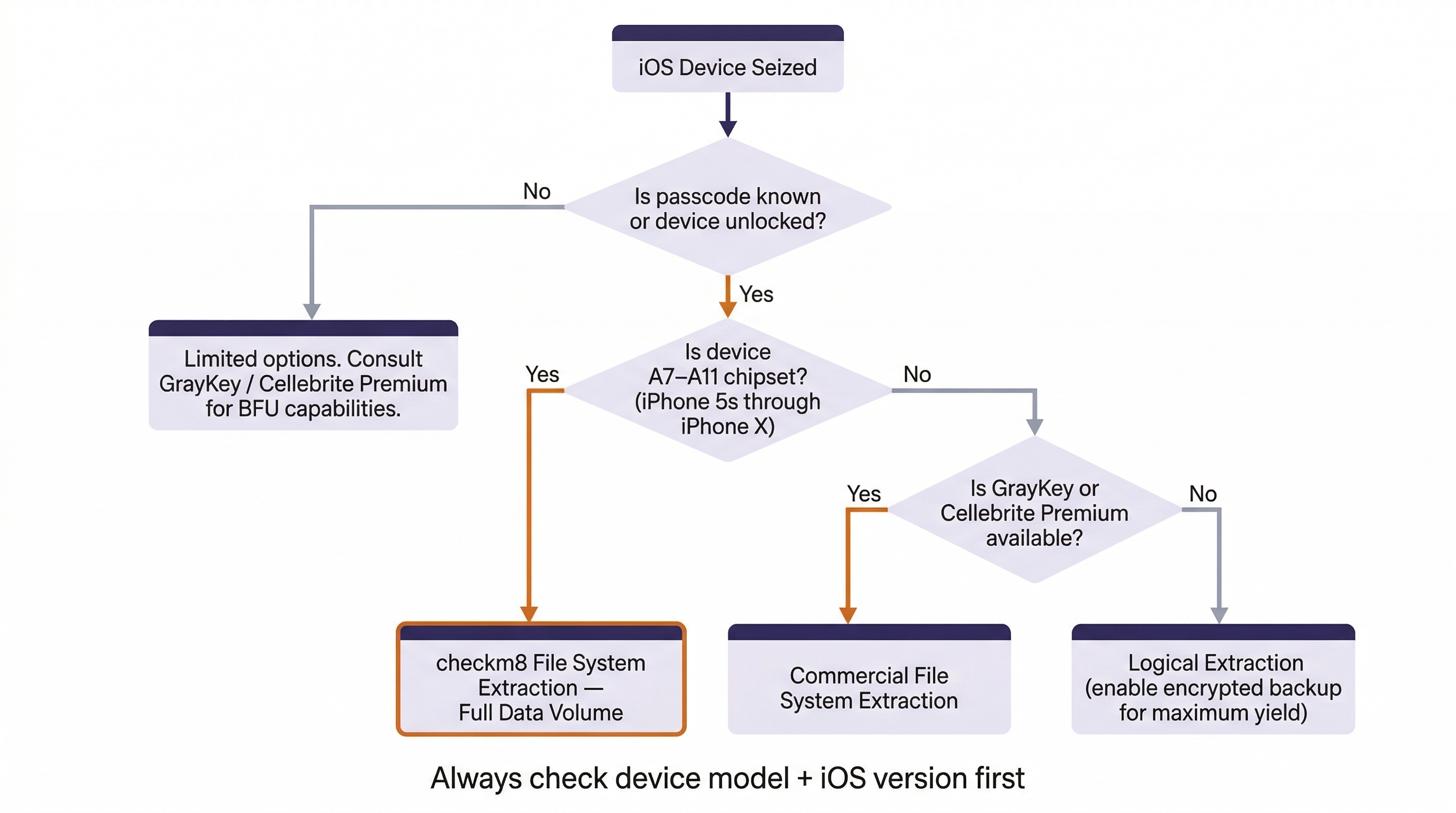
checkm8/checkra1n: The checkm8 bootROM exploit (disclosed in 2019) affects iPhone models from the iPhone 5s through the iPhone X (A7 through A11 chipsets). Because the vulnerability exists in read-only hardware (the bootROM), Apple cannot patch it with a software update. The checkra1n tool uses checkm8 to boot the device into a state where the file system can be accessed directly. This provides the most complete extraction possible for eligible devices.
For devices newer than the iPhone X (A12 chipset and later), bootROM exploits are not publicly available. File system extraction on these devices depends on the capabilities of commercial forensic tools like GrayKey (Magnet Forensics) and Cellebrite Premium, which use proprietary methods that are not publicly documented.
Acquisition Decision Matrix
| Method | Device Requirement | Evidence Yield | Handles Locked Devices? |
|---|---|---|---|
| iTunes/Finder Backup | Trusted computer pairing | Moderate (user data, some system data) | No (requires unlocked + trust) |
| Logical (forensic tool) | USB connection + trust | Moderate to High (with encryption enabled) | No |
| File System (checkm8) | A7-A11 chipset | Full Data volume | AFU only (passcode required for decryption) |
| File System (commercial) | Varies by tool/version | Full Data volume | Varies; some AFU, limited BFU |
| iCloud (account-based) | Apple ID credentials or legal process | Varies by iCloud settings | N/A (cloud-based) |
Analyst Perspective
The first question in any iOS case should be: What is the device model, and what iOS version is it running? The answer determines which acquisition paths are available. An iPhone X running iOS 16 is a checkm8-eligible device with full file system extraction available. An iPhone 15 running iOS 18 limits you to logical extraction unless you have access to GrayKey or Cellebrite Premium. Knowing this up front prevents wasted time attempting unsupported methods.
Putting It Together: The Harassment Investigation
A detective requests extraction of an iPhone 12 (A14 chipset, iOS 17.3) seized during a domestic violence investigation. The device is powered on and the suspect provided the passcode during a consent search. Here is the examiner's decision process:
- Device model check: iPhone 12 uses the A14 chipset, so checkm8 is not available (requires A11 or earlier).
- Device state: The device is AFU and the passcode is known, so all Data Protection classes are accessible.
- Acquisition strategy: Perform a logical extraction using Cellebrite or Magnet, ensuring backup encryption is enabled to capture Keychain and Health data. If GrayKey is available, perform a full file system extraction for maximum evidence yield (location databases, deleted records, app caches).
- Priority evidence: iMessage history (
sms.db), call logs (CallHistory.storedata), location databases (routined caches), Photos database for metadata and timestamps, and any communication app sandboxes (WhatsApp, Snapchat). - Preservation: Before extraction, document the device state (screen lock status, airplane mode, battery level) and enable airplane mode to prevent remote wipe via Find My iPhone.
11.6 iOS App Structure and Data Storage
iOS applications are distributed as IPA (iOS App Store Package) files. Like Android APKs, an IPA is a ZIP archive, but the forensic workflow is different. Apple's App Store is the only sanctioned distribution channel for consumer devices (sideloading exists through developer profiles and AltStore, but it is uncommon on evidentiary devices). Because every App Store app is reviewed and signed by Apple, the kind of trojanized-app analysis we covered in Chapter 10 is rare on iOS.
Each installed app is assigned a UUID-named sandbox directory. The sandbox contains four standard subdirectories:
Documents/stores user-generated content the app explicitly saves (downloaded files, exported data, saved media).Library/contains the app's internal data: SQLite databases, plist preferences (Library/Preferences/), cached data (Library/Caches/), and cookies (Library/Cookies/).SystemData/holds app-managed system resources.tmp/contains temporary files that may be cleared by the OS at any time.
The most forensically productive location is Library/, where communication apps store their message databases and media caches. For example, WhatsApp stores its message database in Library/Application Support/ChatStorage.sqlite, and Signal stores its message data in a SQLite database within Library/Application Support/.
11.7 iOS Security Model: Forensic Impact Summary
The iOS security model has been discussed across multiple chapters as it relates to acquisition limitations, encryption, and device states. Rather than repeating that material, this section provides a consolidated reference matrix showing how each security feature impacts the forensic workflow.
iOS Security Mechanisms and Forensic Impact
| Security Feature | What It Does | Forensic Impact |
|---|---|---|
| Secure Enclave | Hardware processor managing encryption keys and biometric data | Keys never leave the chip; brute-force attacks must go through the Secure Enclave's rate-limiting |
| Data Protection (FBE) | File-level encryption with four protection classes tied to device lock state | Determines which files are accessible BFU vs. AFU (see Chapter 6) |
| Signed System Volume | Cryptographic seal on the OS volume | Prevents modification of system files; ensures OS integrity |
| App Sandboxing | Each app's data is isolated in its own directory | Prevents cross-app data access; each sandbox must be examined individually |
| Keychain | Encrypted credential storage with per-item access control | Accessible only from encrypted backups or file system extractions of unlocked devices |
| Lockdown Certificates | Trust records for paired computers stored in /private/var/root/Library/Lockdown/ |
A valid pairing record can enable acquisition without re-entering the passcode |
| Find My / Activation Lock | Remote lock and wipe capability tied to Apple ID | Can result in evidence destruction if not mitigated (airplane mode, Faraday bag) |
| Rapid Security Response | Between-version security patches applied automatically | May close acquisition vulnerabilities between major iOS releases |
Warning
Lockdown certificates are one of the most overlooked evidence sources in iOS forensics. If the suspect's computer is also seized, the pairing records stored on that computer (in /var/db/lockdown/ on macOS or %ProgramData%\Apple\Lockdown\ on Windows) can be used to establish a trusted USB connection to the iPhone without needing the passcode. This technique requires the device to be in an AFU state.
11.8 iOS Forensic Parsing Tools
Raw iOS extractions produce thousands of files: SQLite databases, binary plists, protobuf data, segmented log files, and media. Parsing tools automate the extraction and presentation of forensic artifacts from this data.
iLEAPP (iOS Logs Events And Protobuf Parser)
iLEAPP is the iOS counterpart to ALEAPP (covered in Chapter 9). Developed by Alexis Brignoni and the open-source forensic community, iLEAPP is a Python-based tool that parses iOS file system extractions, iTunes backups, and zip archives. It produces an HTML report organized by artifact category.
iLEAPP parses over 200 artifact types, including:
- iMessage and SMS messages, including attachments and read receipts
- Call history, including FaceTime calls
- Safari history, bookmarks, and open tabs
- Location data from routined databases, cache_encryptedB, and significant locations
- Photos.sqlite metadata (GPS coordinates, facial recognition, scene labels)
- Wi-Fi connection history and Bluetooth pairings
- Screen Time usage data and app usage statistics
- Health data (steps, heart rate, workouts)
- Notification history and Siri shortcuts
- Application installation history and app permissions
- KnowledgeC (the system database tracking device usage, app focus, and screen state)
KnowledgeC deserves special mention. The knowledgeC.db database (located at /private/var/mobile/Library/CoreDuet/Knowledge/) is one of the most forensically powerful artifacts on an iOS device. It records detailed usage data: which apps were in the foreground and for how long, when the device screen was on or off, when the device was locked or unlocked, battery state changes, and media playback events. This data builds a granular behavioral timeline of the device user's activity, often spanning weeks or months.
Analyst Perspective
KnowledgeC data has been used in homicide investigations to establish that a suspect's phone was actively in use (screen on, specific app in foreground) at a time when they claimed to be asleep. The database records events with second-level precision, making it a powerful tool for corroborating or contradicting witness statements.
Commercial Tool Context
The major commercial forensic platforms all support iOS parsing:
- Cellebrite Physical Analyzer parses full file system extractions and provides artifact-level analysis with timeline correlation.
- Magnet AXIOM supports iTunes backups, logical extractions, and file system images, with built-in artifact definitions for hundreds of iOS apps.
- Belkasoft Evidence Center offers iOS backup and image parsing with SQLite-level examination capabilities.
The Validation Workflow
The same validation principle from Chapter 9 applies to iOS: never rely on a single tool's output. When a commercial tool reports that a suspect sent a specific iMessage at a specific time, validate that finding by opening sms.db directly in DB Browser for SQLite, locating the record in the message table, and confirming the timestamp, handle, and message text independently. iLEAPP serves as an excellent cross-validation tool because it parses the same raw data using independent code.
This workflow protects your findings in court. When opposing counsel challenges whether your forensic tool "interpreted" the data correctly, you can demonstrate that two independent tools produced identical results from the same source data, and that you personally verified the underlying database records.
Chapter 11 Summary
- iOS devices use a closed, uniform architecture that eliminates the fragmentation challenges of Android forensics but introduces strict security barriers that limit acquisition options.
- APFS provides the file system foundation, with features like snapshots and native encryption that directly impact evidence recovery. The Data volume under
/private/var/mobile/is the primary forensic target. - Key evidence sources include
sms.db(messages),CallHistory.storedata(calls), routined databases (location),Photos.sqlite(media metadata),knowledgeC.db(device usage behavior), and application sandbox directories (third-party app data). - Acquisition method selection depends on device model and iOS version. checkm8-eligible devices (A7-A11) support full file system extraction. Newer devices require commercial tools or are limited to logical extraction.
- iLEAPP provides open-source parsing of iOS extractions and serves as a validation tool against commercial platform output.
- The iOS security matrix (Secure Enclave, Data Protection, Signed System Volume, Lockdown certificates) defines the boundaries of what is forensically accessible at each device state.
Chapter 12 continues the mobile forensics track with an examination of mobile malware analysis, applying the static analysis skills from Chapter 10 to both Android and iOS threats.