CH12: Email Forensics
Introduction
The previous chapter dissected browser artifacts to reconstruct what a user searched for, downloaded, and accessed online. Browser evidence reveals intent and behavior through locally stored databases. Email takes that investigative capability into a different domain: direct communication between individuals.
Email is the backbone of professional communication, and it generates forensic evidence that is uniquely valuable because it captures the actual content of conversations, not just metadata about activity. A browser history entry proves a user visited a website. An email proves what one person said to another person, when they said it, and the technical path the message traveled to get there. In investigations involving fraud, intellectual property theft, harassment, insider threats, and data exfiltration, email evidence frequently provides the direct proof that ties a suspect to specific actions and co-conspirators.
This chapter breaks down email from the ground up: how the underlying protocols move messages between servers, where email clients store data on a Windows system, how to read and interpret email headers for forensic analysis, and how to identify phishing and malware delivery through email. The focus remains on Windows-centric analysis, connecting email artifacts back to the file system, Registry, and forensic tool skills developed throughout this course.
Learning Objectives
By the end of this chapter, you will be able to:
- Describe the architecture and protocols that govern email transmission (SMTP, POP3, IMAP) and explain how each protocol's behavior affects the availability of forensic evidence.
- Identify the file formats used by major email clients (PST, OST, MSG, EDB, MBOX, EML) and locate their default storage paths on a Windows system.
- Analyze email headers to trace the transmission path of a message, identify originating IP addresses, and evaluate authentication results (SPF, DKIM, DMARC).
- Apply forensic tools (Autopsy, OSForensics, Kernel PST Viewer, CyberChef) and PowerShell commands to extract, decode, and analyze email evidence from a forensic image.
- Evaluate phishing emails using header analysis, URL inspection, attachment sandboxing, and authentication verification to determine whether a message is legitimate or malicious.
12.1 Why Email Forensics Matters
Email forensics is the process of acquiring, preserving, and analyzing email messages and their associated metadata to produce evidence that is admissible in legal or corporate proceedings. Unlike many digital artifacts that require interpretation to establish meaning, email provides direct evidence of communication: who wrote what, to whom, and when.
The Evidentiary Value of Email
Email evidence serves three investigative functions:
- Direct communication records. Email captures the actual words exchanged between parties. In a fraud case, an email instructing a subordinate to alter financial records is direct evidence of the act, not circumstantial evidence that needs interpretation.
- Transmission metadata. Every email carries a set of headers that record the servers it passed through, the timestamps at each hop, the sender's IP address, and the results of authentication checks. This metadata can establish the geographic origin of a message, prove whether a sender's identity was spoofed, and create a precise timeline of delivery.
- Attachment and payload delivery. Malware, phishing lures, and exfiltrated documents frequently travel as email attachments or embedded links. The email itself becomes the delivery mechanism, and analyzing the attachment or link is part of the forensic workflow.
Investigation Types Where Email Is Central
- Corporate fraud and insider threat: Emails between co-conspirators, forwarded confidential documents, or communications with competitors establish the narrative of the scheme. Sent folder analysis often reveals what the subject believed they were communicating privately.
- Phishing and business email compromise (BEC): The FBI's Internet Crime Complaint Center (IC3) consistently ranks BEC among the highest-loss cybercrime categories. Analyzing the phishing email itself, its headers, its spoofed sender, and its malicious payload is the starting point for these investigations.
- Harassment and workplace misconduct: Email and messaging logs provide timestamped records of inappropriate communication. Header analysis can confirm that the message originated from the accused individual's account and device.
- Intellectual property theft: An employee emailing proprietary files to a personal account or a competitor leaves a direct trail in the sent items, outbox, and server logs.
12.2 Email Architecture and Protocols
Before analyzing email forensic artifacts, you need to understand how email actually moves from sender to recipient. The transmission architecture determines what evidence exists and where it is stored.
The Three Core Protocols
Email relies on three protocols, each handling a different phase of the message lifecycle:
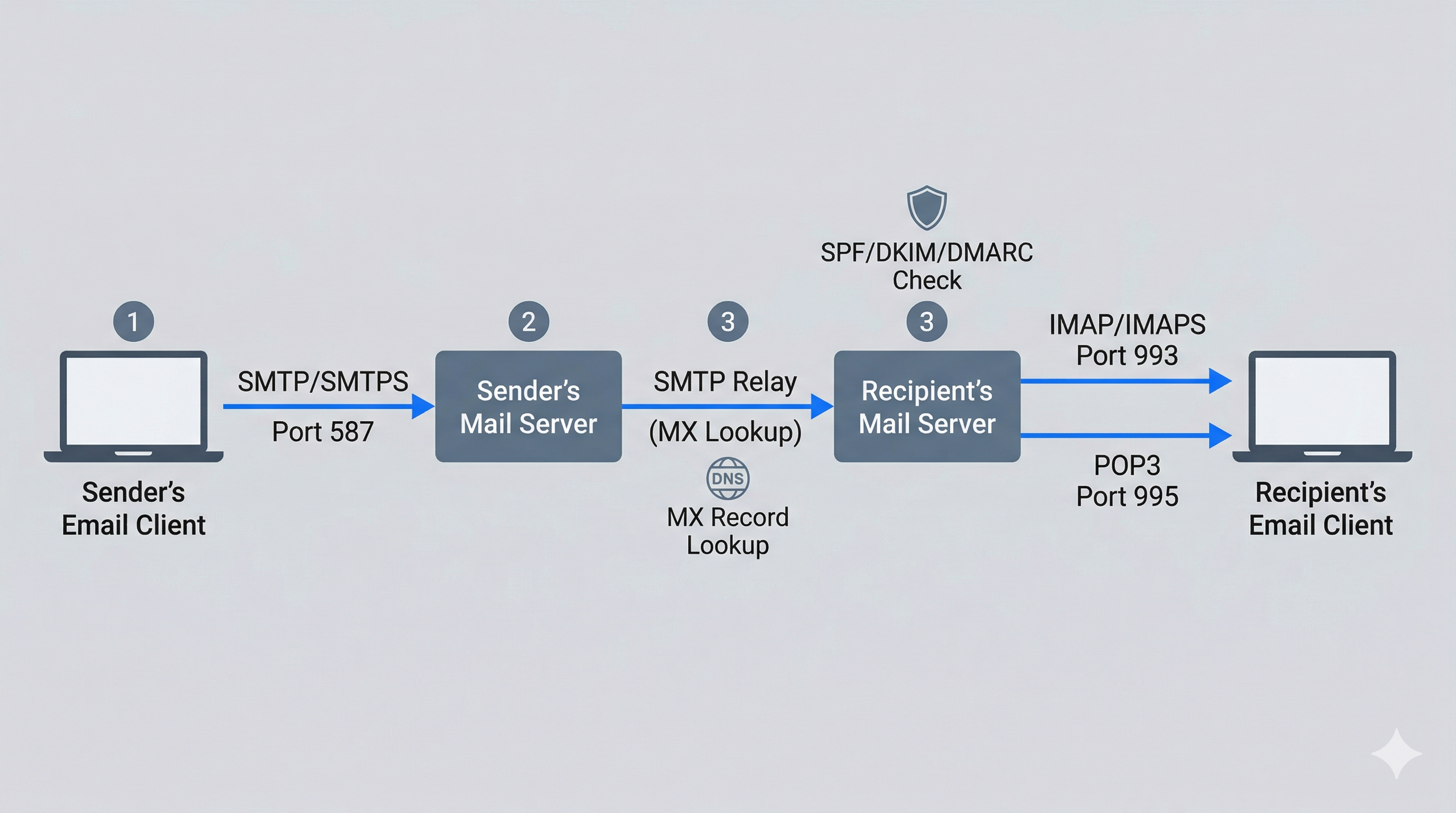
SMTP (Simple Mail Transfer Protocol) handles the sending and relaying of email. When you compose a message and click "Send," your email client connects to an SMTP server (typically on port 587 with TLS encryption, referred to as SMTPS) and submits the message. The SMTP server then relays the message to the recipient's mail server by looking up the destination domain's MX (Mail Exchanger) DNS record. Each SMTP server that handles the message adds a Received: header, creating a traceable chain of custody from origin to destination.
POP3 (Post Office Protocol version 3) handles the retrieval of email by downloading messages from the server to the local client. The critical forensic distinction of POP3 is that it typically removes messages from the server after download. This means the email exists only on the local machine. If the local machine is seized, the evidence is available. If only the server is accessible, the messages may already be gone.
IMAP (Internet Message Access Protocol) also retrieves email, but it synchronizes messages between the server and the client rather than downloading and deleting them. Messages remain on the server, and the local client maintains a synchronized copy. IMAP (and its encrypted variant IMAPS on port 993) is the dominant protocol for modern email clients because it allows access from multiple devices. Forensically, IMAP means evidence may exist in multiple locations: the server, the desktop client, the mobile device, and the webmail cache.
How Email Transmission Works
Understanding the end-to-end flow of an email message clarifies where forensic evidence is generated at each stage:
- Composition. The sender writes a message in their email client (Outlook, Thunderbird, Gmail web interface). At this point, the message exists only locally or in the webmail application's drafts.
- Submission. The client submits the message to the sender's outgoing SMTP server over an authenticated, encrypted connection (SMTPS, port 587). The SMTP server records the submission, including the sender's IP address and authentication credentials.
- Relay. The sending SMTP server looks up the MX record for the recipient's domain and connects to the recipient's mail server. If multiple relay servers are involved (common in enterprise environments), each one adds a
Received:header to the message. - Delivery. The recipient's mail server stores the message in the recipient's mailbox. If spam filtering or security scanning is in place, the message passes through those systems first, and the scanning results may be recorded in additional headers (
X-Spam-Status,Authentication-Results). - Retrieval. The recipient's email client connects via IMAP or POP3 to retrieve the message. IMAP clients download a synchronized copy; POP3 clients download and (by default) delete the server copy.
Analyst Perspective
Each step in this chain creates potential evidence. The sender's SMTP server has submission logs. Each relay server has transfer logs. The recipient's server has delivery logs. The local client has the downloaded message with all accumulated headers. In an investigation, consider which of these sources are available and within legal reach. Server logs require cooperation from the email provider (and possibly a subpoena or warrant), while local client data is available from a forensic image of the user's workstation.
Protocol Comparison Reference
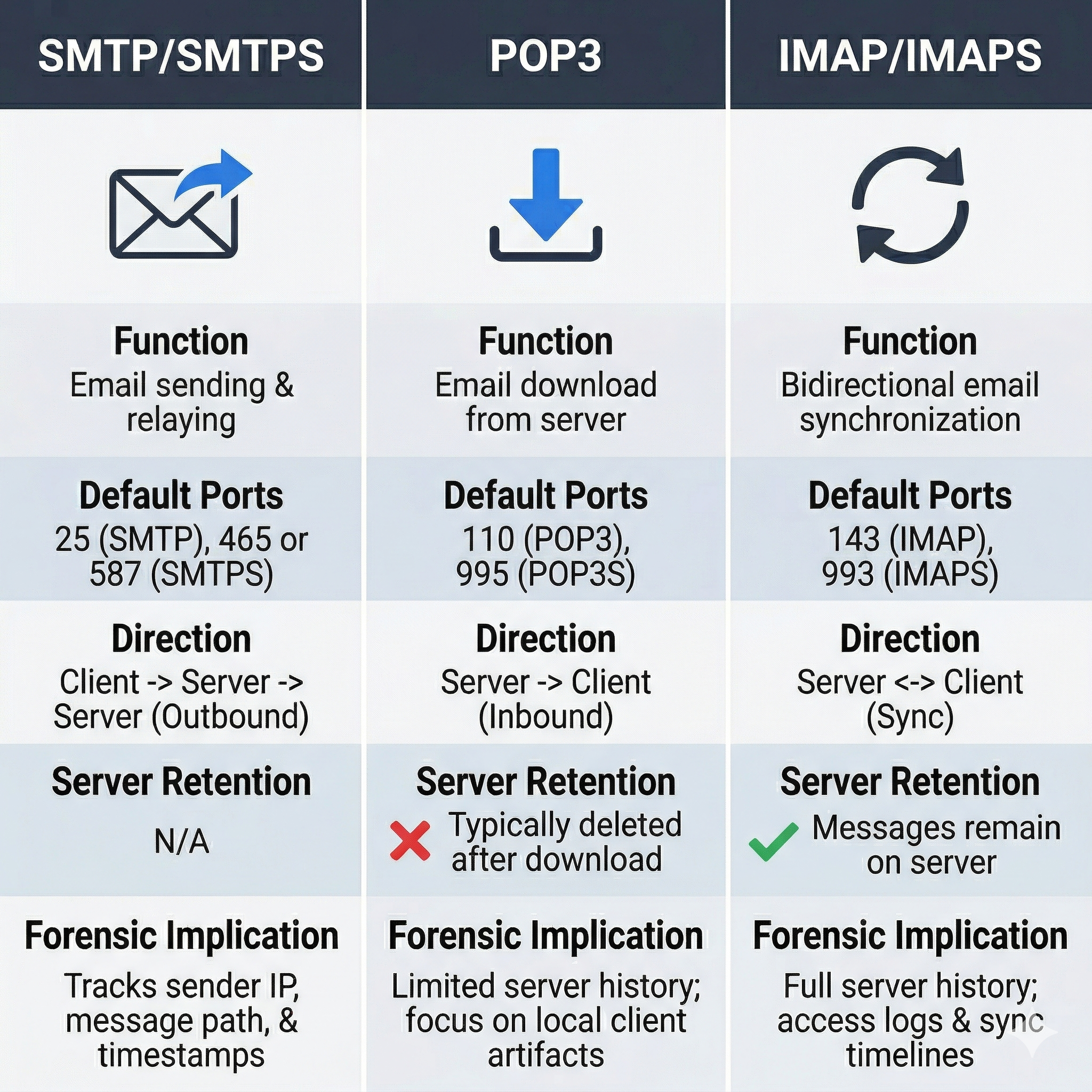
| Feature | SMTP/SMTPS | POP3 | IMAP/IMAPS |
|---|---|---|---|
| Function | Sending and relaying | Downloading to client | Synchronizing with server |
| Default Port | 25 (relay), 587 (submission) | 110 (unencrypted), 995 (SSL) | 143 (unencrypted), 993 (SSL) |
| Direction | Client to server, server to server | Server to client | Bidirectional sync |
| Server retention | N/A (relay only) | Typically deleted after download | Messages remain on server |
| Forensic implication | Server logs record relay chain | Evidence may exist only locally | Evidence on server and client |
12.3 Email File Formats by Platform
Email clients store messages in different file formats. Knowing which formats belong to which platforms, and what each format contains, determines your acquisition and analysis approach.
Microsoft Outlook and Exchange
Microsoft dominates enterprise email, and its ecosystem produces several distinct file types:
- PST (Personal Storage Table): An offline archive file that stores emails, calendar items, contacts, and tasks. Users create PST files to archive old mail or to back up their mailbox. PST files can exist anywhere on the file system, including USB drives and network shares. Default location:
%USERPROFILE%\Documents\Outlook Files\. - OST (Offline Storage Table): A locally cached copy of a user's Exchange or Microsoft 365 mailbox. Outlook creates the OST automatically when configured in Cached Exchange Mode (the default). The OST mirrors the server mailbox and allows offline access. Default location:
%LOCALAPPDATA%\Microsoft\Outlook\. The OST is rebuilt from the server if deleted, which means it reflects the current state of the server mailbox at the time of last sync. - MSG: A single-message file format. When a user drags an email from Outlook to a folder or saves it using "Save As," the result is an MSG file. Each MSG file contains one message with headers, body, and attachments. MSG files are commonly found scattered across user directories when subjects save specific emails for reference.
- EDB (Exchange Database): The server-side database used by on-premises Microsoft Exchange. EDB files contain the mailboxes of all users hosted on that server. Acquiring and analyzing EDB files requires specialized tools and is typically relevant in enterprise investigations where server access is available.
- ICS (iCalendar): Calendar event files that can contain meeting details, attendees, and notes. While not email per se, ICS files travel as email attachments and may contain relevant scheduling evidence.
Non-Microsoft Formats
- MBOX: A plain-text file format that stores multiple email messages sequentially in a single file. Each message begins with a
Fromline (note the space after "From"). MBOX is the native format for Mozilla Thunderbird and is commonly used for email exports from Gmail (via Google Takeout) and other providers. - EML: A single-message file format based on the MIME standard. Each EML file contains one complete message with headers, body, and encoded attachments. EML files are human-readable in a text editor, which makes them useful for quick header inspection. Thunderbird, Windows Mail, and many webmail export functions produce EML files.
Email File Format Reference
| Format | Client/Platform | Scope | Location on Windows |
|---|---|---|---|
| PST | Outlook (archive) | Multiple messages, calendar, contacts | %USERPROFILE%\Documents\Outlook Files\ |
| OST | Outlook (cached mode) | Full mailbox sync | %LOCALAPPDATA%\Microsoft\Outlook\ |
| MSG | Outlook (saved message) | Single message | Anywhere (user-defined) |
| EDB | Exchange Server | All mailboxes on server | Exchange data directory on server |
| MBOX | Thunderbird, Gmail export | Multiple messages in one file | %APPDATA%\Thunderbird\Profiles\<profile>\Mail\ |
| EML | Thunderbird, Windows Mail, exports | Single message | Anywhere (user-defined) |
Warning
PST and OST files are not interchangeable. An OST file is tied to the specific Outlook profile and Exchange account that created it. You cannot simply open another user's OST file in your copy of Outlook. Forensic tools (Kernel PST Viewer, Autopsy, OSForensics) can read both formats directly, bypassing this restriction. Always acquire the OST even if you plan to request server-side data, because the OST may contain locally cached messages that were deleted from the server before acquisition.
12.4 Where Email Artifacts Live on a Windows System
This is where the Windows-centric focus of this course becomes directly relevant. Email does not exist in isolation on a Windows machine. Outlook integrates deeply with the operating system, and several Windows artifacts complement the email data itself.
File System Locations
The primary email data stores on a Windows system with Outlook installed:
PST files:     C:\Users\<Username>\Documents\Outlook Files\
OST files:     C:\Users\<Username>\AppData\Local\Microsoft\Outlook\
MSG files:     Scattered (search entire user profile)
Thunderbird:   C:\Users\<Username>\AppData\Roaming\Thunderbird\Profiles\<profile>\Mail\
Windows Search Index
Windows Search indexes the contents of Outlook email by default. The search index database is stored at:
C:\ProgramData\Microsoft\Search\Data\Applications\Windows\Windows.edb
This Windows.edb file is an Extensible Storage Engine (ESE) database that contains indexed text from emails, documents, and other files. Even if a user deletes an email from Outlook and empties the Deleted Items folder, fragments of that email's content may persist in the search index until the index is rebuilt. Tools like ESEDatabaseView (NirSoft) and libesedb can parse this database.
Registry Artifacts
Outlook stores its profile configuration in the Windows Registry. The specific location depends on the Office version:
HKCU\Software\Microsoft\Office\16.0\Outlook\Profiles\
Under this key, you will find:
- The configured email accounts (SMTP server, username, account type)
- The file paths to PST and OST files associated with each profile
- Cached Exchange server connection details
- Send/receive group configurations
This Registry data tells you which email accounts were configured on the machine, even if the PST or OST files have been deleted. Cross-reference these paths with the file system to determine whether the referenced data files still exist.
Windows Event Logs
Outlook generates entries in the Windows Application Event Log. While these entries are not as detailed as server-side logs, they record:
- Outlook startup and shutdown events
- Synchronization errors between the client and Exchange server
- PST file mount and unmount operations
- Add-in load failures (which can indicate tampering or malware interaction with Outlook)
Use PowerShell to query Outlook-related event log entries:
Get-WinEvent -LogName Application | Where-Object {$_.ProviderName -like "*Outlook*"} | Select-Object TimeCreated, Id, Message | Sort-Object TimeCreated -Descending | Select-Object -First 50
PowerShell for Email Artifact Triage
Building on the skills from Chapter 10, PowerShell provides fast commands for locating email artifacts on a live or mounted system:
Locate all PST and OST files:
Get-ChildItem -Path C:\Users\ -Recurse -Include *.pst, *.ost -ErrorAction SilentlyContinue |
    Select-Object FullName, Length, CreationTime, LastWriteTime, LastAccessTime
Query Outlook profile Registry keys:
Get-ChildItem "HKCU:\Software\Microsoft\Office\16.0\Outlook\Profiles\" -Recurse |
    Get-ItemProperty | Where-Object { $_.PSObject.Properties.Name -match "001f6610|001f6607" }
Locate MSG files across the user profile:
Get-ChildItem -Path $env:USERPROFILE -Recurse -Include *.msg -ErrorAction SilentlyContinue |
    Select-Object FullName, CreationTime, LastWriteTime
Analyst Perspective
During a triage engagement, running these three PowerShell commands takes less than a minute and immediately tells you: how many email data stores exist on the machine, where they are located, how large they are (a 10 GB PST suggests years of archived mail), and when they were last modified. This information shapes your acquisition strategy before you even open a forensic tool.
12.5 Email Header Analysis and Authentication
The email header is the single most important artifact for tracing the origin and path of a message. Every email contains two parts: the header (metadata about transmission) and the body (the content the user sees). Most email clients hide the header by default, but it is always present in the raw message data.
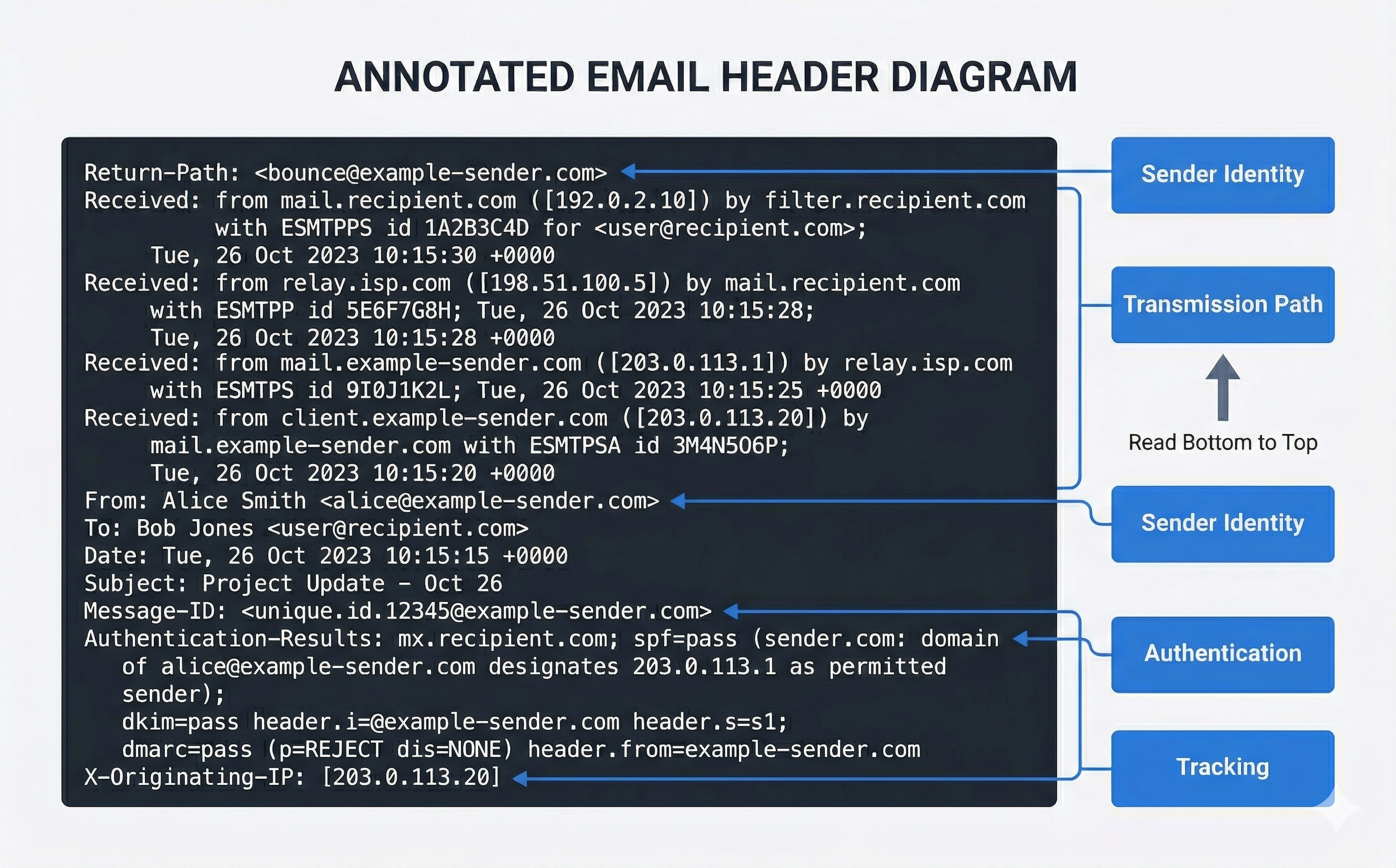
Key Header Fields
When you view the full headers of an email message, you will encounter dozens of fields. The following are the most forensically significant:
| Header Field | Purpose | Forensic Value |
|---|---|---|
From: |
Display name and address of sender | Can be trivially spoofed; do not trust without verification |
To: / Cc: / Bcc: |
Recipients | Establishes who received the communication |
Date: |
Timestamp from sender's client | Reflects sender's system clock (may be inaccurate) |
Subject: |
Message subject line | Content and context of communication |
Message-ID: |
Unique identifier assigned by originating server | Links replies, forwards, and duplicates across data sources |
Received: |
Server hop record (one per server) | Traces the complete transmission path; read bottom to top |
Return-Path: |
Bounce address (envelope sender) | Often differs from From: in spoofed messages |
X-Originating-IP: |
IP address of the sending client | Present in some webmail services; identifies sender's network |
Authentication-Results: |
SPF, DKIM, and DMARC check results | Proves whether the sender's identity was verified |
X-Mailer: or User-Agent: |
Email client software | Identifies what application sent the message |
Warning
The Received: headers are read from bottom to top. The bottommost Received: header was added by the first server to handle the message (closest to the sender). The topmost Received: header was added by the last server (closest to the recipient). Misreading the order reverses your entire transmission chain analysis.
Email Authentication: SPF, DKIM, and DMARC
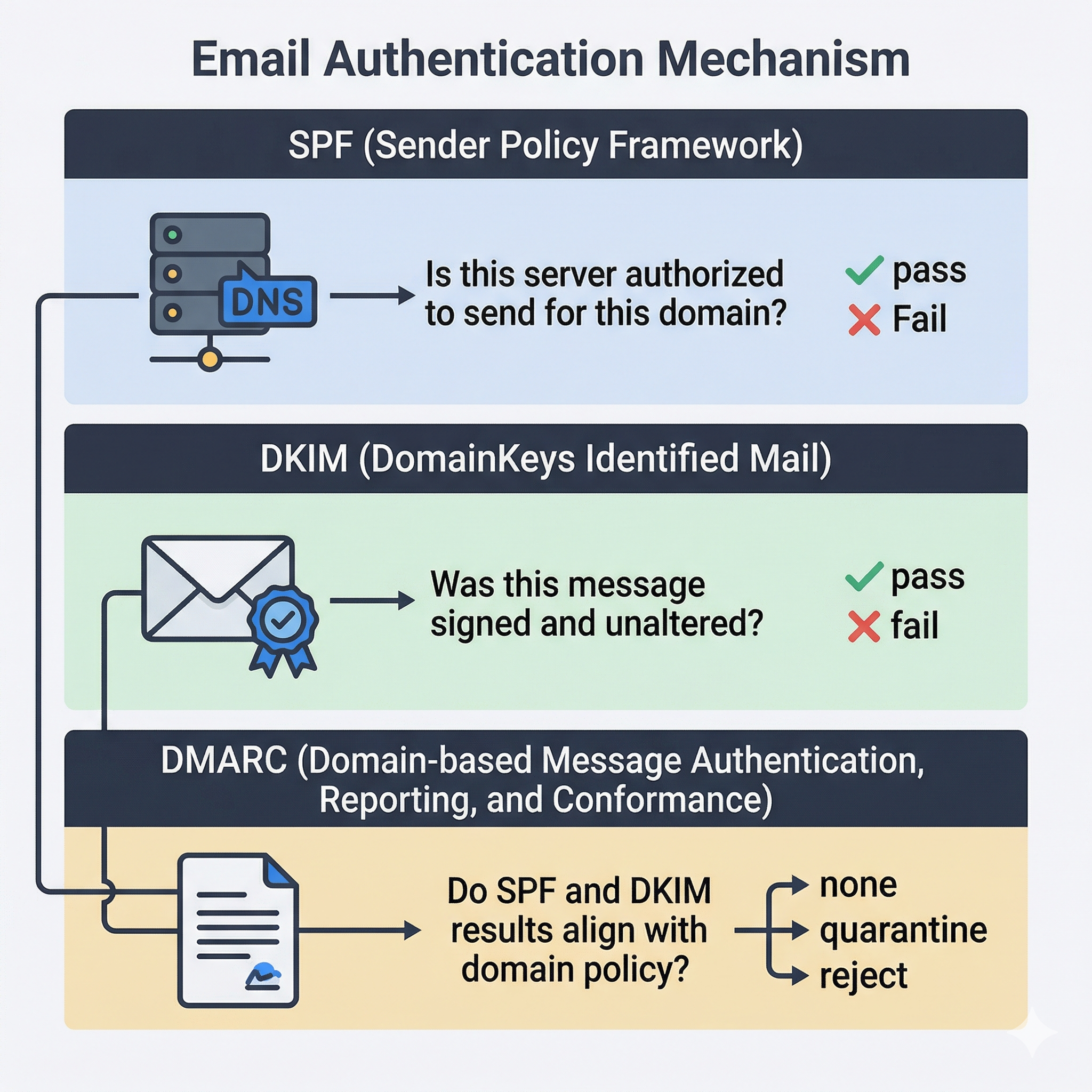
Modern email infrastructure uses three complementary authentication mechanisms. Understanding these is essential for both phishing analysis and for evaluating whether a message was legitimately sent by the claimed sender.
SPF (Sender Policy Framework) allows a domain owner to publish a DNS TXT record listing which IP addresses and mail servers are authorized to send email on behalf of that domain. When a receiving server gets a message claiming to be from @example.com, it checks the SPF record for example.com to see whether the sending server's IP address is authorized. A pass result means the server is legitimate. A fail means the message came from an unauthorized server, which is a strong indicator of spoofing.
DKIM (DomainKeys Identified Mail) adds a cryptographic signature to the email header. The sending server signs the message with a private key, and the receiving server verifies the signature using a public key published in the sender's DNS. A valid DKIM signature proves that the message was sent by a server possessing the domain's private key and that the message content was not altered in transit.
DMARC (Domain-based Message Authentication, Reporting, and Conformance) ties SPF and DKIM together with a policy that tells receiving servers what to do when authentication fails: none (monitor only), quarantine (send to spam), or reject (block entirely). The Authentication-Results: header in the received message records the outcome of all three checks.
Header Analysis Tools
MxToolbox (mxtoolbox.com) provides a suite of free tools for email analysis. The Header Analyzer parses raw email headers and displays each hop in a structured table with timestamps, server names, and delay calculations. It also performs SPF, DKIM, and DMARC lookups for the sender's domain.
Google Admin Toolbox Messageheader (toolbox.googleapps.com/apps/messageheader/) is a lightweight header analysis tool that visualizes the delivery chain and highlights delays between hops.
Viewing headers in email clients:
- Outlook (desktop): Open the message, click File > Properties. The headers appear in the "Internet Headers" text box at the bottom.
- Outlook (web/Microsoft 365): Open the message, click the three-dot menu, select View > View message details.
- Gmail: Open the message, click the three-dot menu, select Show original. Gmail also provides a summary table of SPF, DKIM, and DMARC results at the top.
- Thunderbird: Open the message, go to View > Message Source (Ctrl+U).
12.6 Forensic Analysis Tools and Techniques
Email forensic analysis ranges from manual header inspection to automated parsing of large mailbox archives. The tools you select depend on the scale of the investigation and the email formats involved.
Autopsy
Autopsy's Email Parser module can ingest PST, MBOX, and EML files extracted from a forensic image. It indexes message content, extracts attachments, and presents emails in a searchable interface with sender, recipient, date, and subject columns. For investigations involving a forensic disk image, Autopsy is often the first tool because you can analyze email alongside file system artifacts, browser data, and Registry entries in a single platform.
OSForensics
OSForensics includes dedicated email analysis capabilities. It can open PST, OST, and MBOX files directly, display message contents with attachments, and export individual messages or entire folders. Its search functionality allows keyword queries across large mailbox files, and its timeline module can integrate email timestamps with file system and Registry activity.
Kernel PST Viewer and SysTools PST Viewer
These are lightweight, free tools specifically designed for opening and browsing PST files without requiring Outlook to be installed. They display the folder structure, message list, and message content including attachments. For quick PST triage when you do not need a full forensic platform, these tools provide fast access.
Microsoft Outlook (as an analysis tool)
Outlook itself can open PST files directly (File > Open & Export > Open Outlook Data File). For an examiner with Outlook installed on their forensic workstation, this provides a familiar interface for browsing messages, searching content, and viewing attachments. The limitation is that Outlook cannot natively open OST files from a different profile (forensic tools bypass this restriction), and using Outlook modifies the PST file's metadata (last accessed time). Always work on a forensic copy, never the original.
CyberChef for Email Analysis
CyberChef (gchq.github.io/CyberChef), introduced in Chapter 11 for timestamp conversion, has several operations directly applicable to email forensics:
- From Base64: Malicious emails frequently encode payloads, URLs, or script content in Base64. Paste the encoded string into CyberChef and apply "From Base64" to reveal the decoded content.
- Defang URL / Defang IP Address: When documenting malicious URLs or IP addresses in a forensic report, defanging converts them to a safe, non-clickable format (e.g.,
hxxps://malicious[.]com) to prevent accidental navigation. CyberChef's "Defang URL" and "Defang IP Address" operations handle this automatically. - Extract URLs: Pulls all URLs from a block of text or decoded email content, useful for identifying all links in a phishing message.
- Timestamp conversion: Convert email header timestamps to a consistent format for timeline construction.
Tool Selection Matrix
| Capability | Autopsy | OSForensics | Kernel PST Viewer | Outlook | CyberChef |
|---|---|---|---|---|---|
| PST analysis | Yes | Yes | Yes | Yes | No |
| OST analysis | Yes | Yes | No | Profile-locked | No |
| MBOX / EML analysis | Yes | Yes | No | No | No |
| Header parsing | Basic | Basic | No | View only | No |
| Keyword search | Yes | Yes | Limited | Yes | No |
| Attachment extraction | Yes | Yes | Yes | Yes | No |
| Base64 decoding | No | No | No | No | Yes |
| URL defanging | No | No | No | No | Yes |
| Integrated with disk forensics | Yes | Yes | No | No | No |
| Cost | Free | Commercial | Free | Commercial | Free |
12.7 Malware, Phishing, and Dynamic Analysis
Email is the primary delivery vector for malware and social engineering attacks. Analyzing suspicious emails is both an incident response skill and a forensic skill.
Identifying Phishing Indicators
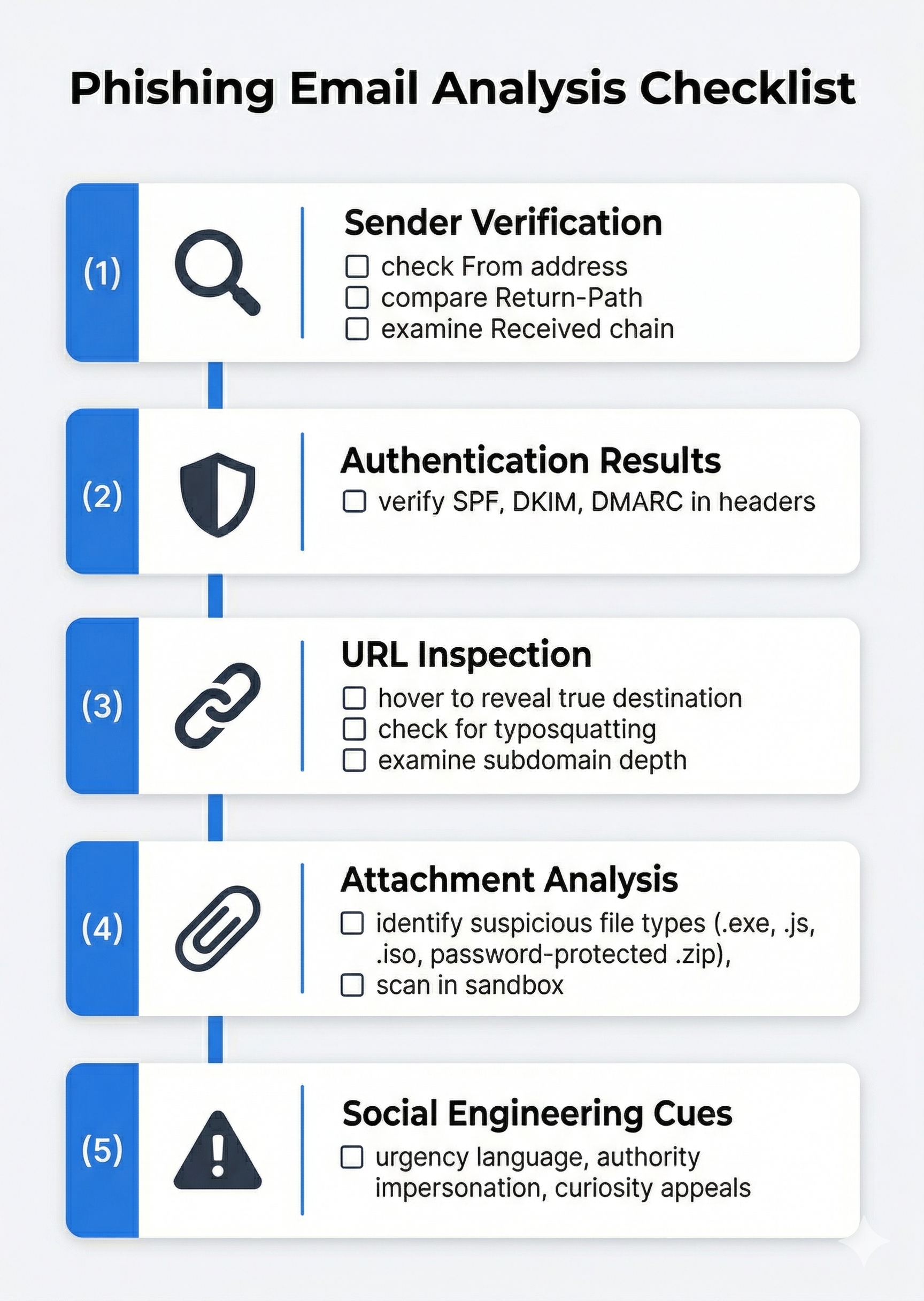
When examining a potentially malicious email, evaluate the following in order:
- Sender verification: Does the
From:address match the claimed organization? Check for typosquatting (e.g.,@micros0ft.cominstead of@microsoft.com). Compare theFrom:address to theReturn-Path:and theReceived:chain. If they point to different domains, the message is likely spoofed. - Authentication results: Check the
Authentication-Results:header. SPF fail, DKIM fail, or DMARC fail for a message claiming to be from a major provider (Microsoft, Google, Amazon) is a strong spoofing indicator. - URL inspection: Hover over (do not click) links in the email body. Compare the displayed text to the actual URL destination. Phishing emails frequently display a legitimate-looking URL as text while linking to a completely different domain. Examine URLs for character substitution (using Cyrillic characters that look like Latin letters) and excessive subdomain depth (
login.microsoft.com.attacker-domain.com). - Attachment analysis: Suspicious attachment types include
.exe,.scr,.js,.vbs,.hta,.iso,.img, and password-protected.zipfiles (the password is typically provided in the email body to bypass automated scanning). Office documents with macros (.docm,.xlsm) remain a common delivery mechanism. - Urgency and social engineering cues: Phishing messages typically create artificial urgency ("Your account will be locked in 24 hours"), impersonate authority figures ("The CEO needs this wire transfer immediately"), or appeal to curiosity ("You have a package delivery notification").
Dynamic Analysis with Cloud Sandboxes
When you have a suspicious attachment or URL that you need to analyze without risking your own system, cloud-based sandboxes provide a safe detonation environment:
ANY.RUN (any.run) is an interactive malware sandbox that executes files and URLs in a virtual environment and records all system activity: processes spawned, files created, registry changes, network connections, and DNS queries. The analyst can interact with the sandbox in real time (clicking through installer prompts, opening documents) while the platform records everything. ANY.RUN provides a detailed report with indicators of compromise (IOCs) that can be used to search for additional infections.
Joe Sandbox (joesandbox.com) provides automated analysis of files and URLs across Windows, macOS, Linux, and Android environments. It produces comprehensive behavioral reports including MITRE ATT&CK technique mappings, network traffic captures, and dropped file analysis.
Warning
Never open suspicious attachments or click suspicious URLs on a production system or your forensic workstation. Always use an isolated sandbox environment. Even "just looking" at a malicious document in an unpatched application can trigger an exploit. Cloud sandboxes eliminate this risk entirely.
Putting It Together: BEC Investigation at Meridian Financial Group
Meridian Financial Group's accounts payable department receives an email from what appears to be the CFO, David Park, instructing them to wire $47,000 to a vendor for an "urgent contract payment." The email includes the vendor's bank account details and requests the transfer be completed before end of business. An alert AP specialist notices the email address is d.park@meridian-financialgroup.com rather than the legitimate d.park@meridianfinancial.com and reports it to the IT security team.
Step 1: Preserve the email. The security analyst exports the suspicious email as an EML file directly from the AP specialist's Outlook client (drag the message to a folder). The analyst also captures a screenshot of the message as displayed in Outlook and records the timestamp of receipt.
Step 2: Header analysis. The analyst opens the EML file in a text editor and copies the full headers into MxToolbox Header Analyzer. The analysis reveals:
- The
From:header showsd.park@meridian-financialgroup.com(the typosquatted domain). - The
Return-Path:matches the fraudulent domain. - The bottommost
Received:header shows the message originated from an IP address geolocated to a hosting provider in Eastern Europe, not Meridian's corporate mail servers. Authentication-Results:showsspf=passformeridian-financialgroup.com(the attacker set up valid SPF for their fraudulent domain) but the domain itself is notmeridianfinancial.com.
Step 3: Domain investigation. The analyst checks WHOIS records for meridian-financialgroup.com and discovers the domain was registered two days before the email was sent. The registrant information uses a privacy service.
Step 4: Forensic image and local analysis. IT creates a forensic image of the AP specialist's workstation. The analyst uses Autopsy to examine Outlook's OST file and discovers three additional emails from the same fraudulent domain sent over the previous week, each to different AP team members. The subjects reference different "urgent" payments. None of the other recipients acted on the requests, but the emails establish a pattern of targeted attacks against the department.
Step 5: PowerShell triage across the organization. The security team uses PowerShell to search Exchange message tracking logs for any messages from the fraudulent domain:
Get-MessageTrackingLog -Sender "*@meridian-financialgroup.com" -Start (Get-Date).AddDays(-30) |
    Select-Object Timestamp, Sender, Recipients, MessageSubject
This reveals six total BEC attempts sent to various Meridian employees over a two-week period.
Step 6: Documentation and reporting. The analyst compiles all findings: the original EML, header analysis results, WHOIS records, forensic image hash values, Autopsy findings, and Exchange log exports into a formal report. The report is forwarded to legal counsel and, given the wire fraud attempt, to the FBI's IC3 for federal reporting.
12.8 Deleted Email Recovery
Users who are aware they may be investigated often attempt to destroy email evidence. Understanding how email deletion works at the file level informs your recovery strategy.
Outlook Deletion Mechanics
When a user deletes an email in Outlook, the message moves to the Deleted Items folder. If the user empties the Deleted Items folder, the message moves to the Recoverable Items folder (also called the "dumpster") in Exchange environments, where it remains for a retention period set by the administrator (default: 14 days for Exchange Online). Only after the retention period expires is the message purged.
At the PST/OST file level, deleted messages are not immediately overwritten. The space they occupied is marked as available, but the data persists until new data overwrites it. This means forensic tools can often recover deleted emails from PST files even after the user emptied the Deleted Items folder. The scanpst.exe utility (Microsoft's Inbox Repair Tool, located in the Office installation directory) can repair corrupt PST files and sometimes surface messages that were in a partially deleted state.
Recovery with Forensic Tools
Autopsy and OSForensics both attempt to recover deleted items when parsing PST and OST files. Autopsy's keyword search can also locate email fragments in unallocated space on the disk, where remnants of deleted PST data may persist.
Kernel PST Viewer has a recovery mode that scans PST files for orphaned message records not visible in the normal folder tree.
For MBOX files (Thunderbird), deleted messages are marked with a status flag but remain in the MBOX file until the user manually compacts the folder (File > Compact Folders in Thunderbird). Before compaction, deleted messages are fully recoverable by opening the MBOX file in a text editor or forensic tool.
Analyst Perspective
Always check for multiple copies of email evidence. A message deleted from Outlook may still exist in: the Windows Search Index (Windows.edb), a PST archive the user created before deleting from their mailbox, the Exchange server's recoverable items folder, a mobile device's local mail cache, or a cloud backup. Thorough email forensics means checking all potential locations, not just the primary mailbox.
12.9 Legal Considerations in Email Forensics
Email investigations intersect with several areas of law that constrain how evidence can be acquired and used.
Relevant U.S. Laws
The Stored Communications Act (SCA), part of the Electronic Communications Privacy Act (ECPA), governs access to stored electronic communications held by service providers. Obtaining email content from a provider like Google or Microsoft generally requires a warrant supported by probable cause for law enforcement, or a subpoena/court order for civil proceedings. The SCA distinguishes between content (the email body and attachments) and non-content records (subscriber information, login logs), with different legal thresholds for each.
The Fourth Amendment protects against unreasonable search and seizure. For law enforcement investigations, a warrant is generally required to search email stored on a suspect's device or held by a third-party provider (per the Supreme Court's reasoning in Carpenter v. United States regarding digital privacy expectations).
In corporate investigations, the employer's acceptable use policy (AUP) is the controlling document. If the AUP clearly states that company email systems are company property subject to monitoring, the employer typically has the legal authority to examine email on company devices and servers without employee consent. Investigations conducted under an AUP should still involve legal counsel to ensure compliance with applicable state laws, union agreements, and regulatory requirements.
Chain of Custody for Email Evidence
Email evidence must maintain the same chain of custody standards as any other digital evidence:
- Acquire forensic images of devices containing email data using verified tools (FTK Imager, as covered in Chapter 3).
- Hash the acquired PST, OST, or MBOX files before and after analysis to prove integrity.
- Document every tool used, every query executed, and every export performed.
- Preserve the original email in its native format (EML or MSG) in addition to any screenshots or printed copies, because the native format contains the full headers that screenshots do not capture.
Chapter Summary
Email forensics combines protocol analysis, file system examination, and header interpretation to reconstruct communication records and trace the origin of messages. The discipline connects directly to the Windows artifact analysis skills developed throughout this course.
-
Email travels via three protocols: SMTP handles sending and relaying, POP3 downloads messages (often deleting the server copy), and IMAP synchronizes messages between server and client. Each protocol's behavior determines where forensic evidence is available.
-
Email file formats are platform-specific. Outlook uses PST (archives), OST (cached mailbox), and MSG (single messages). Thunderbird and Gmail exports use MBOX and EML. Knowing the format determines which forensic tools to use.
-
Windows artifacts extend email analysis beyond the mailbox. The file system stores PST and OST files at predictable paths. The Registry records Outlook profile configuration and email account details. The Windows Search Index (
Windows.edb) may contain cached email content even after deletion. PowerShell enables rapid triage of all these locations. -
Email headers record the full transmission path of a message, read from bottom to top. The
Received:,Return-Path:,Authentication-Results:, andX-Originating-IP:fields are the most forensically significant for tracing message origin and detecting spoofing. -
SPF, DKIM, and DMARC are the three email authentication mechanisms. SPF verifies the sending server is authorized, DKIM verifies message integrity with a cryptographic signature, and DMARC ties them together with a domain policy. Checking these results in the
Authentication-Results:header is the first step in evaluating whether a sender's identity was spoofed. -
Forensic tools for email analysis include Autopsy (integrated with disk forensics), OSForensics (commercial, full-featured), Kernel PST Viewer (free, PST-focused), and CyberChef (decoding, defanging, URL extraction). Select tools based on the email format, investigation scale, and analysis requirements.
-
Phishing and BEC analysis starts with header verification, sender authentication checks, and URL inspection, then escalates to dynamic sandbox analysis (ANY.RUN, Joe Sandbox) for suspicious attachments. Never detonate suspicious content outside a sandboxed environment.
-
Deleted email recovery is possible because deletion in Outlook and Thunderbird marks space as available rather than immediately overwriting data. Forensic tools can recover deleted messages from PST files, and the Windows Search Index may retain content from emails that no longer exist in the mailbox.
-
Legal frameworks (SCA, Fourth Amendment, corporate AUP) govern how email evidence can be acquired. Corporate investigators rely on acceptable use policies; law enforcement typically requires warrants for email content.
In the next chapter, we move from individual system analysis to the cloud, examining Microsoft Azure and Cloud Forensics and the unique challenges of investigating evidence that exists on infrastructure you do not physically control.