CH6: Linux and macOS File Systems
Introduction
While NTFS dominates Windows environments, digital forensics examiners must also understand Linux and macOS file systems. Linux systems use the Ext4 file system (and its predecessors Ext2/Ext3) on servers, desktops, and embedded devices. macOS systems use APFS (Apple File System), which replaced the older HFS+ format. Both file systems present distinct architectural choices and recovery challenges. Ext4 uses a traditional inode-based allocation model with journaling. APFS uses a modern copy-on-write design that changes how deleted data can be recovered. Understanding the internal structures of both systems, their timestamp behaviors, and platform-specific artifacts is necessary for comprehensive forensic examinations in heterogeneous environments. This chapter aligns with IACIS CFCE competency IV.f, which requires examiners to analyze and recover files from Linux and macOS file systems.
Learning Objectives
Upon completing this chapter, you will be able to:
- Describe Ext4 filesystem architecture including superblocks, block groups, inodes, and the journal
- Analyze APFS container and volume structures, including copy-on-write mechanics and their impact on data recovery
- Recover deleted files from Ext4 and APFS systems using appropriate forensic techniques
- Explain cross-platform forensic considerations including case sensitivity, timestamp formats, and permission models
- Select appropriate forensic tools for Linux and macOS image analysis
6.1 Modern Linux File System Architectures
Linux runs on a wide range of systems. It powers the majority of the world's web servers, runs the backend infrastructure of nearly every major cloud provider, and serves as the foundation of the Android operating system. For a forensic investigator, this means you will encounter Linux file systems on servers, IoT devices, NAS appliances, and cloud instances.
The first step when you sit down with a Linux disk image is identifying what you are looking at. Unlike Windows, where NTFS is nearly universal, the Linux ecosystem offers several file system options, and each one stores and manages data differently.
Linux Distributions: Same Kernel, Different Packaging
The Linux kernel is the core engine of the operating system. It manages hardware, memory, and processes. What most people call "Linux" is actually a distribution (distro): a package that bundles the kernel with a desktop environment, package manager, and default applications.
As an investigator, the distribution matters because it determines default file paths, log locations, and which file system was likely used during installation. The distributions you will encounter most frequently include Ubuntu and Debian (common on desktops and servers), Rocky Linux and Fedora (enterprise environments, with Rocky serving as the primary successor to CentOS), and Kali Linux (offensive security and forensics).
Case Sensitivity in Linux Evidence
One of the most common mistakes new examiners make when working with Linux evidence is forgetting that Linux file systems are case-sensitive. The files Evidence.txt, evidence.txt, and EVIDENCE.TXT can all exist in the same directory as three completely separate files. If your keyword search script is not configured for case-insensitive matching, you may miss relevant evidence entirely.
The Standard: Ext4 (Fourth Extended File System)
Ext4 remains the default file system for the majority of Linux distributions. When a forensic image lands on your workstation and the subject machine ran Ubuntu, Fedora, or Debian, you are almost certainly looking at Ext4.
Key characteristics an examiner must understand:
- Scalability: Ext4 supports volumes up to 1 exabyte and individual files up to 16 terabytes, far beyond what most investigations encounter, but relevant when imaging large storage arrays.
- Journaling: Ext4 maintains a journal, a dedicated area on disk where the file system records pending changes before committing them to the main data area. If the system crashes mid-write, the journal allows a clean recovery. For forensic examiners, the journal is a valuable evidence source: it can contain remnants of recently created, modified, or deleted files that no longer appear in the active file system.
- Extents: Section 6.3 covers extents in depth. Unlike older file systems that tracked every individual block with a pointer, Ext4 uses extents, compact descriptors that map contiguous ranges of blocks. This improves performance and changes how we approach file recovery.
Enterprise Alternatives: Btrfs and XFS
Not every Linux system uses Ext4. Two alternatives appear frequently in enterprise environments:
- Btrfs (B-Tree File System): Increasingly common on workstations and NAS devices (Synology and SUSE use it by default in many configurations). Btrfs uses a Copy-on-Write (CoW) design: when data is modified, the new version is written to a new location rather than overwriting the original. This means old versions of files may persist on disk. Btrfs also supports snapshots, allowing an examiner to view the state of the entire file system at a specific point in the past.
- XFS: Designed for high-performance, large-scale storage. XFS uses B+ trees for metadata management, making it exceptionally fast at handling massive directories with millions of files. You will encounter XFS on database servers, media storage arrays, and Red Hat Enterprise Linux installations where it is the default.
6.2 Structural Components of an Ext4 Partition
To understand what a forensic tool is showing you when it parses a Linux disk image, you need to know how the partition is physically organized. Think of this as learning the "floor plan" of the building before you search it for evidence.
The "Everything is a File" Philosophy
Before we examine the structure, you need to understand a basic concept that separates Linux from Windows: in Linux, almost everything is represented as a file. Hardware devices appear as files in /dev/ (e.g., /dev/sda is the first hard drive). Running processes appear as files in /proc/. Even directories are technically files that contain lists of other filenames.
For an examiner, this means that "reading" a device or a process state can often be accomplished using the same tools and techniques you would use to read a standard text file. It also means the file system structures we are about to discuss govern everything on the system, not just user documents.
The Four Components of an Ext4 Partition
When a Linux partition is formatted with Ext4, the disk space is organized into four functional areas:
1. Boot Block: The very first block on the partition, containing the bootstrap code needed to start the operating system. On modern systems using UEFI (Unified Extensible Firmware Interface), the boot process involves a dedicated EFI System Partition (ESP), but the concept of a reserved boot area at the start of the disk remains.
2. Superblock: If the file system were a library, the Superblock would be the master catalog. It stores the core metadata for the entire volume: the total number of blocks and inodes, the number of free blocks and inodes, the block size (typically 4KB), and the file system's status (clean or "dirty" from an unclean shutdown).
Without the Superblock, the entire volume is unreadable, so Ext4 creates multiple backup copies scattered across the disk. If the primary Superblock is corrupted (whether by hardware failure or deliberate tampering), an examiner can locate a backup copy with a forensic tool like fsstat and use it to read or mount a working copy of the image.
3. Inode Table: Every file and directory on the system is assigned an Inode (Index Node). The Inode Table is where all of these are stored. Section 6.3 covers inodes in detail. In short, the inode contains all the metadata about a file (its size, permissions, timestamps, and the map to its data), except the filename. The filename is stored separately in the parent directory's data block.
4. Data Blocks: The largest area of the partition. This is where the actual file content lives: the bytes of a document, the pixels of an image, the code of an executable. Data blocks are linked to files through the Inode Table. If the inode's map to the data is lost but the data blocks remain, the content still exists on disk as fragments in unallocated space, but recovering it requires file carving based on file headers and footers rather than following a clean metadata trail.
Figure 6.1 places the Ext4 structures within block groups. Actual locations depend on the file system's descriptors and enabled features.
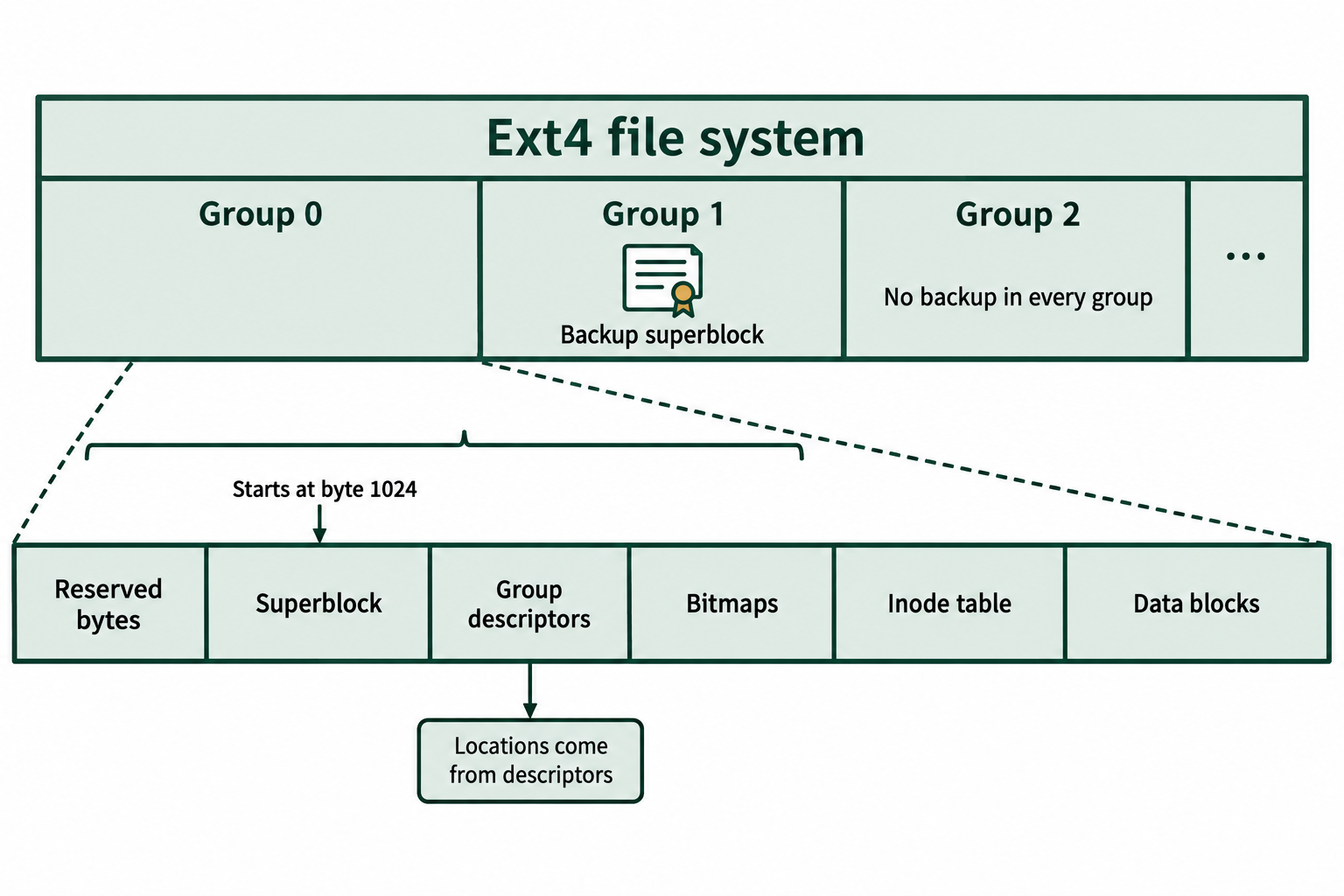
Figure 6.1: Schematic Ext4 layout. The primary superblock starts 1,024 bytes from the file system's beginning. Backup copies and metadata placement depend on the enabled features; segment widths are illustrative.
Text description for Figure 6.1
The file system is divided into block groups numbered 0, 1, 2, and onward. The enlarged first group shows reserved bytes, the superblock, group descriptors, allocation bitmaps, an inode table, and data blocks. The primary superblock begins at byte 1024 relative to the file system start. Selected groups contain backup superblocks. Group descriptors identify metadata locations; flexible block groups and other features can change their placement. This schematic does not represent physical scale.
6.3 Inodes, Extents, and Links
The Inode is the central forensic artifact in any Linux investigation. While Windows examiners focus on the Master File Table (MFT), Linux examiners focus on inodes. Understanding what an inode contains (and what it does not contain) is essential for interpreting forensic tool output and reconstructing file activity.
Inode Metadata Fields
When you examine an inode with a forensic tool like The Sleuth Kit's istat command, you are looking at a structured record that contains:
- File Mode: The file type (regular file, directory, symbolic link, block device) and the permission bits (read/write/execute for the owner, group, and others).
- Link Count: The number of hard links pointing to this inode. A file's data is only truly deleted from disk when this count drops to zero and no process has the file open.
- UID / GID: The numeric User ID and Group ID of the file's owner. These map to usernames in
/etc/passwd. - File Size: The size in bytes.
- Timestamps (MAC+D):
- Modify (mtime): When the file's content was last changed.
- Access (atime): When the file was last read. (Note: many modern systems mount with
noatimeorrelatimeoptions to reduce disk writes, which means atime may not update on every access.) - Change (ctime): When the inode metadata itself was last modified, such as a permission change or a rename. This is frequently confused with "Created" time. Linux Ext4 inodes do store a creation time (
crtime), but it is not always exposed by standard tools. - Deletion Time (dtime): Recorded when the inode is deallocated. This helps establish when a file was deleted in addition to that it was deleted.
Where Ext4 Stores the Filename
This is a major difference from NTFS. In Windows, the MFT record contains the filename. In Linux, the inode does not store the filename. The filename is stored in the parent directory's data block as an entry that maps a human-readable name to an inode number. This means that if a directory entry is deleted but the inode is intact, a forensic tool can recover the file's content and metadata but may not be able to recover the original filename.
Trace a filename to its inode and content in Figure 6.2.
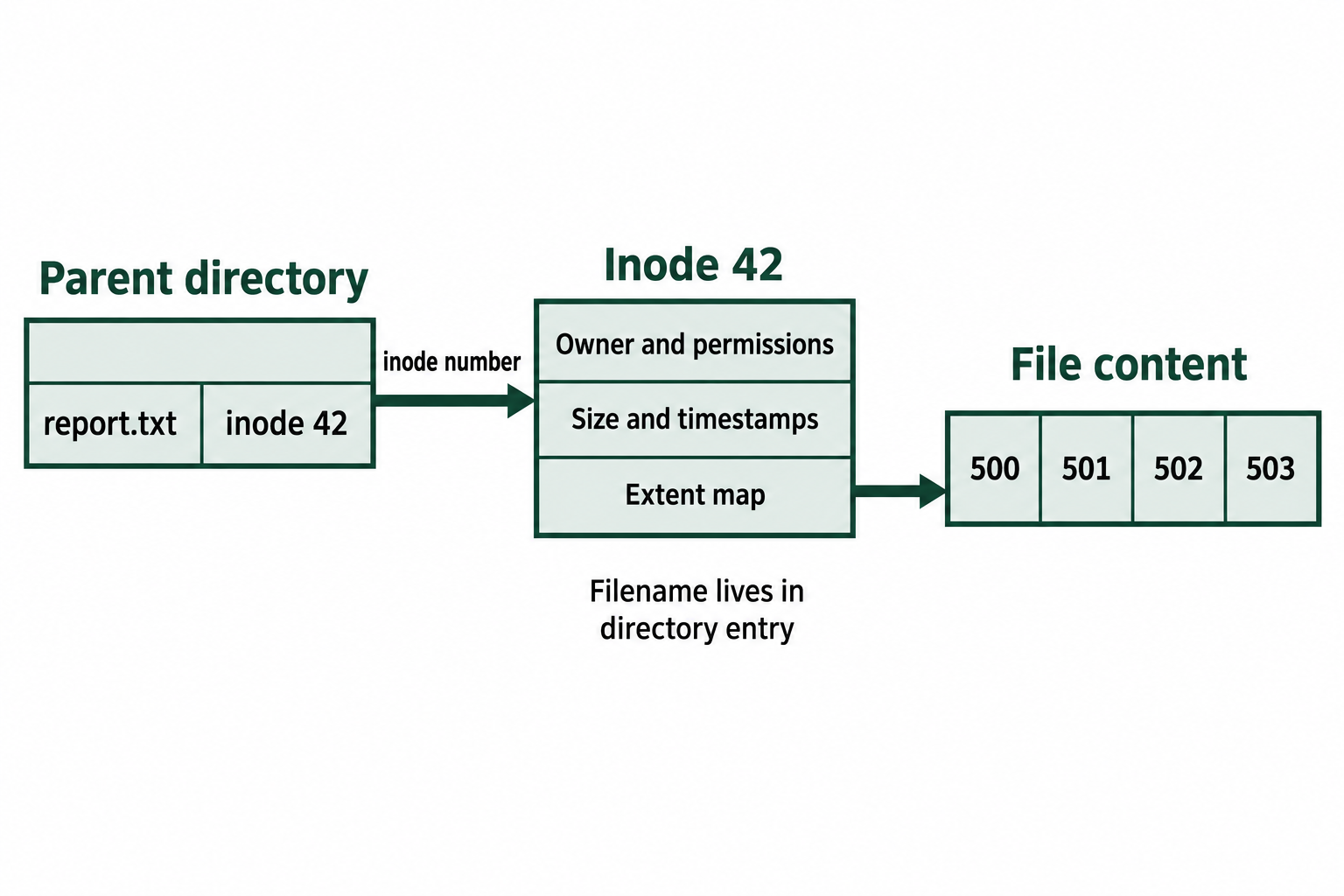
Figure 6.2: A directory entry connects a name to an inode number. The inode stores metadata and data-location information, while the filename belongs to the directory entry.
Text description for Figure 6.2
A parent directory contains the entry report.txt with inode number 42. An arrow leads to inode 42, which contains owner and permission information, size and timestamps, and an extent map. The extent map then points to data blocks 500 through 503. A filename lookup therefore traverses the directory entry, inode, and data mapping. The values are synthetic.
How Ext4 Maps Data: Extents
The inode tells us about the file. But how does the system find the file's actual data on disk? This is the job of the block mapping mechanism, and it is where Ext4 improved most over its predecessors.
The Legacy Model (Ext2/Ext3): Indirect Block Pointers
Older Linux file systems used a 15-pointer hierarchy stored within the inode. The first 12 pointers each pointed directly to a single data block. The 13th pointer was a single-indirect pointer (pointing to a block full of pointers), the 14th was double-indirect, and the 15th was triple-indirect, allowing for increasingly large files at the cost of having to "hop" through multiple levels of indirection to reach the data.
This system worked, but it was inefficient. Imagine a 500 MB video file stored contiguously on disk. Under the old model, the inode would need thousands of individual pointer entries to track every single 4KB block, even though they were all sitting next to each other in a neat row.
The Ext4 Model: Extents
Ext4 solved this problem with extents. An extent is a single compact descriptor that says: "This file's data starts at physical block X on the disk and runs continuously for Y blocks." Instead of thousands of individual pointers, one extent record can describe an entire contiguous run.
Each extent record contains three fields:
- Starting Logical Block: Where the run begins within the file (offset from the beginning).
- Starting Physical Block: Where the run begins on the physical disk.
- Length: How many contiguous blocks the run covers (up to 128 MB with standard 4KB blocks).
An Ext4 inode can hold up to four extent records directly. For a file stored in four or fewer contiguous runs, this means the entire block map fits inside the inode itself, with no extra lookups needed. If a file is badly fragmented across more than four runs, Ext4 organizes additional extents into an extent tree (a B-tree structure) rooted in the inode.
Figure 6.3 maps one file's logical block sequence to two physical extents.
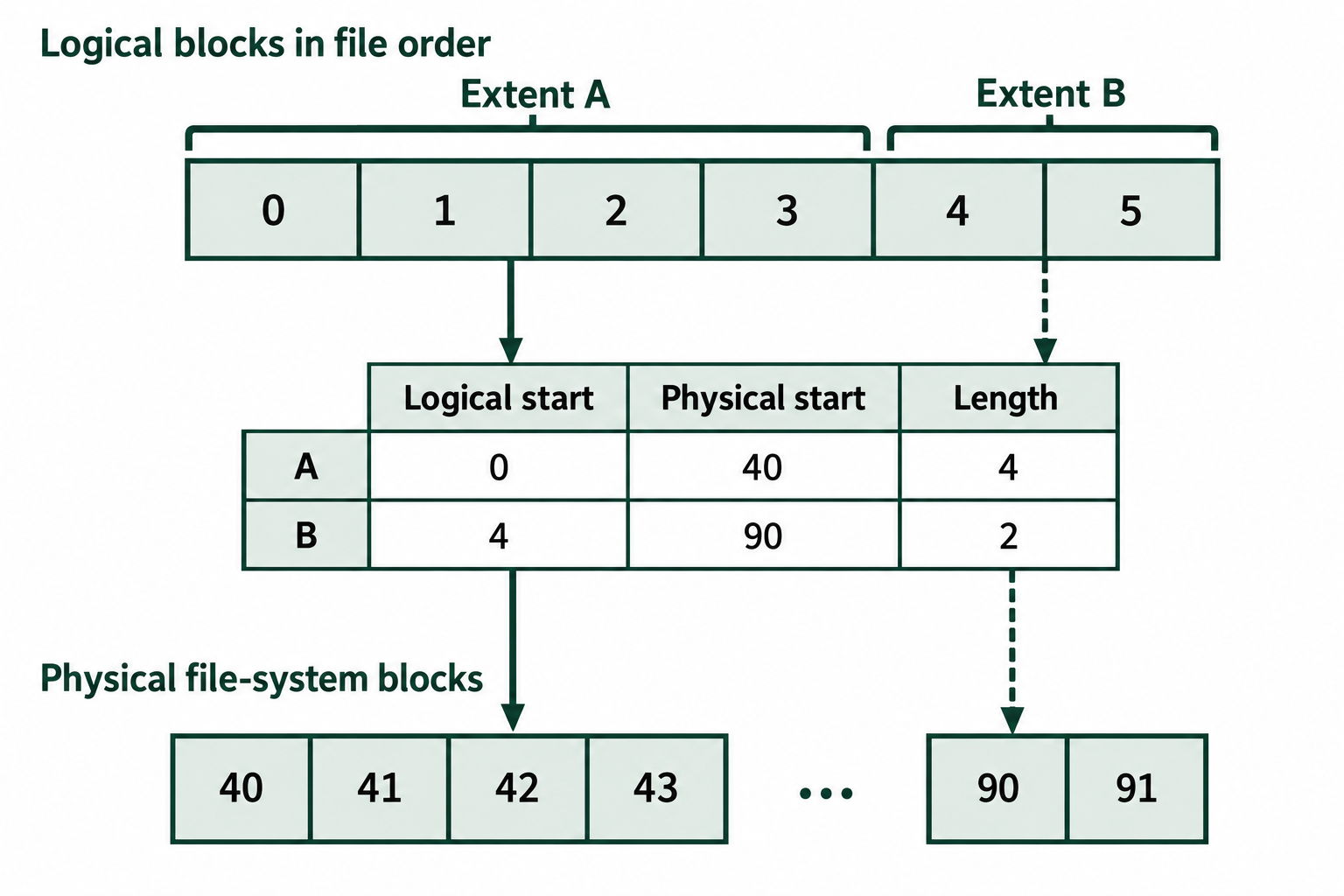
Figure 6.3: Two extents describe six logical blocks in this synthetic example. Each extent records a logical starting block, a physical starting block, and a length.
Text description for Figure 6.3
The file contains logical blocks 0, 1, 2, 3, 4, and 5. Extent A has logical start 0, physical start 40, and length 4, so logical blocks 0 through 3 map to physical blocks 40 through 43. Extent B has logical start 4, physical start 90, and length 2, so logical blocks 4 and 5 map to physical blocks 90 and 91. Labels and different connector patterns distinguish the mappings without relying on color.
Forensic Impact of Extents:
Extents affect recovery in two opposite ways. When the inode is intact, extent-based mapping makes file recovery easier than the old pointer model: a forensic tool can quickly identify the exact disk ranges that contain the file's data. However, when a file is deleted, the kernel zeroes the extent entries stored in the inode. The inode itself stays in the inode table, but its map to the data is gone. There is no scattered trail of indirect pointer blocks to salvage. Unless an older copy of the inode survives in the journal (Section 6.4), the examiner must fall back to file carving, scanning unallocated space for file signatures (headers and footers) without any metadata guidance.
Hard Links vs. Symbolic Links
Links help explain hidden data and why certain files survive deletion.
-
Hard Links: A hard link is an additional directory entry (a different filename) that points to the same inode number. The file's data is shared between both names. Hard links cannot cross file system boundaries. Forensically, this is significant: if a user deletes
secret-plan.txtbut a hard link namednotes.dbpointing to the same inode still exists, the data remains fully intact on disk. The inode's link count drops from 2 to 1, and the file lives on under the other name. -
Symbolic (Soft) Links: A symlink is a separate file with its own inode. Its data block contains a text string: the path to another file. Unlike hard links, symlinks can cross file system boundaries and can point to directories. If the target file is deleted, the symlink becomes "broken": it points to nothing. For an examiner, broken symlinks can reveal that a file once existed at a specific path.
Compare the name and inode relationships for hard links and symbolic links in Figure 6.4.
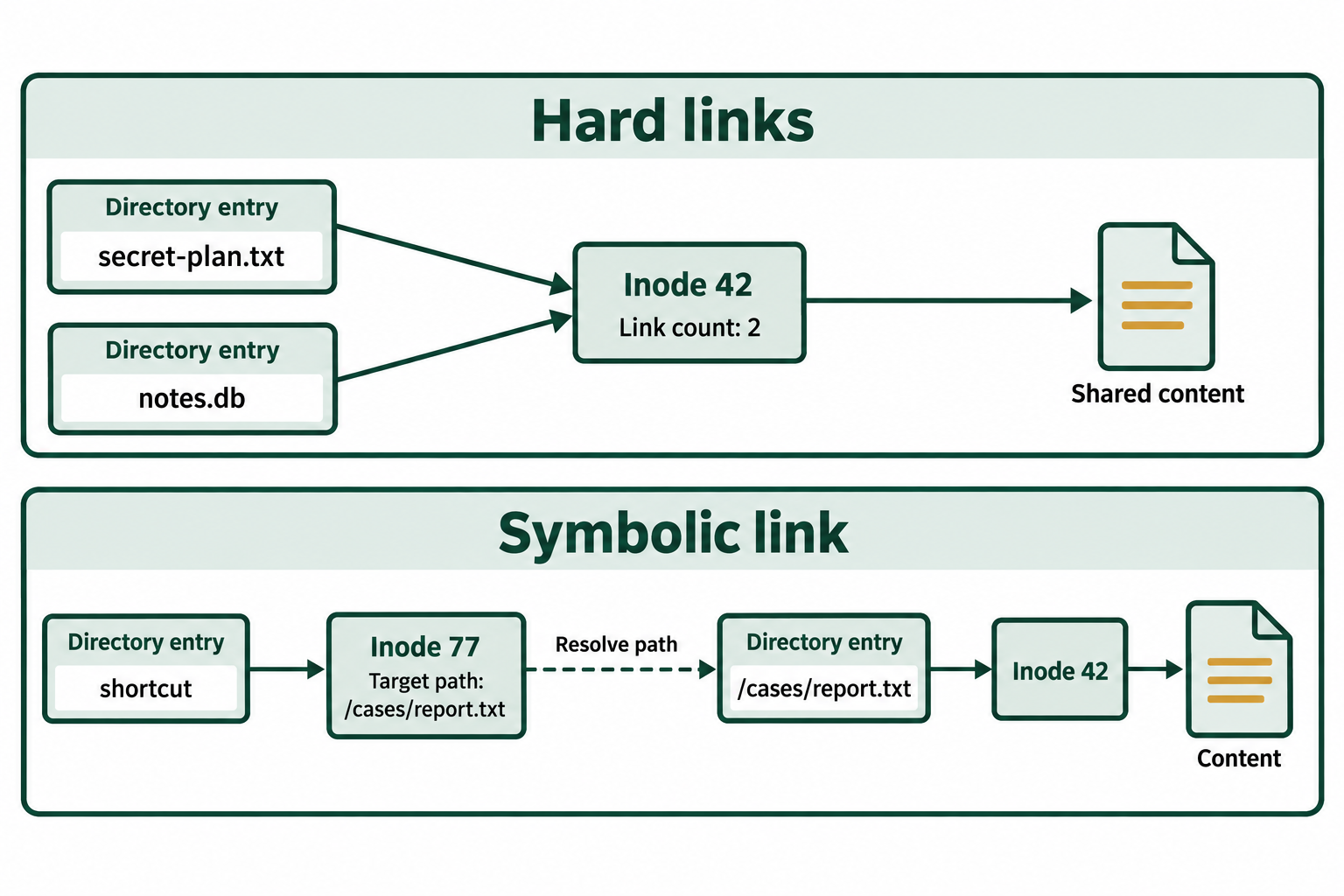
Figure 6.4: Hard links share an inode. A symbolic link stores a pathname and has its own inode. Short symbolic-link targets can reside directly in the inode.
Text description for Figure 6.4
In the hard-link panel, secret-plan.txt and notes.db both point to inode 42, whose link count is 2. That inode maps to one shared set of content. In the symbolic-link panel, shortcut points to its own inode 77, which stores the target path /cases/report.txt. Resolving that pathname finds report.txt and its inode 42. The symbolic link can become dangling when its target pathname no longer resolves. Its existence does not add to the target inode's hard-link count.
6.4 Ext4 Forensic Analysis
Sections 6.2 and 6.3 described the structures inside an Ext4 partition. This section applies those structures to examination work: finding metadata when the primary superblock is damaged, using the journal, understanding exactly what deletion changes, and choosing tools for recovery.
The Ext4 Journal
Journaling first arrived in the Ext family with Ext3 (2001) through the journaling block device (jbd) layer. Ext4 uses its successor, jbd2. The journal is a circular log, usually stored in reserved inode 8, though it can be placed on a separate device. Before Ext4 changes a metadata block (for example, a block of the inode table or a directory block), jbd2 writes a copy of the entire block into the journal. After the transaction commits, the change is written to its normal location.
Ext4 supports three journaling modes, selected at mount time:
- ordered (default): Only metadata is journaled. File data is written to disk before the related metadata commits.
- journal: Both metadata and file data pass through the journal. This is the safest and slowest mode, and it is uncommon.
- writeback: Only metadata is journaled, with no ordering guarantee for data. This is the fastest and least safe mode.
Because the journal holds full copies of metadata blocks, it can contain an older version of an inode table block from before a file was deleted. That older copy still holds the file's size, timestamps, and extent entries, which means the file's data blocks can be located again. The journal is overwritten as new transactions arrive, so how long these copies survive depends on how busy the file system is. On a busy server they may be gone quickly. On a lightly used workstation they can last much longer.
Figure 6.5 separates journal metadata, the commit record, and later checkpointing to their home locations.
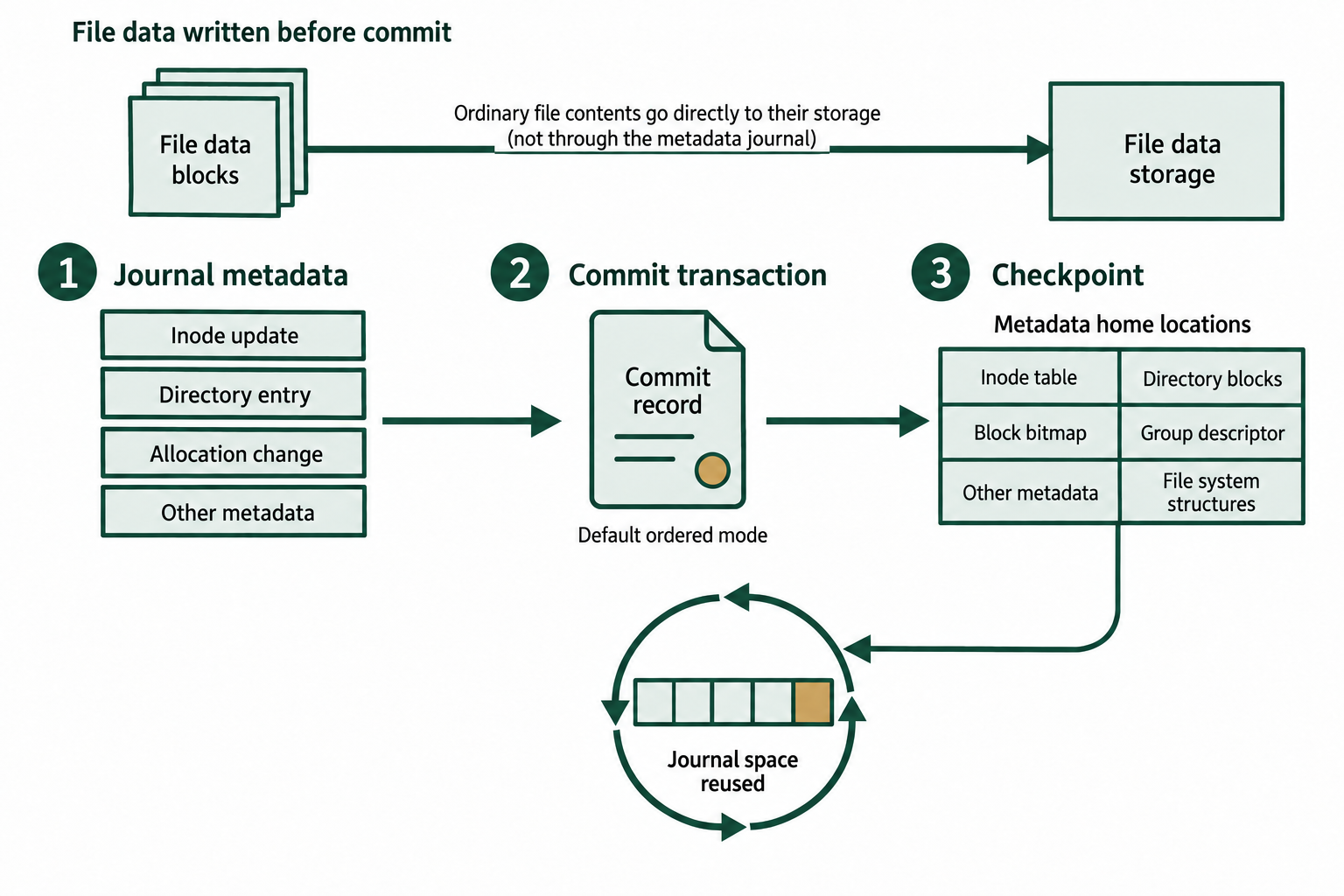
Figure 6.5: Conceptual Ext4 journal cycle in ordered mode. Ordinary file contents use a separate write path. Journal space can be reused after checkpointing; fast commits are outside this simplified view.
Text description for Figure 6.5
A transaction writes changed metadata into the journal, records a commit, and later checkpoints the committed metadata to its home locations. In the ordered mode illustrated here, associated file data is written before the metadata transaction commits. After checkpointing makes the journal copy unnecessary for recovery, the journal can reuse that space. The diagram concerns crash consistency and a limited recovery window, not an indefinitely retained history of file contents.
What Deletion Changes on Ext4
When a user deletes a file and no other hard link or open process still references it, the kernel makes three sets of changes:
- Directory entry: The entry is removed from the parent directory. In most cases the previous entry's record length is extended to cover it, so the deleted name and its inode number often remain readable in the directory block until that space is reused.
- Inode: The inode is marked free in the inode bitmap, its deletion time (dtime) is set, its link count drops to 0, its size is set to 0, and the extent entries stored in the inode are zeroed. The mode and owner fields remain. Some timestamps are updated to the time of deletion, so compare them with dtime before drawing conclusions.
- Data blocks: The blocks are marked free in the block bitmap. Their content is not wiped. It stays on disk until new data overwrites it.
| Structure | State after deletion | Recovery value |
|---|---|---|
| Directory entry | Hidden inside the previous entry's record length | Deleted filename and inode number are often recoverable |
| Inode | Marked free, dtime set, size and extents zeroed | Owner, mode, and time of deletion, but no map to the data |
| Journal | Not changed by the deletion itself | May hold an older inode copy with the original extent map |
| Data blocks | Marked free in the block bitmap | Content remains until overwritten and can be carved |
Figure 6.6 shows why recovery after the final unlink depends on surviving metadata and content.
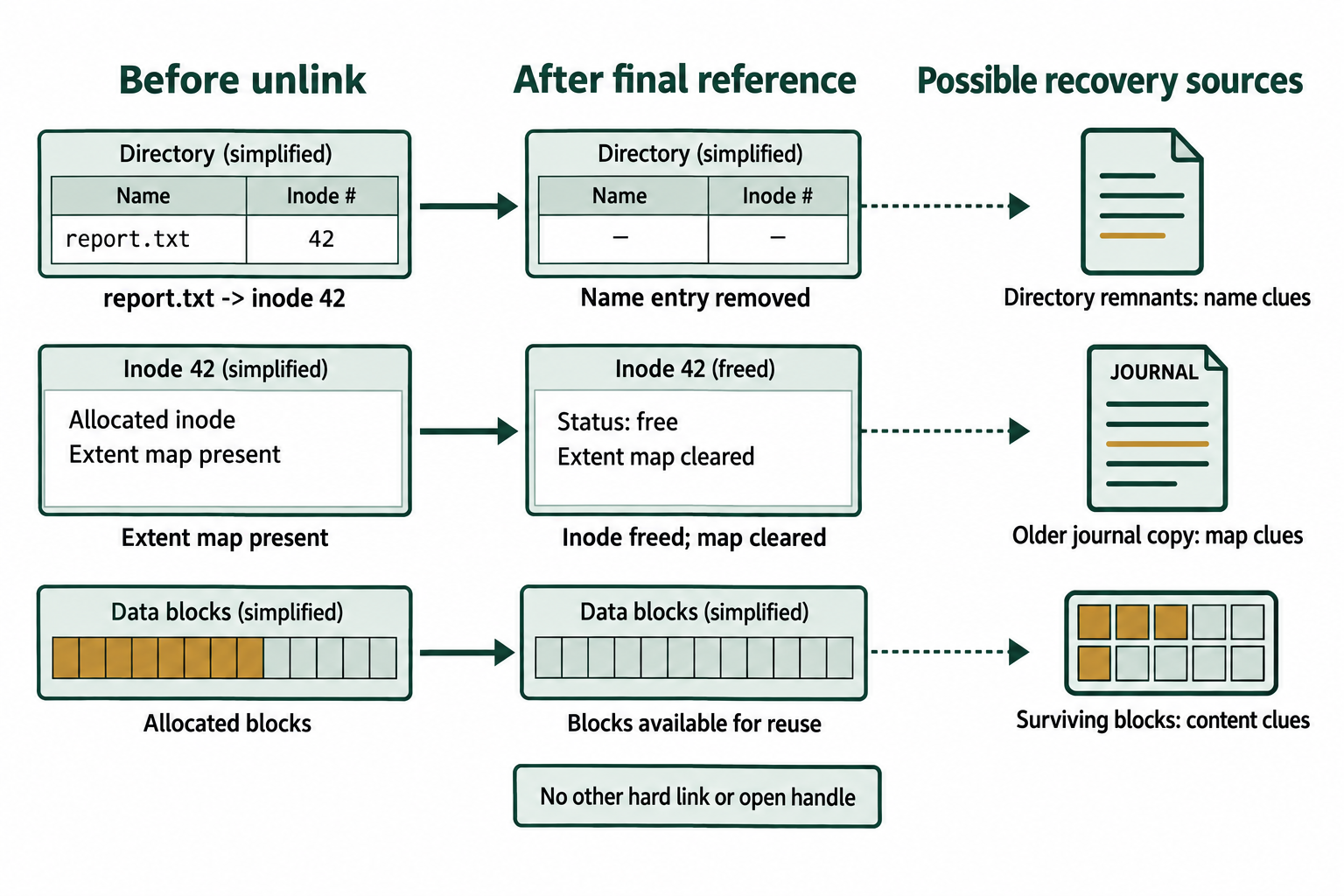
Figure 6.6: Deletion and possible recovery sources on Ext4. The example assumes no remaining hard links or open handles. Reuse, discard commands, storage behavior, and later journal activity affect what survives.
Text description for Figure 6.6
Before deletion, a directory name points to an allocated inode, its extent map, and allocated data blocks. After the final hard link is removed and no open file handle keeps the inode active, the file system can free the inode, clear its mapping, and make its blocks available for reuse. Possible recovery sources include remnants of a directory entry, an earlier inode or extent map in journal records, and content bytes that still survive. None of these sources is guaranteed. Deletion itself updates metadata and can generate journal activity.
Recovery Techniques
Because deletion zeroes the extent map, running icat on a deleted Ext4 inode usually returns no data. An examiner combines three approaches instead:
- Directory entry recovery: List deleted filenames and their former inode numbers. This establishes what existed and when it was deleted, even when content cannot be recovered.
- Journal recovery: Search the journal for an older copy of the inode, then use the extent entries in that copy to extract the data blocks.
- Carving: When no metadata survives, extract the unallocated blocks and search them for file signatures. Chapter 7 covers carving in detail.
The commands below show this workflow on a full disk image whose Ext4 partition starts at sector 2048. The inode number is an example.
# List deleted filenames recursively, with their former inode numbers
fls -o 2048 -r -d evidence.dd

# Display the inode for a deleted entry (dtime, owner, zeroed size)
istat -o 2048 evidence.dd 131077

# Search the journal for older copies of that inode
# debugfs needs an image of the partition itself, and it opens read-only by default
debugfs -R "logdump -i <131077>" partition.img

# Extract all unallocated blocks for carving
blkls -o 2048 evidence.dd > unallocated.bin
Tools for Ext4 Analysis
- The Sleuth Kit (TSK): Command-line tools for each layer of the file system.
fsstatshows superblock and block group details,flslists filenames (including deleted entries),istatdisplays inode details,icatextracts content by inode number,ilslists inodes (including unallocated ones), andblklsextracts unallocated blocks. - Autopsy: A graphical interface built on TSK that adds timelines, keyword search, and visual browsing of deleted entries.
- debugfs: The Ext2/Ext3/Ext4 file system debugger from the e2fsprogs package. It opens images read-only unless the
-woption is given.ls -dlists deleted directory entries,statdisplays an inode, andlogdumpreads the journal. - ext4magic and extundelete: Open-source tools that automate journal-based recovery. Both are older and no longer actively developed, so verify their results against TSK output before relying on them.
Common Linux Forensic Artifacts
Beyond the file system structures, examiners review these Linux artifacts:
- /etc/passwd, /etc/shadow, and /etc/group: User accounts, password hashes, and group membership. The timestamps on these files may indicate when an account was added or changed.
- /var/log/: Text logs such as
auth.logandsyslogon Debian and Ubuntu, orsecureandmessageson Rocky Linux and Fedora. These record logins,sudouse, and service events. - /var/log/journal/: Binary logs from the systemd journal. Read them from an image with
journalctl -D <directory>on an examination workstation. - ~/.bash_history: Commands a user ran in the Bash shell. Bash writes this file when the shell exits, so commands from a session that was killed may be missing, and users can clear the file.
- Scheduled tasks:
/etc/crontab,/etc/cron.d/, per-user crontabs under/var/spool/cron/, and systemd timer units. Attackers use these for persistence. - ~/.ssh/:
authorized_keysshows which keys can log in to the account, andknown_hostsshows which systems the user connected to.
Analyst Perspective
Attackers often delete or truncate /var/log/auth.log to hide a login. The directory entry and free inode may still show that the file existed and when it was deleted, and because log files are plain text, the log lines often remain in unallocated blocks. A keyword search of the blkls output for strings such as sshd or Accepted password can recover individual log entries with their original timestamps even when no file metadata survives.
Use the independent Linux record sources in Figure 6.7 to build and test a timeline.
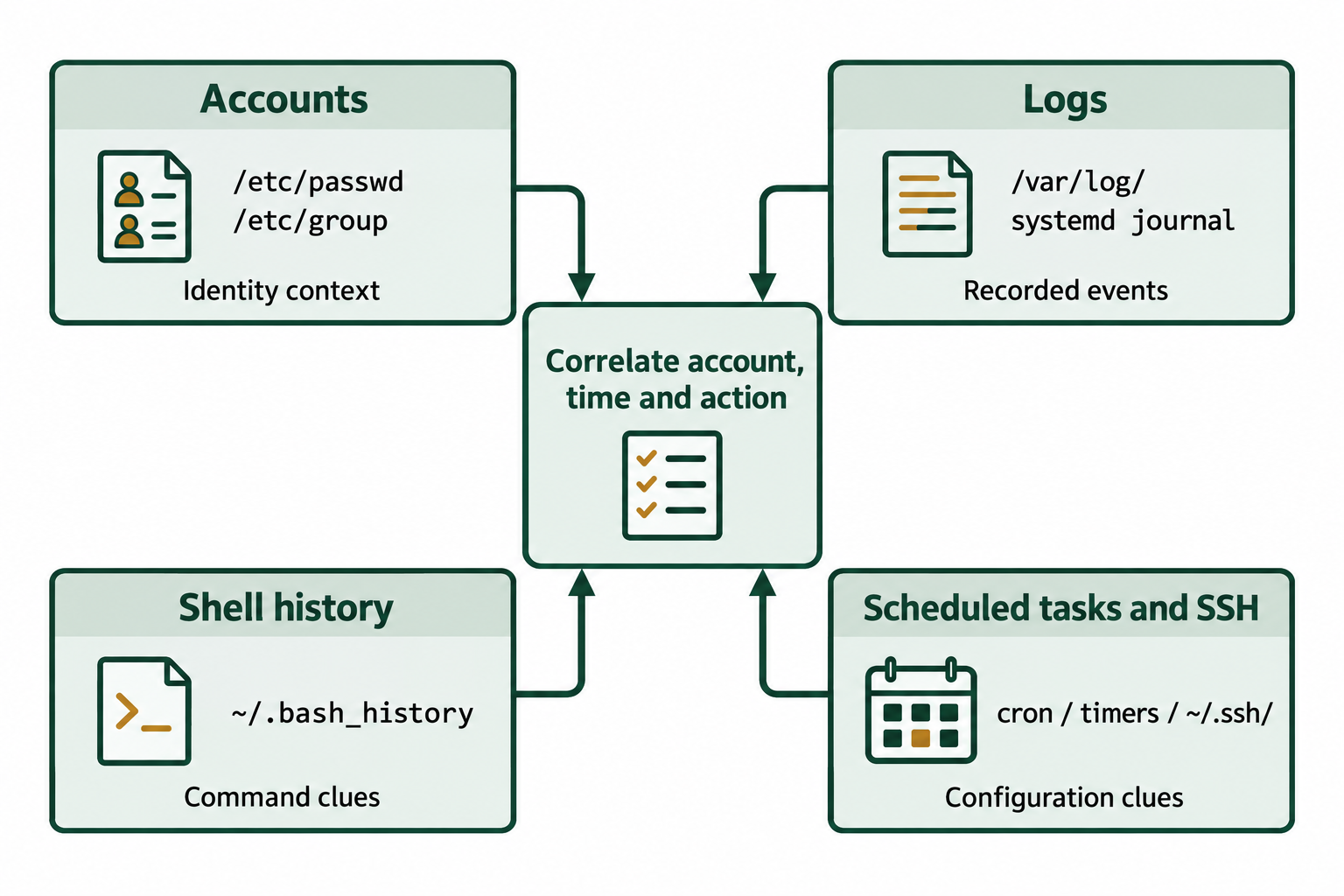
Figure 6.7: Linux artifact correlation. Each source records a different part of system activity, and collection scope, configuration, and retention affect its coverage.
Text description for Figure 6.7
Account files such as /etc/passwd and /etc/group help interpret user and group identifiers. Files under /var/log and the systemd journal can record authentication, service, and other events. Shell history such as ~/.bash_history can supply command context, subject to shell behavior and possible editing. Cron entries, timers, and ~/.ssh artifacts provide scheduling and remote-access context. Correlate these records by account, time, and action; a configured key or scheduled task alone does not prove execution.
6.5 APFS Architecture
APFS (Apple File System) replaced HFS+ as the default file system in iOS 10.3 and in macOS 10.13 (High Sierra), both released in 2017. It is now the default on all Apple devices (macOS, iOS, iPadOS, tvOS, watchOS). Unlike Ext4, which evolved from older designs, APFS was built from scratch using modern copy-on-write principles. This design choice changes how deleted data can be recovered.
Container Model
APFS divides a physical storage device into a container. A container can hold multiple logical volumes, and these volumes share the same pool of free space. This differs from NTFS or Ext4, where each partition holds one self-contained file system.
- Container: A physical region of storage managed by APFS. A drive might contain one container for the entire drive, or multiple containers for different purposes (e.g., one for the system, one for user data).
- Volume: A logical file system within a container. Multiple volumes can coexist in one container, sharing space.
For example, a 1 TB SSD might contain a 256 GB system volume and a 256 GB user data volume, with the remaining 512 GB available to either volume as needed. This flexibility reduces wasted space compared to traditional partitioning.
Figure 6.8 illustrates how APFS volumes draw from a container's shared storage.
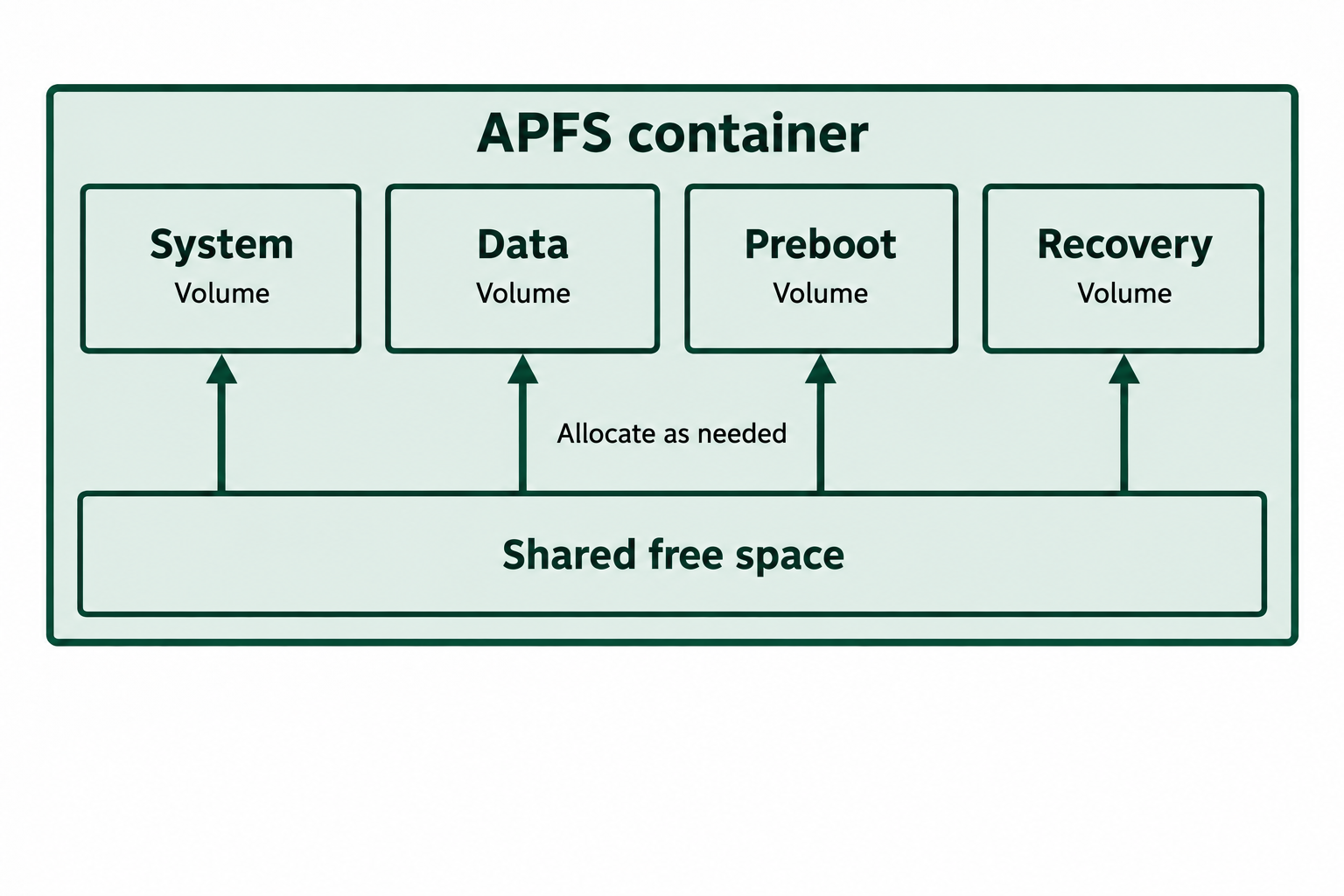
Figure 6.8: Conceptual APFS space sharing. Volumes are logical structures within the container; the boxes do not represent fixed-size physical partitions.
Text description for Figure 6.8
One APFS container encloses example System, Data, Preboot, and Recovery volumes and a shared pool of free space. Each volume can allocate from available container storage as needed, subject to configured quotas and reserves. The figure uses illustrative volume roles rather than a complete inventory for every macOS version. Box sizes do not indicate actual allocation or capacity.
Copy-on-Write Mechanics
APFS uses a copy-on-write (CoW) design: when a file is modified, instead of overwriting the original blocks, APFS allocates new blocks, writes the modified data to the new blocks, and updates the file's metadata to reference the new blocks. The original blocks are freed only after the new blocks are committed.
This design has several consequences:
- Crash safety: If a crash occurs during a write, the original file remains intact, and the incomplete new blocks are lost. There is no need for a traditional journal.
- Snapshot capability: Since old blocks are retained, APFS can create lightweight snapshots by recording which blocks belonged to a previous state of the file system.
- Data recovery complexity: A file's clusters may be scattered across the volume in non-contiguous, time-ordered regions. Data deleted long ago may have been overwritten. Data deleted recently may persist indefinitely if no snapshots force space reclamation.
Space Sharing and Snapshots
In APFS, volumes within a container share free space. A system volume can expand into space not used by a data volume, or vice versa. This sharing is tracked at the container level, not the individual volume level.
Snapshots are point-in-time captures of a volume's state. APFS stores only the differences between snapshots, making them lightweight. A snapshot captures the file system metadata and block allocation state. The actual data blocks are shared among snapshots and the live volume. When a snapshot is deleted, its blocks are freed only if no other snapshot or the live volume references them.
For forensic analysis, snapshots can be a source of recoverable data. If a file was deleted but a snapshot containing it still exists, the snapshot may preserve the file. However, snapshots are also used for encryption and privacy enforcement, and may not be accessible to an examiner without authentication.
Trace the shared and version-specific block references in Figure 6.9.
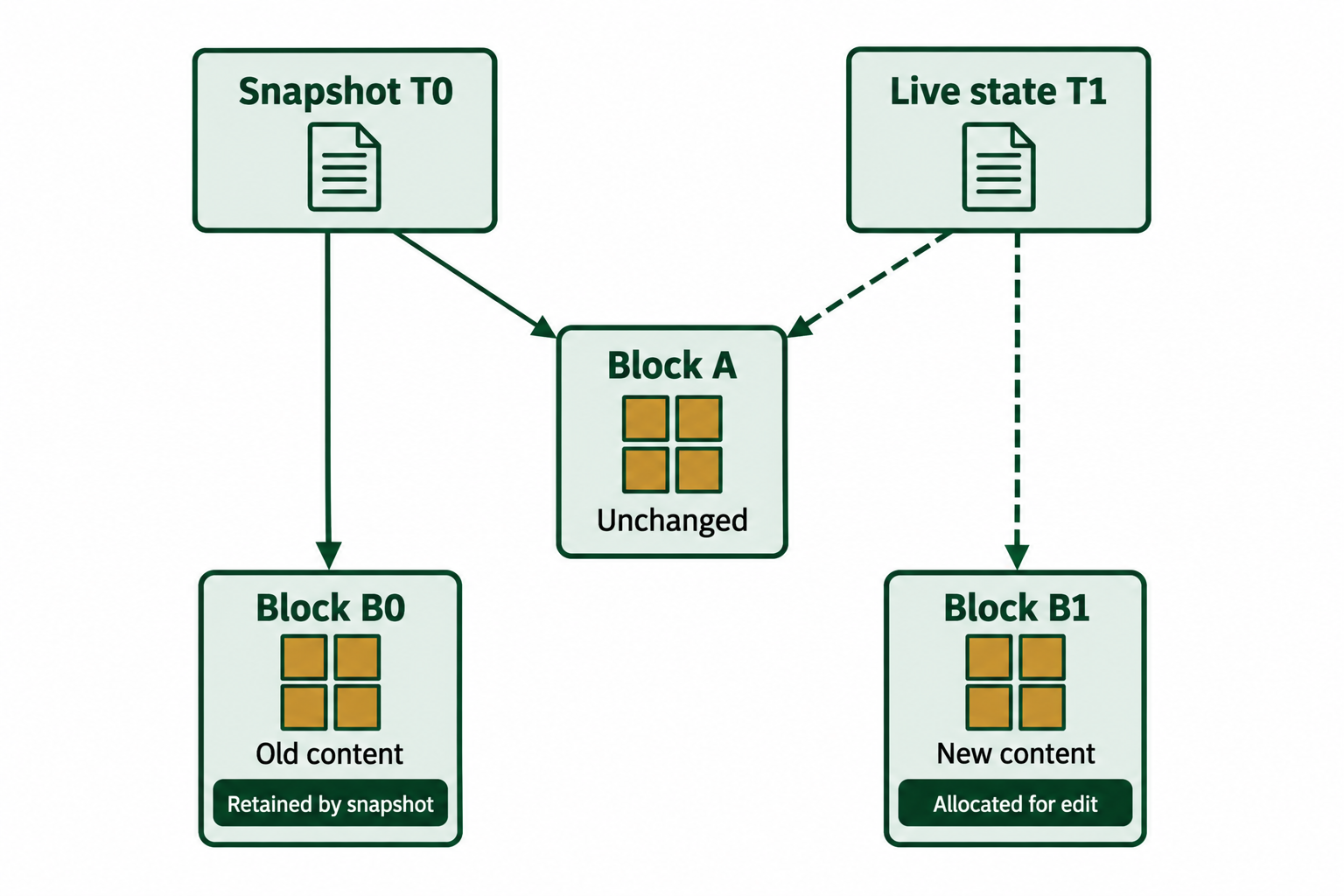
Figure 6.9: Simplified copy-on-write and snapshot example. A retained snapshot keeps references to the older version; shared blocks do not need a second copy.
Text description for Figure 6.9
The snapshot at time T0 references unchanged block A and old block B0. The live file system at time T1 references that same physical block A and newly allocated block B1. Four references connect two roots to three physical blocks. The snapshot retains B0 while it remains referenced. Actual metadata trees add indirection, and copy-on-write alone does not guarantee indefinite recovery of unreferenced historical blocks.
APFS Encryption and Metadata
APFS supports per-volume encryption and per-file encryption. Each volume can have a separate encryption key. Additionally, some data structures (such as metadata) may be protected by a separate key.
The encryption model is:
- Container-level: Some metadata about the container structure can be encrypted.
- Volume-level: The entire volume can be encrypted, requiring the volume's passphrase to decrypt.
- File-level: Individual files can be encrypted independently (though this is less common in practice).
For forensic analysis, encrypted volumes present a barrier: without the volume's passphrase or encryption key, the examiner cannot read the file system structures. Some Apple devices support data recovery with the correct Apple ID or device recovery key, but this is device-specific and not universally applicable to forensic examination.
Firmlinks
APFS introduces firmlinks, which are similar to symlinks but maintain a bidirectional relationship. Firmlinks are used in macOS to present a unified file system view while maintaining separate system and data volumes. For example, /Users on the system volume may be a firmlink to the actual /Users directory on the data volume.
Forensically, firmlinks can complicate analysis if the examiner assumes normal Unix symlink behavior. Some forensic tools may not handle firmlinks correctly, potentially missing files or reporting incorrect paths.
Figure 6.10 connects the unified macOS path view to the System and Data volumes.
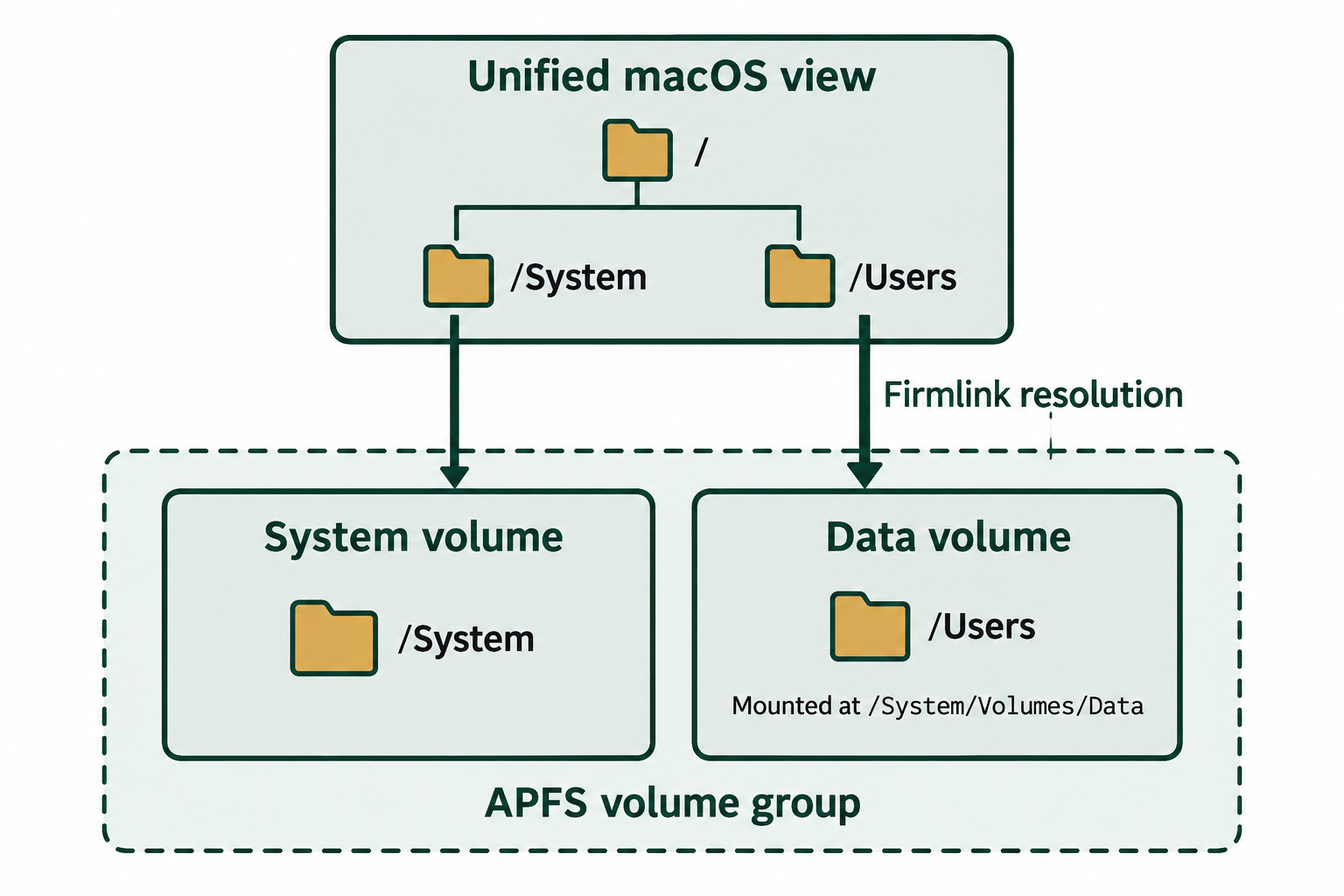
Figure 6.10: Simplified System and Data volume group. Firmlinks help macOS present paths from separate volumes in one namespace. The Data volume is mounted at /System/Volumes/Data.
Text description for Figure 6.10
At the top, the user-visible root directory contains example paths /System and /Users. The System path leads to the System volume. The Users path resolves through the macOS firmlink mechanism to the Data volume, mounted at /System/Volumes/Data. Both volumes belong to the same APFS volume group. Firmlinks support this coordinated namespace and differ from an ordinary symbolic link stored in a separate inode. Other paths and volume roles are omitted.
6.6 APFS Forensic Analysis
Data recovery from APFS is more challenging than from NTFS or Ext4 because the copy-on-write design means deleted data is not immediately accessible. However, forensic examiners can extract artifacts from APFS metadata, snapshot data, and system artifacts.
Data Recovery Challenges
In APFS, when a file is deleted:
- Its metadata entry (inode-equivalent) is freed.
- Its clusters are marked as free in the container's space allocator.
- The file's data is not immediately deleted. However, the metadata necessary to locate that data is lost.
Unlike NTFS (where the deleted MFT entry usually keeps its data run list) or Ext4 (where an older copy of the inode, with its extent map, may survive in the journal), APFS does not reliably preserve the metadata-to-data mapping for deleted files. An analyst can potentially recover file data by scanning for file signatures in unallocated clusters, but cannot reconstruct the complete file without knowing which blocks belong together.
Snapshot analysis can improve recovery prospects: if a recent snapshot contains the file, the snapshot's metadata may be readable, allowing identification and extraction of the file from the snapshot.
macOS System Artifacts
Beyond the file system structure, macOS stores extensive metadata about user and system activity:
- FSEvents: A journaling system that records file system changes. Stored in
/.fseventsd/, FSEvents logs provide a timeline of file creation, modification, and deletion with second-level precision. - KnowledgeC.db: A SQLite database stored in
~/Library/Application Support/Knowledge/, containing a continuous record of application launch, document usage, and browsing history. This database is often a primary source of user activity evidence. - Unified Logging (.tracev3 files): Introduced in macOS 10.12 (Sierra), Unified Logging replaces most traditional text logs. The .tracev3 files are stored in
/private/var/db/diagnostics/, with supporting string data in/private/var/db/uuidtext/. The format is binary and requires specialized tools to parse, such as thelog showcommand on a Mac or mac_apt on other platforms. - Quarantine events: Metadata stored in extended attributes (xattr) on downloaded files, indicating the download source and date.
- Spotlight index: The Spotlight search database is stored in the hidden
.Spotlight-V100folder at the root of each indexed volume. It can contain metadata about files that have since been deleted if the index has not been rebuilt. A file named.metadata_never_indexdoes the opposite: it is a marker that tells Spotlight not to index the volume. - Safari browser history and cache: Stored in
~/Library/Safari/, including History.db, TopSites.plist, and cached web page data.
Analyst Perspective
FSEvents and KnowledgeC.db are two of the most detailed sources of user activity in a macOS investigation. FSEvents shows file system events, while KnowledgeC.db shows which applications were active and which documents were opened. Together, they can show what the user was doing and when, even after browser history has been deleted or application caches have been cleared.
Figure 6.11 separates macOS artifact capabilities before correlating their records.
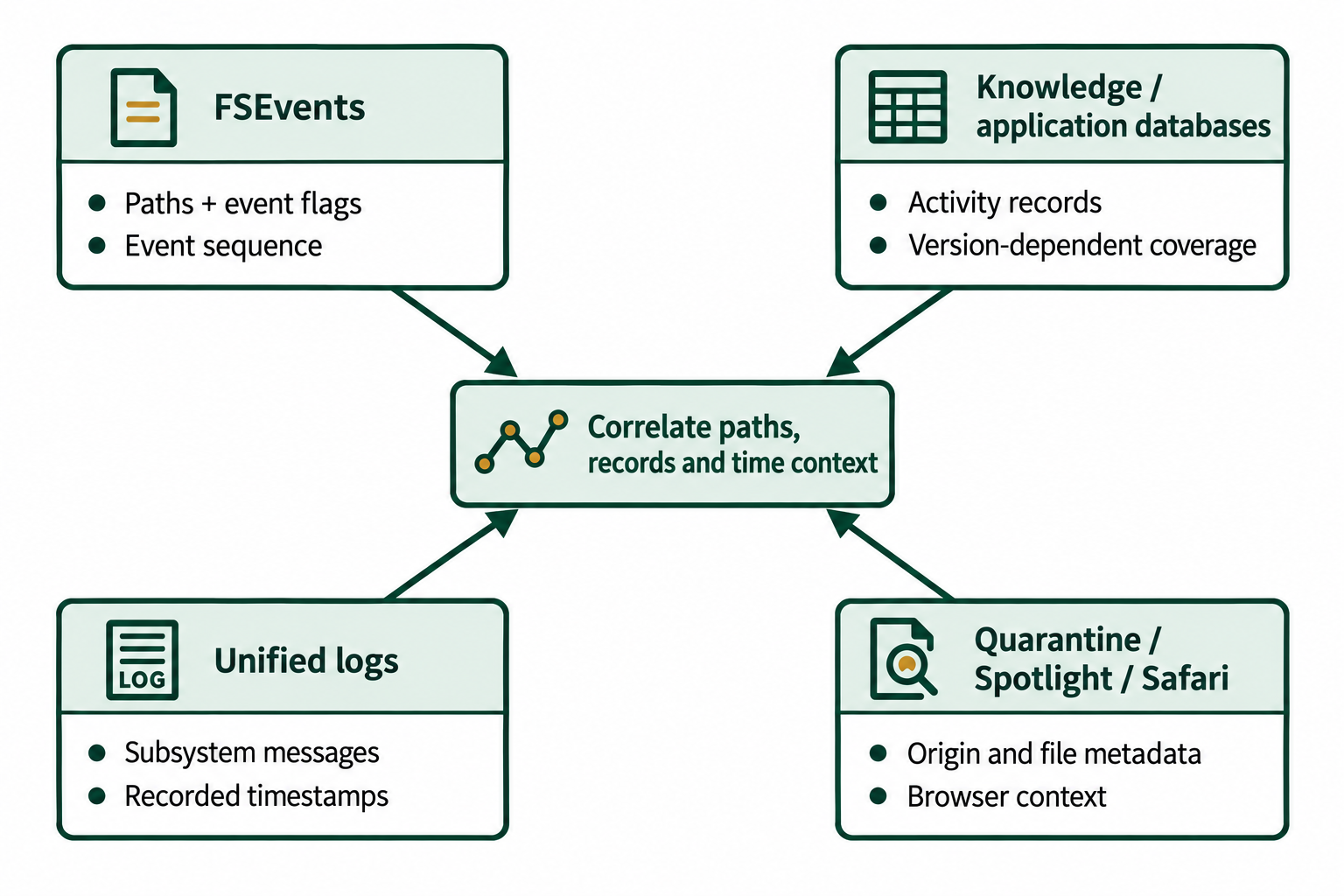
Figure 6.11: macOS artifact correlation. FSEvents event identifiers are sequence values, and the records do not supply a precise native timestamp for every filesystem change. Coverage varies by source and macOS version.
Text description for Figure 6.11
FSEvents contributes changed paths, event flags, and event sequence, with possible coalescing or gaps. Knowledge and other application databases can contain activity records, depending on version, configuration, and retention. Unified logs contain messages and timestamps. Quarantine, Spotlight, and Safari artifacts can provide download-origin, file-metadata, or browser context. Correlate paths, records, and supported time context. No single source provides a complete record of every user action.
Tools for APFS Analysis
APFS analysis tools are less mature than NTFS or Ext4 tools, but several options exist:
- mac_apt (macOS Artifact Parser and Timeliner): Open-source Python-based tool for parsing macOS artifacts including FSEvents, KnowledgeC.db, Spotlight, and Unified Logging.
- APFS Fuse: Allows mounting APFS volumes (including encrypted volumes with the correct password) on Linux or macOS for manual browsing.
- Autopsy: The latest versions include basic APFS module support, though it is less comprehensive than NTFS or Ext4 support.
- Plist parsers: Since macOS heavily uses Property List (plist) format for configuration and metadata, parsing plist files is essential. Tools like
plutil(macOS command-line) or Pythonplistlibenable extraction. - SQLite tools: KnowledgeC.db and Safari History.db are SQLite databases. Tools like
sqlite3command-line or GUI tools like DB Browser for SQLite allow examination.
6.7 Cross-Platform Forensic Considerations
When analyzing file systems across Windows, Linux, and macOS, examiners must account for significant differences in design philosophy, timestamp formats, and permission models.
Case Sensitivity
NTFS is case-preserving but case-insensitive. A file named MyDocument.txt and mydocument.txt are treated as the same file. The file system preserves the case used when the file was created, but file access is case-insensitive. This can complicate analysis: two files that appear different in hex dump might be references to the same file.
Ext4 is case-sensitive by default. Files named MyDocument.txt and mydocument.txt are two distinct files. This is consistent with POSIX standards and allows scripts and systems to rely on case-sensitive naming.
APFS is case-insensitive on macOS (for backward compatibility with HFS+) but case-sensitive on iOS. This inconsistency can confuse examiners: a volume may be case-sensitive or case-insensitive depending on how it was formatted and the device type.
Compare two filename lookup rules in Figure 6.12.
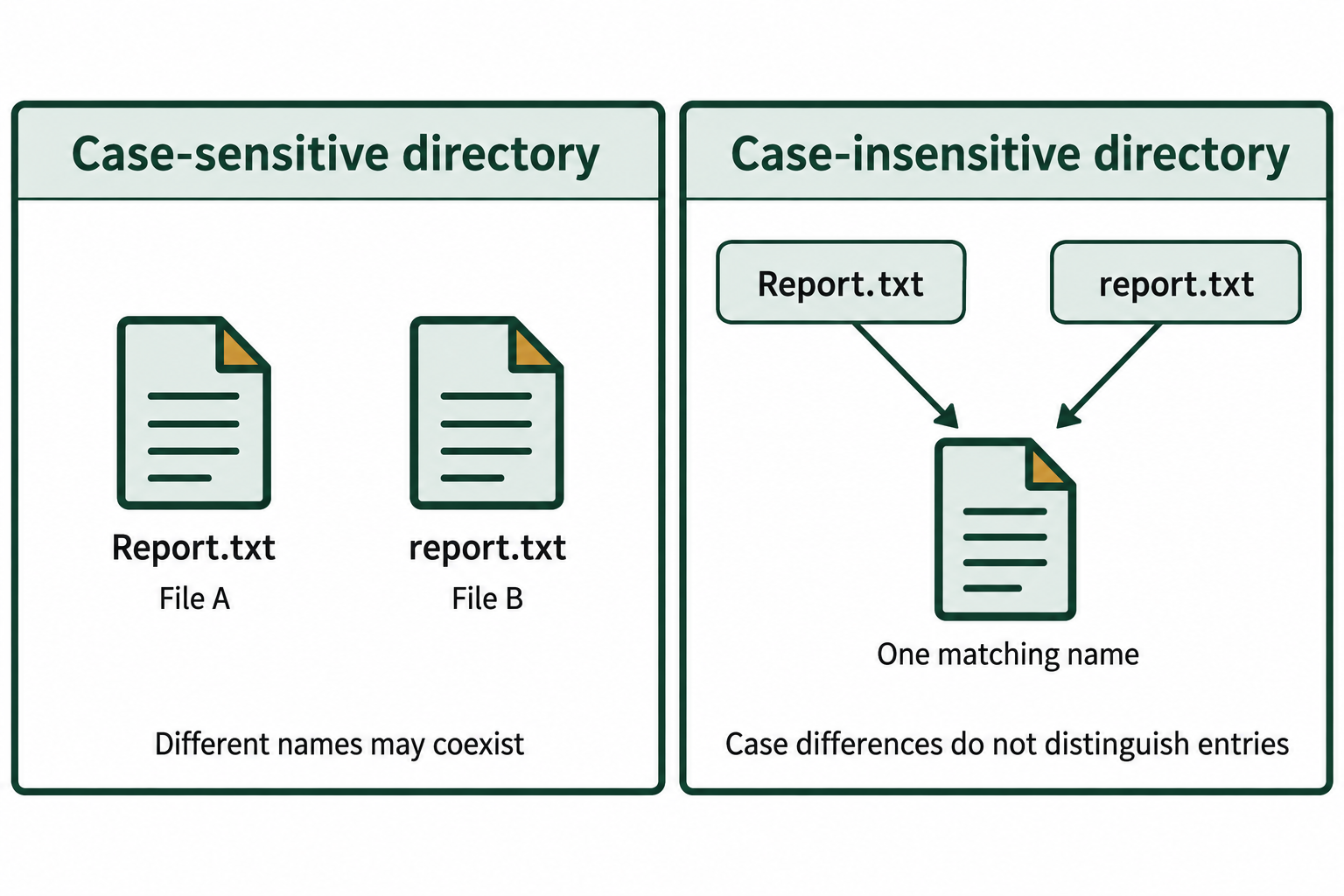
Figure 6.12: Case-sensitive and case-insensitive lookup. Verify the actual volume and directory configuration before deciding whether names that differ only by letter case identify separate files.
Text description for Figure 6.12
In the case-sensitive example, Report.txt names file A and report.txt names a separate file B. In the case-insensitive example, queries using Report.txt or report.txt resolve to one matching name. The diagram explains lookup behavior rather than assigning one universal rule to an operating system. File-system options and directory-level features can affect the rule in force.
Timestamp Formats and Ranges
| File System | Timestamp Format | Range | Granularity |
|---|---|---|---|
| NTFS | FILETIME (100-ns intervals since 1601) | 1601 - 30828 | 100 nanoseconds |
| Ext2/Ext3 (128-byte inodes) | Signed 32-bit seconds since January 1, 1970 UTC | 1901 - 2038 | 1 second |
| Ext4 (256-byte inodes) | Seconds since 1970, plus extra bits for nanoseconds and range | 1901 - 2446 | 1 nanosecond |
| APFS | 64-bit nanoseconds since January 1, 1970 UTC | 1970 - about 2554 | 1 nanosecond |
| HFS+ (legacy) | Unsigned 32-bit seconds since January 1, 1904 | 1904 - 2040 | 1 second |
| Mac Absolute Time (plist and SQLite artifacts) | Seconds since January 1, 2001 UTC | Varies by storage type | 1 second or finer |
These differences have forensic implications:
- A timestamp before 1970 on an Ext4 or APFS volume is unusual. It often indicates timestamp manipulation (for example, with the
touchcommand) or a file copied by a tool that preserved dates from another system. - Ext2/Ext3 volumes with 128-byte inodes store signed 32-bit seconds, which overflow on January 19, 2038 (the Year 2038 problem, similar to the Y2K issue). Ext4 volumes with 256-byte inodes use extra timestamp bits that extend the range to the year 2446.
- APFS file system timestamps count from 1970, but many macOS artifacts do not. Plist files and SQLite databases such as KnowledgeC.db often store Mac Absolute Time (also called Cocoa time), which counts seconds from January 1, 2001 UTC. Reading a Mac Absolute Time value as a Unix timestamp places the event 31 years too early.
Converting between formats is necessary when correlating evidence across systems. The same moment, January 15, 2026 at 14:30:00 UTC, is stored four different ways:
| Format | Stored value |
|---|---|
| NTFS FILETIME | 0x01DC862B6DE96400 |
| Ext4 (seconds since 1970) | 1768487400 (0x6968F9E8) |
| APFS (nanoseconds since 1970) | 0x188AEDEBA2C11000 |
| Mac Absolute Time (seconds since 2001) | 790180200 |
If the Mac Absolute Time value 790180200 is read as a Unix timestamp, it decodes to January 15, 1995, which is the 31-year error described above.
Figure 6.13 converts three numerical representations of the same instant to a common UTC time.
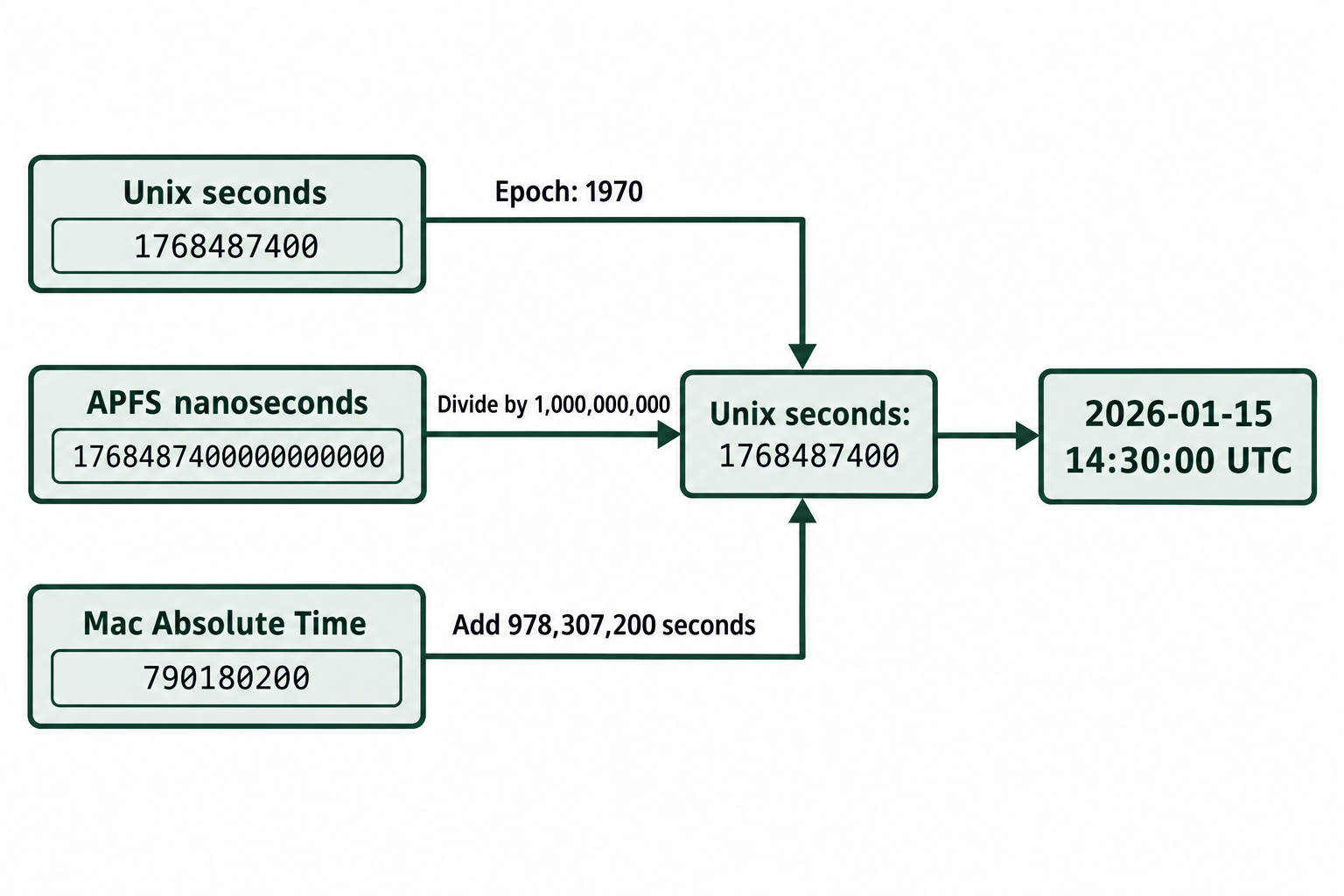
Figure 6.13: Worked timestamp conversion. Account for both the epoch, the starting point of the count, and the unit before comparing records. APFS file timestamps use nanoseconds from the Unix epoch.
Text description for Figure 6.13
The Unix representation is 1768487400 seconds since January 1, 1970 UTC. Divide APFS value 1768487400000000000 nanoseconds by one billion to obtain those Unix seconds. Mac Absolute Time counts seconds from January 1, 2001 UTC; adding 978307200 to 790180200 also gives 1768487400. All three represent January 15, 2026 at 14:30:00 UTC. A matching numerical instant does not establish that different artifacts describe the same type of event.
Permission Models
NTFS uses Access Control Lists (ACLs) with Allow/Deny rules for specific users or groups. Permissions include:
- Full Control
- Modify
- Read & Execute
- Read
- Write
Each permission entry specifies a principal (user, group, or special identity) and applies either to the file or to children (for directories).
POSIX (Ext4, APFS on Unix) uses a simpler model: each file has an owner (user), a group, and three permission sets (owner, group, others) with read (r), write (w), and execute (x) bits. Additionally, files may have extended attributes (xattr) for more granular control.
Decode the three permission groups in Figure 6.14 before evaluating any additional access controls.
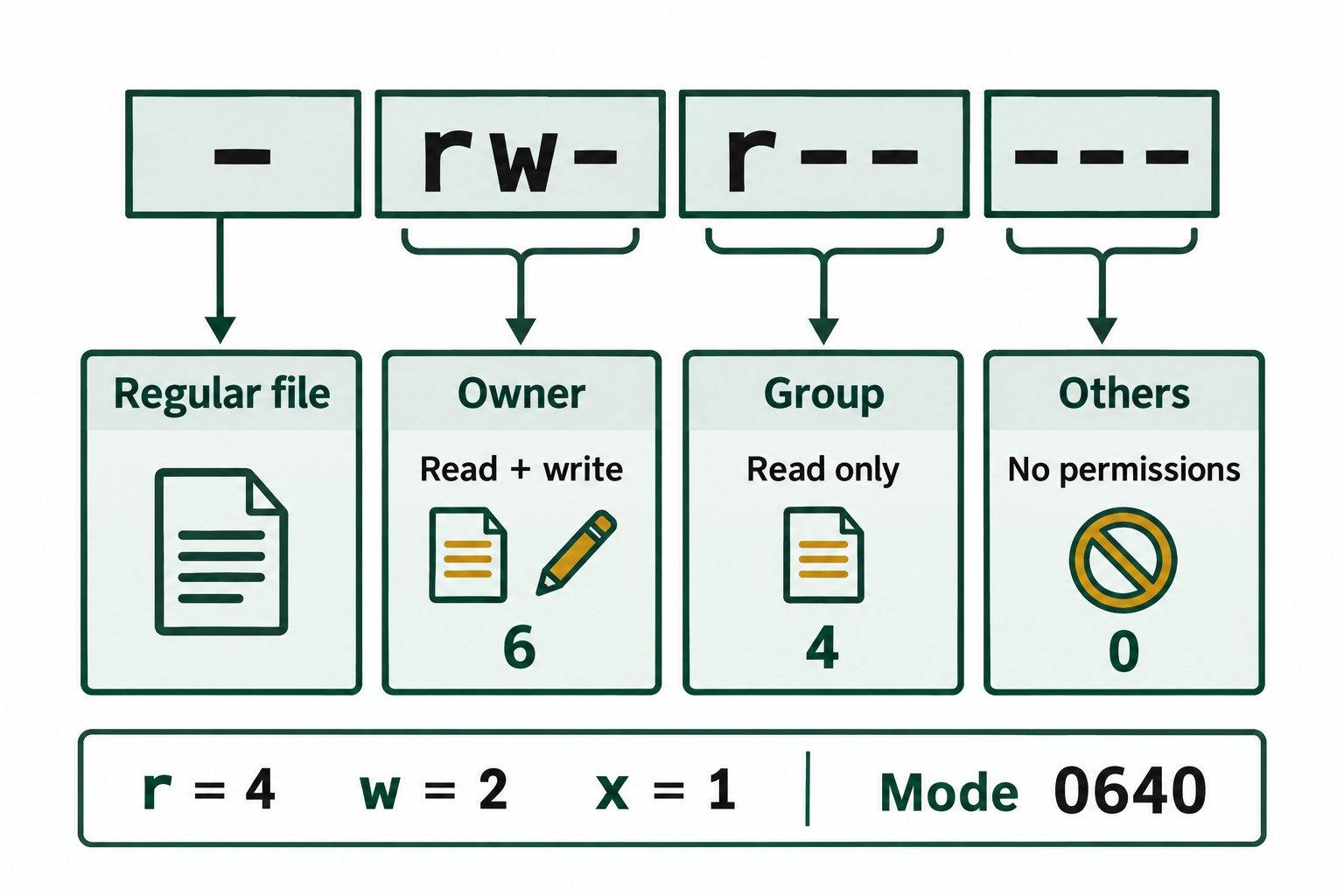
Figure 6.14: Basic POSIX permission bits for a regular file. Access control lists and other security mechanisms can further affect effective access.
Text description for Figure 6.14
The symbolic form is a leading hyphen for a regular file, then rw- for the owner, r-- for the group, and --- for others. Read contributes 4, write contributes 2, and execute contributes 1. The owner therefore has 4 plus 2, or 6; the group has 4; and others have 0. The resulting basic mode is 0640. These bits describe one layer of access control and do not by themselves establish every actor's effective access.
Special permission bits (SUID, SGID, sticky bit) are used for specific purposes:
- SUID (set-user-ID): When executed, the process runs with the owner's privileges, not the executor's. Exploited in privilege escalation attacks.
- SGID (set-group-ID): Similar to SUID but for group privileges.
- Sticky bit: Set on a directory, it allows only a file's owner, the directory's owner, or root to delete or rename files inside that directory, even if other users have write permission to it. The
/tmpdirectory is the common example.
Forensically, unusual SUID or SGID bits (e.g., on a shell script or data file) may indicate a privilege escalation attempt or malware installation.
Path Separators and Symlinks
Windows (NTFS) uses backslash \ as the path separator. Symlinks (via mklink or ln -s on WSL) are less commonly used.
Unix (Ext4, APFS) uses forward slash /. Symlinks are created with ln -s and are very common in system administration. A symlink is a file containing the path to another file. When accessed, the kernel resolves the symlink and returns the target file's content.
Hard links are an alternative to symlinks: multiple directory entries can reference the same inode. Unlike symlinks, hard links are transparent to the user. Both names appear to be independent files. Hard links cannot cross file systems.
Forensically:
- A symlink may point to a non-existent file (broken symlink), indicating either a deleted target or a misconfigured link.
- Multiple hard links to the same file can complicate evidence interpretation: deleting one link does not delete the file, which remains accessible via other links.
- On APFS, firmlinks introduce another variant: a firmlink is bidirectional and maintains consistency between the two paths.
Cross-Platform Path Assumptions
When correlating evidence across systems, do not assume file paths are absolute. A file accessed via a symlink, hard link, or firmlink may appear under different paths in different forensic tools. Always resolve all path references to determine which physical inode or file is involved.
Reference Table: Forensic Comparison
| Attribute | NTFS | Ext4 | APFS |
|---|---|---|---|
| Timestamp format | FILETIME (1601) | Unix epoch seconds (1970) | Unix epoch nanoseconds (1970) |
| Case sensitivity | Case-insensitive | Case-sensitive | Case-insensitive (macOS) |
| Journaling | $LogFile (redo/undo) | jbd2 (metadata) | Copy-on-write (implicit) |
| Deleted file metadata | MFT entry persists | Inode persists, extent map zeroed | Metadata may be lost |
| Symlinks/hardlinks | Sparse support | Full support | Full support + firmlinks |
| Permissions | ACLs | POSIX bits + xattr | POSIX bits + xattr |
| Encryption | BitLocker (volume-level) | fscrypt (per-directory) or Linux Unified Key Setup, LUKS (volume-level) | Per-volume, per-file (Apple) |
Putting It Together: Cross-Platform Investigation
Scenario
A suspect with access to Windows, Linux, and macOS systems downloaded confidential documents. You have acquired forensic images of all three systems. Your investigation must reconstruct which systems were involved in accessing the documents.
Investigation Process
-
Identify the documents by name and hash on each system. If the filename differs (case differences on NTFS vs. Ext4), confirm identity by comparing file content hashes.
-
Determine access timestamps:
- On NTFS: Use $STANDARD_INFORMATION and $FILE_NAME timestamps, checking for inconsistencies (timestamp tampering).
- On Ext4: Use inode atime, mtime, ctime, and cross-reference with directory entries in journal blocks.
-
On APFS: Use FSEvents and file metadata, but note that access times may be unreliable. Correlate with KnowledgeC.db.
-
Correlate with system artifacts:
- NTFS: Check $UsnJrnl for file access reason codes, browser cache, and temp files.
- Ext4: Check ~/.bash_history, /var/log/, and browser cache (usually in ~/.mozilla/ or ~/.cache/).
-
APFS: Check KnowledgeC.db for application launch, Safari history, and FSEvents.
-
Determine file transfer methods:
- If the same file is present on multiple systems, determine how it was transferred: USB drive, network transfer (SSH, SMB), cloud sync, email attachment, etc.
-
Search for evidence of transfer: temporary files, cache, incomplete downloads, or email headers.
-
Create a unified timeline:
- Convert all timestamps to a single format (e.g., UTC UNIX epoch) for easy comparison.
- Document the timezone of each system to ensure timestamps are correctly interpreted.
- Create a table showing when each system accessed each document.
Figure 6.15 separates a synthetic evidence timeline from the transfer hypothesis that still requires corroboration.
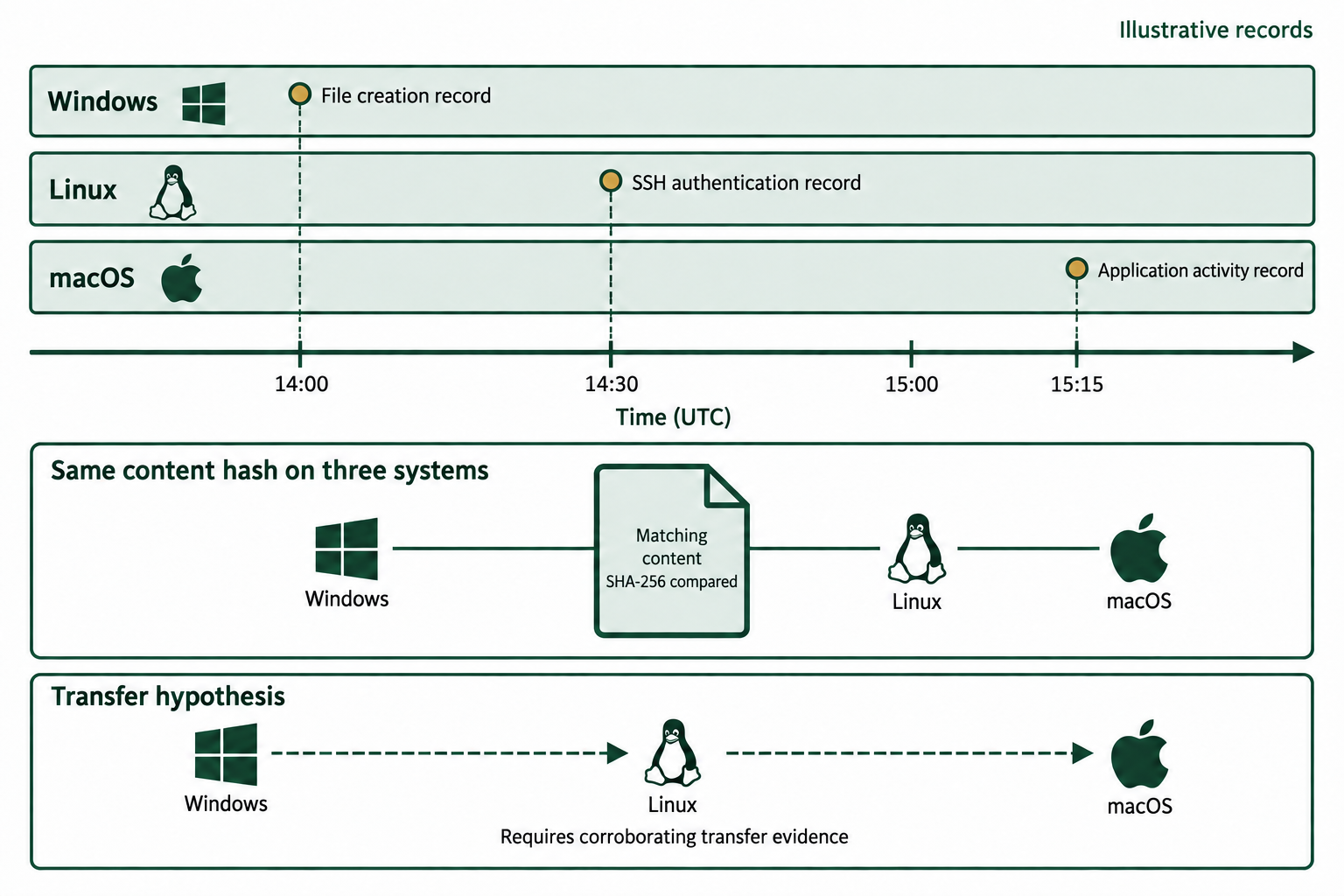
Figure 6.15: Synthetic cross-platform correlation example. Event order and matching hashes describe observations. The dashed transfer hypothesis requires independent evidence of the transfers and relevant user actions.
Text description for Figure 6.15
The Windows lane shows a file-creation record at 14:00 UTC. The Linux lane shows SSH authentication at 14:30 UTC. The macOS lane shows application activity at 15:15 UTC. A separate comparison identifies matching content hashes across the three systems. A dashed Windows-to-Linux-to-macOS path is explicitly a transfer hypothesis requiring corroborating transfer evidence. The authentication and application records do not by themselves prove that the file moved, opened, or was read. The illustrated times are synthetic and do not replace the chapter's case evidence.
Expected Findings
A complete investigation would produce evidence like:
- Windows system: $UsnJrnl shows file creation at 2:00 PM UTC on March 10. A deleted $I30 entry shows the file was renamed and moved to Recycle Bin at 3:15 PM.
- Linux system: /var/log/auth.log shows SSH login at 2:30 PM UTC. ~/.bash_history shows
scpcommand copying files from Windows at 2:45 PM. - macOS system: FSEvents shows file creation at 3:00 PM UTC. KnowledgeC.db shows the document was opened in a PDF viewer at 3:15 PM.
This timeline indicates the suspect accessed the documents on Windows, transferred them to Linux, and then to macOS, with a specific pattern of usage that supports the investigation's hypothesis.
Chapter Summary
This chapter covered the architecture of two major non-Windows file systems and the forensic techniques for analyzing them in an investigative context.
- Ext4 architecture is built on superblocks, block groups, inodes, and extent-based block allocation. Because deletion zeroes the inode's extent map, recovery relies on deleted directory entries, older inode copies in the jbd2 journal, and carving of unallocated blocks.
- Linux artifacts (account files, text and systemd logs, shell history, scheduled tasks, and SSH keys) document logins, commands, and persistence.
- APFS architecture uses a container model, copy-on-write design, and volume sharing, which changes how deleted data is handled and making recovery more challenging but artifact-rich.
- Timestamp formats vary significantly across platforms (NTFS FILETIME, Unix seconds and nanoseconds since 1970, and Mac Absolute Time since 2001), requiring careful conversion and interpretation to build unified timelines.
- Permission models range from POSIX bits (Ext4, APFS) to ACLs (NTFS), with additional features like SUID bits and extended attributes that indicate privilege escalation attempts.
- macOS artifacts (FSEvents, KnowledgeC.db, Unified Logging) provide detailed user activity timelines, often more informative than traditional log files.
- Cross-platform analysis requires careful attention to case sensitivity, path resolution, timestamp conversion, and understanding how files are transferred between systems.