CH9: Windows Artifact Analysis
Introduction
Windows systems generate artifacts during normal operation: metadata records, database entries, and application-specific data that can preserve traces of user and system activity. These records help examiners investigate file references, application use, connected storage, and logon sessions. This chapter covers five artifact categories: Recycle Bin records, thumbnail caches, Shell Links, Jump Lists, and Windows Event Logs. It then brings them together in a correlated timeline.
Each artifact answers a limited question. A Shell Link records information about a target. Event 4624 records a successful logon session. A Jump List associates entries with an application. Correlation means comparing these records while retaining each field's meaning, collection conditions, and limitations. A defensible timeline distinguishes recorded observations from interpretations and identifies the evidence still needed to test those interpretations.
Learning Objectives
By the end of this chapter, you will be able to:
- Parse Recycle Bin $I and $R files to identify deleted files, their original paths, and deletion timestamps.
- Extract and analyze thumbnail images from Windows thumbcache databases and correlate them to deleted or hidden files.
- Interpret Shell Link (LNK) file structures to evaluate target references, timestamp meanings, and external volume associations.
- Analyze Jump List databases to reconstruct application-specific file access history and correlate it with user activity.
- Extract and filter Windows Event Logs (EVTX) for forensically significant events including logon activity, process creation, and external device connections.
9.1 Recycle Bin Analysis
The Recycle Bin is a soft-deletion mechanism in Windows. Eligible deletions through the graphical user interface move an item into a hidden folder for possible restoration. Shift+Delete, many command-line deletions, and deletions excluded by storage settings or size limits can bypass it. Examine the Recycle Bin early, while recognizing that an absent entry does not establish that no deletion occurred.
Recycle Bin Architecture and Location
Windows maintains a hidden $Recycle.Bin folder on eligible volumes, such as C:\$Recycle.Bin\. Within that folder, each user account has a subdirectory named after that user's Security Identifier (SID). For example, a system with a user named "Alice" might have a Recycle Bin directory structure like:
C:\$Recycle.Bin\
  S-1-5-21-3623811015-3361044348-30300820-1001\
  S-1-5-21-3623811015-3361044348-30300820-1002\
Each SID-based folder contains two types of files: info files (prefixed with $I) and data files (prefixed with $R). The metadata about a deleted file is stored in the $I file; the actual file content is stored in the corresponding $R file.
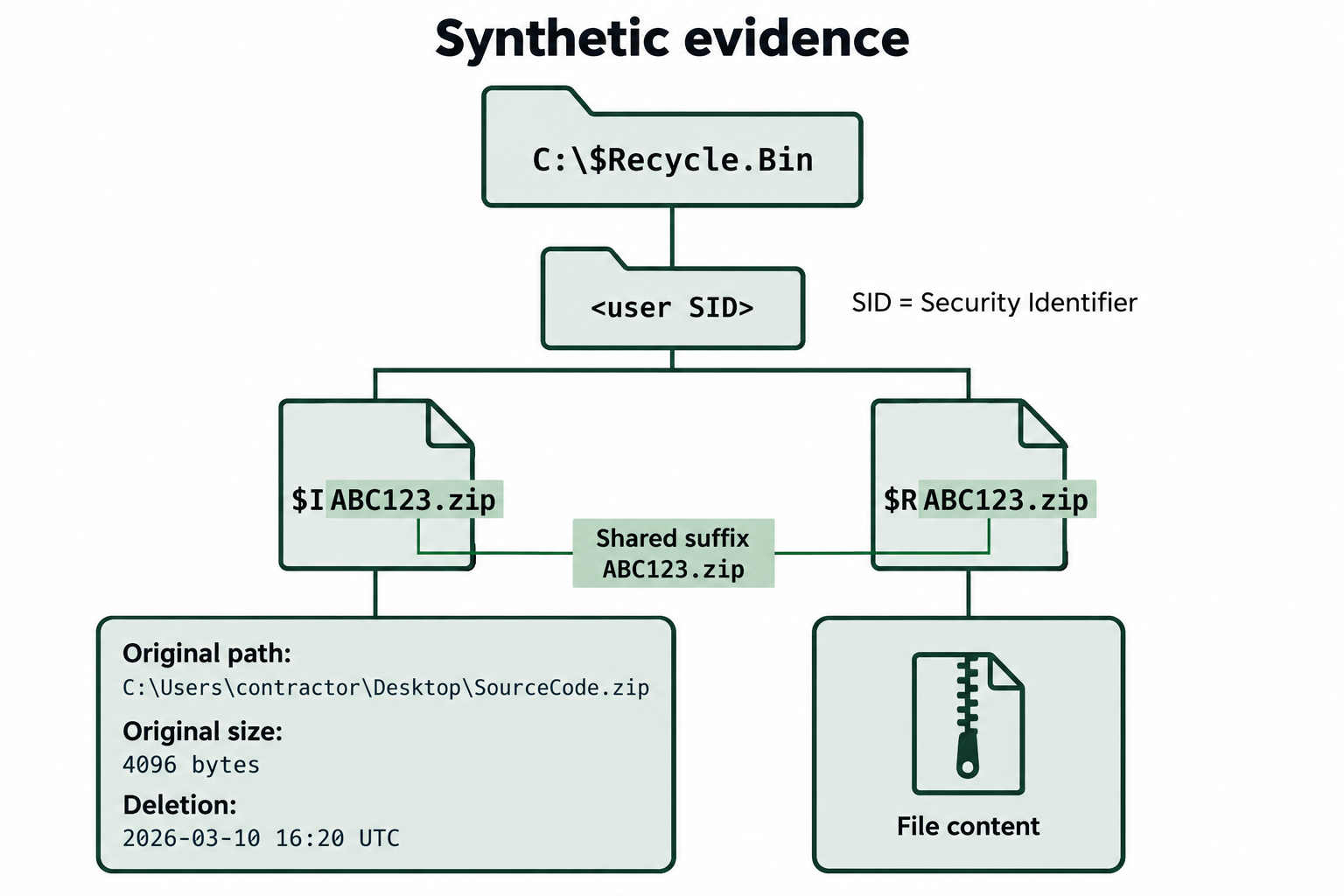
Figure 9.1: Pairing Recycle Bin metadata with retained content.
Text description for Figure 9.1
The illustrated user SID folder contains $IABC123.zip and $RABC123.zip. SID means Security Identifier. The $I record identifies C:\Users\contractor\Desktop\SourceCode.zip, an original size of 4,096 bytes, and deletion at 2026-03-10 16:20 UTC. The matching $R entry contains the archive data. The shared ABC123.zip suffix links the two entries; the account folder alone does not identify the person who deleted the file.
Parsing $R Files and Recovering Content
For a recycled file, the corresponding $R entry contains its content. Pair it with the $I entry by the shared filename suffix, including the extension. RBCmd parses Recycle Bin metadata; content recovery requires extracting the available $R data with a forensic file-system tool.
Work from preserved evidence or an analysis copy. Extract the content into an analysis directory and use the original name from $I for a documented working copy. Record the source path and calculate a cryptographic hash of extracted content. Missing or overwritten $R data cannot be reconstructed from the metadata alone.
Analyst Perspective
During an incident response engagement, you find deletion records for an employee's Documents folder dated 2026-03-15 at 14:32 UTC. You extract the associated emails and spreadsheets from available $R files. The records anchor the deletion timeline. Investigate transfer records, destination copies, and account activity before drawing a conclusion about exfiltration.
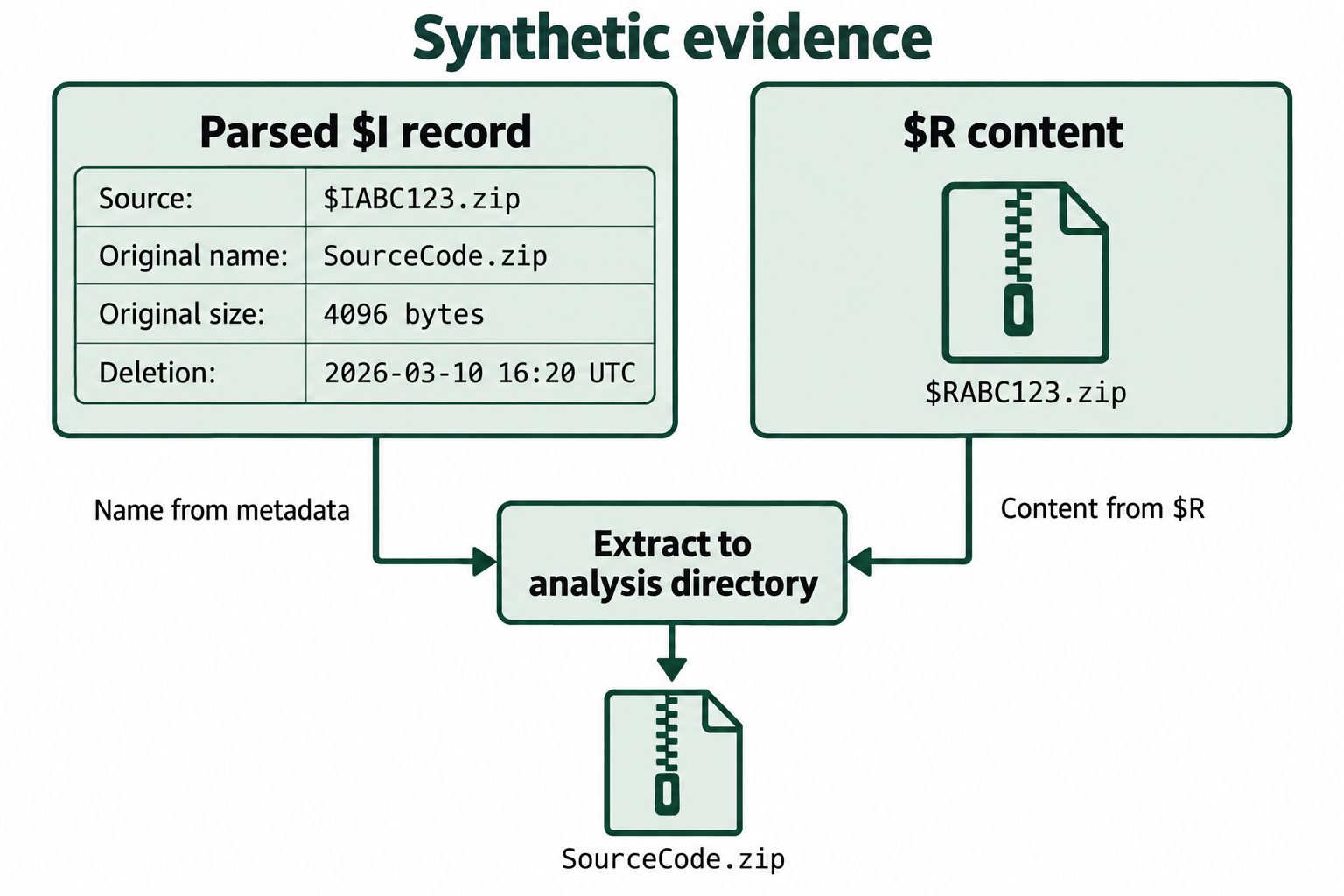
Figure 9.2: Recovering content while retaining its metadata association.
Text description for Figure 9.2
The metadata entry $IABC123.zip identifies SourceCode.zip, 4,096 bytes, with deletion time 2026-03-10 16:20 UTC. The matching $RABC123.zip supplies available content. The examiner extracts that content into an analysis location and documents its association with the metadata. The workflow assumes the content remains available; metadata alone cannot recreate missing archive bytes.
Evolution Across Windows Versions
Windows XP used INFO2 records. Windows Vista introduced the paired $I and $R design, initially with version 1 metadata. Version 2 appeared in Windows 10. Document the operating-system build and inspect the record's version field when choosing parsing logic.
Recycle Bin Artifacts After Emptying
Emptying the Recycle Bin deletes its entries from the file system. Recovery depends on what remains: resident data in Master File Table (MFT) records, unallocated clusters, or preserved copies may retain useful material. Record reuse, overwriting, and solid-state drive TRIM can limit recovery. File-system journals may corroborate operations but do not guarantee a complete copy of the deleted metadata or content. Preserve evidence promptly and document recovery limits.
Tools for Recycle Bin Recovery
- RBCmd.exe: A command-line tool developed by Eric Zimmerman that parses Recycle Bin structures and outputs a CSV timeline of deleted files with original paths and deletion timestamps.
- Autopsy: The open-source forensic framework includes Recycle Bin recovery modules that automatically parse and display deleted files.
- Manual hex parsing: Read the version first. The path begins at 0x18 in version 1 and 0x1C in version 2.
9.2 Windows Thumbcache Analysis
Thumbnails are preview images that Windows generates for media files (JPEG, PNG, BMP, video files, documents). When a user opens a folder containing images or media, Windows renders small preview thumbnails for quick browsing. These thumbnails are cached in a database file called thumbcache for performance, the next time the user opens the folder, the thumbnails display instantly instead of being re-rendered from the original files.
Forensic Significance of Thumbcache
A thumbnail cache can retain a reduced preview after the source file has been deleted. This gives the examiner a visual lead even when the full original cannot be recovered. The preview may omit detail or show only one page or frame.
Thumbnail generation can occur during folder browsing or other shell activity. A cached preview alone does not establish that a person opened the full file, viewed it recently, or intentionally possessed its contents. Correlate it with other records before attributing activity.
Thumbcache Database Location and Structure
Thumbcache databases are located in:
C:\Users\[Username]\AppData\Local\Microsoft\Windows\Explorer\thumbcache_*.db
Database names and formats vary with Windows version. Common examples include:
| Filename | Role |
|---|---|
| thumbcache_32.db | Cache associated with the 32-pixel size category |
| thumbcache_96.db | Cache associated with the 96-pixel size category |
| thumbcache_144.db | Cache associated with the 144-pixel size category |
| thumbcache_192.db | Cache associated with the 192-pixel size category |
| thumbcache_256.db | Cache associated with the 256-pixel size category |
| thumbcache_sr.db | Additional cache used by some versions; interpret with a compatible parser |
| thumbcache_idx.db | Cache index; it does not provide a general original-path lookup |
These databases use a custom binary format. Interpret records with a parser that supports the cache version.

Figure 9.3: Inspecting cached previews when original paths remain unresolved.
Text description for Figure 9.3
The focused illustrative view represents thumbcache_256.db. Entries 0123456789ABCDEF and FEDCBA9876543210 show a mechanical plate preview and a landscape preview. Both source mappings remain unresolved. These are synthetic interface records, not actual tool output. The displayed identifiers are cache-entry identifiers, not SHA-1 or SHA-256 hashes of the original files.
Parsing Thumbcache Entries
A parser can expose a 64-bit cache-entry identifier, record fields, and thumbnail image data. Images may use JPEG, PNG, or BMP encoding. Cache identifiers and stored checksums serve different purposes from a cryptographic hash of the original file.
An extracted preview can help recognize content, but original paths often remain unresolved. Preserve the cache source, entry identifier, and exported preview together so that later correlations remain traceable.
Correlating Thumbcaches to Deleted Files
Use available Windows Search database records or supported file-system mapping to investigate the relationship between a cache identifier and a source path. Record the mapping method and supporting evidence. A visual resemblance can suggest a candidate, but it does not establish an exact file match. Leave the path unresolved when the available evidence cannot support a mapping. The Thumbcache Viewer documentation describes extraction and mapping options.
Thumbcache and Privacy
Cached previews may expose sensitive material beyond the immediate investigative question. Keep extraction and review within the authorized scope, preserve chain of custody, and document the source of each preview.

Figure 9.4: Correlating a cache identifier with other evidence.
Text description for Figure 9.4
The cache supplies a preview and identifier. Windows Search records or suitable file-system records may provide additional evidence for mapping the entry to a source path. The two possible outcomes are a supported association or an unresolved mapping. A preview can survive deletion of the source. Its presence alone does not establish a recent human viewing time.
Tools for Thumbcache Analysis
- Thumbcache Viewer: Eric Kutcher's tool extracts cached previews and supports path mapping when suitable additional data is available.
- Autopsy: Includes thumbcache modules that automatically extract and display thumbnails.
- thumcrec: A command-line tool for parsing thumbcache databases and extracting image data.
9.3 Shell Link (LNK) File Analysis
A Shell Link file (also called a shortcut, with the .lnk extension) is a small binary file that Windows uses to create references to other files or locations. When a user creates a shortcut to a document or folder, Windows generates an .lnk file that stores detailed metadata about the target.
Forensic Value of LNK Files
LNK files preserve references to targets and can retain paths, target timestamps, and volume information after a target disappears. A Recent-folder link can support an investigation of application interaction with a document, but its origin and timestamps require interpretation. Links can also be created manually, copied, or modified.
For external storage, a link may retain a target path and volume information. Combine these fields with device history and recovered content when investigating a transfer. A link alone does not establish copying or identify the person who performed an action.
LNK File Locations
LNK files are found in several standard locations:
| Location | Purpose |
|---|---|
C:\Users\[Username]\AppData\Roaming\Microsoft\Windows\Recent\ |
Recently accessed files and folders |
C:\Users\[Username]\Desktop\ |
Desktop shortcuts (user-created) |
C:\Users\[Username]\AppData\Roaming\Microsoft\Windows\Start Menu\Programs\ |
Start menu shortcuts |
C:\Users\[Username]\AppData\Roaming\Microsoft\Office\Recent\ |
Recent Office files (older Office versions) |
C:\ProgramData\Microsoft\Windows\Start Menu\ |
System-wide shortcuts |
The Recent folder is especially useful because Windows and participating applications can create links there during document interaction. Behavior depends on the application and system settings.
Critical Fields for Timeline Construction
The header's CreationTime, AccessTime, and WriteTime describe the target as captured in the link. They can be stale or zero. The shortcut file itself also has file-system timestamps, which describe that file's history.
Keep these sources separate in a timeline. For example, a shortcut created on March 10 can retain a target creation time from February 15. Neither timestamp alone establishes the precise time a person opened or copied the target.
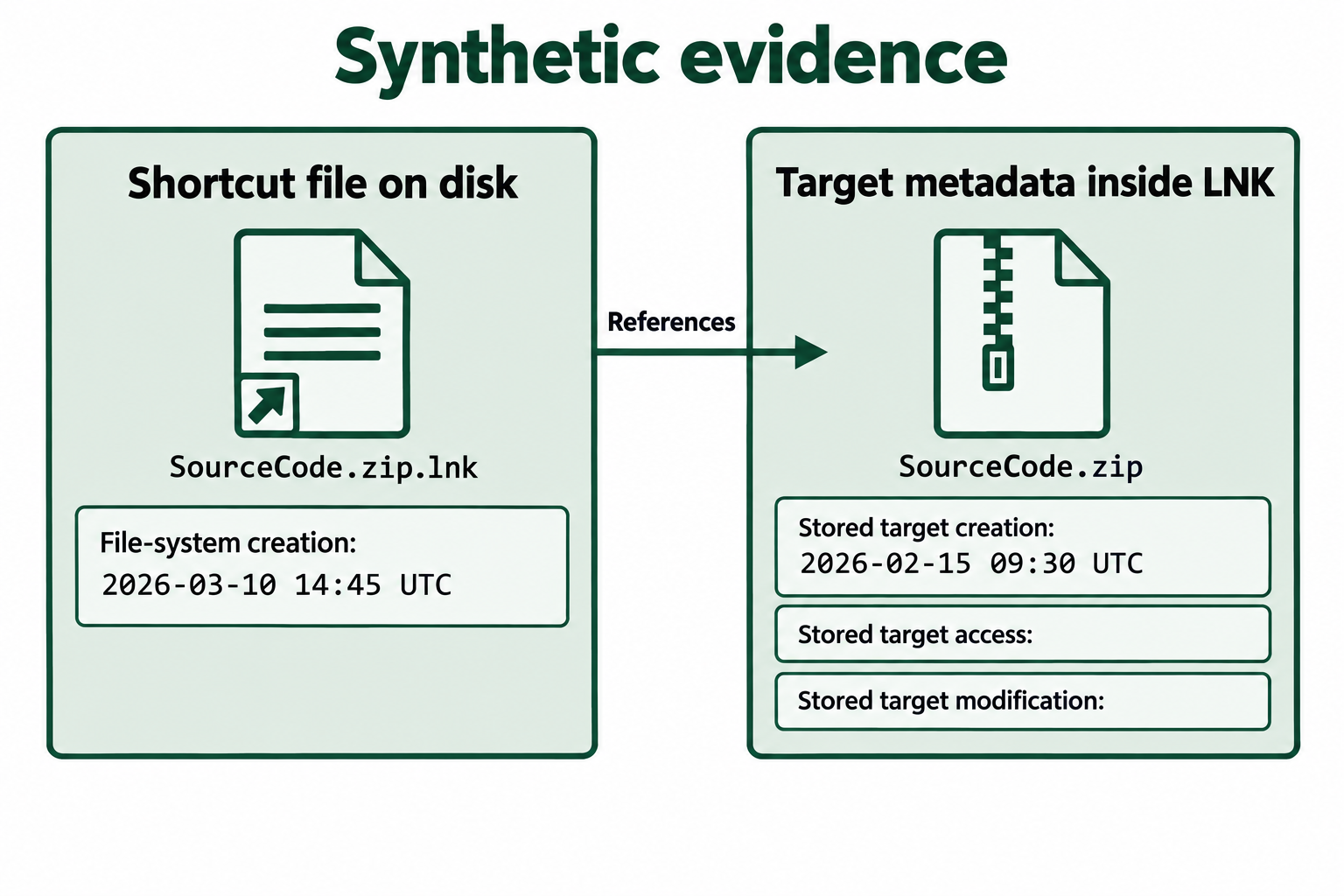
Figure 9.5: Distinguishing the shortcut's file-system timestamps from stored target timestamps.
Text description for Figure 9.5
The file-system record for SourceCode.zip.lnk shows creation on 2026-03-10 at 14:45 UTC. The link's stored target metadata describes SourceCode.zip and includes creation on 2026-02-15 at 09:30 UTC. The stored access and modification fields represent additional target timestamps; this example assigns them no values. Treat shortcut and target timestamps as separate sources rather than reading the target creation time as a shortcut-creation or file-opening event.
Correlating External Volume Evidence
LinkInfo may contain a volume serial number and label for a local target. A volume serial is a file-system identifier assigned during formatting; it is not a globally unique hardware identifier. Cloned volumes or duplicate serials can produce matches. Network links may use different fields.
For example:
- An examiner finds a link referencing
E:\SecretDocuments\Evidence.docx. - The link records volume serial
0x12AB34CD. - A recovered volume has that serial.
- The match supports a volume association. Compare volume labels, device connection history, file paths, and content before attributing a transfer.
Analyst Perspective
In a suspected CAD-file theft, Recent links point to files on an external volume. A recovered USB device has a matching volume serial. Compare the destination files with the source files using cryptographic hashes, and investigate connection records and transfer timing. Matching content supports content identity; direction of transfer and responsibility still require evidence.
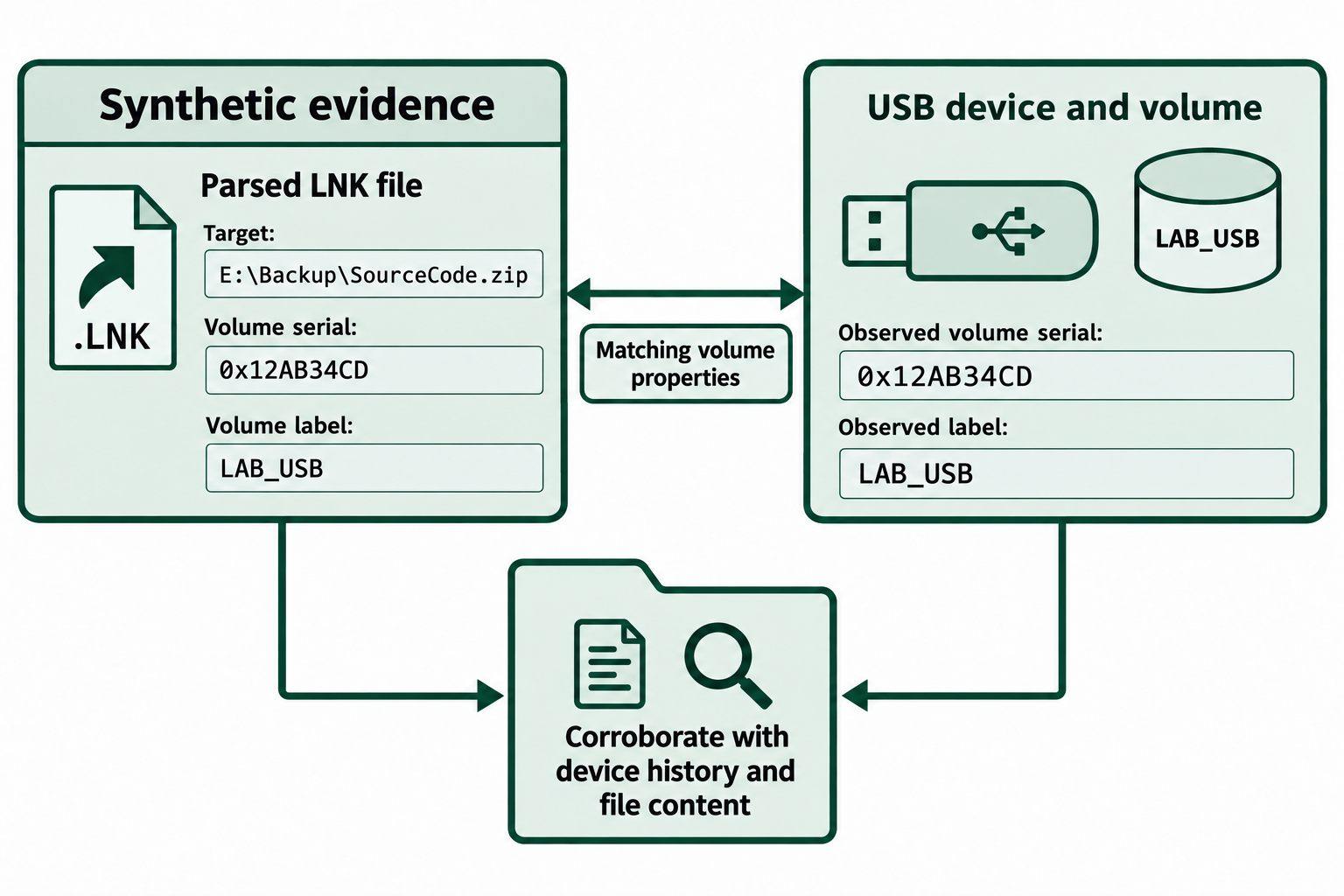
Figure 9.6: Using a volume-serial match as a correlation lead.
Text description for Figure 9.6
The link references E:\Backup\SourceCode.zip and records volume serial 0x12AB34CD and label LAB_USB. A recovered volume has matching values. The association calls for corroboration through device history and file content. A volume serial identifies a file-system volume and can be duplicated or cloned; the match alone does not establish a unique physical device, a copy operation, or its actor.
Tools for LNK File Analysis
- LECmd.exe: Eric Zimmerman's command-line tool that parses .lnk files and outputs detailed metadata including target path, timestamps, volume serial numbers, and machine name.
- LNKParse: A Python-based parser for shell link files.
- Autopsy: Includes .lnk file parsing in its timeline and artifact analysis modules.
- Manual hex parsing: Using a hex editor and understanding the LNK binary structure, you can manually extract target paths and timestamps.
9.4 Jump List Analysis
Jump Lists, introduced in Windows 7, provide application-specific lists of recent or frequent destinations and tasks. They provide a per-application history of files the user has accessed through that application. For example, Microsoft Word maintains a Jump List of recently opened documents, and Adobe Acrobat maintains a Jump List of recently viewed PDFs. Jump Lists are found in the taskbar when you right-click an application icon or in the Start menu when you hover over an application name.
Forensic Significance and Architecture
Jump Lists can associate a destination with an application and retain useful entry metadata. Applications and settings influence what gets recorded and retained, so a Jump List provides an incomplete history of interaction.
AutomaticDestinations files use the Compound File Binary format, also called an OLE compound file. Think of the container as a small file system with named streams. Its DestList stream stores list metadata, while separate streams store Shell Link records.
Jump List Locations and Structure
Jump List data is stored in:
C:\Users\[Username]\AppData\Roaming\Microsoft\Windows\Recent\AutomaticDestinations\
AutomaticDestinations filenames use an application-identifier hash:
| Filename pattern | Interpretation |
|---|---|
[16-hex-digit AppID hash].automaticDestinations-ms |
Automatic list associated with an application identity |
[16-hex-digit AppID hash].customDestinations-ms |
Custom list stored in the CustomDestinations directory |
AppID means application identifier. Resolve a hash with a documented mapping and corroborate it against the installed application and link contents. The placeholder above is a naming pattern, not an application-specific mapping.
Within an AutomaticDestinations container, DestList entry identifiers associate metadata with separate LNK streams. These streams commonly have hexadecimal names. The JumpList parser's AutomaticDestination implementation shows this relationship.
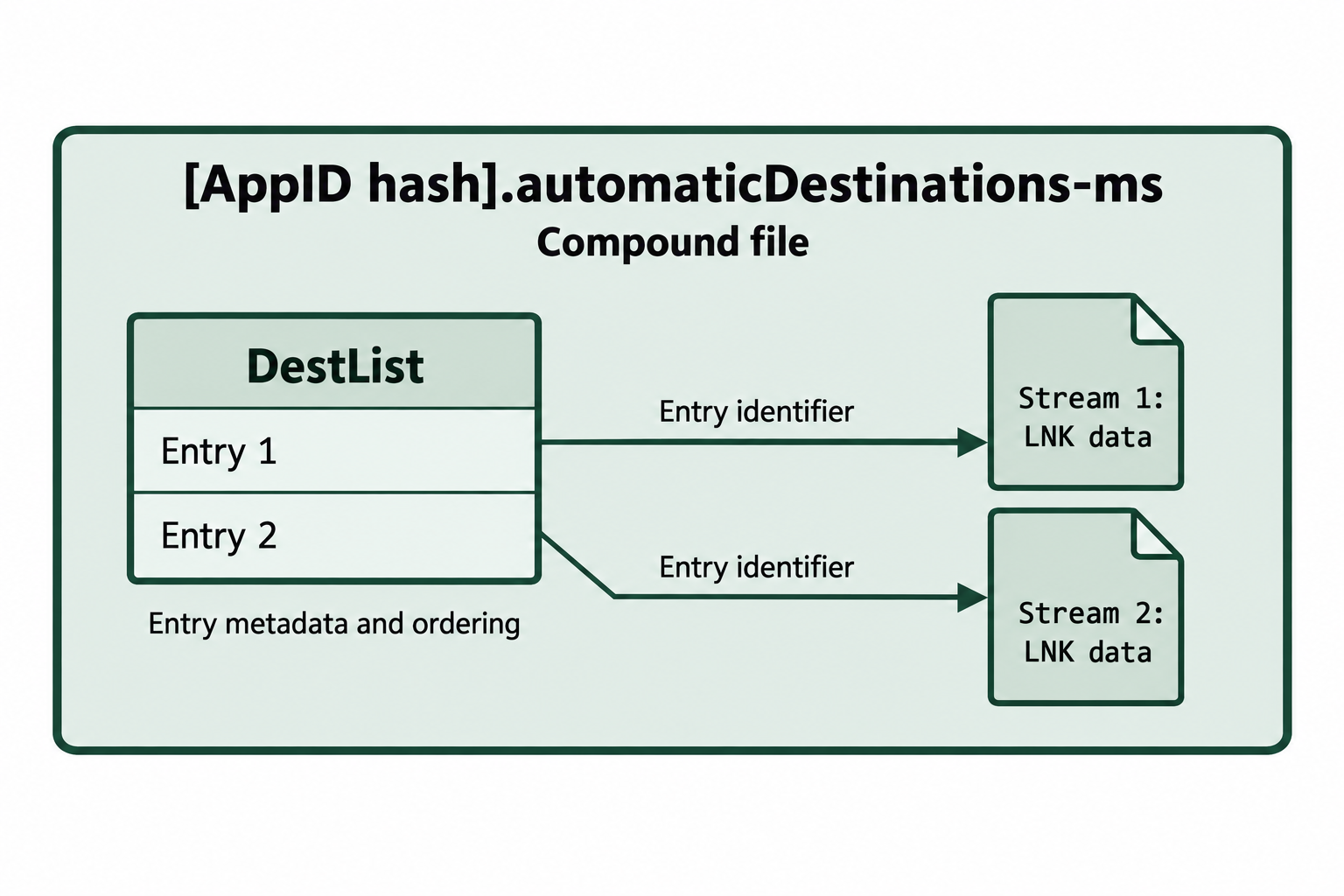
Figure 9.7: Matching DestList entries to separate LNK streams.
Text description for Figure 9.7
Inside the application-associated AutomaticDestinations container, the DestList stream holds metadata for entries 1 and 2. Their identifiers associate them with separate LNK streams named 1 and 2. The links are sibling streams within the container, rather than embedded records inside DestList. The illustrated filename uses an AppID-hash placeholder, not a verified application mapping.
Parsing Jump Lists
To parse an AutomaticDestinations file:
- Open the compound-file container.
- Parse the version-specific DestList metadata.
- Parse the separate LNK streams.
- Associate DestList entries with streams using their identifiers.
- Report entry metadata and stored target metadata as separate fields.
Interpret entry times, ordering, and pin status according to the version and parser. An entry number is an identifier, so do not treat it as a universal recency ranking.
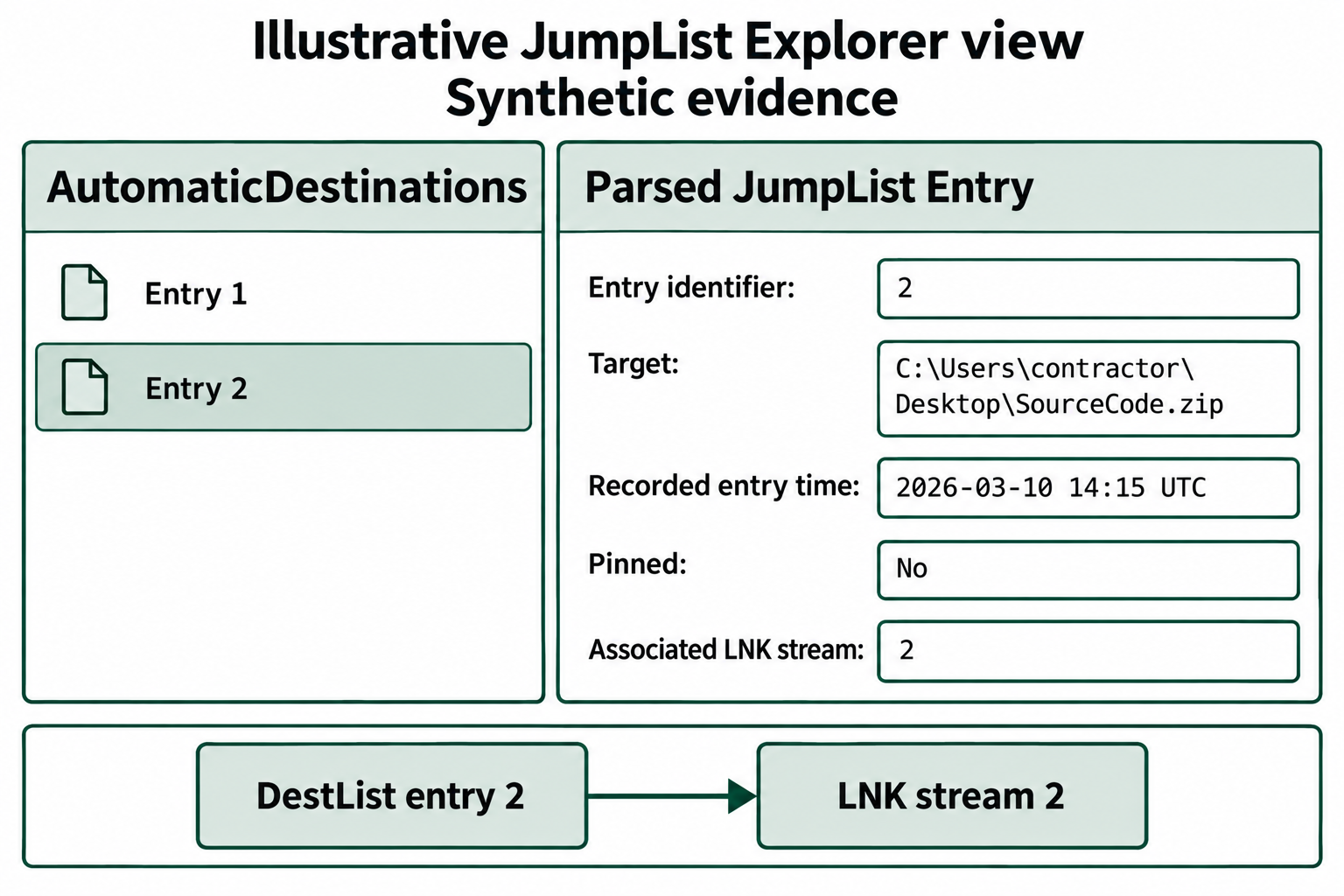
Figure 9.8: Reading a Jump List entry alongside its associated link.
Text description for Figure 9.8
Entry 2 is selected. It references C:\Users\contractor\Desktop\SourceCode.zip, has a recorded entry time of 2026-03-10 14:15 UTC, is not pinned, and associates with LNK stream 2. These are illustrative friendly field labels. Interpret the time according to the actual format version and parser; the entry does not establish every action performed on the archive.
CustomDestinations vs. AutomaticDestinations
In addition to AutomaticDestinations, there is a separate folder:
C:\Users\[Username]\AppData\Roaming\Microsoft\Windows\Recent\CustomDestinations\
CustomDestinations files use the .customDestinations-ms extension and contain application-defined categories or tasks in a different format. They are not limited to pinned items. AutomaticDestinations metadata can also record pin status. Pinning does not guarantee indefinite retention. Use a parser that explicitly supports the format, such as the JumpList CustomDestination implementation.
Jump Lists and Anti-Forensics
Deleting or modifying Jump Lists can remove useful history. Deleted records or unallocated data may retain fragments, depending on reuse and storage behavior. Available Volume Shadow Copies or backups may preserve earlier versions. File-system journals can help identify changes but should not be assumed to contain complete prior Jump Lists.
Tools for Jump List Analysis
- JLECmd.exe: Eric Zimmerman's Jump List parser. Extracts all entries from AutomaticDestinations and CustomDestinations and outputs a timeline.
- JumpList Explorer: A graphical tool for viewing Jump Lists and extracting file metadata.
- Autopsy: Includes Jump List parsing modules that integrate into the evidence dashboard.
9.5 Windows Event Log Analysis
Windows Event Logs are structured records emitted by operating-system components and applications. Available events depend on the provider, enabled channels, audit policies, and retention settings. They can document logons, process creation, and other system activity. Preserve the original logs and record collection gaps when building a timeline.
EVTX Format and Critical Log Files
Event Logs are stored in binary format as .evtx files (Event XML). The format is structured as XML events wrapped in a binary container. The primary log files of forensic interest are:
| Log File | Location | Content |
|---|---|---|
| Security | %SystemRoot%\System32\Winevt\Logs\Security.evtx | Logon/logoff, privilege escalation, account creation/deletion, audit policy changes, security policy modifications |
| System | %SystemRoot%\System32\Winevt\Logs\System.evtx | Device drivers, system service startup/shutdown, USB device connections |
| Application | %SystemRoot%\System32\Winevt\Logs\Application.evtx | Application crashes, warnings, and informational events |
| Microsoft-Windows-PowerShell/Operational | %SystemRoot%\System32\Winevt\Logs\Microsoft-Windows-PowerShell%4Operational.evtx |
Operational events, including script block logging when collected |
| Windows PowerShell | %SystemRoot%\System32\Winevt\Logs\Windows PowerShell.evtx |
Legacy PowerShell engine and provider events |
The Security log is a central source for account and process investigations. Check the effective audit policy and retained time range. Event 4688 requires process-creation auditing, and its command-line field requires the separate command-line inclusion policy. See Microsoft's process auditing guidance.
Critical Security Event IDs
The following Event IDs in the Security log are forensically significant:
| Event ID | Description | Forensic Significance |
|---|---|---|
| 4624 | Successful logon | Records a successful session; examine account, logon type, and available source fields |
| 4625 | Failed logon | Indicates attempted access; repeated 4625 events suggest password guessing or credential attacks |
| 4634 | User logoff | Marks session end; combined with 4624, establishes user session duration |
| 4647 | User logoff (initiated by user) | Distinguishes user-initiated logoff from system-initiated |
| 4688 | Process creation | Records process details when auditing is enabled; command-line capture requires additional policy |
| 4720 | User account created | Proves new account creation; combined with other events, shows account lifecycle |
| 4726 | User account deleted | Indicates account removal; suspicious if accounts are deleted to cover tracks |
| 1102 | Security audit log cleared | Records clearing of the Security log; investigate the account and reason |
Logon Types and Session Identification
Event ID 4624 (successful logon) includes a Logon Type field:
| Type | Description | Forensic Meaning |
|---|---|---|
| 2 | Interactive | User logged in at the keyboard or via console |
| 3 | Network | Network access, such as a file-share connection |
| 4 | Batch | Scheduled task or batch process logon |
| 5 | Service | Service account logon |
| 7 | Unlock | User unlocked the workstation |
| 10 | RemoteInteractive | Remote interactive session, commonly Remote Desktop Protocol (RDP) |
| 11 | CachedInteractive | Logon using cached credentials (offline logon) |
Distinguish network resource access (Type 3) from remote interactive access (Type 10). Correlate the account, source address when present, and Logon ID with other records from the same host and relevant session. An account name identifies the credential context; attribution to a person requires further evidence. Microsoft's Event 4624 reference defines these fields.
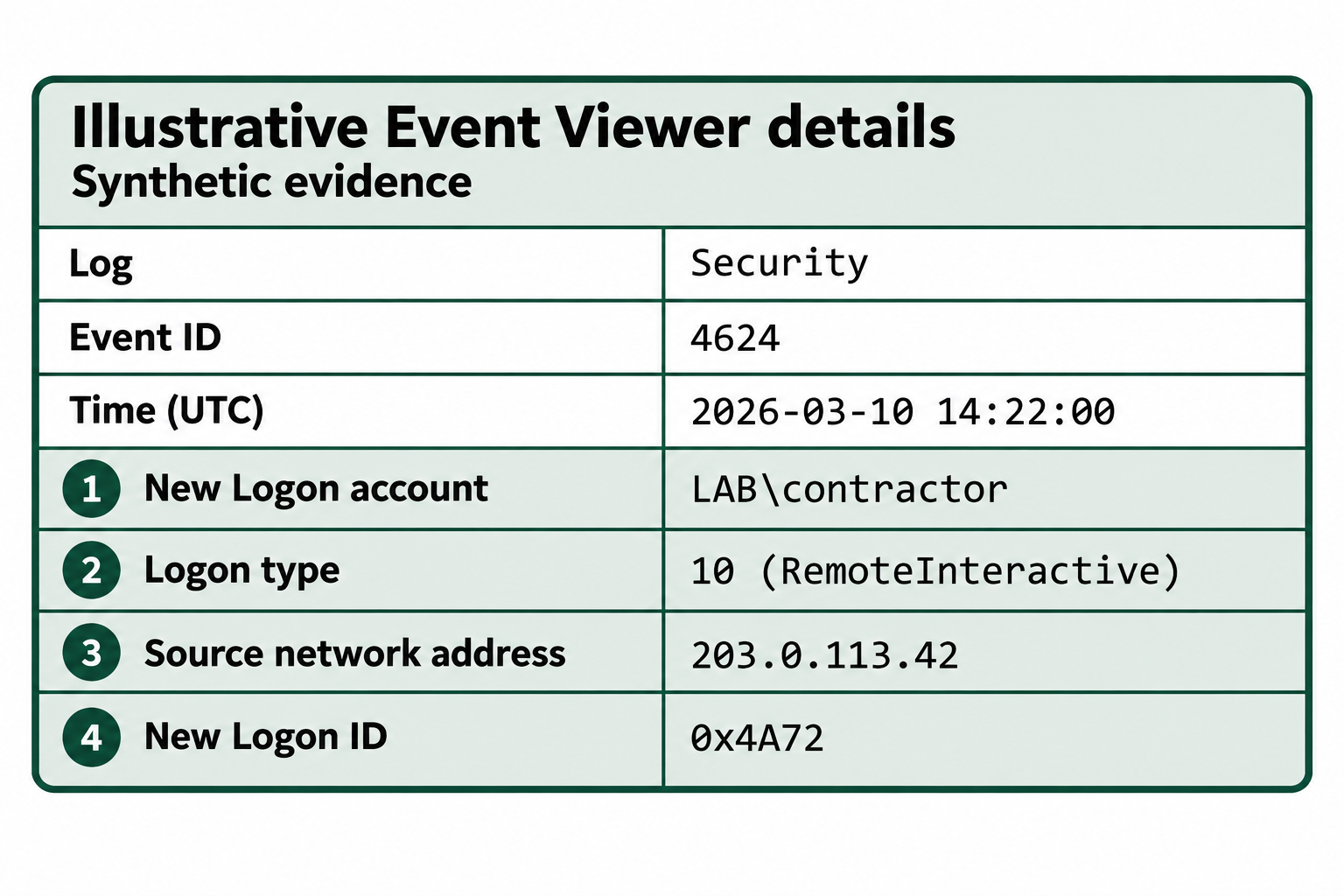
Figure 9.9: Extracting session context from a successful logon event.
Text description for Figure 9.9
The Security event occurs on 2026-03-10 at 14:22:00 UTC. Numbered fields identify: 1, New Logon account LAB\contractor; 2, Logon Type 10, RemoteInteractive; 3, source network address 203.0.113.42; and 4, New Logon ID 0x4A72. Use these fields to correlate records on the same host. A successful account logon alone does not identify the person controlling the session.
PowerShell Script Block Logging
Event 4104 in the Microsoft-Windows-PowerShell/Operational channel can record script block text, meaning sections of PowerShell code processed by the engine. Collection depends on version and logging configuration. Large blocks can span multiple events; use ScriptBlockId and message sequence fields to reconstruct them. A recorded block alone does not establish that every statement completed successfully.
Correlate the event's host, time, and process identifier with process-creation records. Process IDs can be reused, so a numeric match needs temporal context. Figure 9.10 uses the same process ID in hexadecimal and decimal to demonstrate this comparison.
Analyst Perspective
In this synthetic ransomware investigation, Event 4624 records a Type 10 logon from 203.0.113.42 at 14:22 UTC on 2026-03-10. Event 4688 records PowerShell process creation at 14:25, and Event 4104 contains share-enumeration code. At 14:47, Event 4688 records creation of a suspected payload process. Event 1102 records Security log clearing at 15:15. Correlate session and process identifiers, then use file changes and endpoint records to test the suspected payload behavior. Investigate the reason for log clearing before attributing concealment.
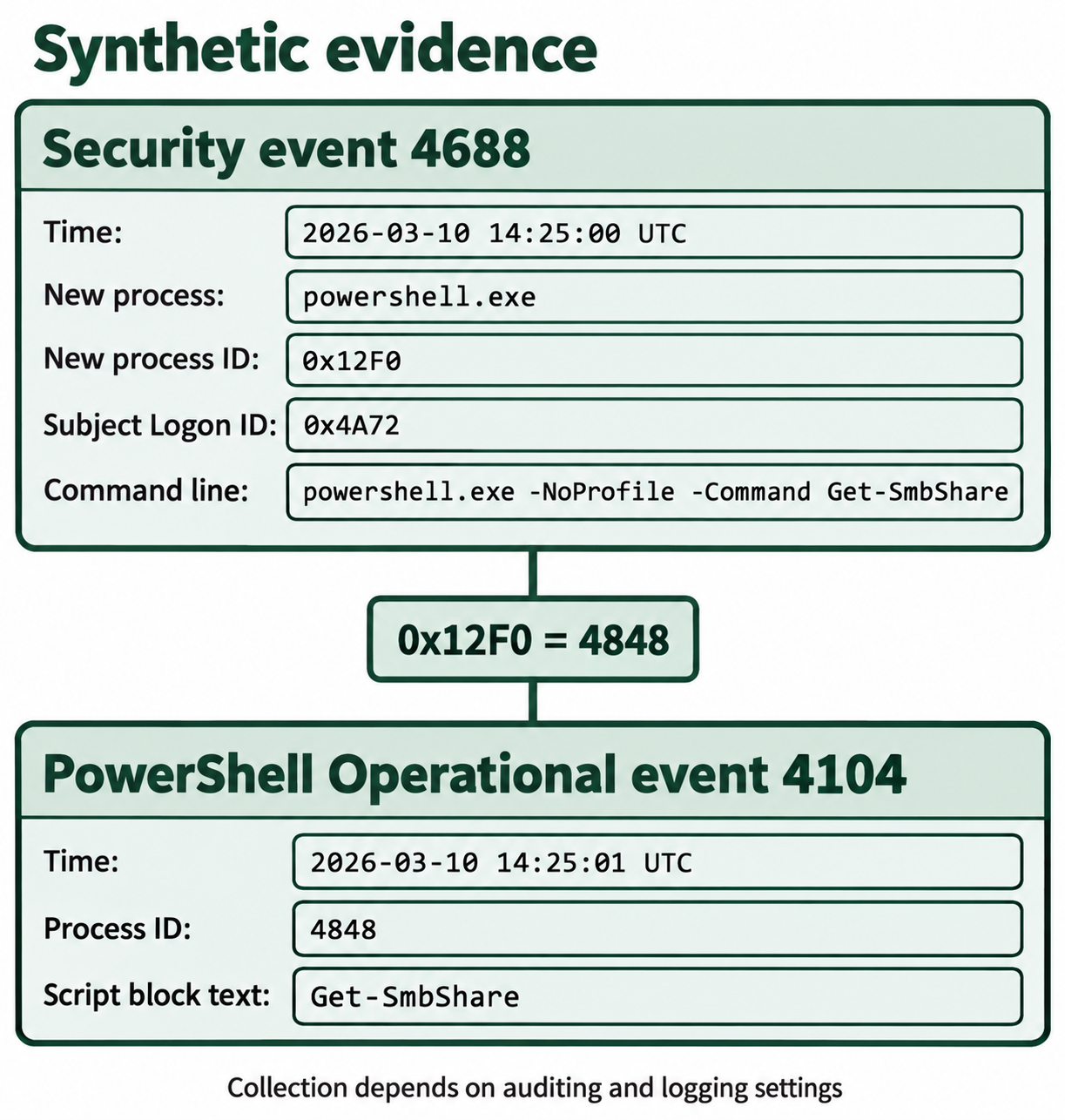
Figure 9.10: Correlating process creation with recorded PowerShell code.
Text description for Figure 9.10
Security event 4688 at 2026-03-10 14:25:00 UTC records powershell.exe, new process ID 0x12F0, Subject Logon ID 0x4A72, and command line powershell.exe -NoProfile -Command Get-SmbShare. PowerShell Operational event 4104 at 14:25:01 UTC records process ID 4848 and script text Get-SmbShare. The IDs are numerically equal. Correlate the host and time as well, because IDs can be reused. Collection depends on auditing and logging settings, and these records do not establish the command's results.
Log Clearing and Detection
Event 1102 records clearing of the Security audit log and identifies the account context. Clearing can result from administrative activity or an attempt to remove evidence. Determine its purpose from surrounding records and operational context.
- Examine the clearing event: Retain its account, Logon ID, timestamp, and source host.
- Compare other copies: Forwarded events, centralized collections, and backups may preserve earlier records.
- Investigate gaps: Retention limits, disabled auditing, collection failures, and quiet periods can also explain missing events.
- Correlate supporting traces: File-system and endpoint records may help identify changes, but they do not guarantee recovery of cleared event content.
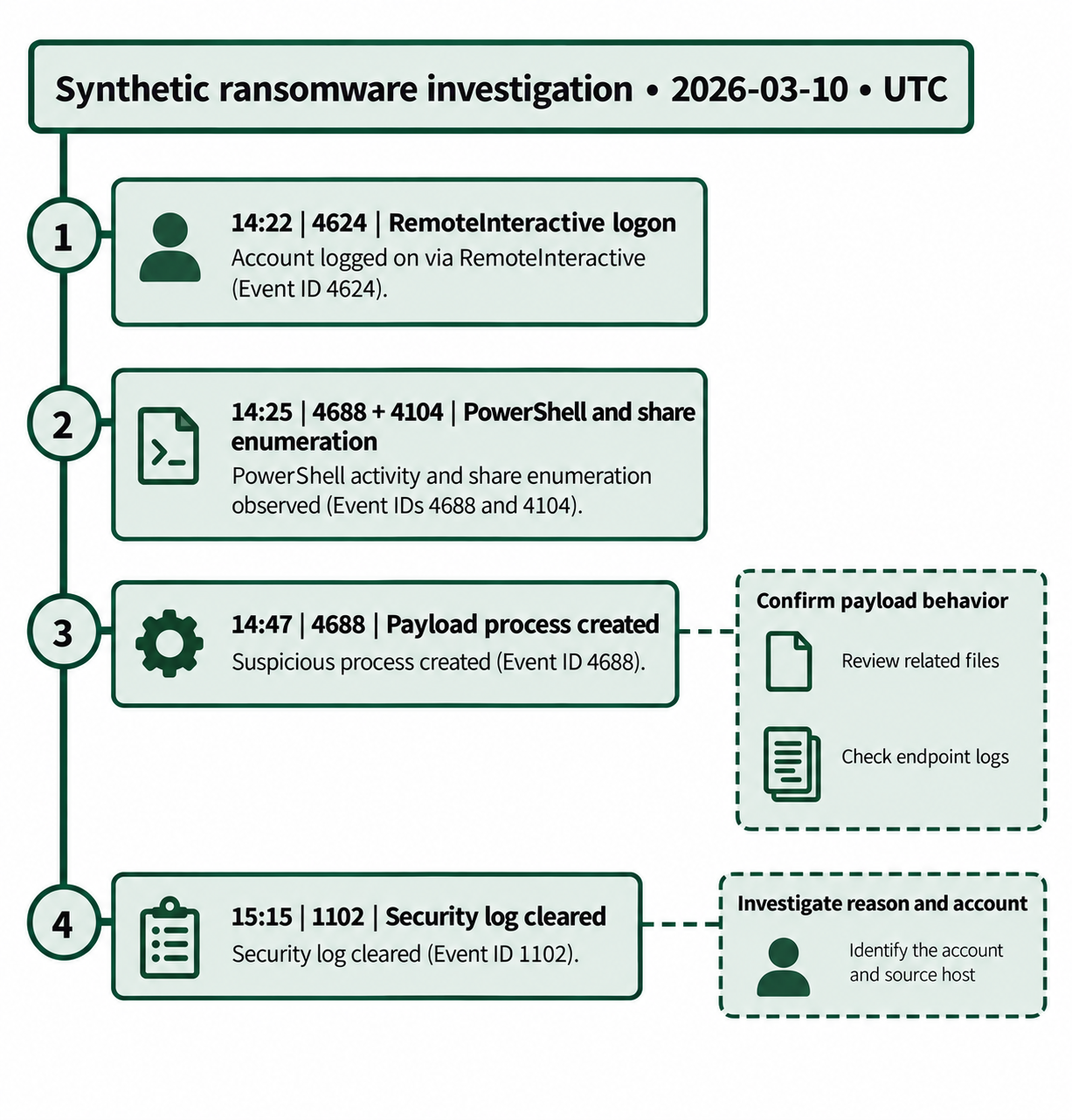
Figure 9.11: Building an incident timeline while identifying the remaining investigative questions.
Text description for Figure 9.11
On 2026-03-10, UTC, event 4624 records a RemoteInteractive logon at 14:22. Events 4688 and 4104 document PowerShell process creation and share-enumeration code at 14:25. Event 4688 records a suspected payload process at 14:47, and event 1102 records Security log clearing at 15:15. A dashed branch asks the examiner to review related files and endpoint logs to confirm payload behavior. Another asks for the reason and account behind log clearing. The sequence does not alone establish encryption, malicious intent, or a complete attack history.
Tools for Event Log Analysis
- EvtxECmd: Eric Zimmerman's command-line EVTX parser. Review exported CSV records in Timeline Explorer.
- Event Log Explorer: A commercial tool with advanced filtering, timeline visualization, and reporting.
- Get-WinEvent (PowerShell): A command-line method for querying Event Logs. Syntax:
Get-WinEvent -LogName Security -FilterXPath "*[System[EventID=4624]]". - Autopsy: Includes Event Log parsing modules that integrate events into the overall timeline.
- Log Parser: A legacy but still-effective tool for querying structured log data with SQL-like syntax.
9.6 Multi-Artifact Correlation and Timeline Construction
Individual artifacts provide limited views of system activity. A Recycle Bin record supplies deletion metadata, a logon event identifies a session, and a Jump List associates a destination with an application. Correlation places these observations in context while retaining uncertainty about unrecorded actions.
Building Unified Timelines
To construct a unified timeline:
- Extract timestamps and their meanings: Label Recycle Bin deletion times, LNK stored target times, shortcut file-system times, logon event times, and Jump List entry times separately.
- Normalize timezone representation: Ensure all timestamps are converted to the same timezone (UTC or local). Windows FILETIME values are always in UTC; convert them consistently.
- Sort by timestamp: Create a single list of all events, sorted chronologically.
- Correlate events: Compare host, account, session, process, and file identifiers as well as time. A chronological sequence suggests questions to investigate; it does not establish causation by itself.
Tools for Timeline Construction
- log2timeline (Plaso): An open-source tool that parses multiple artifact types (MFT, LNK, Jump Lists, Event Logs, registry hives) and outputs a unified CSV timeline. The tool normalizes timestamps and supports filtering by date range and artifact type.
- KAPE (Kroll Artifact Parser and Extractor): Automates artifact collection and parsing. KAPE can be configured to extract all Windows artifacts from a live system or forensic image and generate timeline reports.
- Timeline Explorer: A graphical tool for viewing and filtering timeline CSV files.
Putting It Together: Complete File Lifecycle
Synthetic scenario: Investigators suspect that a contract employee copied proprietary source code to external storage and deleted the local copy. The following observations test that hypothesis.
Evidence Collection:
- MFT record:
C:\Users\contractor\Desktop\SourceCode.ziphas a file-system creation time of 2026-02-15 at 09:30 UTC. - Jump List entry: An entry associated with File Explorer references the archive and records 2026-03-10 at 14:15 UTC.
- Recent LNK file: The shortcut has a file-system creation time of 2026-03-10 at 14:45 UTC and references
E:\Backup\SourceCode.zip, with volume serial0x12AB34CD. - Recycle Bin
$Irecord: The original desktop path has a recorded deletion time of 2026-03-10 at 16:20 UTC. - Event 4688:
cmd.exewas created on 2026-03-10 at 16:25 UTC. No command line is available in this example. - Event 1102: The Security log was cleared on 2026-03-10 at 17:00 UTC.
Timeline Narrative:
- The MFT record supports the archive's recorded presence and creation metadata. It does not establish a download by itself.
- The Jump List and shortcut provide application and target references.
- The external path and volume serial support investigating an external-volume association. Establish copying through destination content and transfer evidence.
- The Recycle Bin record anchors a deletion at 16:20 UTC.
- The Command Prompt process began five minutes later. This process-creation event cannot explain the earlier deletion, and it supplies no evidence of a
delcommand. - The Security log was cleared. Investigate the account, session, and administrative context before assigning intent.
The combined records support a testable chronology. Compare destination content using cryptographic hashes, evaluate transfer direction and timing, and correlate account and process evidence before attributing exfiltration or concealment.
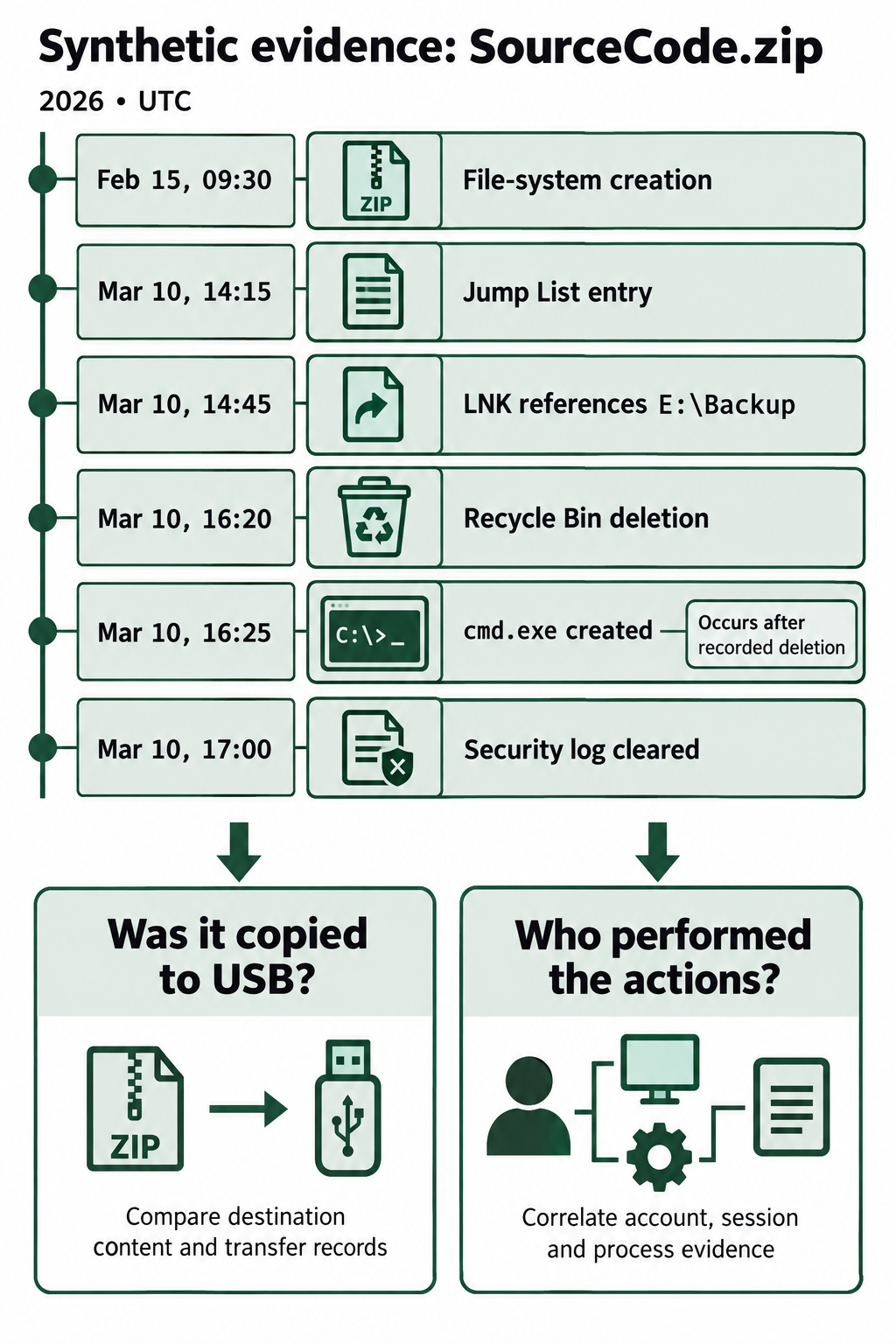
Figure 9.12: Reconstructing a file's chronology without assuming the transfer method or actor.
Text description for Figure 9.12
All times are UTC in 2026. The observations are file-system creation on February 15 at 09:30; a Jump List entry on March 10 at 14:15; a shortcut created at 14:45 that references E:\Backup; Recycle Bin deletion at 16:20; cmd.exe process creation at 16:25; and Security log clearing at 17:00. The Command Prompt event occurs after the recorded deletion. The remaining questions ask whether a USB copy occurred and who performed the actions. Compare destination content and transfer records, then correlate account, session, and process evidence.
Reference: Artifact Correlation Matrix
| Artifact Type | Timestamp Field | Information Captured | Forensic Value and Limit |
|---|---|---|---|
| Recycle Bin ($I) | Deletion time | Original path and size | Supports a recorded deletion; needs attribution evidence |
| Thumbcache | No general viewing timestamp | Preview and cache identifier | Visual lead; source-path mapping requires correlation |
| LNK (Recent) | Stored target times and separate shortcut file-system times | Target path and optional volume fields | Supports references and volume associations; copying needs corroboration |
| Jump List | Version-specific entry metadata plus stored LNK target times | Application-associated destinations | Supports interaction analysis; incomplete history |
| Event 4624 | Event time | Account, logon type, Logon ID, available source fields | Records a successful session |
| Event 4688 | Event time | Process identifiers, executable, optional command line | Records process creation; action success requires further evidence |
| Event 1102 | Event time | Account context and log clearing | Records Security log clearing; intent requires context |
Chapter Summary
The five artifact categories in this chapter provide complementary records of Windows activity. Their value depends on reading the correct fields and testing interpretations against other evidence.
Key takeaways:
- Recycle Bin artifacts pair deletion metadata in
$Ifiles with content in available$Rentries. - Thumbcache databases can preserve reduced previews after source deletion. Path mapping and human viewing require additional evidence.
- Shell Links store target references, target timestamps, and optional volume information. Keep these separate from the shortcut file's own timestamps.
- Jump Lists associate destinations with applications. AutomaticDestinations containers separate DestList metadata from LNK streams.
- Event Logs record configured and retained events, including logons, process creation, script block text, and log clearing.
- Timeline correlation preserves timestamp meanings and uses identifiers and corroborating records to evaluate possible explanations.
A forensic report should state what each record shows, explain the interpretation, and identify material limits. This distinction helps reviewers assess how strongly the evidence supports the conclusion.