CH8: Windows Registry Forensics (Applied)
Introduction
The Windows Registry is the single richest repository of forensic evidence on a Windows system. It records nearly every significant action: which applications were run, when USB devices were connected, what files were recently accessed, which websites were visited, and who logged in and when. Analysts who master registry forensics can construct detailed timelines of user activity, identify malware persistence mechanisms, and uncover evidence of both innocent and criminal behavior.
This chapter assumes you understand the fundamentals of registry structure (hives, keys, values, binary formats) covered in prerequisite courses. Here, you will learn to locate and extract forensically significant hives from a forensic image, build comprehensive activity timelines by correlating data across multiple registry sources, and use professional-grade tools (Eric Zimmerman's Registry Explorer and RECmd, RegRipper) to automate extraction and analysis. The emphasis is methodical, scenario-based investigation: not merely finding individual registry entries, but weaving them together into investigatively significant narratives.
Learning Objectives
By the end of this chapter, you will be able to:
- Locate and extract all forensically significant registry hives from a forensic image.
- Reconstruct a comprehensive user activity timeline from registry artifacts across multiple hives.
- Correlate USB device connection history using USBSTOR, MountedDevices, and related keys.
- Extract application execution evidence from UserAssist, BAM/DAM, AppCompatCache, and AmCache.
- Use Eric Zimmerman tools (Registry Explorer, RECmd) and RegRipper for efficient registry analysis.
8.1 Registry Hive Acquisition and Preparation
Understanding Hive Locations
The Windows Registry is a collection of binary files called hives, rather than a single file. Each hive stores a subtree of the registry hierarchy. On a typical Windows system, hives are located in two primary directories: C:\Windows\System32\config (system hives) and the user profile directories (user hives).
System hives (located in C:\Windows\System32\config):
- SAM: Contains user account information and password hashes. This hive is critical for establishing which user accounts exist on the system.
- SECURITY: Stores security policy information and cached domain logon credentials.
- SYSTEM: Records hardware configuration, installed services, network interfaces, last known good control set, and shutdown timestamp. This is the most frequently examined hive.
- SOFTWARE: Lists installed applications, Windows settings, file associations, and service configurations.
User hives (located in C:\Users\[Username]):
- NTUSER.DAT: Stored in each user's profile root directory (
C:\Users\[Username]\NTUSER.DAT). Contains user-specific settings, MRU lists, recently used documents, desktop settings, and application preferences. - UsrClass.dat: Stored in each user's AppData directory (
C:\Users\[Username]\AppData\Local\Microsoft\Windows\UsrClass.dat). Records file associations, COM object data, and OLE object history.
Additional hives:
- AmCache.hve: Located in
C:\Windows\AppCompat\Programs\. Records application execution history, SHA1 hashes, and installation metadata. This hive is increasingly important as it persists execution data longer than other artifacts.
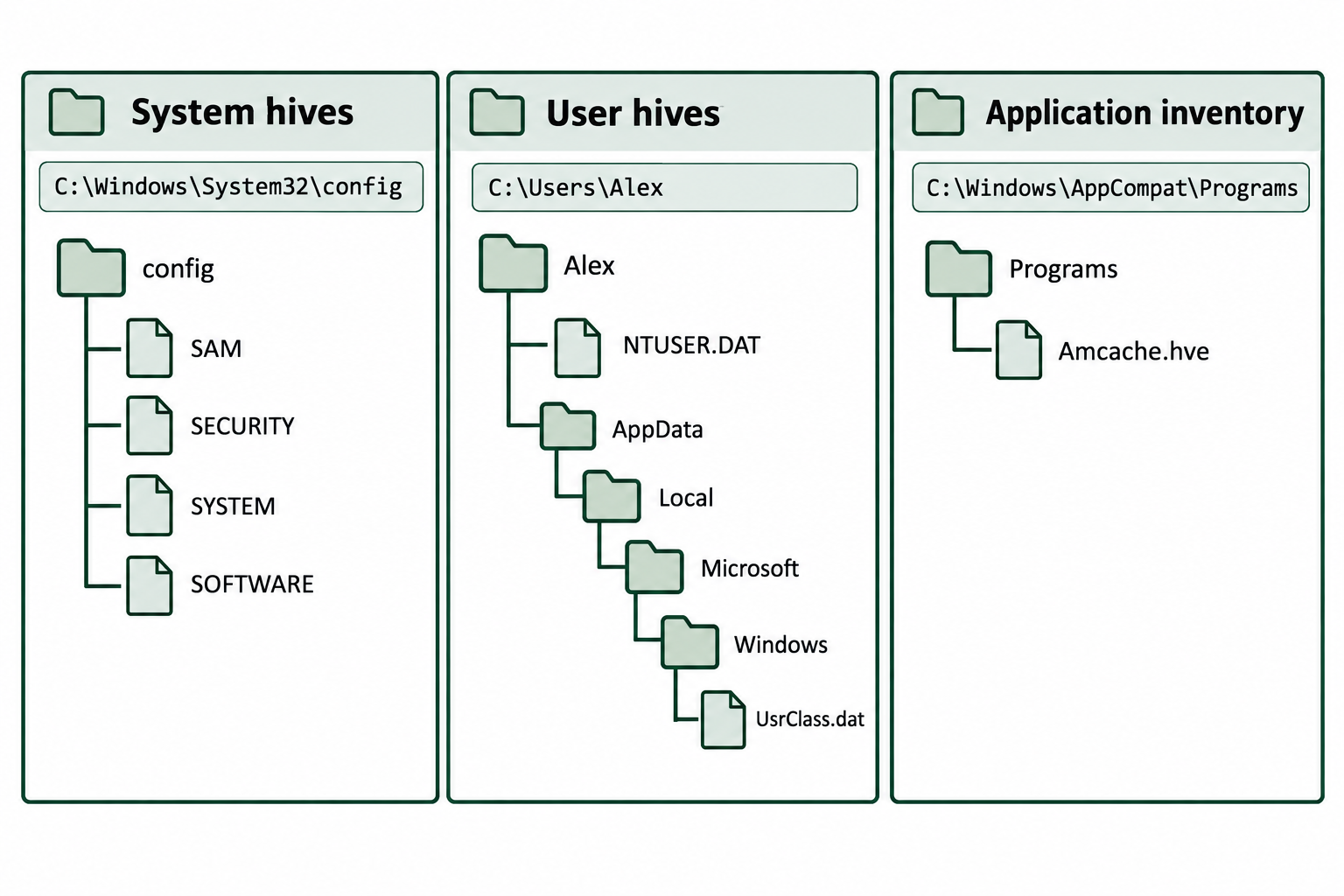
Figure 8.1: Hive acquisition requires collecting both system-wide files and the files belonging to each relevant user profile.
Text description for Figure 8.1
System hives SAM, SECURITY, SYSTEM, and SOFTWARE reside in C:\Windows\System32\config. The fictional Alex profile contains C:\Users\Alex\NTUSER.DAT and C:\Users\Alex\AppData\Local\Microsoft\Windows\UsrClass.dat. Amcache.hve resides in C:\Windows\AppCompat\Programs. Folder connectors show directory containment. Collect each relevant user's files separately so identically named hives retain their source identity. The Amcache branch identifies application inventory evidence whose presence requires further interpretation before making execution claims.
Extracting Hives from a Forensic Image
During forensic acquisition, you obtain a forensic image of the entire drive (or specific partitions). To extract registry hives, you must identify the file system structure within the image and locate the hive files.
Using FTK Imager:
FTK Imager mounts forensic images and allows browsing and extraction:
- Open the forensic image in FTK Imager.
- Navigate to
[Root]\Windows\System32\configto find SAM, SECURITY, SYSTEM, SOFTWARE. - Navigate to
[Root]\Users\[Username]to find NTUSER.DAT and UsrClass.dat. - Right-click each file and select "Export" to save it to your forensic working directory.
Using command-line tools (Linux/Mac):
If analyzing the image on a Linux system, mount the forensic image using a tool like xmount or ewf_mount, then navigate the file system directly:
ewf_mount image.E01 /mnt/ewf
mount -o ro,loop /mnt/ewf/image1 /mnt/forensic
cp /mnt/forensic/Windows/System32/config/SAM ~/registry_extract/
cp /mnt/forensic/Users/*/NTUSER.DAT ~/registry_extract/
Using Autopsy:
Autopsy is a graphical forensic framework that handles image mounting and hive extraction automatically. When you ingest a forensic image, Autopsy parses the file system and presents registry hives in an organized view. You can extract hives directly from the Autopsy interface.
Transaction Logs and Replaying Uncommitted Transactions
Registry hives are binary files that can be modified while the system is running. To ensure consistency, Windows uses transaction logs. Each hive has associated transaction log files:
- For SYSTEM hive:
SYSTEM.LOG1andSYSTEM.LOG2 - For SAM hive:
SAM.LOG1andSAM.LOG2 - For other hives: Similar .LOG1 and .LOG2 files
When the system shuts down gracefully, all pending transactions in the logs are committed to the main hive file. However, if the system crashes or is forcibly powered off, the transaction logs may contain uncommitted changes. Forensic analysis must replay these logs to reconstruct the complete state of the registry at the time of acquisition.
Analyst Perspective
A common scenario: You extract registry hives from a live system (while Windows is running and may have open handles) or from an unclean shutdown. The hive files you extract may be incomplete or missing recent edits. By ensuring the .LOG1 and .LOG2 files are extracted alongside the main hive, you preserve the possibility of reconstructing the registry's true state using forensic analysis tools that understand transaction logs.
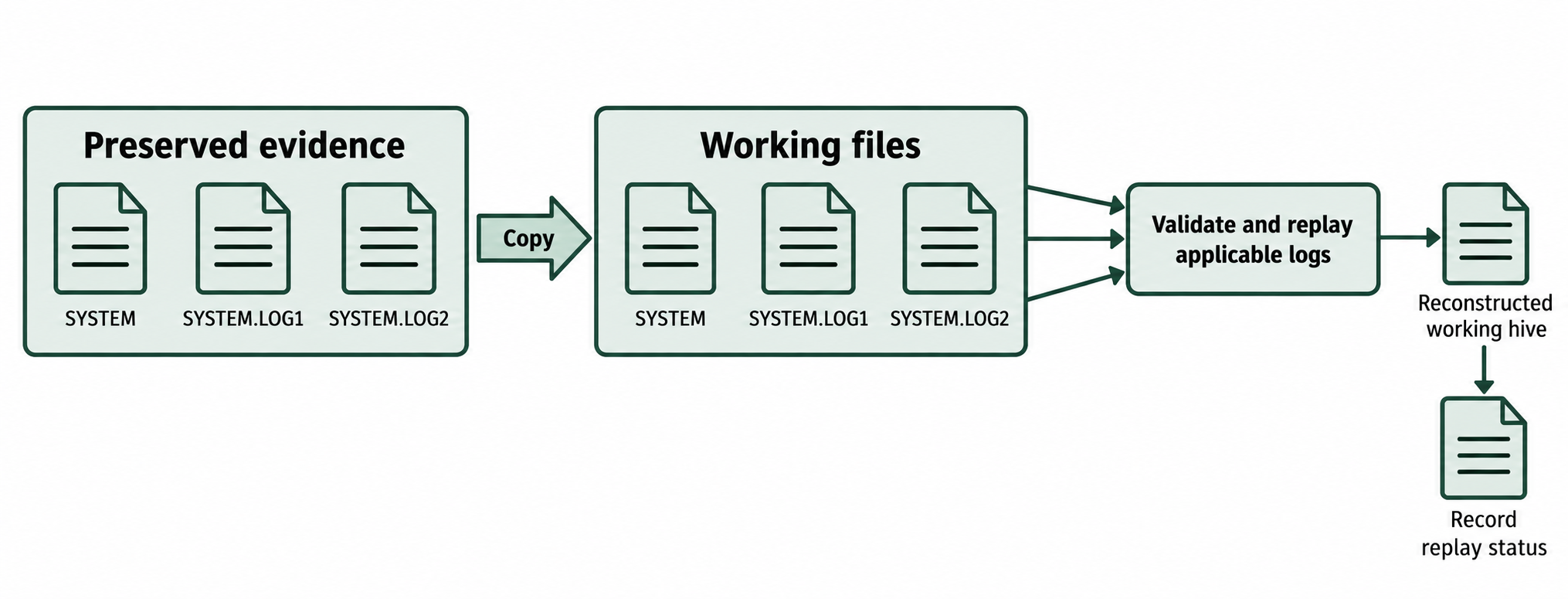
Figure 8.2: Replay applicable transaction logs on working copies while preserving the acquired hive and logs.
Text description for Figure 8.2
The preserved evidence group contains SYSTEM, SYSTEM.LOG1, and SYSTEM.LOG2. A copy operation produces a separate working set. A tool validates the working files and replays applicable log records to produce a reconstructed working hive. The analyst records whether replay succeeded, failed, or was unnecessary. Missing, mismatched, or damaged logs can limit reconstruction. The diagram describes the workflow without guaranteeing recovery of every change.
Dirty Hives and Reconstruction
A "dirty" hive is one that was not cleanly closed, either because the system was powered off suddenly or because the hive was open when the system acquired the forensic image. Dirty hives may have incomplete entries or corrupted data structures.
Some registry analysis tools can detect and repair dirty hives. Registry Explorer includes validation checks that warn if a hive appears corrupt. In such cases, the tool may apply heuristic reconstruction: identifying and repairing orphaned keys or values based on expected registry structure.
If a hive is severely damaged, you may need to:
- Use a backup registry hive: Windows maintains backup registry hives in
C:\Windows\System32\config\RegBack. These backups are typically 1-7 days old and may be used if the primary hives are corrupted. - Recover registry data from restore points: Windows System Restore creates snapshots of the registry. These restore points are located in volume shadow copies and may be extracted and analyzed.
8.2 System Configuration Artifacts
Computer Name and System Identity
The SYSTEM hive records the computer's identity and configuration. Key locations:
- Computer name:
HKLM\SYSTEM\CurrentControlSet\Control\ComputerName\ComputerName - NetBIOS name:
HKLM\SYSTEM\CurrentControlSet\Services\lanmanserver\parameters(ServerName)
The computer name is simple but forensically significant. A system claiming to belong to "John Smith" but registered with the computer name "DEV-TESTING-MALWARE" suggests a mislabeled or misidentified system.
Time Zone and System Time
- Time zone:
HKLM\SYSTEM\CurrentControlSet\Control\TimeZoneInformation - Std: Standard time zone name (e.g., "Eastern Standard Time")
- Dlt: Daylight time zone name
-
TZI: Binary-encoded time zone information including UTC offset and daylight savings rules
-
System time: Recorded in the SYSTEM hive's LastKnownGoodTime value and the last shutdown timestamp. The time zone setting is critical because all Windows timestamps are stored in UTC and interpreted using the system's configured time zone. A system with the time zone set to "Pacific" but the user in "Eastern" suggests either misconfiguration or intentional manipulation.
Network Configuration
The SYSTEM hive stores all network interface configuration:
- IP addresses:
HKLM\SYSTEM\CurrentControlSet\Services\Tcpip\Parameters\Interfaces\{[GUID]} - DhcpIPAddress: DHCP-assigned IP (if DHCP enabled)
- StaticIPAddress: Manually assigned IP
- DNS servers:
DhcpNameServerorNameServerin the same Interfaces key - DHCP server:
DhcpServervalue shows which DHCP server assigned the address - Network interfaces: Each active network adapter has a corresponding Interfaces entry
For forensic analysis, network configuration reveals:
- Whether the system used DHCP or static IP (DHCP systems change IP, static systems are more consistent).
- The DNS servers configured (some malware replaces DNS with attacker-controlled servers).
- Whether multiple network adapters were present (VPN clients, wireless adapters, USB Ethernet dongles).
Wireless Network History
Wireless networks the system has connected to are recorded in:
- HKLM\SOFTWARE\Microsoft\Windows NT\CurrentVersion\NetworkList\Signatures\ProfileGuid
For each wireless network connected, you find:
- SSID: Network name (e.g., "StarbucksWiFi")
- FirstNetworkConnectionDateTime: First time the system connected
- DateLastConnected: Most recent connection time
This is highly valuable for timeline construction. A suspect claims to have been in their office, but registry shows they connected to their home WiFi network at times that contradict the claim.
Installed Software
The SOFTWARE hive records all installed applications:
- Installed programs:
HKLM\SOFTWARE\Microsoft\Windows\CurrentVersion\Uninstall
Each subkey represents an installed program, with values including:
- DisplayName: The program's user-visible name
- DisplayVersion: Version number
- InstallDate: When the program was installed (format: YYYYMMDD, e.g., 20240815)
- Publisher: The software publisher
- InstallLocation: Path where the program is installed
For forensic investigation, the Uninstall key reveals:
- Installed forensic tools: If you find "Eraser" (file deletion tool), "CCleaner" (registry cleaner), or "Volatility" (memory analysis tool), this suggests the suspect may have been attempting to cover tracks.
- Security software state: If antivirus or Windows Defender are installed but later uninstalled, this may indicate an attempt to disable protections.
- Install timeline: Programs installed immediately before or after the alleged incident date are suspicious.
Services and Drivers
Services and drivers are critical for persistence mechanisms (malware that restarts with the system):
- Services:
HKLM\SYSTEM\CurrentControlSet\Services
Each service has a subkey with values including:
- ImagePath: Full path to the service executable
- Start: Startup type (0=Boot, 1=System, 2=Automatic, 3=Manual, 4=Disabled)
- ServiceDll: For service host processes, the DLL that implements the service
Malware often installs as a service to persist. By examining the Services key, you identify:
- Services starting at boot (Start=0 or 1) that run during the earliest boot phase.
- Services with ImagePath pointing to unusual locations (e.g., Temp, AppData).
- Services with recent modification times (registry value timestamps indicate when values were last modified).
Critical Services
Some services are legitimate Windows components; others are malware. Services with names like "svchost.exe" (legitimate) are standard Windows. Services with names like "UpdateService" or "WindowsDefense2024" may be malicious imposters mimicking legitimate services. Always cross-reference ServiceDll paths and verify against known good binaries and hashes.
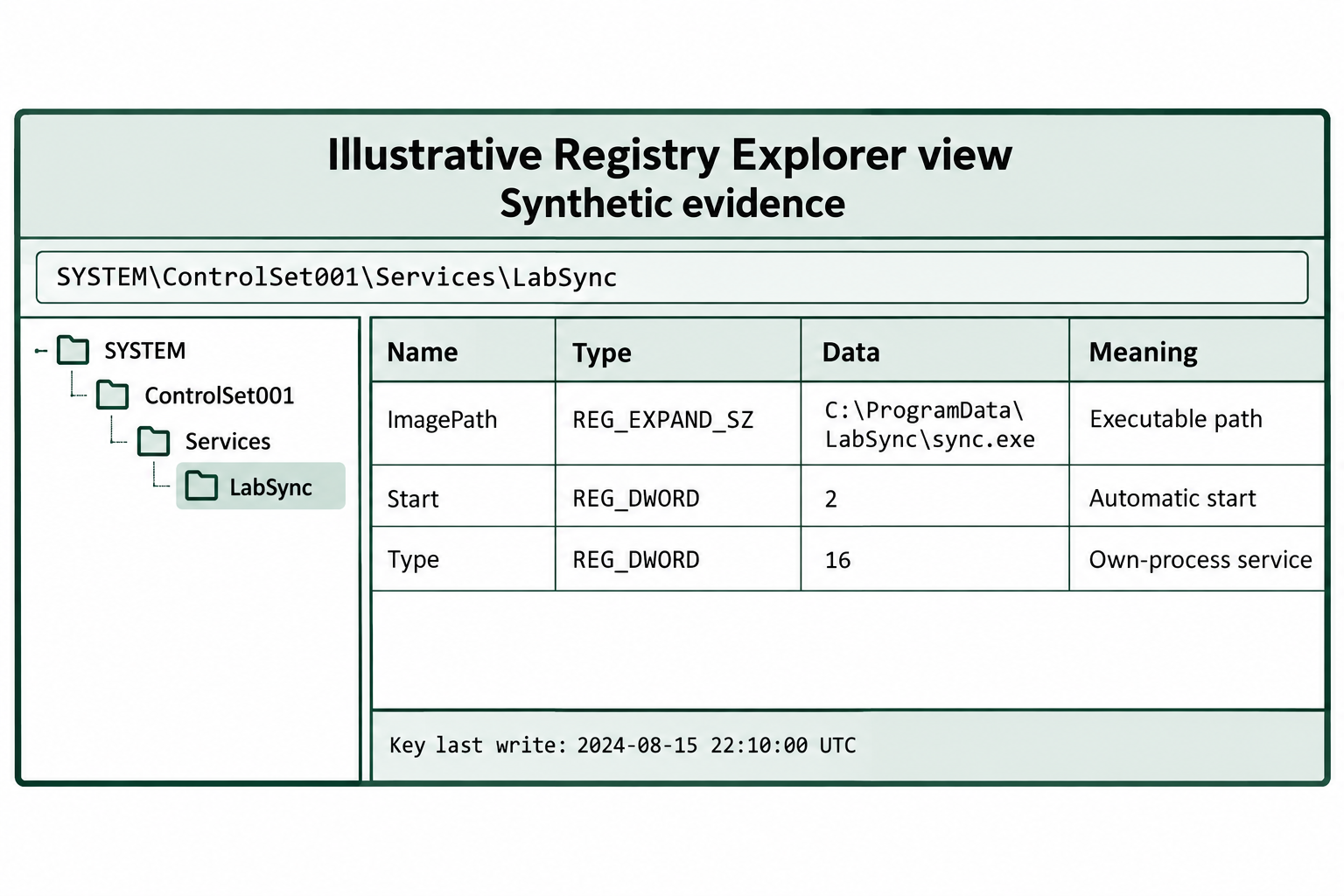
Figure 8.3: The simulated service view separates configured behavior from evidence that the executable actually ran.
Text description for Figure 8.3
The illustrative view selects SYSTEM\ControlSet001\Services\LabSync. ImagePath is a REG_EXPAND_SZ value containing C:\ProgramData\LabSync\sync.exe. Start is a REG_DWORD value of 2, meaning automatic startup. Type is a REG_DWORD value of decimal 16 (hexadecimal 0x10), meaning a service that runs in its own process. The added Meaning column explains the fields for teaching. Key last write is 2024-08-15 22:10:00 Coordinated Universal Time (UTC). This timestamp belongs to the key. Individual registry values do not each have an independent standard last-write timestamp. The configuration alone establishes neither maliciousness nor successful execution. All records are synthetic.
Field definitions: Microsoft service registry documentation.
Control Sets
The SYSTEM hive contains multiple control sets: CurrentControlSet, ControlSet001, ControlSet002, etc. The CurrentControlSet is a symbolic link pointing to the control set that was active at last boot. The others are historical snapshots.
- CurrentControlSet: Active at boot
- ControlSet001, ControlSet002, etc.: Historical control sets from previous boots
If a system was compromised and the attacker modified the CurrentControlSet, a forensic analyst can compare CurrentControlSet to the prior ControlSets to identify what changed. Additionally, the "last known good" control set (indicated in the Select key) shows which control set the system will boot from if recovery is needed, revealing whether recovery settings were modified.
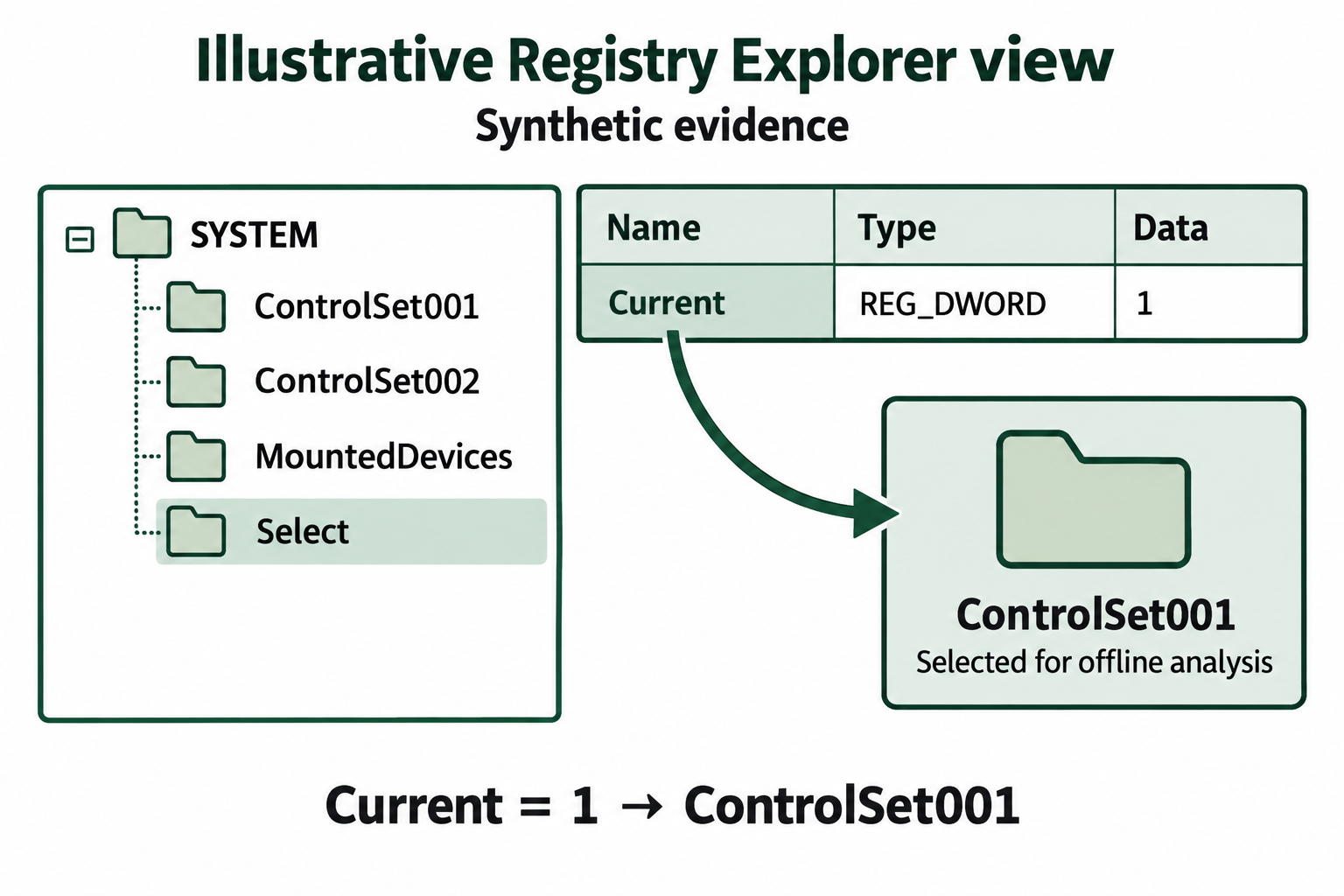
Figure 8.4: Read Select in the acquired SYSTEM hive to identify the relevant numbered control set.
Text description for Figure 8.4
The offline SYSTEM tree contains ControlSet001, ControlSet002, MountedDevices, and Select as sibling keys. Select is highlighted, and its Current REG_DWORD value is 1. The diagram therefore points to ControlSet001. CurrentControlSet is a live Windows alias for the selected numbered control set. Other numbered sets should be interpreted through Select and the system's context rather than assumed to be a chronological boot history. MountedDevices appears directly under SYSTEM. The example is synthetic and uses a simplified interface.
8.3 USB Device History and Storage Correlation
USBSTOR Key
USB devices that have ever been connected to a Windows system are recorded in:
- HKLM\SYSTEM\CurrentControlSet\Enum\USBSTOR
Each connected USB device has a subkey with a name format: [VendorID]&[ProductID]&[RevisionID]\[SerialNumber]
Example subkey name: VendorID_0x1234&ProductID_0x5678&RevisionID_0x0001\8F3F4D5E6A1B2C3D
Within each device subkey, values include:
- FriendlyName: User-visible name (e.g., "SanDisk Cruzer USB Device")
- Service: Driver used (typically "USBSTOR")
- ConfigFlags: Flags indicating device status
A critical value is the Registry timestamp (not a standalone value, but part of the registry key's metadata): the time the device was first connected.
Analyst Perspective
A suspect claims they never connected a personal USB drive to the work computer. But USBSTOR shows a device with a serial number matching the suspect's personal drive, connected on August 15 at 23:47, with a FriendlyName showing the expected device model. The registry timestamp is objective evidence contradicting the suspect's statement.
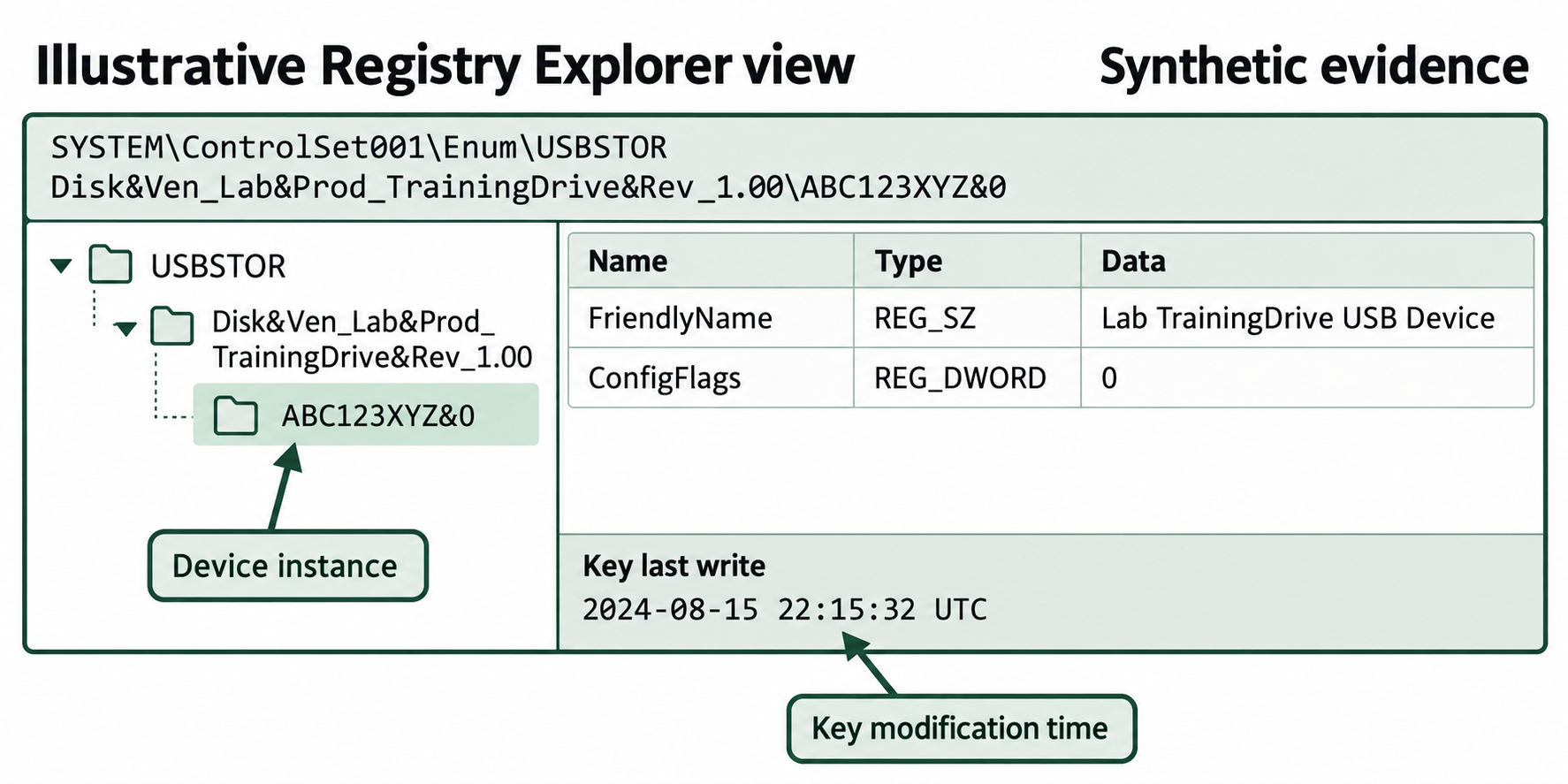
Figure 8.5: USBSTOR supports device identification. Its key last-write time requires interpretation before assigning a connection event.
Text description for Figure 8.5
The selected path is SYSTEM\ControlSet001\Enum\USBSTOR\Disk&Ven_Lab&Prod_TrainingDrive&Rev_1.00\ABC123XYZ&0. FriendlyName contains Lab TrainingDrive USB Device, and ConfigFlags is 0. The synthetic key last-write time is 2024-08-15 22:15:32 UTC. This is a key modification time and does not by itself establish first or last connection. The identifier format illustrates a storage-device instance, and analysts must determine whether its identifier is device-supplied or Windows-generated. Confirm the device identity and relevant events with additional records. The image is a focused interface illustration with fictional data.
MountedDevices Key
When a USB device is connected and assigned a drive letter, the mapping is recorded in:
- HKLM\SYSTEM\CurrentControlSet\Enum\USBSTOR (device identification)
- HKLM\SYSTEM\CurrentControlSet\Control\MountedDevices (drive letter assignment)
The MountedDevices key contains entries like:
- \DosDevices\D: The value is a binary-encoded reference to the USB device's GUID, identifying which physical device is mounted as D:
By correlating USBSTOR (physical device identification) with MountedDevices (drive letter assignment), you reconstruct the complete USB connection history: which device, what drive letter, and when it was first connected.
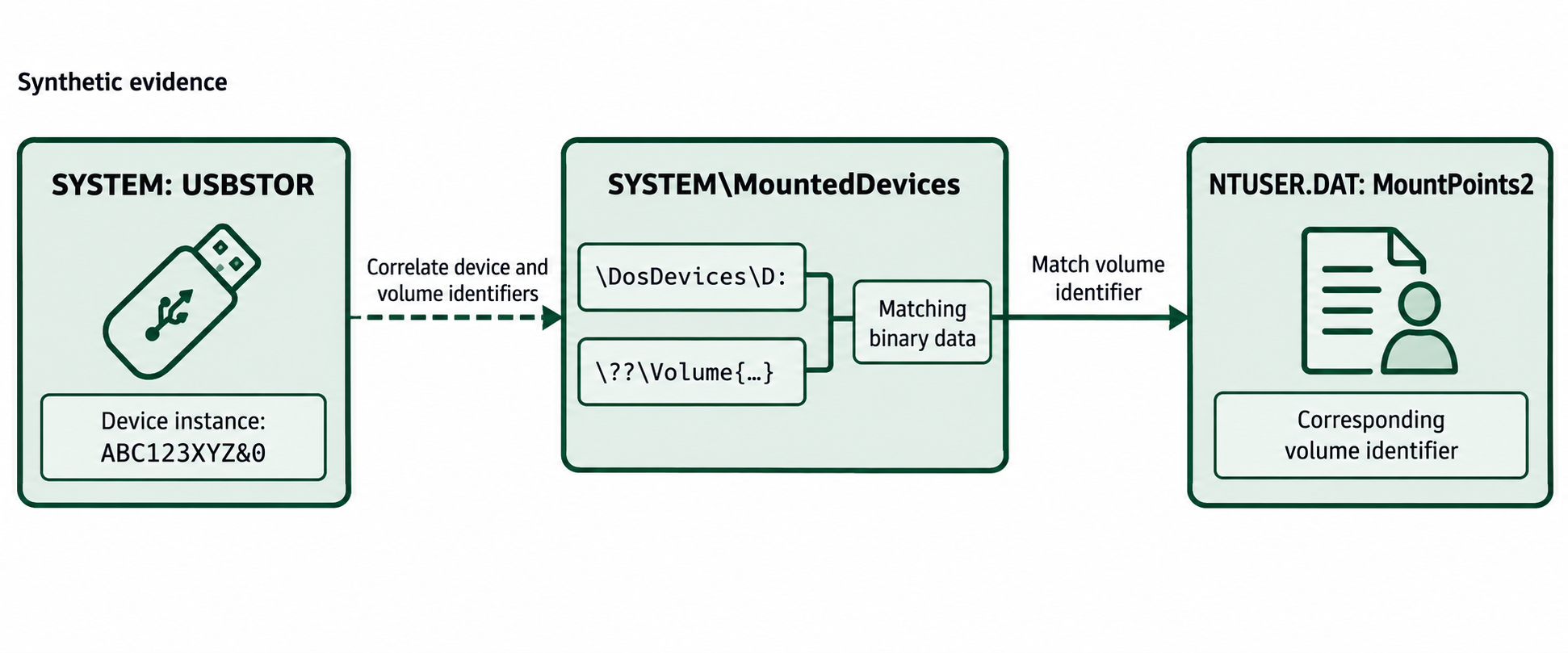
Figure 8.6: Correlate device, volume, and user-profile identifiers before interpreting a recorded drive-letter association.
Text description for Figure 8.6
The synthetic device instance ABC123XYZ&0 appears under USBSTOR. The dashed connection means that device and volume identifiers require correlation. In the acquired SYSTEM hive, MountedDevices is at the hive root: SYSTEM\MountedDevices. The illustration pairs \DosDevices\D: with a shortened \??\Volume{…} value through matching binary data. The ellipsis replaces a volume globally unique identifier (GUID) for readability. Binary-data formats vary, so the analyst must parse the actual representation. A matching volume identifier in NTUSER.DAT\Software\Microsoft\Windows\CurrentVersion\Explorer\MountPoints2 supplies user-profile context. These associations alone do not identify who physically connected a device or prove a file copy.
First and Last Connection Timestamps
Reconstructing precise first/last connection times requires cross-referencing multiple sources:
-
Registry key modification time: When the USB device was first connected, the USBSTOR key was created, and the registry hive was modified. The key's modification timestamp (in the registry header) approximates the first connection time. Note: This is a registry-level timestamp, not a value timestamp.
-
SetupAPI log file: The Windows SetupAPI log file (
C:\Windows\Inf\setupapi.dev.logor%windir%\logs\setupapi) records device installation in plain text with precise timestamps. Example entry:
[2024-08-15 23:47:22] Device "VendorID_0x1234&ProductID_0x5678&RevisionID_0x0001\8F3F4D5E6A1B2C3D" installed
- ShellBags and MRU entries: User access to the USB drive (opening folders, saving files) is recorded in ShellBags and MRU lists in the NTUSER.DAT hive, providing indirect evidence of when the device was actively used.
Extracting precise timestamps:
Tools like Registry Explorer and RECmd parse registry key timestamps and display them in human-readable format. When you examine a USBSTOR device entry in Registry Explorer, the key's modification time appears in the property panel, showing when the device was first connected.
Portable Devices and User Association
Some USB devices are also recorded in:
- HKCU\Software\Microsoft\Windows\CurrentVersion\Explorer\MountPoints2
- HKCU\Software\Microsoft\Windows\CurrentVersion\Explorer\RunMRU
These keys record which user account accessed which mounted device. By correlating USBSTOR (device info), MountedDevices (drive letter), and MountPoints2 (user access), you establish: user X connected device Y at time T and accessed files Z.
Practical Scenario: USB Device Timeline
Case scenario: An employee was terminated on August 20 for suspected data theft. During the audit, a USB device was found in the suspect's desk drawer. You need to determine if the device was connected to the work computer and, if so, when files were copied.
Analysis steps:
- Identify the USB device: Read the device label and serial number (physical inspection).
- Search USBSTOR: Query the forensic image's SYSTEM hive for entries matching the device's vendor ID and serial number.
- Find connection timestamp: Extract the registry key modification time, showing the device was first connected on August 15 at 23:47.
- Verify SetupAPI log: Search setupapi.dev.log for the device serial number, confirming the connection timestamp and driver installation details.
- Check MountedDevices: Determine which drive letter the device was assigned (D:).
- Examine user access logs: Search MountPoints2 and file system MFT for records of files accessed on D: after 23:47 on August 15.
- Cross-reference with file timestamps: Identify files on the file system that were copied to or accessed from D: on the same date and time.
Conclusion: Timeline evidence showing device connection, user access, and file operations can establish probable cause that the suspect connected the device and copied files.
Correlation is Key
Never rely on a single registry key. Device connection requires corroborating evidence from multiple sources: USBSTOR, MountedDevices, SetupAPI logs, and file system activity. A device showing in USBSTOR may not have been actively used (simply plugged in and ejected). Actual file access requires corroboration from MFT, file timestamps, or volume shadow copies.
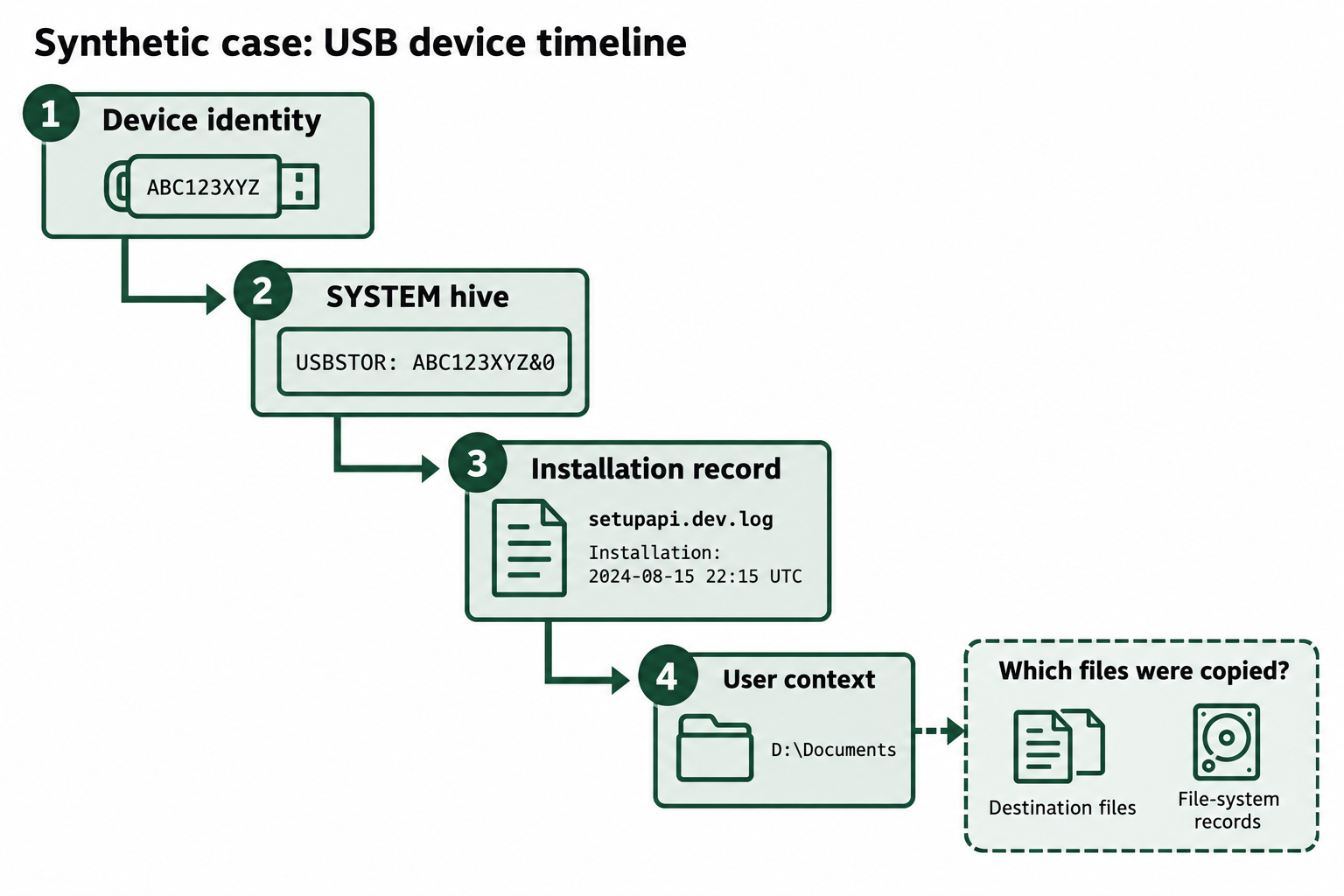
Figure 8.7: The USB scenario requires separate evidence for device association, installation timing, user context, and file transfer.
Text description for Figure 8.7
The synthetic trail begins with a device labeled ABC123XYZ and a corresponding USBSTOR instance ABC123XYZ&0. An illustrative installation record from setupapi.dev.log is normalized to 2024-08-15 22:15 UTC. This is a separate log file, typically C:\Windows\INF\setupapi.dev.log, and the analyst must interpret its original time basis before normalization. Folder context points to D:\Documents. These numbered stations describe investigative steps, not four measured events or a complete chronology. The final dashed branch asks which files were copied and calls for destination files and file-system records. The illustration uses the same fictional device as the closing case. Its example time is separate from the 23:47 time in the surrounding practice scenario.
8.4 User Activity Reconstruction
UserAssist
UserAssist is one of the most valuable forensic artifacts. The key is located in:
- HKCU\Software\Microsoft\Windows\CurrentVersion\Explorer\UserAssist{GUID}\Count
Each value in this key represents an executed application or accessed document, with the name (value name) encoded in ROT13 (a simple substitution cipher) and the value containing execution metadata.
Example ROT13 encoding:
Raw command:     C:\Program Files\Google\Chrome\chrome.exe
ROT13 encoded:   P:\Cebtenz Svyrf\Tbbtyr\Puebzr\puebzr.rk
Decoding ROT13:
Use an online ROT13 decoder or a simple Python script:
import codecs
encoded_value = "P:\Cebtenz Svyrf\Tbbtyr\Puebzr\puebzr.rk"
decoded_value = codecs.encode(encoded_value, 'rot_13')
print(decoded_value)  # Output: C:\Program Files\Google\Chrome\chrome.exe
Value format:
The value associated with each execution is binary data containing:
- Run count: The number of times the application was executed.
- Execution timestamps: The last time the application was run (and sometimes additional timestamps for multiple executions).
Tools like Registry Explorer and RegRipper automatically decode ROT13 and parse the binary execution data, displaying results in human-readable format.
Forensic significance:
UserAssist establishes:
- Which applications the user executed and how frequently.
- When each application was last run (timestamp data).
- User intent: If forensic tools (e.g., Volatility, Ghidra debugger) appear in UserAssist, the user may have been analyzing malware or attempting system compromise.
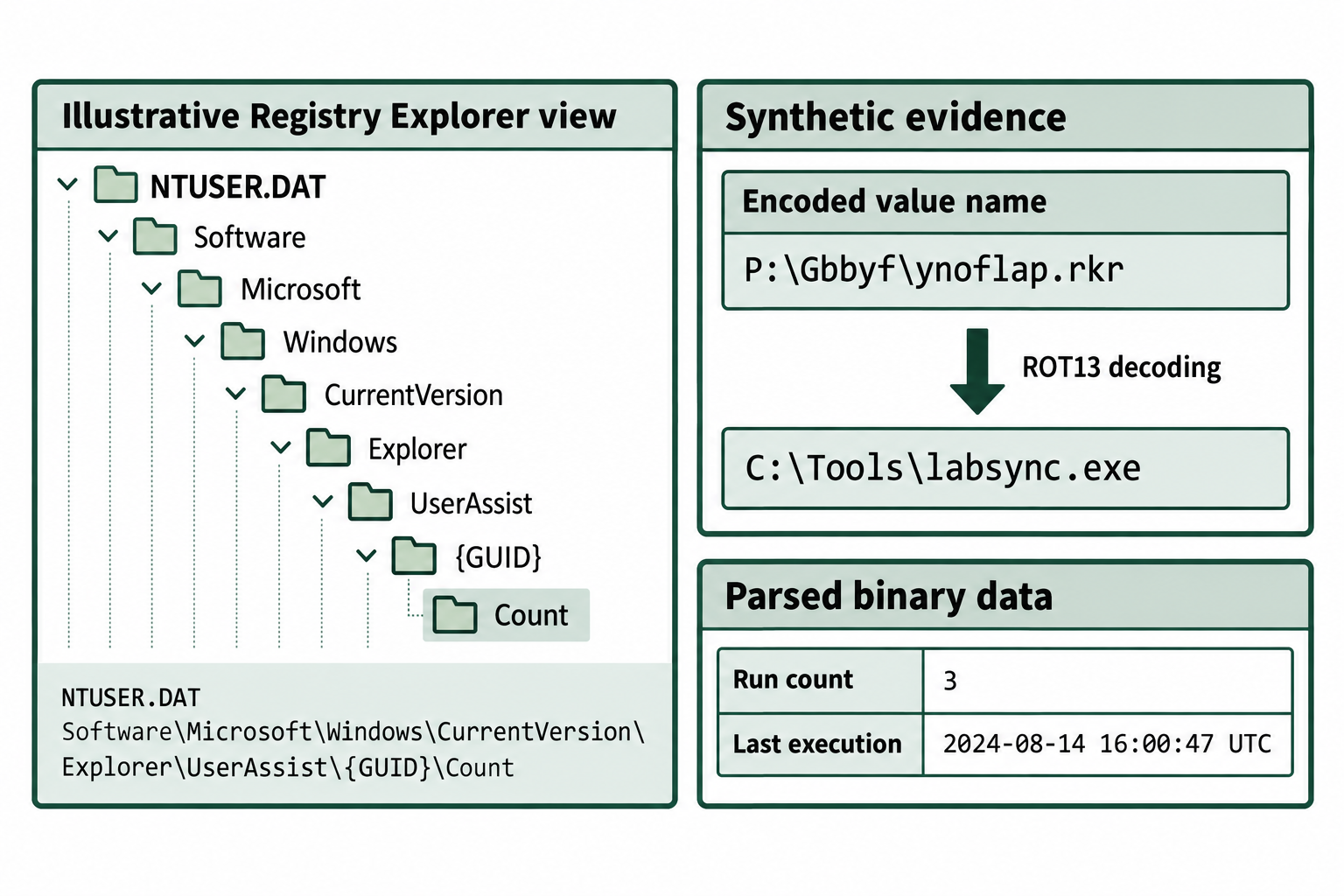
Figure 8.8: Decode the UserAssist value name and parse its binary data as separate operations.
Text description for Figure 8.8
The selected NTUSER.DAT path is Software\Microsoft\Windows\CurrentVersion\Explorer\UserAssist\{GUID}\Count. The braces mark a placeholder for the actual key identifier. ROT13, a letter substitution that rotates the alphabet by 13 positions, converts P:\Gbbyf\ynoflap.rkr into C:\Tools\labsync.exe. The binary value data is parsed separately to obtain the synthetic run count of 3 and last execution of 2024-08-14 16:00:47 UTC. Those fields do not provide three individual execution times. Coverage and field meaning depend on the Windows version and launch mechanism. The interface is illustrative, with all records supplied for teaching.
RecentDocs and File Access History
The RecentDocs key records recently opened documents:
- HKCU\Software\Microsoft\Windows\CurrentVersion\Explorer\RecentDocs
Subkeys are file extensions (doc, docx, pdf, jpg, etc.), and within each subkey are values representing recently accessed files of that type. The values contain the file's path and a usage order indicator.
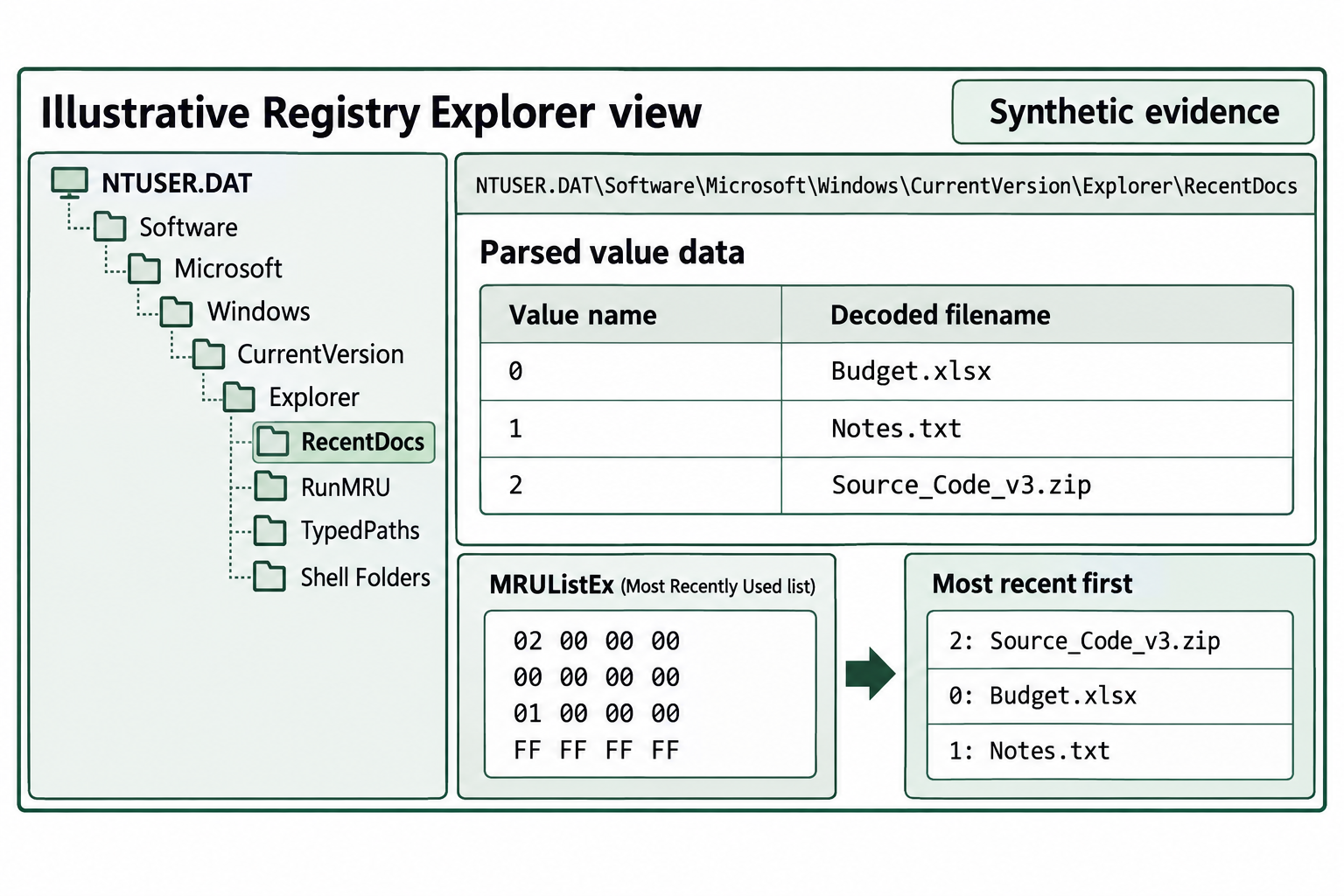
Figure 8.9: The most-recently-used list supplies relative ordering independently of numeric value names.
Text description for Figure 8.9
The simulated RecentDocs view lists value 0 as Budget.xlsx, value 1 as Notes.txt, and value 2 as Source_Code_v3.zip. MRU means most recently used. MRUListEx contains four little-endian 32-bit groups: 02 00 00 00, 00 00 00 00, 01 00 00 00, and FF FF FF FF. They identify values 2, 0, and 1 in most-recent-first order, followed by a terminator. The displayed filenames are decoded from binary values. The figure supplies no per-document timestamp or complete path, and it does not establish that the archive was copied. All filenames and records are synthetic.
TypedPaths and Manual Navigation
The TypedPaths key records paths manually typed in the Windows Explorer address bar:
- HKCU\Software\Microsoft\Windows\CurrentVersion\Explorer\TypedPaths
Values are numbered (1, 2, 3, ...) and contain paths the user typed. This reveals:
- Network drives accessed: If a user typed
\\attacker.com\share\, this indicates intentional navigation to a network share. - File system exploration: TypedPaths shows where the user looked, not just where they opened files.
ComDlg32 OpenSavePidlMRU
The ComDlg32 keys record files accessed through Open/Save dialogs:
- HKCU\Software\Microsoft\Windows\CurrentVersion\Explorer\ComDlg32\OpenSavePidlMRU
This key has subkeys for each file extension (doc, pdf, jpg, etc.) and overall MRU. The entries record the PIDL (a Windows binary structure) of each file opened or saved through the Open/Save dialog. This is particularly valuable for identifying files a user explicitly opened or saved, not just files in directories they visited.
RunMRU
The RunMRU key records commands the user typed into the Run dialog (Windows+R):
- HKCU\Software\Microsoft\Windows\CurrentVersion\Explorer\RunMRU
Values are the commands typed, including:
- Program names:
notepad,calc,powershell - Network commands:
\\server\share,http://malicious.com - File system commands:
C:\Users\attacker\stash
RunMRU reveals intentional user actions: If a user ran net use z: \\attacker\share, this is evidence of intentional network access.
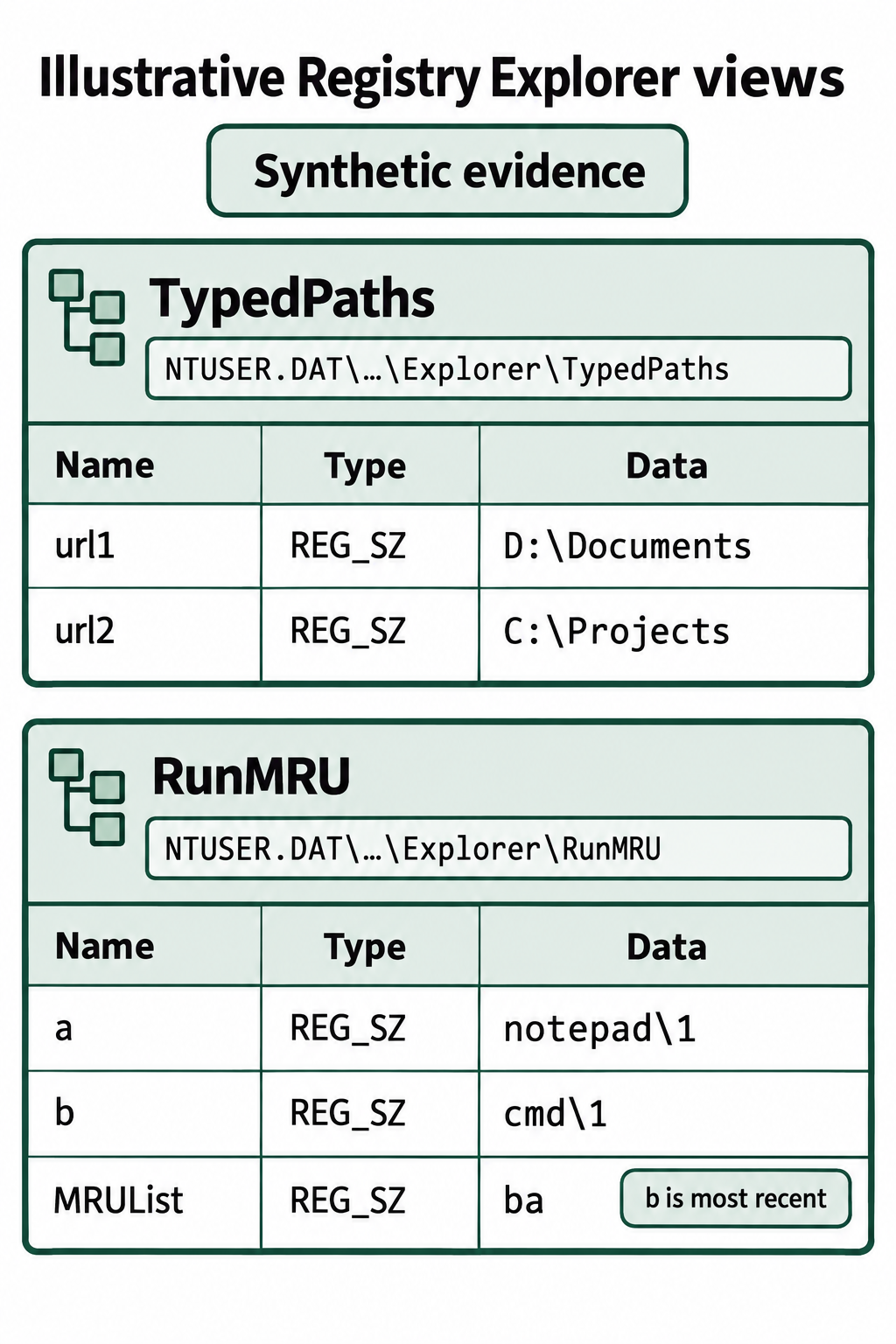
Figure 8.10: TypedPaths and RunMRU record different user interactions and use different value-naming conventions.
Text description for Figure 8.10
Both synthetic views belong to NTUSER.DAT beneath Software\Microsoft\Windows\CurrentVersion\Explorer. TypedPaths contains url1 with D:\Documents and url2 with C:\Projects. RunMRU contains a with notepad\1, b with cmd\1, and MRUList with ba. The \1 suffix is shown as stored data. MRUList places entry b before entry a in recency. The ellipses in the illustrated paths shorten the shared registry path. TypedPaths reflects typed Explorer navigation, while RunMRU reflects Run-dialog history. These entries alone do not establish completion, success, every execution, or who was physically operating the account.
ShellBags
ShellBags record folder browsing history and are stored in:
- HKCU\Software\Microsoft\Windows\Shell\BagMRU
- HKCU\Software\Microsoft\Windows\Shell\Bags[BagNumber]
ShellBags contain:
- Folder paths the user browsed to.
- The window position and size each time the folder was viewed.
- The sort order and display mode (list, icons, details).
- Timestamps of folder access (derived from registry key modification times).
ShellBags are valuable for timeline reconstruction because they show which files the user accessed, which folders they browsed, in what sequence, and approximately when. A timeline showing a user browsing from legitimate work folders to hidden system folders to temporary directories suggests intentional exploration (or malware footprints).
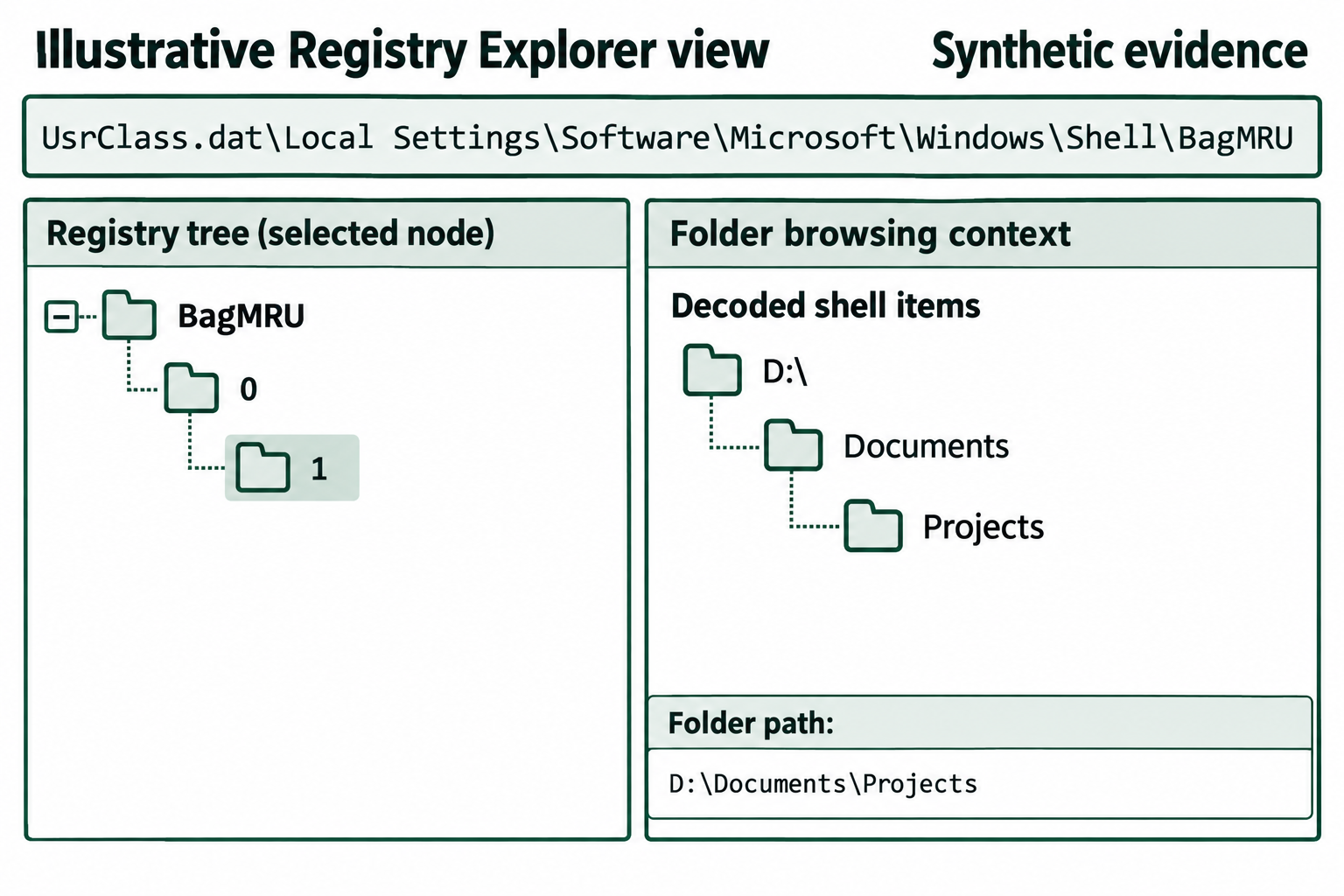
Figure 8.11: Decoded ShellBag items provide folder context that must be interpreted separately from file operations.
Text description for Figure 8.11
The illustrative view shows UsrClass.dat\Local Settings\Software\Microsoft\Windows\Shell\BagMRU and a simplified numeric key tree. A separate decoded view resolves folder context to D:\Documents\Projects. Numeric registry subkey names require shell-item parsing to recover meaningful folder information. The figure does not supply an exact timestamp for each browsing action or demonstrate that any file was opened, copied, or deleted. ShellBag locations and behavior depend on Windows version and context, so collect and examine the appropriate user hives. The interface and folder records are synthetic.
WordWheelQuery (Search Queries)
The WordWheelQuery key records searches performed in Windows Explorer's search bar:
- HKCU\Software\Microsoft\Windows\CurrentVersion\Explorer\WordWheelQuery
Values are sequential (0, 1, 2, ...) and contain search terms the user typed. This reveals:
- What the user searched for:
suspicious_file.exe,credit card,password - Intent: Searching for specific files or information suggests deliberate action.
8.5 Application Execution Evidence
AppCompatCache (ShimCache)
The AppCompatCache key records application execution to enable Windows Compatibility Mode features. Data is stored in:
- HKLM\SYSTEM\CurrentControlSet\Control\Session Manager\AppCompatCache\AppCompatCache
The value contains a binary structure with entries for each executed application, including:
- Full path to executable
- Last execution timestamp
- File size
- Execution flag (whether the file was actually executed or just scanned)
AppCompatCache is updated whenever a file with the .exe extension is opened or scanned by Windows (including by antivirus). Importantly:
- Entries persist even after the application is uninstalled.
- The timestamp is highly reliable: Windows updates AppCompatCache when a binary is executed.
- The execution flag indicates whether the application actually ran or was just accessed.
Tools like Registry Explorer and AppCompatCache parsers (e.g., https://github.com/EricZimmerman/RegistryPluginInstaller) extract and display AppCompatCache entries in a timeline format, making it easy to identify all executed applications in chronological order.
AmCache
AmCache is increasingly important for execution history. Located at:
- C:\Windows\AppCompat\Programs\Amcache.hve
AmCache records:
- Executable path
- SHA1 hash of the executable
- File metadata (version, company name, product name)
- Installation and execution timestamps
- User account that executed the file
AmCache persists execution history longer than AppCompatCache and survives system reinstallation in some cases. It is particularly valuable for identifying:
- Execution of malware (hash can be looked up in threat intelligence databases).
- Execution by specific user accounts.
- When software was installed vs. when it was first executed.
BAM and DAM (Background Activity Monitor and Desktop Activity Moderator)
These keys track application execution with full path and timestamp:
- HKLM\SYSTEM\CurrentControlSet\Services\bam\State\UserSettings\SID (for each user)
- HKLM\SYSTEM\CurrentControlSet\Services\dam\State\UserSettings\SID (for each user)
Values contain the executable path and a timestamp in Windows FILETIME format. BAM was introduced in Windows 10 to track application activity for power management; DAM tracks desktop activity for similar purposes.
The execution timestamp in BAM/DAM is highly accurate (approximately to the minute), making it valuable for precise timeline reconstruction.
Prefetch Correlation
Prefetch files (covered in later chapters) record application execution with very precise timing. By correlating Prefetch execution timestamps with registry execution artifacts (AppCompatCache, UserAssist, BAM/DAM), analysts can build multi-source timelines:
- Prefetch shows execution with precision to seconds.
- Registry artifacts confirm the execution and may provide additional context.
- Corroborating multiple sources greatly increases confidence in timeline accuracy.
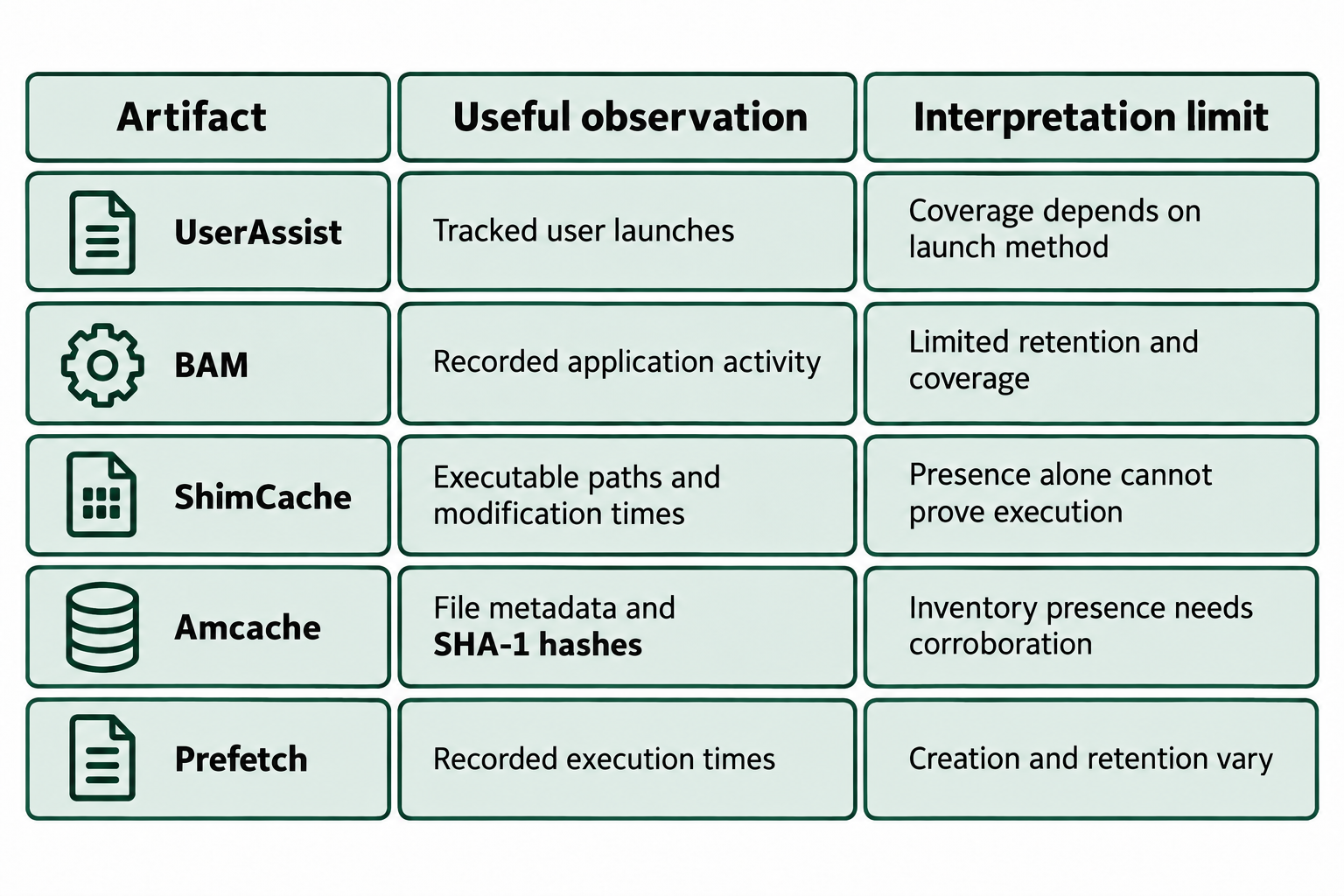
Figure 8.12: Execution findings depend on artifact semantics, Windows version, and corroboration across sources.
Text description for Figure 8.12
UserAssist can record tracked user launches, with coverage depending on launch method. Background Activity Monitor (BAM) records application activity with limited coverage and retention. ShimCache can supply executable paths and file-modification timestamps, with fields varying by Windows version. Its presence alone cannot establish execution, and a file-modification timestamp does not establish an execution time. Amcache provides file metadata and SHA-1 (Secure Hash Algorithm 1) hashes that can support file identification and comparison. Available fields and hash coverage depend on the Windows version and record type, so confirm how a stored hash was calculated before comparing it with a whole-file hash. Amcache inventory presence requires corroboration for execution claims. Prefetch can preserve execution timestamps when the feature creates and retains the relevant records. An absent record does not necessarily establish that a program never ran. Each row uses the same colors, so the artifact name and text carry the distinction.
Timestamp interpretation: Mandiant analysis of ShimCache.
Hash interpretation: AmcacheParser documentation describes SHA-1 extraction and hash-based filtering.
Practical Timeline Example
Reconstructing a malware execution timeline:
You are investigating a system suspected of malware infection. You want to determine:
- When the malware was first executed.
- How frequently it ran.
- What the malware executable was.
Analysis steps:
- Query AppCompatCache: Extract all entries, sort by timestamp. Look for suspicious executables (random names, unusual locations).
- Query AmCache: Cross-reference to find the malware's SHA1 hash. Lookup the hash in threat intelligence (VirusTotal, AlienVault OTX) to confirm it is known malware.
- Query UserAssist: Decode ROT13 and parse execution counts and timestamps. Look for the same executable repeated multiple times, indicating repeated execution.
- Query BAM/DAM: Extract timestamps for the malware process, confirming execution times and user account.
- Correlate with Prefetch: (If Prefetch files are recoverable) Compare Prefetch timestamps with registry timestamps to pinpoint exact execution times.
Timeline output:
2024-08-14 14:32:15  First execution (AppCompatCache)
2024-08-14 14:35:00  Second execution (AmCache, timestamp)
2024-08-14 16:00:47  UserAssist shows 42 executions between 14:32 and 16:00
2024-08-14 every 10 minutes: BAM/DAM entries show repeated execution
2024-08-15 02:15:30  Last execution (AppCompatCache), process halted
This timeline establishes the malware was active for over 12 hours and executed automatically every 10 minutes (suggesting a scheduled task or service, covered in later sections).
Analyst Perspective
In real investigations, you rarely find a single smoking-gun registry entry. Instead, you build a mosaic of evidence from multiple sources. A user claims they never opened a file, but RecentDocs shows the file, AppCompatCache shows the containing directory was accessed, ShellBags shows the folder was browsed, and file system timestamps show the file was modified. Together, these registry artifacts establish probable cause that the user opened and modified the file, even if the user denies it.
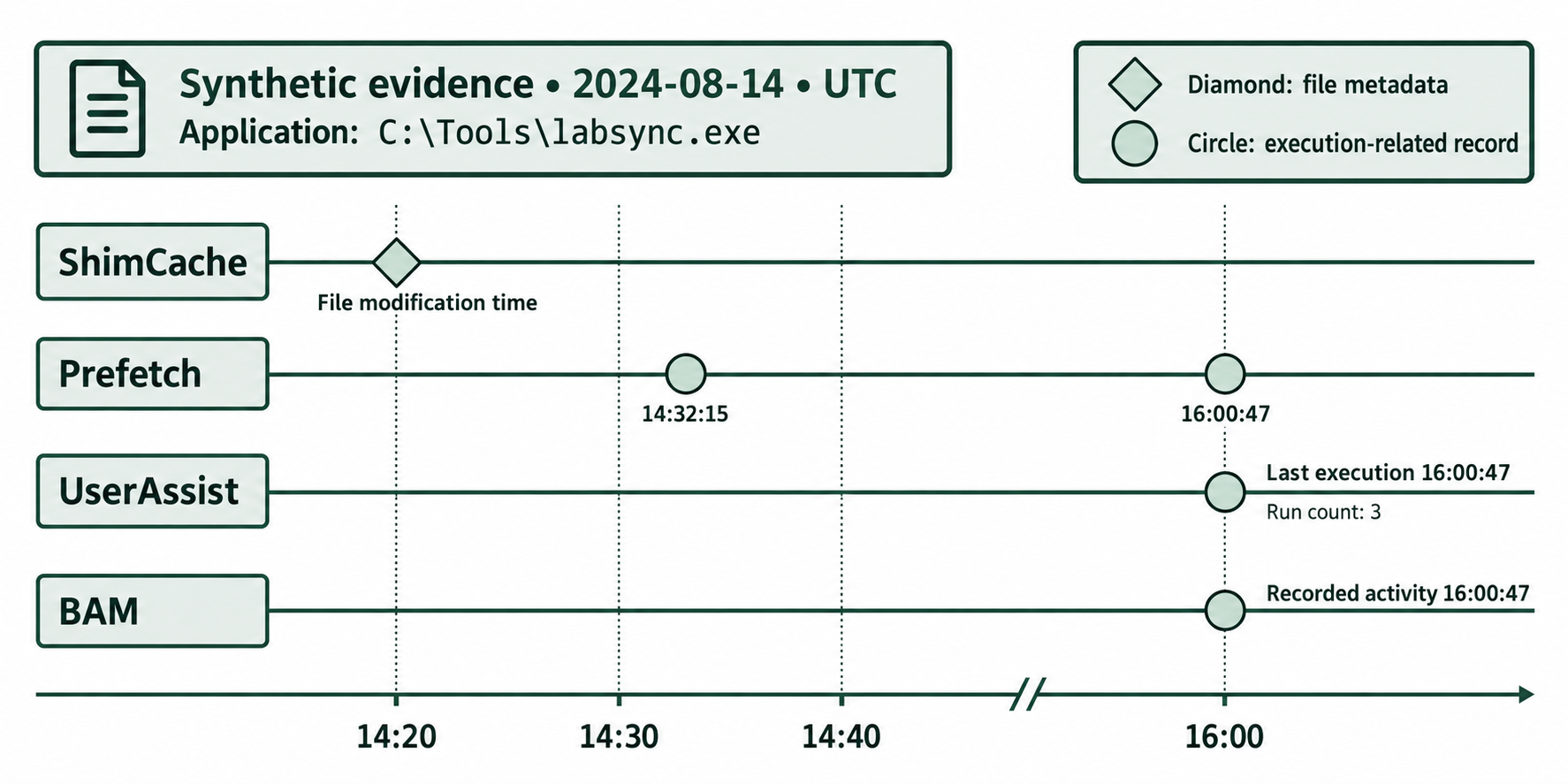
Figure 8.13: Preserve the meaning of each timestamp when correlating an application's activity.
Text description for Figure 8.13
This synthetic example concerns C:\Tools\labsync.exe on 2024-08-14, with all displayed times in UTC. A diamond marks a ShimCache file modification time at 14:20. Prefetch circles mark recorded execution times of 14:32:15 and 16:00:47. UserAssist records a last execution of 16:00:47 and run count of 3. BAM records activity at 16:00:47. A break in the axis omits part of the interval between 14:40 and 16:00. Marker positions are approximate, and the labels provide the exact example times. The file modification time cannot establish a first execution. These records do not establish a ten-minute schedule, continuous execution, or the times of all three UserAssist-counted runs. The example illustrates evidence interpretation rather than confirming the surrounding hypothetical timeline.
Timestamp interpretation: Mandiant analysis of ShimCache.
8.6 Efficient Registry Analysis with Tooling
Registry Explorer (Eric Zimmerman)
Registry Explorer is a graphical Windows tool for interactive registry analysis. Key features:
- Open hives: Load individual hive files without requiring live Windows registry access.
- Timeline view: Display registry keys sorted by modification time, revealing which configuration was changed and when.
- Bookmarks: Pre-built bookmarks for forensically significant locations (UserAssist, USBSTOR, Services, etc.).
- Search: Query across the entire hive for a specific key, value, or string.
- Hex viewer: Examine binary value data in hexadecimal, useful for parsing custom binary structures.
- Comparison: Load two versions of the same hive and compare differences.
- Export: Save findings to CSV, JSON, or XML for reporting and further analysis.
Typical workflow with Registry Explorer:
- Open the SYSTEM hive extracted from the forensic image.
- Navigate to the Pre-built Bookmarks menu to quickly jump to forensically significant keys (e.g., USBSTOR, Services, LastKnownGoodTime).
- For each key, note the key's modification time and the values stored.
- Export data to CSV for timeline integration.
- Repeat for NTUSER.DAT and other user hives.
- Compile findings into a comprehensive timeline.
Registry Explorer is exceptionally fast for interactive exploration and is the preferred tool for deep-dive analysis of specific hives.
RECmd (Registry Explorer Command Line)
RECmd is the command-line sibling of Registry Explorer, enabling batch processing of registry hives. It supports:
- Batch processing: Run against multiple hives simultaneously.
- Plugins: Extensible plugins for automated parsing of specific registry locations.
- Output formats: CSV, JSON, TLE (Timeline Export) format.
Basic RECmd usage:
RECmd.exe --csv C:\forensic\output -d C:\forensic\registry_extracts
This command processes all hives in the registry_extracts directory and outputs results to CSV files in the output directory.
Plugin example:
RECmd.exe --csv C:\forensic\output -d C:\forensic\registry_extracts --bn UserAssist
The --bn flag specifies a built-in plugin name. Common plugins include:
UserAssist: Parses UserAssist, decodes ROT13, extracts execution counts and timestamps.USBSTOR: Parses USBSTOR and MountedDevices, correlates device connections.Services: Lists all services, startup types, and image paths.RecentDocs: Extracts recently accessed files by type.ShellBags: Parses folder browsing history.
RECmd output is CSV, easily imported into spreadsheet or timeline tools for further analysis.
RegRipper
RegRipper is an older but still widely used plugin-based registry analysis tool. It is available on both Windows and Linux.
Basic RegRipper usage:
rip.exe -r C:\forensic\registry_extracts\SYSTEM -p services
This command runs the services plugin against the SYSTEM hive, extracting all installed services.
Available plugins:
RegRipper includes plugins for nearly every forensically significant registry key:
userassist: Parse UserAssist with ROT13 decoding.usbstor: Extract USB device history.services: List services and drivers.samparse: Extract user account information from SAM hive.shellbags: Parse folder browsing history.wireless: Extract wireless network history.recentdocs: Recent file access.
Custom plugins:
RegRipper allows you to write custom Perl-based plugins to parse custom registry locations. If an investigation requires extracting data from an unusual registry location, a custom plugin can automate the extraction.
Building an Efficient Registry Analysis Workflow
A professional forensic workflow combines multiple tools:
Phase 1: Acquisition and Preparation
- Extract all registry hives from the forensic image (SYSTEM, SOFTWARE, SAM, SECURITY, NTUSER.DAT, UsrClass.dat, AmCache.hve).
- Verify .LOG1 and .LOG2 transaction log files are present.
- Organize hives by source in a working directory structure (e.g.,
/forensic/registry/SYSTEM,/forensic/registry/NTUSER_[username]).
Phase 2: Automated Extraction
- Run RECmd with relevant plugins to extract artifacts in bulk:
RECmd.exe --csv C:\forensic\output -d C:\forensic\registry -bn UserAssist,USBSTOR,Services,ShellBags
- Run RegRipper plugins for additional validation or custom extractions.
- Review CSV outputs to identify high-priority findings (suspicious services, unusual UserAssist entries, USB connections).
Phase 3: Interactive Deep-Dive
- Open Registry Explorer and load the relevant hives.
- Navigate to high-priority areas identified in Phase 2.
- Examine registry timestamps and value data in detail.
- Correlate findings across multiple hives (SYSTEM + NTUSER.DAT + AmCache).
- Document timestamps, paths, and relationships.
Phase 4: Timeline Integration
- Export findings from Phase 3 to CSV.
- Combine with other evidence sources (file system timeline, Prefetch, event logs).
- Build a comprehensive user activity timeline in a spreadsheet or timeline tool.
Phase 5: Validation and Documentation
- Cross-reference registry findings with other evidence sources.
- Highlight inconsistencies (e.g., a file in UserAssist but not in RecentDocs).
- Document the chain of custody, analysis method, and conclusions.
Analyst Perspective
Registry analysis is data-intensive. On a large investigation (dozens of user accounts, years of activity), manual examination of every registry entry is infeasible. The workflow above prioritizes automated extraction (Phase 2) to filter the noise and surface the anomalies, then focuses manual effort (Phase 3) on high-value findings. This balance of automation and human judgment makes the analysis scalable and defensible in court.
Putting It Together: A USB Device and File Theft Investigation
Case scenario:
A company suspects an employee copied proprietary source code to a USB device and left with it. The employee denies any wrongdoing. The forensic image of the employee's work computer is provided for analysis.
Step 1: Extract and prepare registry hives.
You extract SYSTEM, SOFTWARE, NTUSER.DAT, UsrClass.dat, and AmCache.hve from the forensic image. You verify transaction log files are present.
Step 2: Identify USB device connections.
You run RECmd with the USBSTOR plugin:
RECmd.exe --csv C:\forensic\output -d C:\forensic\registry -bn USBSTOR
Output shows a SanDisk USB device with serial number ABC123XYZ, first connected on August 15, 2024, at 22:15 UTC.
Step 3: Establish USB timeline and access patterns.
You open Registry Explorer and navigate to the USBSTOR key directly. You find:
- USBSTOR registry key modification time: 2024-08-15 22:15:32 UTC
- MountedDevices shows the device was assigned drive letter D:
- SetupAPI log (extracted from system hive records) confirms installation at 22:15
You check for user access in ShellBags:
- 2024-08-15 22:16:00: User browsed to D:\
- 2024-08-15 22:16:45: User navigated to D:\Documents
- 2024-08-15 22:17:32 to 22:34:18: Repeated file access on D:\
This timeline shows sustained file access for 17 minutes on the USB device immediately after connection.
Step 4: Identify files accessed and moved.
You examine the MFT (Master File Table, file system metadata) from the forensic image to identify which files were modified or accessed on August 15 at 22:16-22:34. You cross-reference with file paths in UserAssist and RecentDocs to confirm files the user intentionally accessed.
You discover:
- Source_Code_v3.zip was accessed at 22:17:15
- Source_Code_v3.zip was copied to D:\Documents at 22:18:30
- The file was then deleted from the local C: drive (evident from MFT deletion timestamp)
Step 5: Validate against timeline and corroborate.
You correlate registry findings with:
- Event Viewer Security logs (if available) showing user login on August 15 at 21:45 and logout at 23:30.
- Prefetch files showing explorer.exe execution and file access timestamps.
- File system timestamps confirming the copy operation.
Conclusion:
Registry evidence establishes:
- The employee plugged in a USB device at 22:15.
- The employee immediately browsed the device and accessed a source code archive.
- The employee copied the archive to the USB device.
- The employee deleted the original file from the work computer (covering tracks).
This multi-source evidence is highly probative and difficult for the employee to refute in a civil or criminal proceeding.
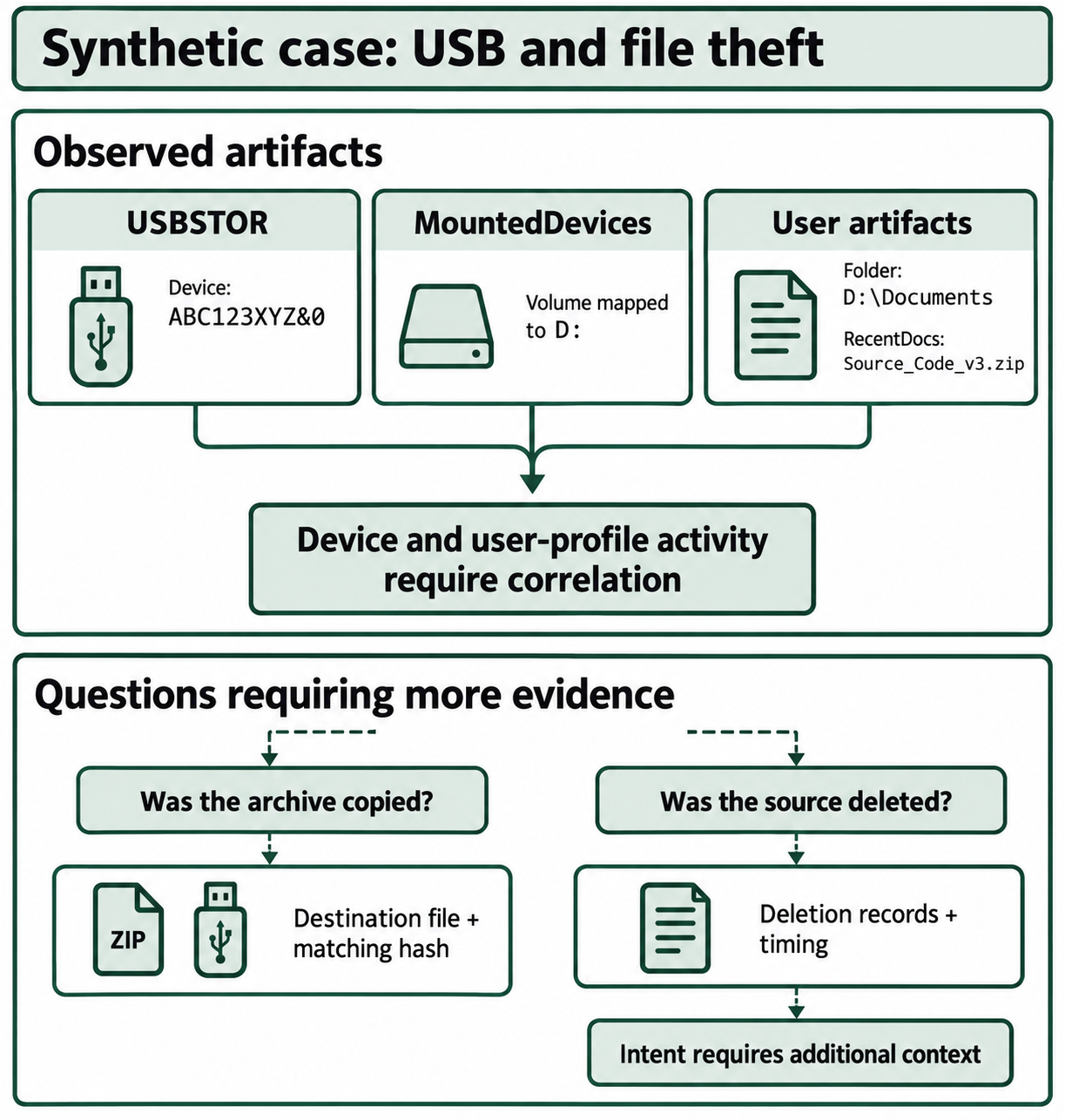
Figure 8.14: The closing case distinguishes observed associations from copy, deletion, attribution, and intent claims requiring additional evidence.
Text description for Figure 8.14
The upper portion shows device ABC123XYZ&0 in USBSTOR, a volume mapping to D:, folder context D:\Documents, and a RecentDocs entry for Source_Code_v3.zip. Correlation can connect these observations to the system and user profile, subject to artifact limits. The lower portion asks whether the archive was copied and whether the source was deleted. A recovered destination file and a matching cryptographic hash can support content identity, but additional records are needed to establish transfer direction, timing, and actor. Deletion requires suitable records, such as relevant change-journal or Recycle Bin evidence when available. A standard Master File Table entry has no dedicated deletion timestamp. Intent requires additional context. All depicted records are synthetic, and the figure does not establish guilt or a completed transfer.
Chapter Summary
- Registry hive locations: System hives (SAM, SECURITY, SYSTEM, SOFTWARE) reside in
C:\Windows\System32\config; user hives (NTUSER.DAT, UsrClass.dat) reside in each user's profile directory. AmCache.hve records application execution history. All must be extracted and analyzed for comprehensive forensic investigation. - Transaction logs and dirty hives: Registry transaction logs (.LOG1, .LOG2) contain uncommitted changes. Professional tools (Registry Explorer, RECmd) automatically replay transaction logs and handle dirty hives, reconstructing the registry's true state.
- USBSTOR and MountedDevices: USB device connection history is recorded in USBSTOR (device identification) and MountedDevices (drive letter mapping). Registry key modification times, SetupAPI logs, and MRU entries establish precise connection and access timelines.
- User activity artifacts: UserAssist (application execution with ROT13 encoding), RecentDocs (file access history), TypedPaths (manual navigation), RunMRU (Run dialog commands), and ShellBags (folder browsing) collectively reconstruct detailed user activity. All are encoded or binary; tools like Registry Explorer automatically parse and display them in human-readable format.
- Application execution evidence: AppCompatCache, AmCache, BAM/DAM all record application execution with timestamps. Correlation across multiple sources (registry, Prefetch, event logs) establishes reliable timelines of what executed, when, and by whom.
- Efficient analysis tools: Registry Explorer enables interactive exploration with bookmarks and timeline views; RECmd supports batch processing with plugins; RegRipper provides additional plugin coverage. A professional workflow combines automated extraction (Phase 2) to identify anomalies, then targeted manual analysis (Phase 3) using Registry Explorer for high-value findings.
The registry is the single richest forensic artifact on a Windows system. By mastering extraction, parsing, and correlation of registry hives, you establish timelines and evidence that corroborate (or refute) investigative hypotheses. The next chapter extends this work to additional Windows artifacts (event logs, Prefetch, file system metadata) that complement and validate registry findings.