CH10: Advanced Recovery, Volume Shadow Copies, Virtual Drives, and Memory-Based Evidence
Introduction
A file that disappears from its usual folder may leave evidence elsewhere. An earlier version might survive in a shadow copy. Another copy might exist inside a virtual disk. Pieces of its text might remain in random access memory (RAM), the computer's working memory, or in files Windows uses to manage that memory. This chapter examines these additional sources within and alongside the main file system.
Each source preserves a different kind of information:
| Evidence source | What it represents |
|---|---|
| Volume Shadow Copy | A volume's state at an earlier snapshot time |
| Virtual disk | A disk stored in one or more files, possibly containing another operating system |
| Pagefile | Selected memory pages written to disk during system operation |
| Hibernation file | System state saved for resuming Windows |
| Live RAM capture | Memory collected while the computer is running |
Learning Objectives
By the end of this chapter, you will be able to:
- Locate available shadow copies and recover earlier file versions.
- Identify virtual disk formats and examine a complete disk or snapshot chain.
- Recover useful text from pagefiles and explain the purpose of hibernation reconstruction.
- Describe when to capture RAM and how acquisition affects the evidence.
- Compare findings across sources while distinguishing observations from conclusions.
10.1 Volume Shadow Copy Service (VSS) and Shadow Copies
The Volume Shadow Copy Service (VSS) coordinates the creation of point-in-time views of a storage volume. A shadow copy can preserve an earlier version of a file after the active version changes or disappears. Recovery depends on a suitable snapshot having existed and its required data remaining available.
How Shadow Copies Work
VSS coordinates three roles:
- Requester: Software that asks for a snapshot, such as a backup application.
- Writer: A component that prepares application data for a consistent snapshot.
- Provider: The component that creates and maintains the snapshot.
The Microsoft system provider uses copy-on-write. Before an existing block needed by a snapshot is overwritten, its earlier contents are preserved in a difference area. Windows combines those preserved blocks with unchanged volume data to present the earlier state. A snapshot therefore does not require a separate full copy of every file.
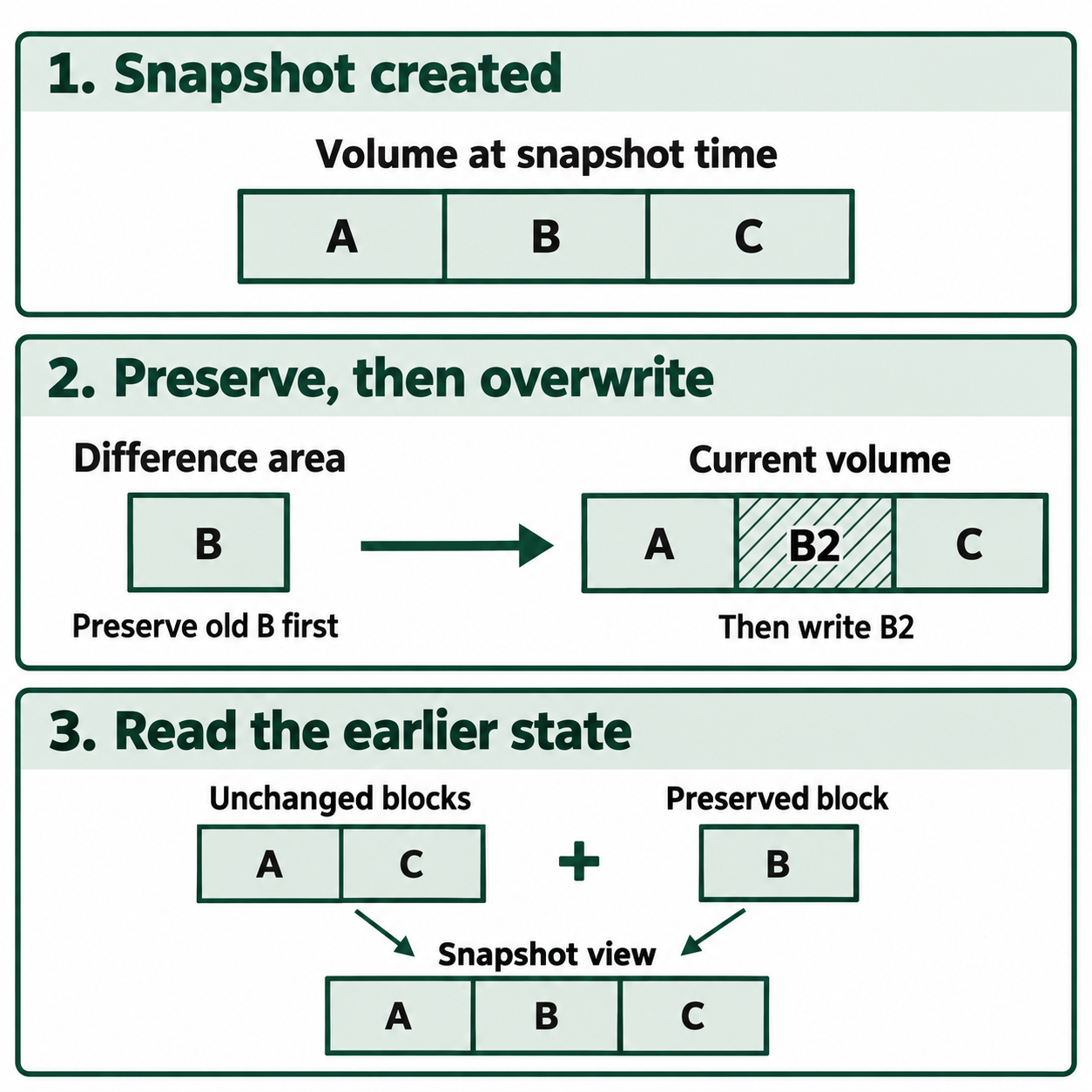
Figure 10.1: The Microsoft system provider preserves blocks before overwriting them, allowing a shadow copy to present the earlier volume state.
Text description of Figure 10.1
At snapshot creation, the volume contains blocks A, B, and C. Before replacing B with B2, the system provider preserves old B in the difference area. The current volume then contains A, B2, and C. Reading the earlier snapshot combines unchanged A and C from the volume with preserved B. This simplified example illustrates a logical earlier-state view without a separate full copy of every file.
Backup software, System Restore, scheduled tasks, or an administrator may request snapshots. Windows does not guarantee a daily snapshot or a midnight schedule. Storage for the system provider resides in protected system storage associated with System Volume Information and may be configured on another volume. Use a VSS-aware tool to identify snapshots and their times instead of treating storage files as ordinary snapshot folders.
Available space and retention settings limit what survives. Windows can remove older snapshots when storage fills. Snapshot absence alone cannot establish intentional deletion. Microsoft's VSS documentation explains the components and storage behavior.
Accessing Shadow Copies from an Image
Mounting makes an image's contents available through a drive or folder. On a Windows examination workstation, Arsenal Image Mounter (AIM) presents a disk image to Windows as a disk. You can then mount available shadow copies and browse earlier versions of its files. Opening the mounted volume's current files alone does not show those earlier versions.
The workflow below uses AIM to mount the disk image, then Windows' command-line interface (CLI) to list and access its shadow copies. AIM's Free Mode supports the disk-mounting and temporary-write features used here. The Windows commands depend on Windows recognizing the mounted volume's snapshots. Use a working copy of the disk image being examined. If its volume uses BitLocker encryption, you also need an authorized password or recovery key to access the contents. See the AIM feature and compatibility FAQ.
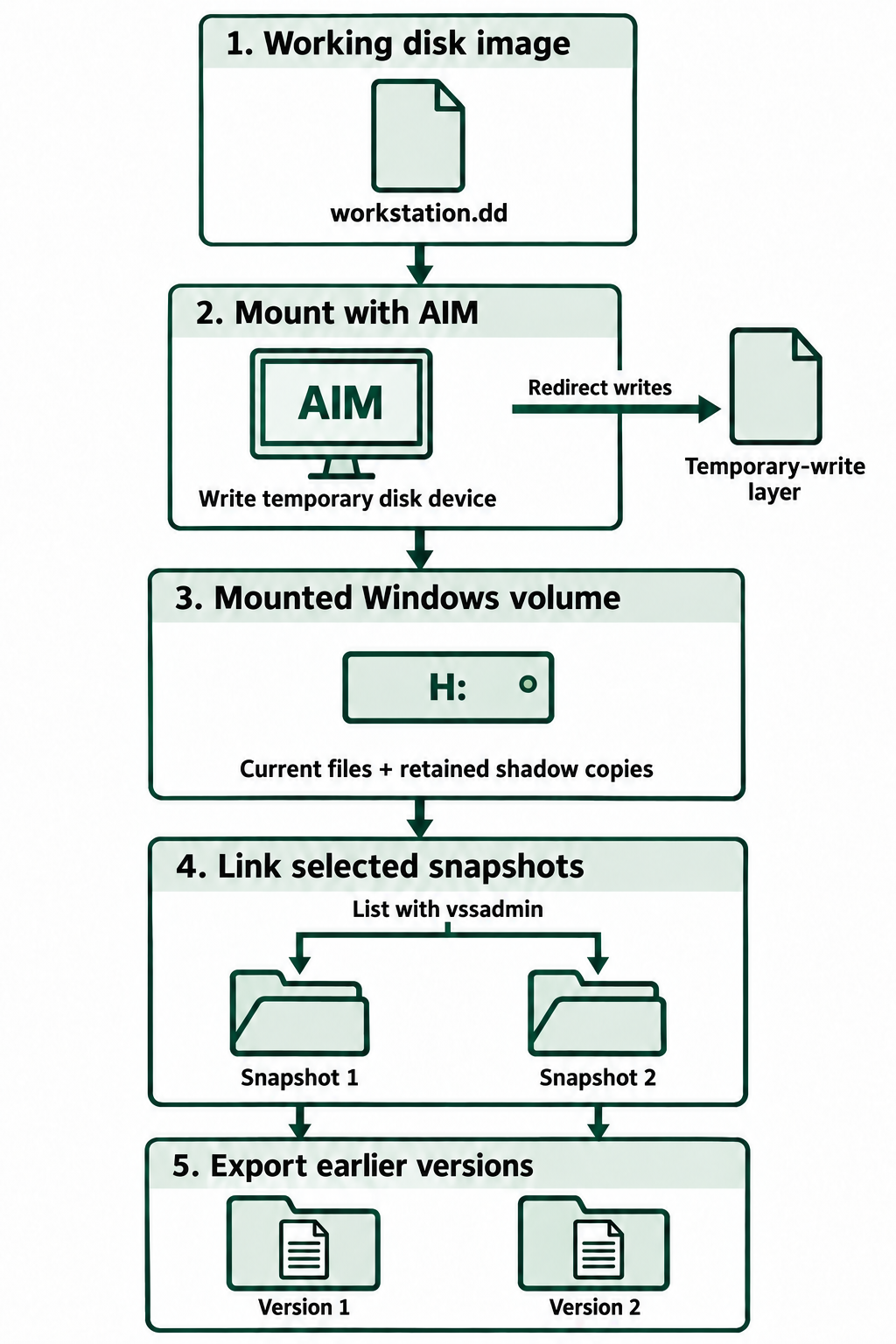
Figure 10.2: Arsenal Image Mounter exposes the working image to Windows while redirecting writes into a separate layer. Snapshot links provide access to earlier file versions.
Text description of Figure 10.2
Mount the working disk image in Arsenal Image Mounter using the temporary-write disk mode. The image supplies the disk data while a separate layer receives writes. Identify the mounted Windows volume, list its recognized shadow copies with vssadmin, and link selected snapshots to folders. Export each relevant version to a separate analysis folder. The links expose existing snapshots. The chapter's commands and compatibility notes supply the details.
-
Open the image. Run AIM as an administrator. Select File > Mount disk image file and choose your working image, such as
D:\Cases\Recovery\workstation.dd. This example assumes a complete, unencrypted disk image containing the Windows volume and its shadow-copy storage. -
Choose the mount mode. For the standard Windows shadow-copy workflow, select Write temporary disk device. This mode redirects changes into a separate temporary-write layer, preserving the source image. Windows may need a writable view to expose shadow copies. Record the selected mode and temporary-storage location in your notes.
-
Identify the Windows volume. After mounting, locate the volume containing folders such as
WindowsandUsers. Record its assigned drive letter. For example, the examined computer'sC:volume might appear asH:on your workstation. That drive shows the current file-system state captured in the image. -
List the mounted volume's shadow copies. Open Command Prompt using Run as administrator. Run the following commands in Command Prompt (
cmd.exe), including when using a Windows Terminal tab. ReplaceH:with the drive letter identified in Step 3:vssadmin list shadows /for=H:The
/for=H:filter limits the listing to the mounted evidence volume. Without that filter,vssadmin list shadowscan also show the examination workstation's own snapshots. These commands query snapshots exposed to the running Windows system, so the image must already be mounted and recognized.Simulated output, shortened to selected fields:
Contents of shadow copy set ID: {7c148f20-376d-4b71-80b2-222222222222}
   Contained 1 shadow copies at creation time: 10/20/2026 5:00:00 AM
      Shadow Copy ID: {a218b930-5eb4-4e15-9f42-333333333333}
      Original Volume: (H:)\\?\Volume{ed870d21-01b9-4ca3-ae58-111111111111}\
      Shadow Copy Volume: \\?\GLOBALROOT\Device\HarddiskVolumeShadowCopy8

Contents of shadow copy set ID: {632af471-c128-408c-a920-444444444444}
   Contained 1 shadow copies at creation time: 10/21/2026 5:00:00 AM
      Shadow Copy ID: {95ac30e2-67b1-4890-bd46-555555555555}
      Original Volume: (H:)\\?\Volume{ed870d21-01b9-4ca3-ae58-111111111111}\
      Shadow Copy Volume: \\?\GLOBALROOT\Device\HarddiskVolumeShadowCopy9
Record each Shadow Copy ID, creation time, and Shadow Copy Volume path, along with the display time zone. The device numbers
8and9are examples. Use the paths returned on your workstation and verify the times before selecting a snapshot. See Microsoft's vssadmin list shadows reference. -
Link the selected snapshots to folders. A directory symbolic link is a folder entry that points to another location. The
mklink /dcommand gives an existing shadow-copy device a convenient folder path. Create the parent directory on your analysis drive, then create one link per selected snapshot:mkdir "D:\Cases\Recovery\MountedShadows" mklink /d "D:\Cases\Recovery\MountedShadows\Snapshot_2026-10-20" "\\?\GLOBALROOT\Device\HarddiskVolumeShadowCopy8\" mklink /d "D:\Cases\Recovery\MountedShadows\Snapshot_2026-10-21" "\\?\GLOBALROOT\Device\HarddiskVolumeShadowCopy9\"Substitute the device paths from your listing and retain the trailing backslash after each device name. The two
Snapshot_...link names must not already exist. Only the parentMountedShadowsdirectory should exist before creating the links. This provides access to existing snapshots without creating new ones or copying their contents. Microsoft's mklink reference explains the link and target arguments. -
Browse and export an earlier file version. You can now use File Explorer to browse the linked shadow copies. Open
D:\Cases\Recovery\MountedShadowsand double-click a snapshot folder to explore its files and folders as they existed at that snapshot's time. You can also paste the snapshot folder's full path into File Explorer's address bar.To browse and copy files from Command Prompt, use
dirandcopyas shown below. This example copies one earlier version ofproject-notes.txtto a separate output folder on the analysis drive:dir "D:\Cases\Recovery\MountedShadows\Snapshot_2026-10-20\Users\Student\Documents" mkdir "D:\Cases\Recovery\Exports\Snapshot_2026-10-20" copy "D:\Cases\Recovery\MountedShadows\Snapshot_2026-10-20\Users\Student\Documents\project-notes.txt" "D:\Cases\Recovery\Exports\Snapshot_2026-10-20\project-notes.txt"Repeat for other relevant snapshots, keeping each version in its own output folder. Record the original file path, snapshot identifier and time, file timestamps observed in the snapshot, and exported-file hash. Copying can change destination timestamps, so document the source values separately. Compare the recovered versions with the current files on
H:. Windows file-system permissions may restrict access to some folders. -
Remove the links and disconnect the image. Close files and applications using the snapshots, and leave any linked directory in Command Prompt. Remove only the two symbolic links created above:
cd /d "D:\Cases\Recovery"
rmdir "D:\Cases\Recovery\MountedShadows\Snapshot_2026-10-20"
rmdir "D:\Cases\Recovery\MountedShadows\Snapshot_2026-10-21"
Use
rmdirwithout/son these link paths. This removes the directory links while leaving the snapshots and exported files intact. In AIM, select the mounted image and choose Remove to disconnect it. Retain your notes and exported evidence.
If no snapshots appear: Check AIM's warnings before concluding that the image contains none. Arsenal documents Windows compatibility issues that can hide or remove snapshots from the mounted working view, even with temporary writes enabled. AIM also provides Arsenal Volume Shadow Copy modes that use its own snapshot parser, the component that reads snapshot structures, instead of Windows' snapshot handling. Consult the installed version's documentation and the AIM troubleshooting FAQ when the results disagree.
Interpreting Missing or Deleted Snapshots
Deliberate deletion is one possible explanation for missing snapshots. Others include retention limits, backup cleanup, and configuration changes. A recorded vssadmin delete shadows command supports investigating a deletion attempt, but the command's presence alone does not establish success or motive.
Correlate process-creation records, available command history, backup logs, and surrounding activity. Command Prompt history may survive only in memory, while PowerShell history depends on its configuration and use. Document the action and supporting evidence without inferring guilt from an isolated artifact.
Example: Auditing PowerShell History for Shadow-Copy Deletion
Deleting recovery copies can serve as anti-forensics, an attempt to hinder evidence recovery or interpretation. PSReadLine, the module that provides interactive command editing and saved history in many PowerShell sessions, may preserve a relevant command after the session ends. In the fictional workstation image mounted as H:, check the examined user's profile for this common history-file location:
H:\Users\Student\AppData\Roaming\Microsoft\Windows\PowerShell\PSReadLine\ConsoleHost_history.txt
Other PowerShell hosts can use different filenames, and settings can change the location or disable saving. Examine relevant user profiles and available history files. Running Get-History on your examination workstation retrieves that session's built-in history.
Synthetic example of ConsoleHost_history.txt, created for this chapter.
Get-Location
Get-ChildItem C:\Users\Student\Documents
Get-Content C:\Users\Student\Documents\project-notes.txt
whoami
hostname
Get-Service -Name VSS
Get-Volume
ipconfig /all
vssadmin list shadows /for=C:
vssadmin delete shadows /for=C: /all /quiet
Get-Process | Sort-Object CPU -Descending | Select-Object -First 5
Get-ChildItem C:\Users\Student\Downloads
The history mixes routine file browsing, identity checks, and system administration with a command requesting deletion of all client-accessible shadow copies on C:. The vssadmin delete shadows entry warrants investigation as possible anti-forensic activity. Its presence alone does not establish that deletion succeeded or explain the user's intent.
Limitation: no per-command timestamps. Ordinary PSReadLine history saves command text without recording the date and time of each entry or the command's output. This file alone cannot establish when the deletion command ran. The history file's modification time also cannot date individual commands. Use separately recorded events, such as process-creation records, to establish timing.
Look for a corresponding Windows Security Event 4688, which records creation of a process such as vssadmin.exe. It requires Audit Process Creation to have been enabled at the time.
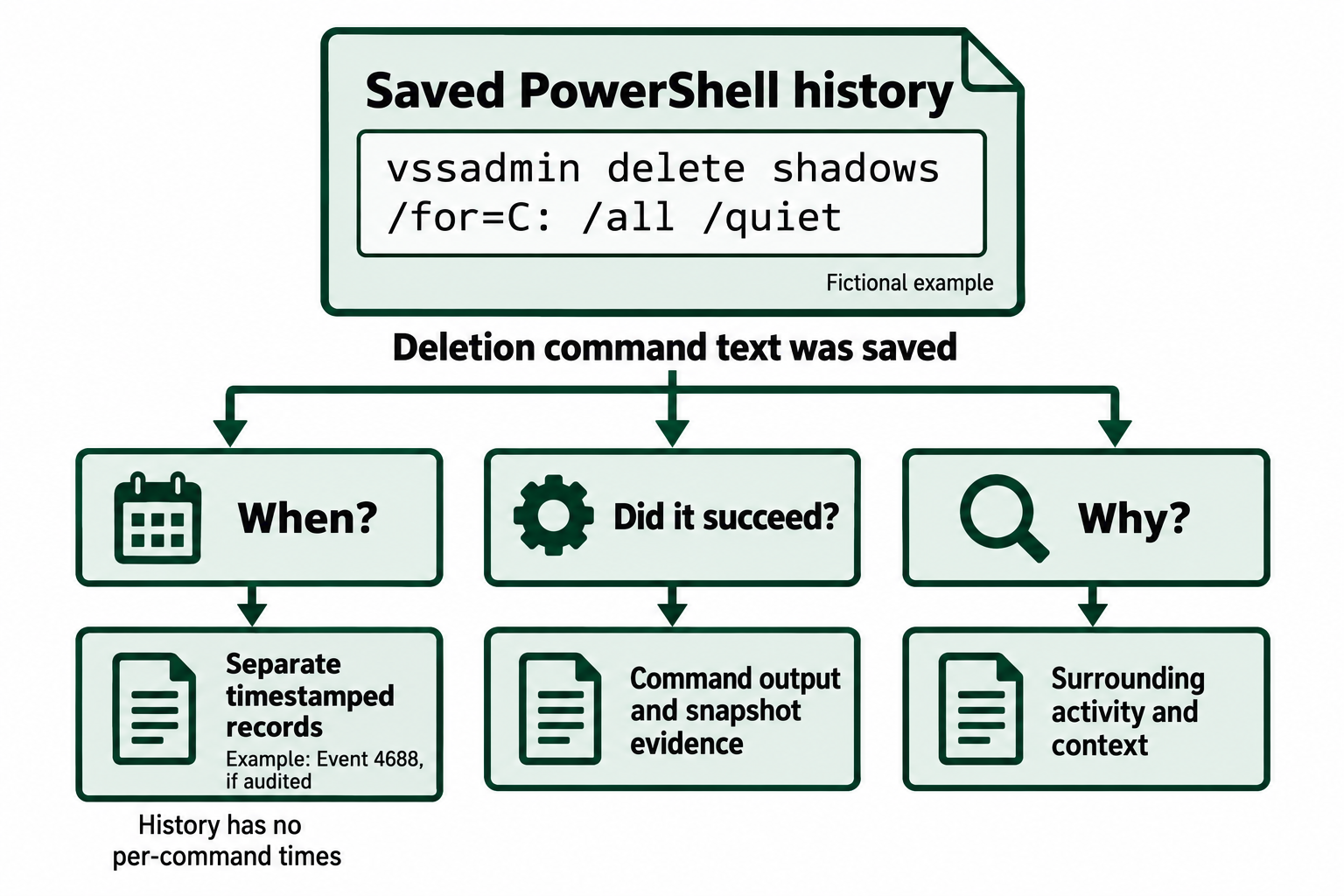
Figure 10.3: A saved command in the fictional PowerShell history supplies a lead. Timing, successful execution, and intent require additional evidence.
Text description of Figure 10.3
The fictional history contains a vssadmin command requesting shadow-copy deletion. Separate timestamped records, such as Security Event 4688 when process auditing was enabled, can help establish process-creation timing. Command output and snapshot evidence help evaluate execution and results. Surrounding activity helps interpret context. The saved command alone supplies neither a per-command timestamp nor proof that deletion succeeded or why it was attempted.
10.2 Virtual Drive File Examination
A virtual disk stores the contents of a disk in one or more files. A virtual machine (VM) is a software-created computer that may use such disks. The physical computer running it is the host. The operating system running inside it is the guest.
Virtual disks support ordinary work such as testing software and running another operating system. They may also contain evidence relevant to an investigation. Guest activity can leave artifacts inside the virtual disk, while the host may retain VM configuration files, logs, recent-file references, and other traces. The presence of a VM or encryption alone does not establish misuse.
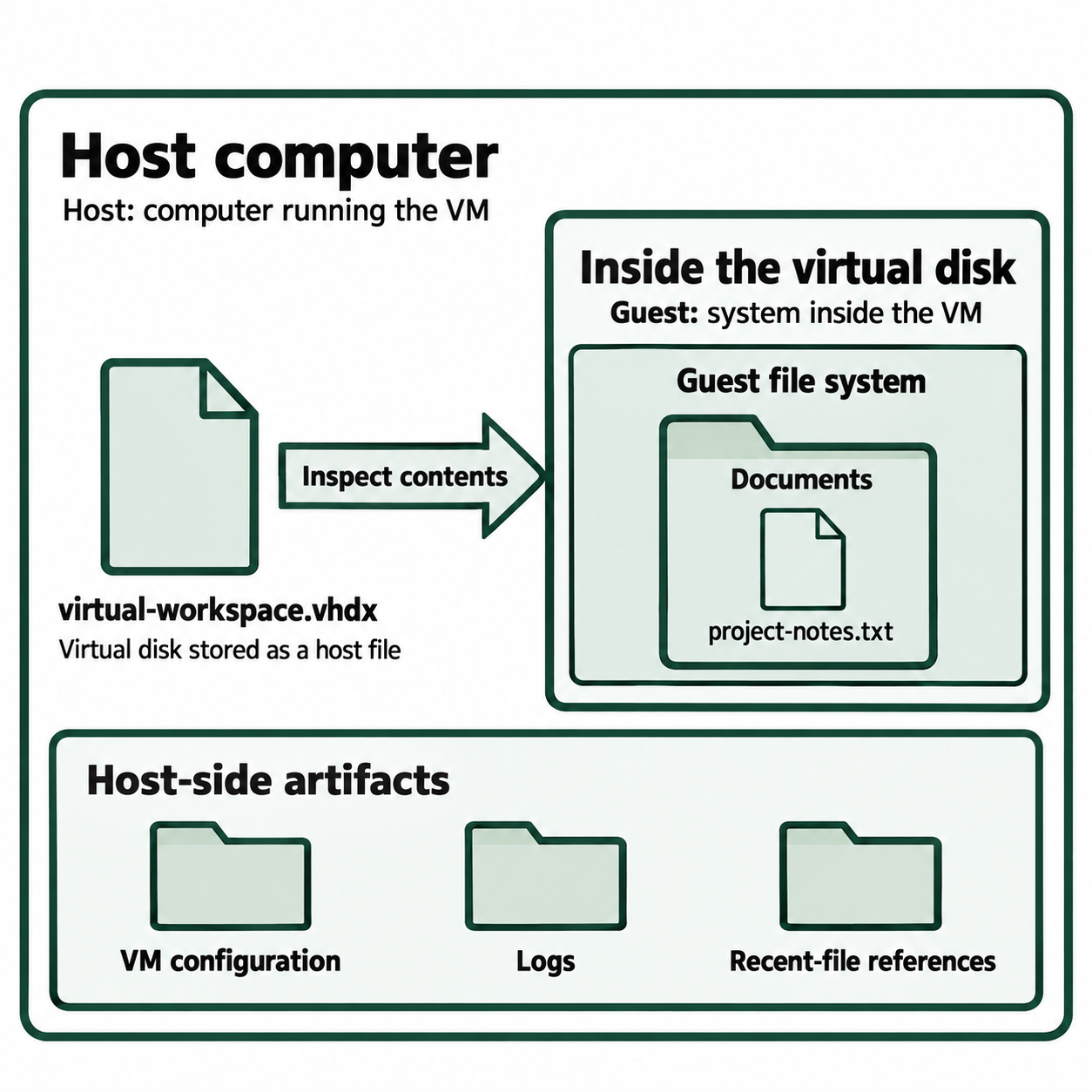
Figure 10.4: In this fictional example, a host file contains the guest disk's file system. Host-side records provide additional sources of evidence.
Text description of Figure 10.4
The host is the computer running the virtual machine. In this example, virtual-workspace.vhdx is a file on the host that stores the guest disk. Examining its contents reveals a guest file system with a Documents folder and project-notes.txt. The host may also retain VM configuration files, logs, and recent-file references. Inspecting the disk's files does not require starting the guest operating system.
Formats and Related Files
| Format | Typical use | Examination consideration |
|---|---|---|
Virtual Hard Disk (VHD), .vhd |
Microsoft virtual disks | May be fixed, dynamically expanding, or dependent on a parent |
Virtual Hard Disk v2 (VHDX), .vhdx |
Newer Microsoft virtual disks | Published format with fixed, dynamic, and differencing variants |
Virtual Machine Disk (VMDK), .vmdk |
VMware virtual disks | May need a descriptor plus separate data extents or snapshot files |
Virtual Disk Image (VDI), .vdi |
Oracle VirtualBox disks | May have associated differencing images from snapshots |
A fixed disk allocates its configured capacity when created. A dynamic disk can allocate more host storage as data is written. A differencing disk stores changes relative to a parent disk. To reconstruct its contents, the tool may need the parent and other members of the chain. Dynamic allocation does not mean the disk's contents are compressed.
Examining a Virtual Disk Read-Only
When working in a Windows environment with the Hyper-V PowerShell module installed, use Mount-VHD on a working copy. This example assumes a self-contained, unencrypted VHDX with a Windows-readable file system and sufficient permissions:
Mount-VHD -Path 'D:\Cases\Recovery\virtual-workspace.vhdx' -ReadOnly
The command attaches the virtual disk. Identify its volume in the examination tools and inspect the files it contains. A disk that needs a missing parent, unsupported file-system support, or a decryption key may not become browsable. Do not initialize or format an unrecognized evidence disk.
After examination, detach the working copy:
Dismount-VHD -Path 'D:\Cases\Recovery\virtual-workspace.vhdx'
Snapshots, Nested Disks, and Encryption
Collect related files before deciding that a disk is complete:
- VMware
.vmx: Configuration, including paths to virtual disks. - VMware
.vmsn: Snapshot state information. Memory inclusion depends on how the snapshot was taken, and related files may be required. - VMware snapshot disk files: Changes associated with particular disk states.
- Hyper-V
.avhdx: A differencing disk that depends on its parent chain. VM configuration and runtime state reside in other files.
A snapshot is a related set of data. Preserving the directory structure and parent relationships helps a tool reconstruct the intended state.
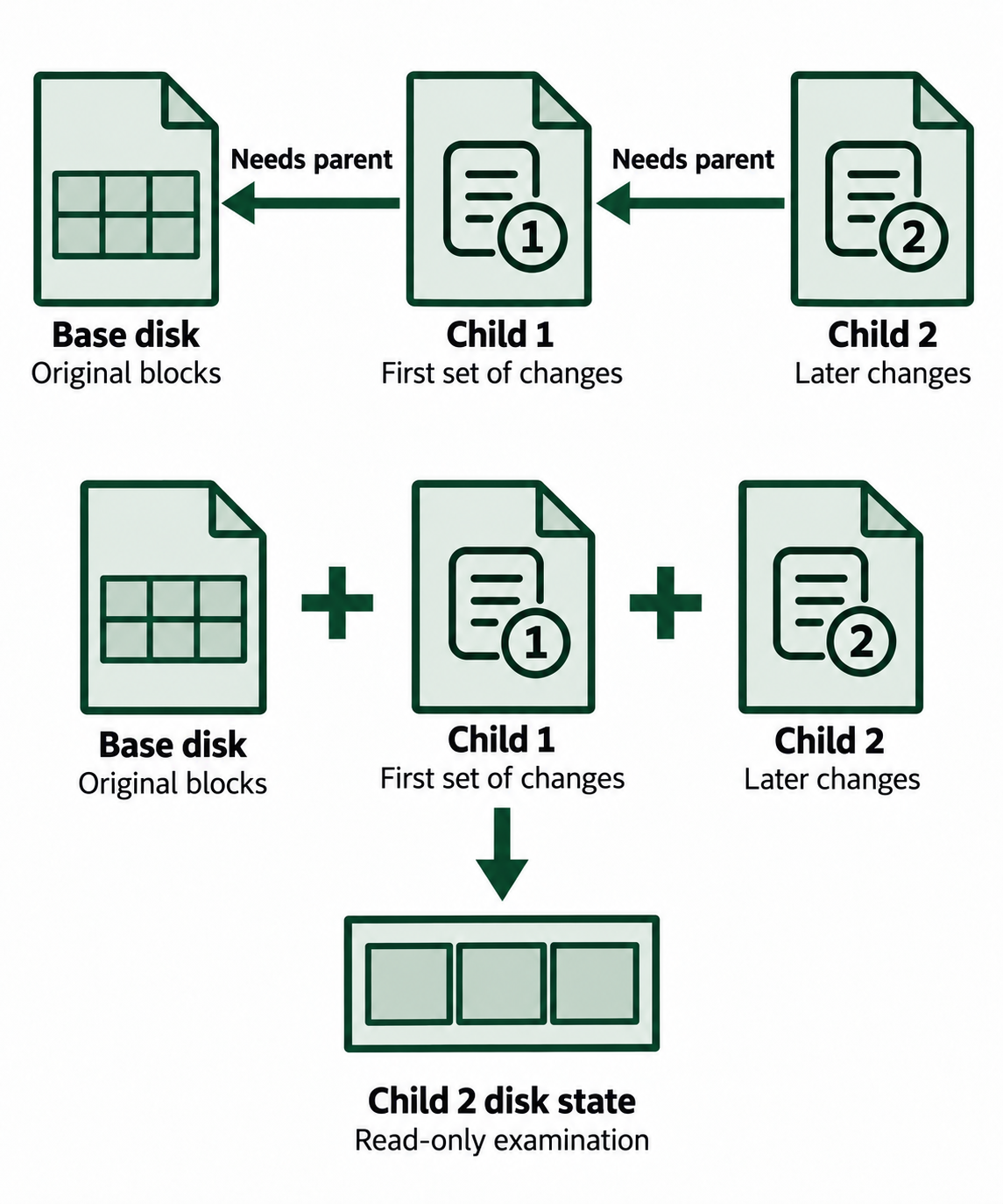
Figure 10.5: A differencing disk depends on its parent chain. Reconstructing the selected child state may require the base disk and each intervening child.
Text description of Figure 10.5
The base disk supplies original blocks. Child 1 stores changes relative to the base, and Child 2 stores later changes relative to Child 1. Dependency arrows point from each child to its parent. The lower diagram combines these sources into the selected Child 2 state for read-only examination. The combination represents a reconstructed view and does not require overwriting or destructively merging the source files.
A virtual disk can contain another disk-image file. Examine these nested storage layers one at a time, recording each extraction. Nested virtualization specifically means running virtualization software inside a VM.
10.3 Pagefile Analysis and Virtual Memory Forensics
Virtual memory gives programs their own memory address spaces. Windows maps those addresses to physical RAM and, when appropriate, backing storage. It divides memory into small units called pages. Windows can write some infrequently accessed modified pages to pagefile.sys so physical RAM is available for other work.
The pagefile may retain pieces of document text, messages, web addresses, or other application data. Paging is part of normal memory management. It can occur before physical RAM is completely exhausted. A pagefile also supports other functions, including some crash-dump configurations.
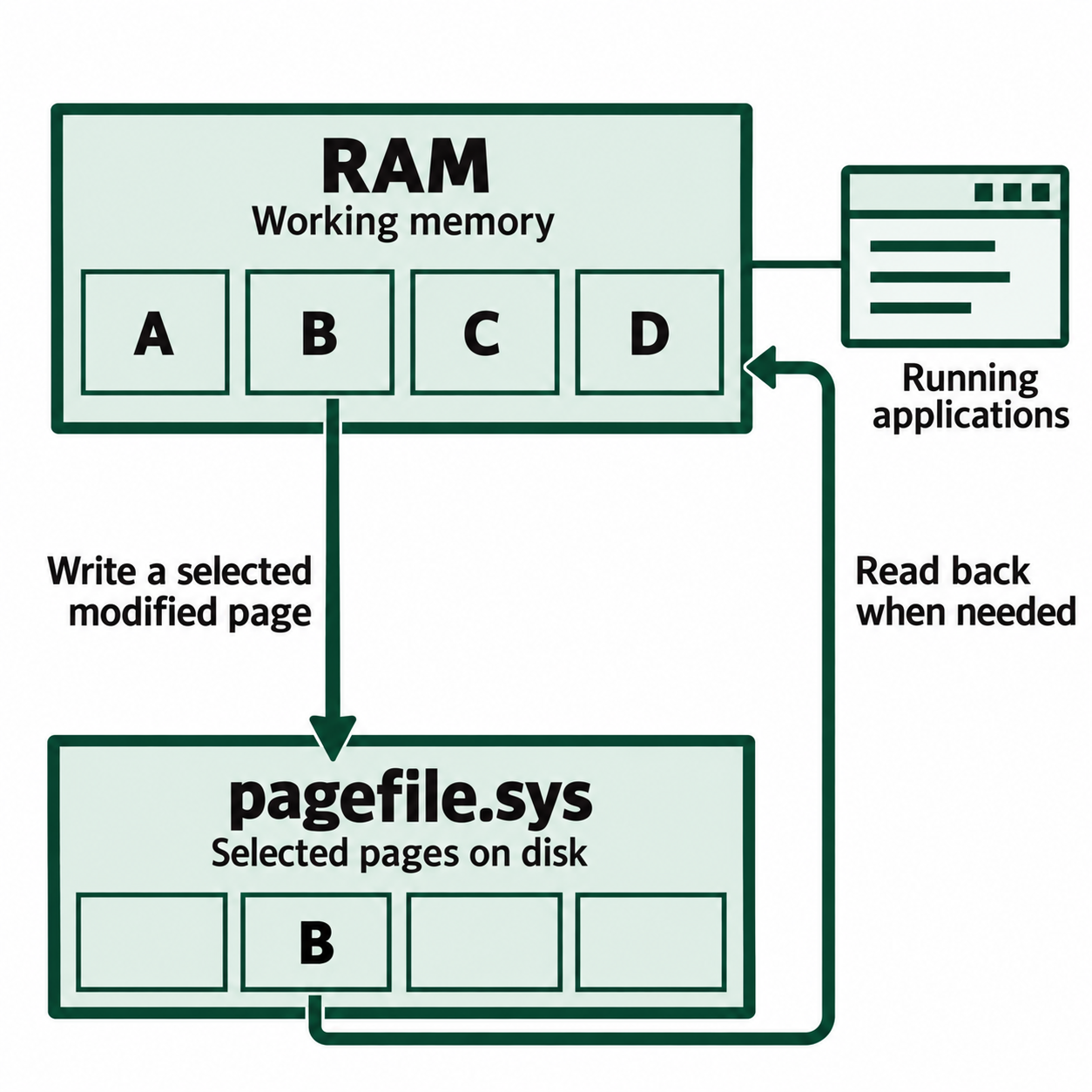
Figure 10.6: Windows can write selected modified memory pages to the pagefile and read them back when needed during normal memory management.
Text description of Figure 10.6
Applications use working memory in RAM. Windows may write a selected modified page, represented by B, to pagefile.sys on disk. It can read that page back into RAM when needed. Separate arrows show the write and later read. The diagram does not imply that paging requires completely full RAM or that the pagefile contains every memory page.
Locating and Preserving the Files
A common location is C:\pagefile.sys, but systems can use different locations, multiple pagefiles, or none. Modern Windows may also use C:\swapfile.sys for additional application-memory management. File sizes and allocation depend on configuration.
Export these files through a forensic tool that reads their logical contents from the image. Preserve their original paths and hashes. Live files may require an acquisition tool because ordinary copying can fail while Windows uses them.
Searching an Exported Pagefile
String extraction finds sequences of readable characters within binary data. When working in a Linux environment with GNU Binutils strings and grep installed, run these searches against an exported working copy:
strings -a -t x pagefile.sys | grep -i -F 'project-notes'
strings -a -t x -e l pagefile.sys | grep -i -F 'project-notes'
The first command searches ordinary single-byte text. The second checks a common Windows Unicode representation that stores text in two-byte units, with the lower-value byte first (little-endian order). -a scans the whole file, -t x reports hexadecimal offsets, -i ignores letter case, and -F treats the search term as literal text.
Simulated excerpt, created for this chapter:
1a240 C:\Users\Student\Documents\project-notes.txt
The offset identifies where the string begins in the exported pagefile. It identifies a location and provides no activity timestamp. Inspect nearby bytes in a hex editor and preserve enough context to explain the finding. Absence of a match does not establish that the file was never used.
A pattern scanner such as bulk_extractor can locate web addresses, email addresses, and other features across larger exports. These matches still require review. A standalone pagefile lacks enough context to serve as a complete RAM image. Tools supporting pagefile-backed reconstruction generally need a corresponding memory capture and compatible memory structures.
Example: Scanning a Pagefile with bulk_extractor
When working in a Linux environment with bulk_extractor installed, run the following command from the directory containing your exported working copy of pagefile.sys:
bulk_extractor -o pagefile_results pagefile.sys
The -o option names the results directory. Choose a new directory on your analysis storage for each independent scan. The tool reads pagefile.sys and writes its findings into pagefile_results. Available scanners, the components that recognize particular patterns, depend on the installed build. Use bulk_extractor -H to inspect them.
After the scan finishes, inspect the email-address and web-address results:
head -n 5 pagefile_results/email.txt
head -n 5 pagefile_results/url.txt
head -n 5 displays the first five lines of each file, which may include header information. The simulated excerpts below show selected result rows with headers omitted. Retain the complete result files and report.xml, which records information about the scan.
Simulated email.txt results, created for this chapter. Addresses are fictional, and surrounding context is shortened:
1048576 student@example.org To: student@example.org Subject: project notes
2097152 reviewer@example.org    Contact: reviewer@example.org for document review
5242880 support@example.org From: support@example.org Subject: account help
6291456 coordinator@example.org Reply-To: coordinator@example.org
7340032 records@example.org Send records to records@example.org
Simulated url.txt results, using fictional addresses under the reserved example.org domain:
3145728 https://files.example.org/project-notes.txt download=https://files.example.org/project-notes.txt
4194304 https://intranet.example.org/updates    link=https://intranet.example.org/updates
8388608 https://help.example.org/account    link=https://help.example.org/account
9437184 https://files.example.org/meeting-notes.txt download=https://files.example.org/meeting-notes.txt
10485760    https://portal.example.org/documents    link=https://portal.example.org/documents
Each record contains three fields separated by tab characters:
- Location: In these examples, a decimal byte offset from the beginning of the exported
pagefile.sys. This differs from the hexadecimal offsets in the earlierstringsexample. Matches in decoded data can have longer location paths that also identify the decoding steps. - Feature: The matched email address or web address.
- Context: Nearby text that helps explain where the match appeared.
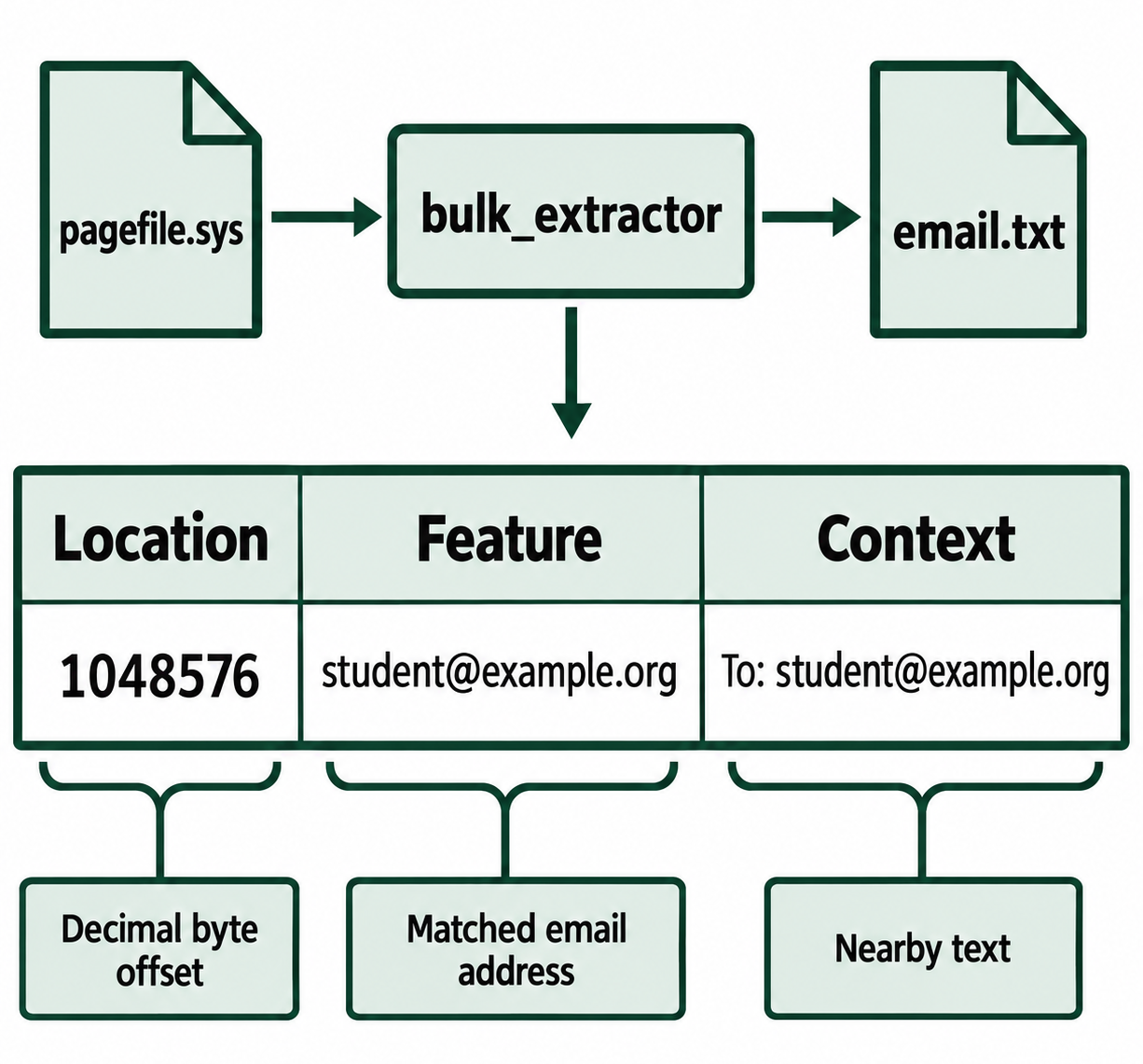
Figure 10.7: A fictional bulk_extractor result separates the byte location, matched feature, and surrounding text. Its offset identifies a position in the input.
Text description of Figure 10.7
The input is an exported pagefile.sys, and bulk_extractor produces an email.txt result file. In the shortened fictional row, 1048576 is the decimal byte offset in the exported input. The feature is student@example.org, and the nearby context is To: student@example.org. The address uses the reserved example.org domain. A matched address and surrounding text require interpretation and do not by themselves prove that a message was sent.
Interpreting Pagefile Findings
A document name could come from an application, a recent-file list, or background processing. Text found in the pagefile does not by itself identify a user, prove deliberate typing, or establish when the data entered memory. Sensitive material may survive, but recovery depends on whether those pages were written, retained, and accessible.
Pagefile contents are not always available as plaintext. Windows supports paging-file encryption, and disk encryption can protect the volume containing the file.
The ClearPageFileAtShutdown value under HKLM\SYSTEM\CurrentControlSet\Control\Session Manager\Memory Management can request clearing during shutdown. A sudden power loss may prevent that process. Record the setting and observed file contents separately. Missing or cleared pagefiles can reflect normal administration or privacy settings. Neither condition independently establishes evidence destruction.
10.4 Hibernation File (hiberfil.sys) Analysis
Hibernation saves memory state needed to resume Windows, usually in C:\hiberfil.sys. This can preserve evidence after power is removed. The saved state relates to the hibernation event, which may have occurred well before acquisition.
The file contains structured, often compressed data. Its size depends on Windows configuration, compression, and the hibernation-file type. It is not reliably calculated as installed RAM plus a fixed overhead, and file size alone does not show how much useful evidence survives.
Sleep, Hibernation, and Fast Startup
| State | Memory handling | Examination implication |
|---|---|---|
| Conventional sleep | Keeps RAM powered | Sleep alone does not establish that a new hibernation file exists |
| Hibernation | Saves state for resuming the system and user sessions | May preserve application and system evidence from that event |
| Hybrid sleep | Combines sleep with a saved hibernation state | Check which state and saved data are actually present |
| Fast Startup shutdown | Logs off users and saves kernel state | Generally provides less user-session context |
The kernel is the operating-system core that manages memory, devices, and processes. Fast Startup, introduced with Windows 8, preserves kernel-related state after users are logged off. A reduced hibernation file supports Fast Startup. A full hibernation file can also support ordinary hibernation and hybrid sleep. The word “full” describes the supported mode and does not guarantee recovery of every physical memory page.
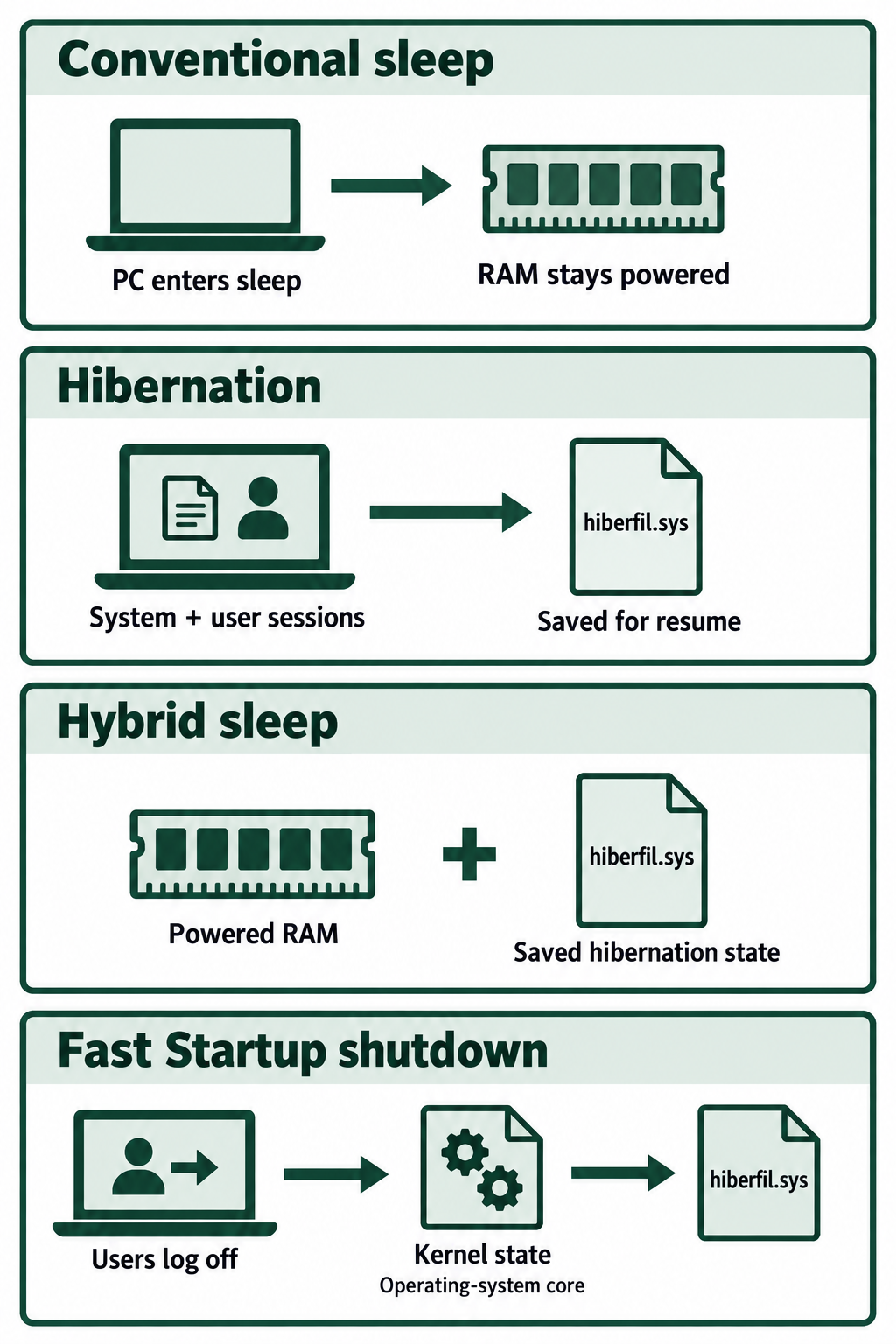
Figure 10.8: Sleep, hibernation, hybrid sleep, and Fast Startup preserve different kinds of state. Those differences affect which memory-related evidence may survive.
Text description of Figure 10.8
Conventional sleep retains state in powered RAM. Hibernation saves state needed to resume the system and user sessions in hiberfil.sys. Hybrid sleep combines powered RAM with saved hibernation state. During Fast Startup shutdown, users are logged off before Windows saves kernel-related state. The kernel is the operating-system core. Saved-state contents depend on configuration and support; the diagram does not promise that every physical memory page survives.
On an authorized live system, powercfg /a reports available sleep states and can help identify hibernation support. In offline examination, inspect the file and relevant settings together. For example, HiberbootEnabled under HKLM\SYSTEM\CurrentControlSet\Control\Session Manager\Power concerns Fast Startup, while hibernation configuration also appears under Control\Power.
Reconstructing Memory for Analysis
In a Windows environment, Arsenal Hibernation Recon provides a documented route from an exported hiberfil.sys to reconstructed memory. Its free mode supports active-memory reconstruction, including Windows 10 and 11 hibernation files. Its paid features extend recovery into additional areas. Check the installed release's support for the source Windows version and architecture.
- Export and hash
hiberfil.sysfrom the forensic image or a suitable acquisition. - Process a working copy with Hibernation Recon and save the results in a separate folder.
- Retain the reconstruction report, any reported time information, warnings, and output hashes.
- Open a supported reconstructed memory output in Volatility 3 or MemProcFS.
- Compare recovered processes and other artifacts with disk evidence.
A successful reconstruction provides the pages recoverable from that file. Missing data or an unsupported format can limit later analysis. Searching the original compressed file with strings alone may miss text that becomes readable after reconstruction. See Hibernation Recon's supported features.
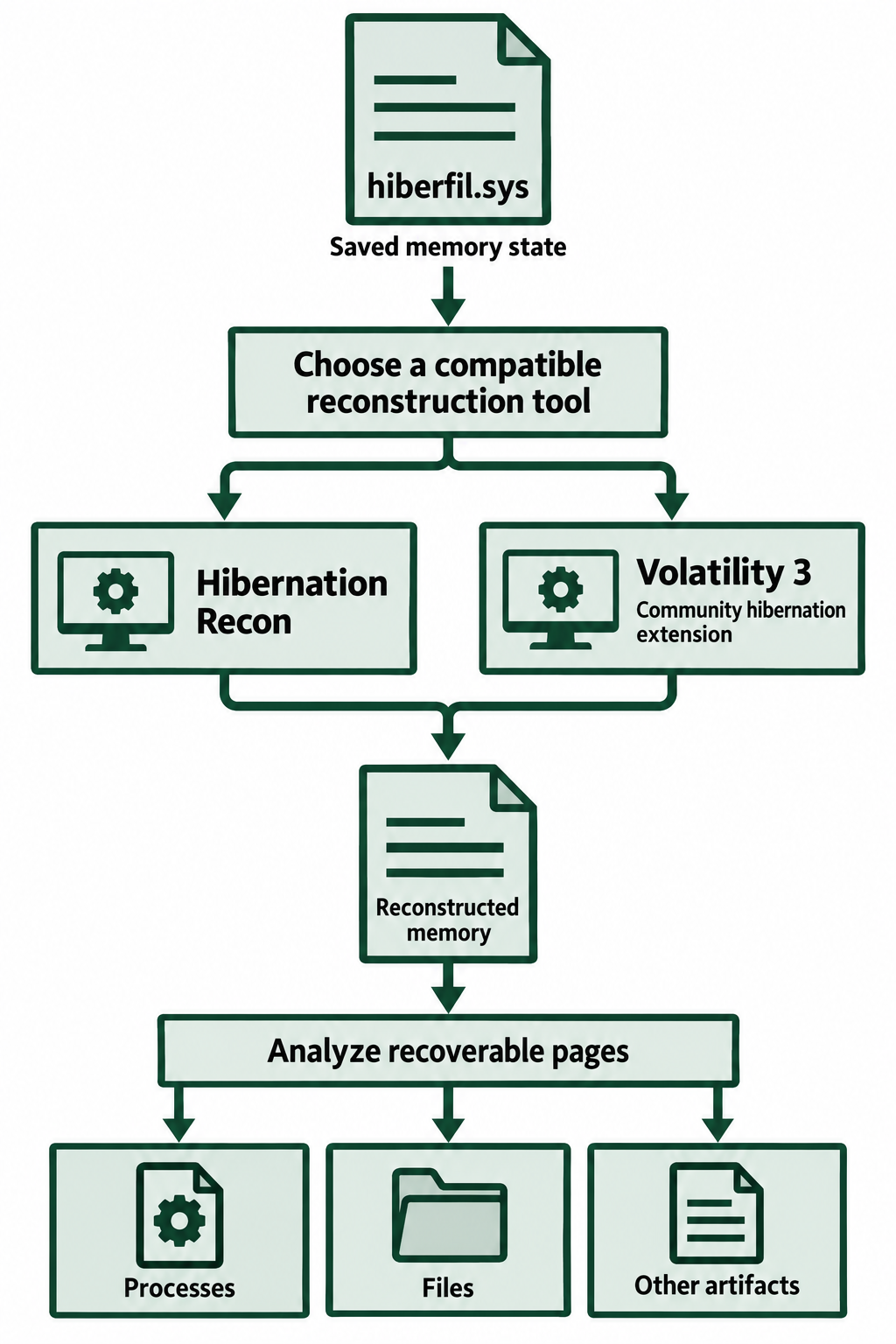
Figure 10.9: A compatible reconstruction tool converts saved hibernation data into memory that analysis tools can examine. The two branches represent alternative tools.
Text description of Figure 10.9
Begin with an exported working copy of hiberfil.sys. Choose a reconstruction tool compatible with the source system and saved format. Hibernation Recon and the Volatility 3 community hibernation extension are alternatives, rather than successive steps. Analyze the reconstructed output with a compatible memory tool for processes, files, and other recoverable artifacts. Reconstruction may leave gaps, and the community extension requires an installation that includes it.
Converting a Hibernation File with the Volatility 3 Community Extension
Volatility 3 can reconstruct a raw memory image when it includes the community hibernation extension. A raw memory image stores reconstructed memory bytes at their physical memory offsets.
The commands below assume an exported full hibernation file from 64-bit Windows 10 22H2. Run them from that development version's source directory on a Linux analysis workstation. Preserve the original file and use an exported working copy.
-
Check the available options and inspect the header. A Volatility plugin is an analysis function. These two plugins belong to the community extension:
python3 vol.py windows.hibernation.Dump --help python3 vol.py -f /cases/recovery/hiberfil.sys windows.hibernation.InfoInforeports basic header information, including the file signature and saved system time when available. Review its messages before conversion. A recognizable header does not establish that all compressed memory data is intact. If Volatility does not recognize these plugin names, the required extension is unavailable in that installation. -
Convert the working copy. Create a new output directory on your analysis storage, then run the conversion:
mkdir /cases/recovery/hibernation-output python3 vol.py -f /cases/recovery/hiberfil.sys -o /cases/recovery/hibernation-output windows.hibernation.Dump --version 0-fidentifies the input file, and-oselects the output directory. In this extension,--version 0selects the hibernation layout used by the Windows 10 22H2 example. Choose this value from the examined computer's Windows version. Consult the plugin's help for other supported layouts. The option does not refer to the Volatility version.Successful conversion writes
memory_layer.rawinto the output directory. -
Examine the reconstructed image. Point Volatility 3 at the new file:
python3 vol.py -f /cases/recovery/hibernation-output/memory_layer.raw windows.info python3 vol.py -f /cases/recovery/hibernation-output/memory_layer.raw windows.pslistwindows.inforeports Windows and memory-layer information.windows.pslistlists processes recoverable through the process list. Volatility may need matching Windows symbols, descriptions of operating-system structures used to interpret memory.
10.5 Integrated Memory Evidence: RAM Capture and Correlation with Disk
A live RAM capture can preserve running processes, open-object references, network information, document fragments, and sometimes encryption material. Acquisition takes time while the computer continues operating. The collection tool also uses memory. Memory smear describes changes made by the running system during collection, which can leave inconsistencies in the resulting image. See the NIST definition.
Choosing and Documenting Acquisition
When a computer is running, consider RAM collection before actions that would discard its current state, especially when active malware or accessible encrypted data matters. Follow the examination authority and approved procedure. If the computer is already off, preserve disk-based sources. Starting it creates new activity and does not recover its former live RAM contents.
When conducting an authorized examination of a running Windows system, a compatible release of FTK Imager offers a memory-capture function:
- Document the computer's state, displayed time, and intended collection.
- Use the approved tool build with the necessary permissions and a separate output destination.
- Select the memory-capture function and record acquisition start and end times.
- Preserve the output, record errors and its hash, and analyze a working copy.
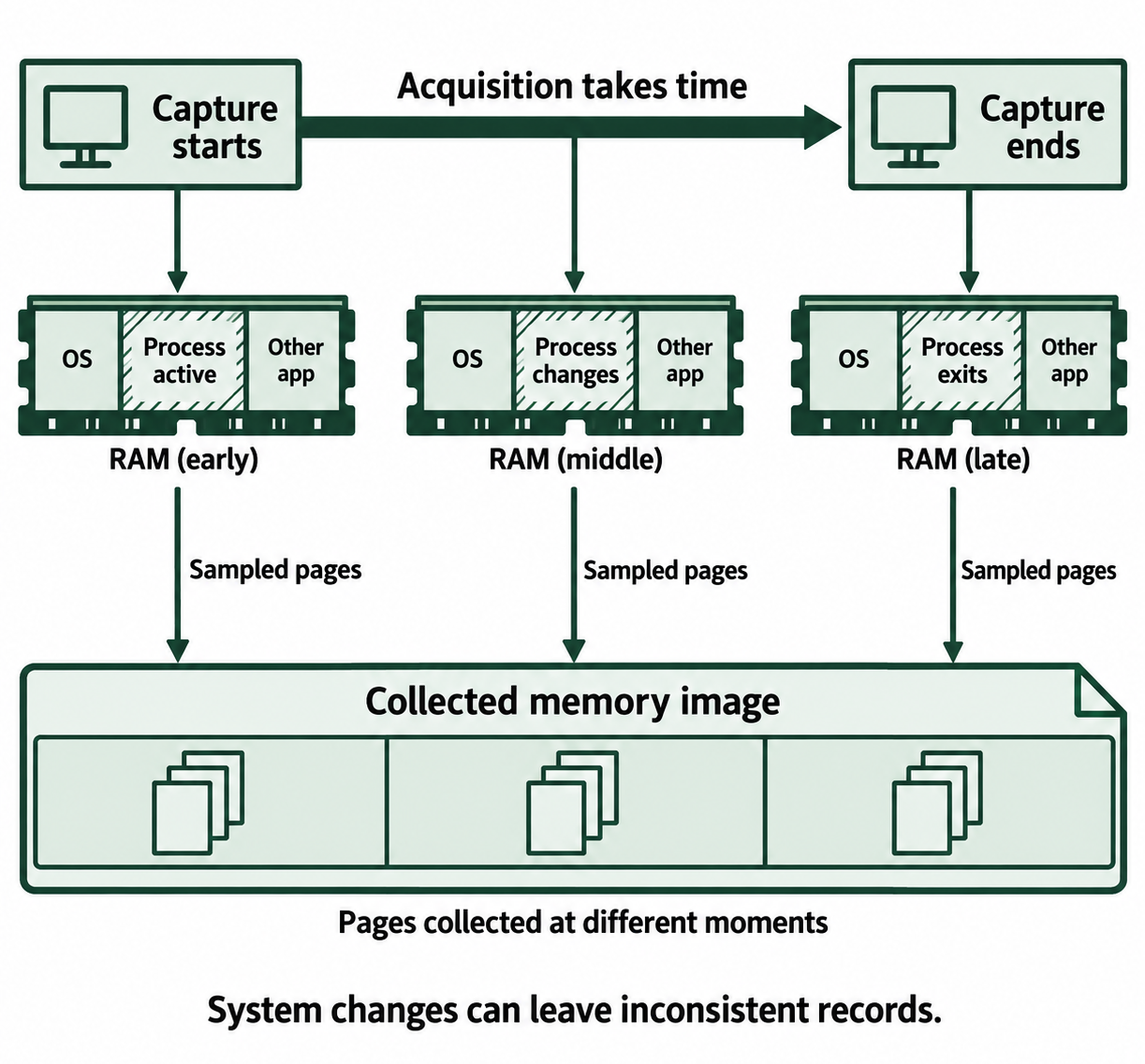
Figure 10.10: A RAM acquisition collects pages while the system continues running. The fictional process changes illustrate how memory smear can produce inconsistent records.
Open Figure 10.10 at full size
Text description of Figure 10.10
One acquisition spans a period of time. The blocks labeled OS represent the operating system. In this fictional example, a process is active early, changes during collection, and exits later. The capture contains pages collected at different moments while the system and acquisition tool continue operating. These changes can leave inconsistent records, a condition called memory smear. The diagram is a conceptual sequence and makes no claim about a particular capture duration or page-reading order.
Reading a Capture with MemProcFS
MemProcFS presents memory-analysis results as mounted folders and files. On a Windows analysis workstation, use the current MemProcFS 5-series package and its required Dokany 2 mounting component. From the tool's directory, this PowerShell example opens an existing Windows memory capture:
.\memprocfs.exe -device 'D:\Cases\Recovery\ram.raw'
The tool normally mounts its view at M:. It may need matching Windows symbols, descriptions of operating-system structures used to interpret memory. Before working offline, prepare the software components and supporting files the tool requires.
Illustrative partial directory listing: Process identifier 2480 is fictional. Actual processes and available files depend on the capture.
M:\
  pid\
    2480\
      name.txt
      win-path.txt
      win-cmdline.txt
      memory.vmem
A process identifier (PID) is the number assigned to a running process. Start with its name, executable path, and command line. memory.vmem exposes a view of its virtual memory. These details help guide further examination but do not independently establish that a process is malicious.
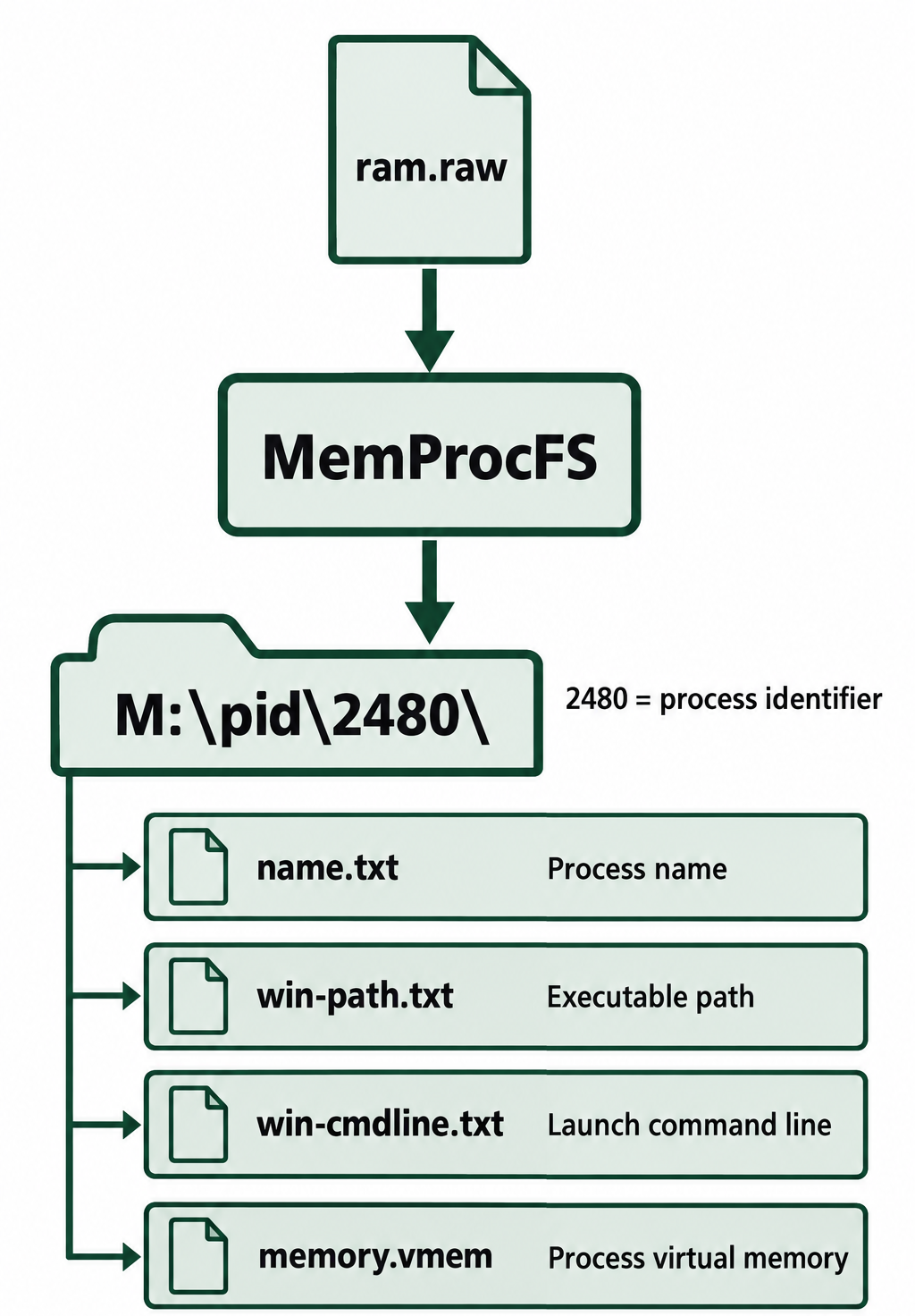
Figure 10.11: MemProcFS presents analysis results as folders and files. This illustrative view uses the chapter's fictional process identifier, 2480.
Open Figure 10.11 at full size
Text description of Figure 10.11
After opening ram.raw, MemProcFS exposes a mounted view. Under M:\pid\2480\ in this fictional example, name.txt gives the process name, win-path.txt gives its executable path, and win-cmdline.txt gives its launch command line. memory.vmem exposes that process's virtual memory. It is distinct from the whole input capture. Actual process identifiers and available results depend on the evidence and tool support.
Volatility3 Plugins for Memory Analysis
Volatility 3 uses plugins, individual analysis functions, to examine particular structures or artifacts in a memory image. Choose a plugin according to the question you need to answer, such as which processes existed, which files they referenced, or which network connections appear in memory. The following Windows plugins are common starting points. The windows. prefix identifies the operating system represented in the evidence, even when you run Volatility on a Linux workstation.
These names follow the Volatility 3 version 2.28.2 documentation. Each plugin needs compatible Windows structures and any required symbols. Click a plugin name for its official reference.
| Plugin | What it examines | How to interpret the results |
|---|---|---|
windows.info |
Reports Windows version, kernel, and memory-layer information. | Start here to check whether Volatility can interpret the image. Success does not validate every memory page. |
windows.pslist |
Lists processes through Windows' process list. | Establish process names, PIDs, and available creation or exit times. The list may omit processes whose records are no longer linked. |
windows.pstree |
Arranges processes by their recorded parent PIDs. | Trace relationships between programs. Check times because Windows can reuse process identifiers. |
windows.psscan |
Searches memory for process records independently of the process list. | Compare with pslist to find additional records, including remnants of terminated processes. A difference alone does not prove concealment. |
windows.cmdline |
Retrieves command-line text stored for processes. | Examine program paths and launch arguments. Interactive command history requires separate evidence. |
windows.dlllist |
Lists recorded dynamic-link libraries (DLLs), shared code modules loaded by a process. | Review module names and paths. An unfamiliar library requires investigation before classifying it as malicious. |
windows.handles |
Lists handles, references a process uses to access files, Registry keys, and other operating-system objects. | Associate a process with an object. A handle alone does not prove a particular read, write, or user action. |
windows.netscan |
Scans for network records, including addresses, port numbers, connection states, and owning processes when available. | Review each record's state and context. Results can include remnants of closed connections. |
windows.filescan |
Scans for file objects, Windows memory structures that describe files. | Find candidate filenames and object locations. A file-object match does not guarantee that the file's contents remain in memory. |
windows.dumpfiles |
Exports recoverable cached file contents, file data retained in memory. | Recover candidate documents or other files for examination. Missing pages can produce incomplete exports. |
windows.registry.hivelist |
Lists Registry hives, collections of Windows configuration keys and values, present in memory. | Locate the hives available for further Registry examination. |
windows.registry.printkey |
Displays Registry keys and values from an available hive. | Inspect a selected configuration location. Only data recoverable from the memory image is available. |
windows.cmdscan |
Searches for Windows command-history structures in memory. | Recover command text when supported history structures survive. Support depends on the Windows and console versions. |
windows.consoles |
Searches for console buffers, areas of memory holding console text and related information. | Look for retained commands and displayed output. Results depend on the console implementation and surviving data. |
windows.malware.malfind |
Flags process-memory regions that may contain injected code, code placed inside another process. | Use matches as leads for closer examination. Legitimate software can also produce matching memory patterns. |
Example: examining a selected process. From the Volatility 3 source directory on a prepared Linux analysis workstation, use an existing working copy of a memory image:
python3 vol.py -f /cases/recovery/ram.raw windows.info
python3 vol.py -f /cases/recovery/ram.raw windows.pslist
python3 vol.py -f /cases/recovery/ram.raw windows.cmdline --pid 2480
-f identifies the memory image. The first command reports system information, and the second provides a process inventory. The final command restricts command-line results to PID 2480, a fictional example. Substitute a PID found in your own results. For a reconstructed hibernation image, replace ram.raw with the reconstructed file's path.
Plugin options vary. View the installed plugin list and a particular plugin's options with:
python3 vol.py --help
python3 vol.py windows.dumpfiles --help
Begin with the system and process results, then follow relevant leads into command lines, files, network records, or Registry data. Compare findings across plugins and disk artifacts. A missing result may reflect missing memory pages or unsupported structures. Record the image, plugin, options, and available timestamps for each finding. The Volatility 3 Windows tutorial provides additional command examples.
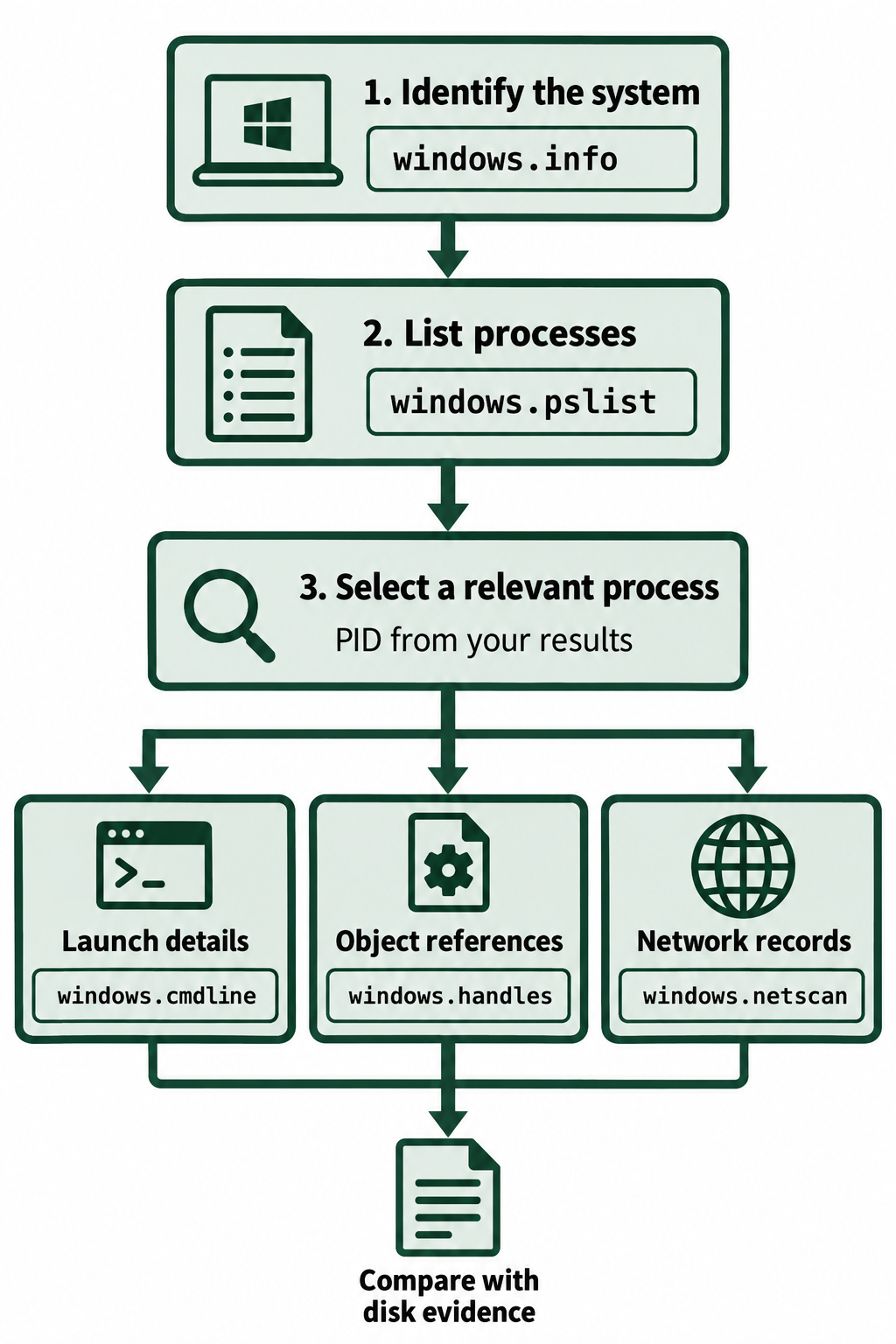
Figure 10.12: A focused Volatility 3 workflow starts with system and process information, then follows relevant leads and compares them with disk evidence.
Open Figure 10.12 at full size
Text description of Figure 10.12
Use windows.info to inspect the system and memory-layer information, then windows.pslist for a process inventory. Select a relevant process identifier from the results. Example follow-up directions include windows.cmdline for launch details, windows.handles for object references, and windows.netscan for network records. Examine records relevant to the process and compare findings with disk artifacts. Plugin support and options differ, and available records may be incomplete or retained after activity ended.
Encryption Material and Recovery Limits
Encryption uses working keys to process protected data. Those keys may be present while a volume is accessible, but their storage and protection depend on the software and system.
For BitLocker, specialized memory plugins can search kernel allocations for the Full Volume Encryption Key (FVEK), the key used to encrypt volume data. This method differs from retrieving a saved recovery password. Plugins may require separate installation and support only particular Windows versions.
For VeraCrypt, working keys are associated with its encryption driver. Do not assume that the application's process memory contains an extractable key. Optional RAM encryption and other protections can further limit recovery. The BitLocker plugin documentation and VeraCrypt memory documentation describe these dependencies.
A candidate key requires validation against the correct encrypted volume using compatible software. Successful decryption still requires the relevant disk data to be available. Do not promise recovery of all protected files or all secrets from a memory image.
Fictional Case: Combining Findings
The examiner brings together the workstation's earlier findings:
| Observation | Supported interpretation |
|---|---|
| Two shadow copies contain different document versions | Those contents existed in the respective snapshots |
| The virtual disk contains a matching copy | Another copy exists within the examined guest disk |
| The pagefile contains the document's path | That text survived in the exported pagefile |
| Reconstructed hibernation data contains relevant application records | Those records were recoverable from the saved state |
| Other records associate activity with an account | Evaluate the account, action, and time using those records' specific meanings |
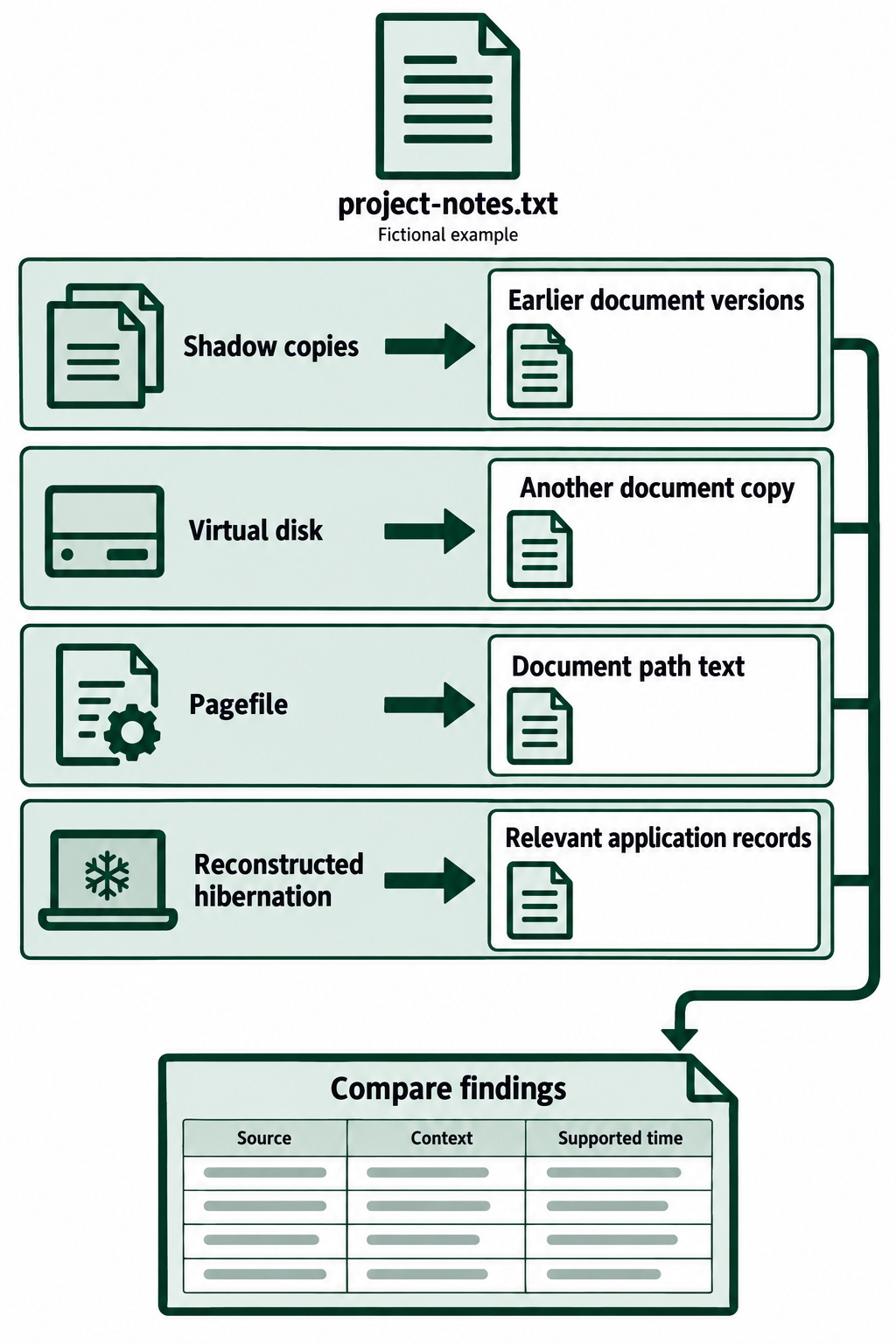
Figure 10.13: The fictional project-notes.txt case combines four sources while retaining each observation's source, context, and supported time information.
Open Figure 10.13 at full size
Text description of Figure 10.13
In the fictional case, shadow copies contain earlier document versions, the virtual disk contains another copy, the pagefile contains document-path text, and reconstructed hibernation contains relevant application records. All four sources feed into comparison of the source, context, and defensible time information. Similar matches may reflect copies of the same data. The diagram does not assign a user, event time, or intent that the individual records cannot support.
If the case also includes an encrypted container, distinguish the outer file's activity from its internal contents. The New Technology File System (NTFS) Master File Table (MFT) holds file records and timestamps. Its Update Sequence Number (USN) change journal, $UsnJrnl, records categories of change to files. An outer container's change record does not identify which internal document was added or edited. Fixed-size containers can change internally without growing.
Windows Security Event 4688 records process creation when the corresponding auditing was enabled. Including command-line arguments requires another policy setting. Starting VeraCrypt does not by itself establish that a particular container was mounted successfully. Combine relevant records with direct examination of accessible container contents. See Microsoft's USN record definition and process-auditing requirements.
Searching and Reporting Across Sources
Use a focused keyword list containing relevant filenames, paths, project terms, and addresses. Search exported files, reconstructed memory, and parsed disk artifacts. Searching unallocated space can locate additional fragments. File carving, covered in Chapter 7, reconstructs candidate files from their content or structure and is a separate technique from keyword matching.
Record each hit's source, location, surrounding context, and any defensible time information. Include time-zone handling in a combined timeline. A file offset supplies a location and cannot supply a missing event time. Matches across sources may reflect copies of the same data, so explain whether each source contributes additional context.
10.6 Reference: Choosing an Examination Method
| Source | Starting method | Main limitation |
|---|---|---|
| Shadow copies | Enumerate preserved snapshots with a VSS-aware tool | Only retained, reconstructable snapshot states are available |
| Virtual disk | Preserve related files and access the intended state read-only | Missing parents or encryption can prevent access |
| Pagefile | Export logical contents and search text or patterns | User, process, and time context may be missing |
| Hibernation file | Reconstruct supported saved memory before structured analysis | Mode, version, compression, and missing pages affect recovery |
| Live RAM | Acquire with a compatible capture tool, then analyze a copy | Collection changes memory and may contain inconsistencies |
Tool support changes. Confirm that your tool versions support the evidence being examined, check their documentation, and record limitations encountered during examination.
Chapter Summary
Advanced recovery extends examination to earlier volume states, virtual disks, and memory-related evidence. Shadow copies can supply older file versions. Virtual disks may contain additional file systems and artifacts. Pagefiles preserve selected memory fragments, while hibernation files preserve state associated with an earlier power transition. Live RAM capture provides evidence from a running system during acquisition.
For each finding, record its source, extraction method, and available context. Compare related evidence and explain what remains uncertain. Successful recovery and accurate interpretation are both part of the examination.
Connection to next chapter: Chapter 11 examines internet and cloud artifacts, including browser records, email, local cloud-sync traces, and authorized access to remote data. Those sources can add context to the file and memory findings developed here.